


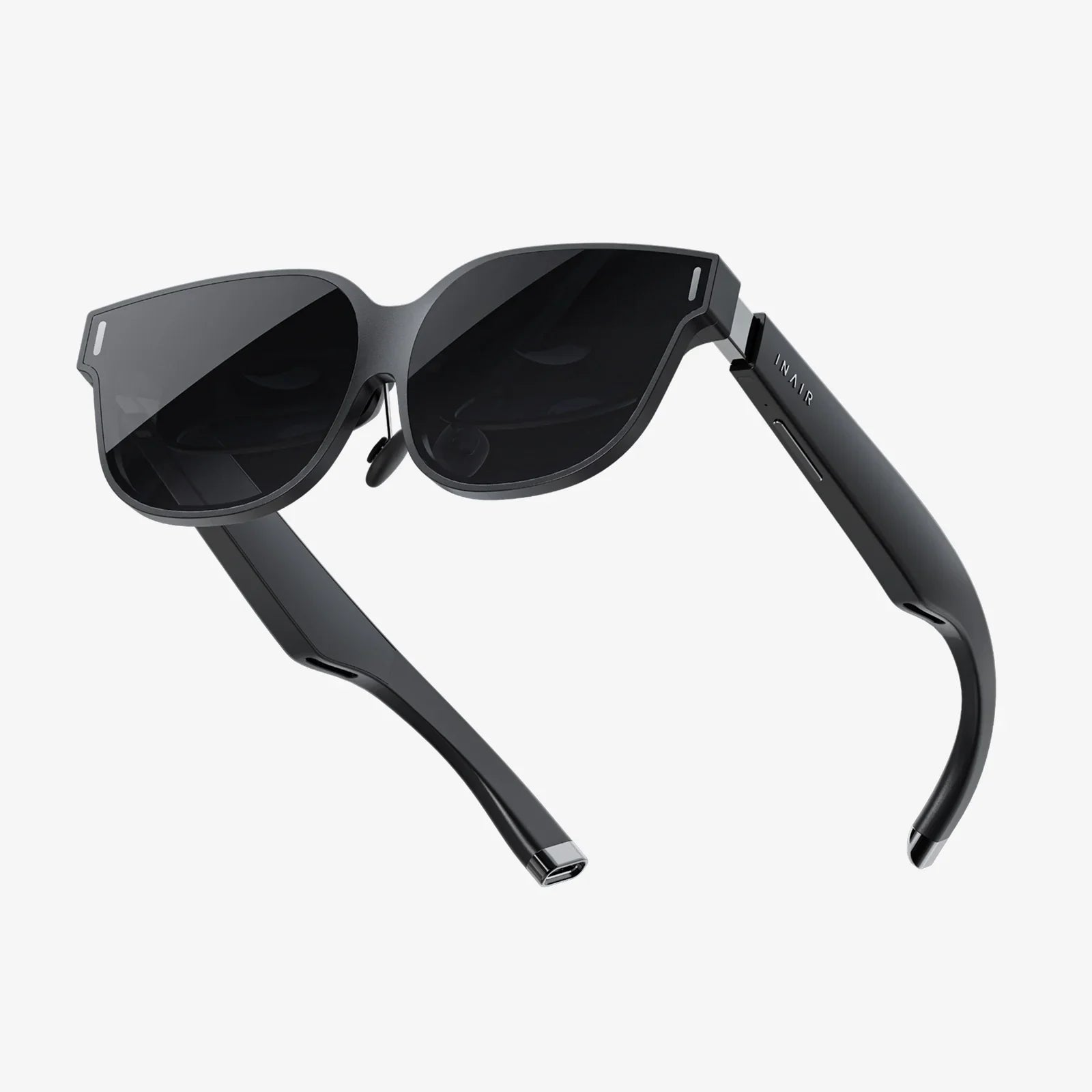
If your acer windows mixed reality headset cables are glitchy, too short, or constantly disconnecting, your entire VR experience can go from breathtaking to frustrating in seconds. The good news is that most cable-related issues are preventable once you understand how these connections work, what causes common failures, and which practical habits keep everything running smoothly for the long term.
Mixed reality headsets rely heavily on stable, high-bandwidth connections between the headset and your PC. Unlike simple peripherals, these devices push video, audio, and tracking data all at once, which means the quality and condition of your cables directly affect performance. Whether you are setting up a new headset, replacing a damaged lead, or trying to squeeze more life out of your current setup, paying attention to your acer windows mixed reality headset cables is one of the smartest upgrades you can make.
Why acer windows mixed reality headset cables matter so much
Mixed reality headsets are demanding devices. They render high-resolution visuals at fast refresh rates while tracking head movement, controllers, and environmental cues in real time. All of this information flows through your cables. When the cable is damaged, too long, poorly shielded, or not fully compatible with your PC, you will see the results instantly as:
- Random black screens or visual flickering
- Audio dropouts or crackling
- Tracking jitter or sudden freeze-ups
- Headset disconnects when you move a certain way
- Error messages about USB or display connection issues
Because of this, your acer windows mixed reality headset cables are not just accessories; they are core components of the system. Treating them as such, and understanding their technical requirements, will save you time, money, and frustration.
Understanding the typical cable setup
Most Windows mixed reality headsets use a combination cable that includes both video and data lines. The headset end usually has a proprietary or specialized connector, while the PC end breaks out into separate plugs. A common setup includes:
- One high-bandwidth video connection (often HDMI or DisplayPort via an adapter)
- One USB 3.x connection for data and power
- A breakout section where the single headset cable splits into these two PC-side connectors
Some headsets use a single cable with a custom connector on the PC side, but the internal concept is similar: video plus data plus power must all travel reliably between your PC and the headset. When planning or troubleshooting your acer windows mixed reality headset cables, it helps to think of them as two distinct systems bundled together:
- The video path (carries image data)
- The USB path (carries tracking, audio, and sometimes power)
If either path is unstable, the entire experience suffers. This is why you can sometimes see the headset power on but show no image, or show an image but refuse to track correctly.
Minimum requirements for stable cable performance
To keep your acer windows mixed reality headset cables running reliably, your PC and ports must meet certain minimum requirements. While exact specs vary by headset model, the following guidelines apply broadly:
Video connection requirements
- A dedicated video output from a discrete graphics card is strongly recommended.
- The port should support the required resolution and refresh rate of your headset (often 90 Hz).
- A direct connection to the graphics card is preferable over adapters or docking stations.
- If an adapter is necessary, it should support high-bandwidth video standards, not just basic display output.
USB connection requirements
- USB 3.0 or newer is typically required for full tracking performance.
- Ports connected directly to the motherboard tend to be more reliable than front-panel hubs.
- High-power ports are beneficial if the headset draws significant power over USB.
- Avoid using unpowered USB hubs between the PC and the headset cable.
Even if your PC is powerful, weak or overloaded ports can undermine the entire system. Before blaming the headset, verify that the ports feeding your acer windows mixed reality headset cables are up to the task.
Common problems with acer windows mixed reality headset cables
Most users eventually experience at least one cable-related issue. Recognizing the symptoms quickly helps you narrow down the cause and apply the right fix. Here are the most common problems and what they usually mean.
1. Headset disconnects when you move
If your headset works when you stand still but disconnects or flickers when you turn your head or step away, you are likely dealing with:
- A loose connector at the headset end or PC end
- A partially broken internal wire near a stress point
- An overly tight cable route that pulls on the connectors during movement
Frequent bending near the connectors is a major culprit. The cable may look fine on the outside but be damaged inside.
2. No display, but the headset lights up
If the headset powers on but shows no image, consider:
- A faulty or incompatible video adapter
- A video port on the GPU that does not support the required standard
- A damaged video line within the cable bundle
- Incorrect display settings in your operating system or mixed reality portal
Because the USB line can still supply power, it is possible for the headset to light up while the video signal fails entirely.
3. Tracking issues or intermittent USB errors
When the picture is fine but tracking is jittery, controllers lag, or you see USB-related error messages, the USB portion of your acer windows mixed reality headset cables may be struggling. Typical causes include:
- USB ports not providing enough power
- Unstable or overloaded USB controllers
- Low-quality USB extensions
- Physical damage to the USB lines within the cable
In some cases, switching to a different USB port on the back of your PC can immediately improve stability.
4. Visual artifacts, sparkles, or momentary blackouts
Artifacts like random sparkles, brief black frames, or color glitches often indicate a marginal video signal. This can be caused by:
- Video cables that are too long or poorly shielded
- Loose connections at either end
- Adapters that do not fully support the required bandwidth
- Interference from other nearby cables or devices
Because mixed reality headsets push a lot of data, even minor signal degradation can become visible as artifacts.
How to connect acer windows mixed reality headset cables correctly
A careful initial setup can eliminate many issues before they start. When connecting your acer windows mixed reality headset cables for the first time, follow these steps.
Step 1: Inspect the cable and connectors
- Check the entire length of the cable for kinks, sharp bends, or crushed sections.
- Examine both ends of the connectors for bent pins, debris, or damage.
- Verify that the headset-end connector matches the port on the headset and is oriented correctly.
Never force a connector into a port; if it does not slide in smoothly, confirm orientation and compatibility.
Step 2: Connect the headset end first
Attach the cable to the headset before connecting to the PC. This reduces the chance of pulling on the headset while you route the cable. Make sure the connector is fully seated; some ports require a firm push until you hear or feel a click.
Step 3: Connect the video output to the graphics card
On your PC:
- Locate the ports on your dedicated graphics card, not the motherboard outputs.
- Plug the video connector from the headset cable directly into the GPU if possible.
- If you must use an adapter, choose one rated for high-bandwidth VR use and plug it firmly into the GPU.
A direct GPU connection is critical; routing through a dock, splitter, or low-quality adapter can introduce problems.
Step 4: Connect the USB cable to a reliable port
- Use a USB 3.x port on the back of your PC connected directly to the motherboard.
- Avoid front-panel ports and unpowered hubs for initial setup.
- If you run into power issues, try a different port or a powered USB hub that can supply extra current.
Once both video and USB are connected, launch your mixed reality portal or setup software and follow the on-screen instructions. If the software reports connection issues, double-check each connection before moving on to more complex troubleshooting.
Best practices for routing and managing cables
How you route your acer windows mixed reality headset cables has a huge impact on comfort and longevity. A well-managed cable is less likely to break, snag, or pull you out of immersion.
Use gentle curves, not sharp bends
Internal wires are more fragile than the outer jacket suggests. To protect them:
- Avoid bending the cable at sharp angles, especially near connectors.
- Maintain a gentle curve radius whenever the cable changes direction.
- Do not pinch the cable between furniture or under chair wheels.
Repeated sharp bending is one of the fastest ways to kill a mixed reality cable.
Provide strain relief at the headset
Movement at the headset end is constant, so reduce stress on the connector by:
- Using a small cable clip or Velcro strap to secure the cable to the headset strap.
- Allowing some slack between the headset and the first anchor point.
- Ensuring the cable hangs naturally from the back or side, not straight down from the connector.
Strain relief prevents the connector from bearing the full force of every head movement.
Anchor the cable along a clear path
From the headset to the PC, define a path that avoids high-traffic areas and trip hazards. Effective strategies include:
- Running the cable behind your play area instead of across the middle.
- Using cable clips or adhesive hooks along walls or the edge of a desk.
- Leaving enough slack near your standing area to turn freely without tugging.
Proper anchoring also helps you maintain consistent tracking, as sudden tugs can momentarily disrupt the connection.
Consider overhead cable management
If you use your headset frequently, an overhead cable system can dramatically improve comfort. Simple solutions include:
- Ceiling-mounted retractable pulleys that keep the cable suspended.
- Hooks or loops along the ceiling guiding the cable above your head.
- A lightweight elastic line that supports the cable while allowing movement.
Overhead management keeps the cable off the floor, reduces tangling, and minimizes wear at the points where the cable normally drags.
Choosing extensions and adapters for acer windows mixed reality headset cables
Many users find the stock cable too short for their play space. Extending your acer windows mixed reality headset cables is possible, but you must be careful to preserve signal quality.
Video extension guidelines
- Use high-quality, high-speed cables rated for the resolution and refresh rate of your headset.
- Keep total cable length within recommended limits for the video standard you are using.
- Avoid cheap or unbranded cables that may not handle sustained high bandwidth.
- Test the extension with lower resolutions first, then scale up to full settings.
If you start seeing flickering, black screens, or artifacts after adding an extension, the cable may be pushing the limits of what your signal can handle.
USB extension guidelines
- Use USB 3.x extensions with proper shielding and low resistance.
- Keep total USB length within typical limits (often around 3 meters for passive cables).
- For longer runs, consider active USB cables or powered hubs.
- Monitor for new tracking issues or disconnects after adding extensions.
Remember that each additional connection point is another potential failure point. Only extend your acer windows mixed reality headset cables as much as necessary for comfortable use.
Diagnosing whether the cable is actually the problem
Before replacing your acer windows mixed reality headset cables, it is wise to verify that the cable is truly at fault. A systematic approach can save you from buying new hardware unnecessarily.
Step 1: Simplify the setup
- Remove all adapters, extensions, and hubs.
- Connect the headset cable directly to the GPU and a motherboard USB port.
- Disable other high-bandwidth USB devices temporarily.
If the headset works perfectly in this simplified configuration, the problem likely lies with an adapter or extension, not the main cable.
Step 2: Try different ports
- Test alternative USB ports on the back of the PC.
- Try a different video output port on the graphics card.
- If available, test with another compatible PC to isolate the issue.
Port-specific issues are common, especially with older motherboards or heavily loaded systems.
Step 3: Inspect for physical damage
- Run your fingers along the cable to feel for soft spots, kinks, or breaks.
- Gently flex suspect areas and see if the headset disconnects or glitches.
- Check connectors for looseness or wobble when plugged in.
If the headset behaves differently when you manipulate specific sections of the cable, internal damage is likely.
Step 4: Monitor software messages
Mixed reality portals and operating systems often provide error messages that hint at the root cause. Watch for messages related to:
- USB bandwidth or power issues
- Display connection failures
- Driver or firmware conflicts
While software messages are not always precise, they can help you determine whether to focus on USB, video, or system configuration.
Protecting acer windows mixed reality headset cables over time
Cables wear out through a combination of mechanical stress, environmental factors, and simple aging. You can significantly extend the life of your acer windows mixed reality headset cables by adopting a few protective habits.
Store the headset and cables properly
- Avoid leaving the cable tangled or twisted when not in use.
- Use loose coils with wide loops rather than tight wraps.
- Store the headset in a clean, dry location away from direct sunlight.
Extreme temperatures and humidity can degrade cable materials over time, so moderate environments are best.
Avoid rolling over cables with chairs
Office chairs are notorious cable killers. To avoid this:
- Route cables away from the area where your chair moves.
- Use cable covers or floor guides if the cable must cross the floor.
- Check regularly for flattened or crushed sections near your desk.
Even a single incident of rolling over the cable can cause internal damage that shows up later as intermittent failures.
Minimize frequent plugging and unplugging
Repeatedly plugging and unplugging connectors wears out both the cable and the port. If possible:
- Leave the headset cable plugged into a dedicated port.
- Use a short extension as a sacrificial connector if you must disconnect often.
- Handle connectors by their housings, not by pulling on the cable itself.
Gentle handling of connectors is one of the simplest ways to prevent early failure.
When to replace acer windows mixed reality headset cables
Even with perfect care, cables do not last forever. Knowing when to replace your acer windows mixed reality headset cables can prevent sudden failures during important sessions and keep your system safe.
Consider replacing the cable if you notice any of the following:
- Visible damage such as exposed wires, deep cuts, or split insulation
- Persistent disconnects that follow the cable when tested with other ports or PCs
- Reproducible glitches when the cable is moved or flexed in specific spots
- Overheating connectors that become unusually warm during use
Attempting to repair a complex mixed reality cable with tape or makeshift splices is rarely successful and can be unsafe. A proper replacement is usually the most reliable solution.
Optimizing performance after fixing cable issues
Once your acer windows mixed reality headset cables are stable and properly routed, you can focus on fine-tuning performance. Cable stability is only one part of the overall experience, but it enables everything else to work correctly.
- Update your graphics drivers and mixed reality software to the latest versions.
- Verify that your system meets or exceeds the recommended specifications for your headset.
- Adjust in-game graphics settings to balance visual quality and frame rate.
- Keep background applications to a minimum during VR sessions to reduce USB and CPU load.
With a solid cable foundation, these optimizations will have a much more noticeable effect on your day-to-day experience.
Turning cable care into a long-term habit
The difference between a frustrating and a flawless mixed reality setup often comes down to how you treat your acer windows mixed reality headset cables. Stable, well-managed cables give you freedom to move, confidence that your session will not be cut short by random disconnects, and protection against avoidable hardware damage. By learning how to connect, route, extend, and protect your cables properly, you are investing in smoother gameplay, more reliable productivity, and a more immersive virtual world every time you put on the headset.
Instead of waiting for a sudden blackout or glitch to ruin your next session, take a few minutes now to check your cable routing, inspect for hidden damage, and adjust your setup for long-term reliability. Your mixed reality experience will feel more seamless, your hardware will last longer, and you will spend more time exploring virtual spaces instead of troubleshooting them. For anyone serious about VR or mixed reality, mastering the care and optimization of acer windows mixed reality headset cables is one of the most impactful upgrades you can make without replacing a single major component.
Aktie:
Cell Phone Glass Screen Repair Tips To Save Your Device And Your Budget
Cell Phone Glass Screen Repair Tips To Save Your Device And Your Budget