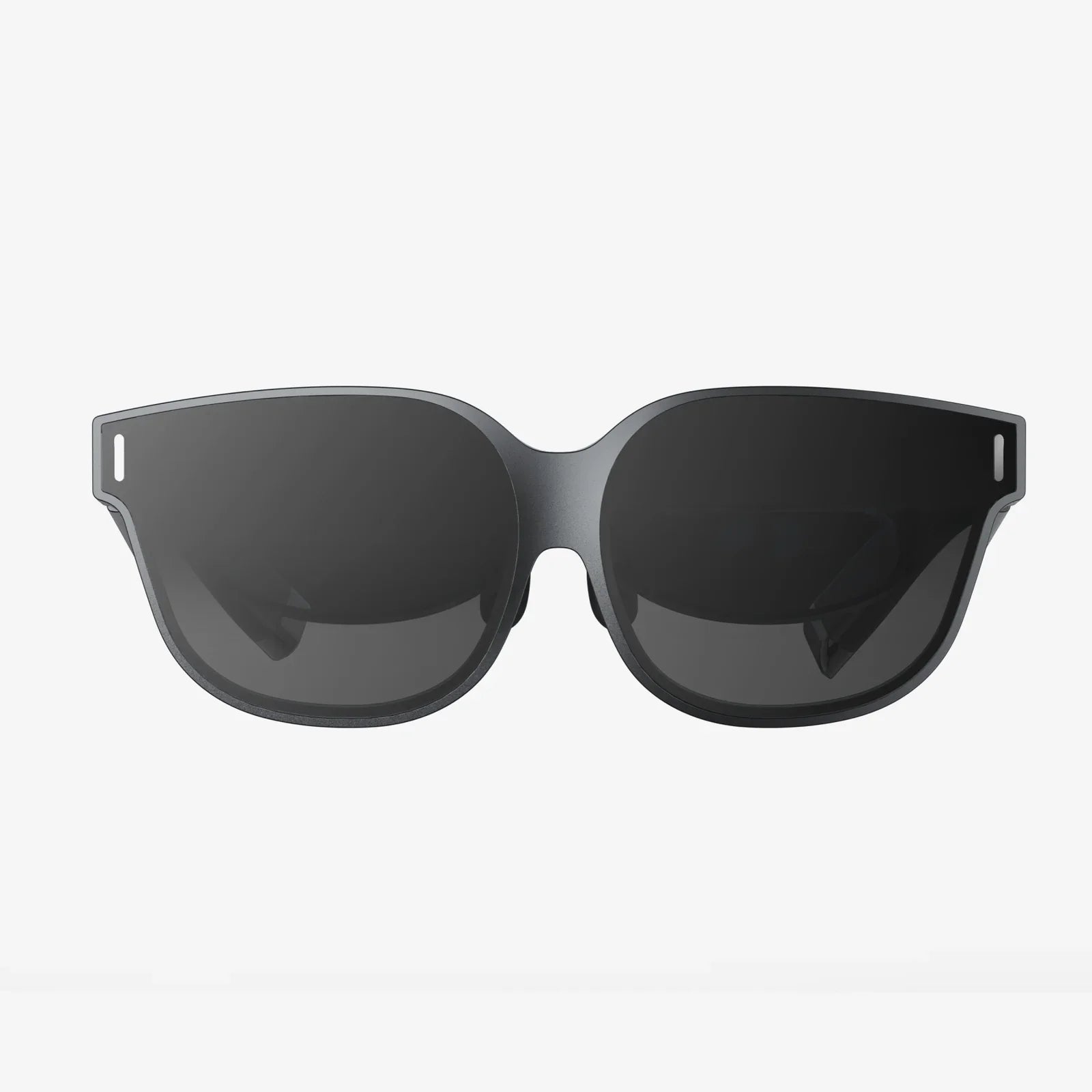
AR usability is the difference between an augmented reality experience that feels magical and one that gets uninstalled in under a minute. As more people encounter AR in shopping, education, healthcare, entertainment, and work, expectations are rising fast. If your AR experience is confusing, physically uncomfortable, or just plain unhelpful, users will abandon it and tell others to do the same. This guide walks through the key principles, patterns, and pitfalls of AR usability so you can design experiences that people not only understand, but love to use.
What AR Usability Really Means
Usability in augmented reality goes beyond traditional interface design. It is about making digital content feel like a natural extension of the physical world. When AR usability is strong, users can:
- Understand what the experience does and how to start using it
- Complete key tasks quickly, with minimal confusion
- Interact comfortably without fatigue, nausea, or frustration
- Feel in control and safe in their physical environment
- Remember how to use it when they come back later
In other words, AR usability is about clarity, comfort, and control. It connects the logic of interface design with the realities of human bodies moving through space.
Why AR Usability Is Harder Than It Looks
Many teams underestimate AR usability because they assume it is just a 3D version of mobile or desktop design. In reality, AR introduces multiple layers of complexity:
-
Spatial context: Content must respond to real-world surfaces, lighting, and obstacles.
-
Device constraints: Limited field of view, tracking drift, and battery drain affect experience quality.
-
Body movement: Users move their heads, hands, and bodies, which changes what they see and can reach.
-
Safety: Users can trip, bump into objects, or become disoriented if AR takes too much attention.
-
Novelty: Many users still have limited mental models for AR interactions.
Because of these factors, AR usability demands careful attention to interaction patterns, ergonomics, environmental design, and clear communication.
Core Principles of AR Usability
Several foundational principles can guide better AR usability across different devices and use cases.
1. Make Purpose and Value Instantly Obvious
Users should understand why they are using your AR experience within seconds. If they cannot answer “What does this do for me?” they will likely close it.
- Use a short, plain-language introduction explaining the core benefit.
- Show a simple example animation or preview of the outcome.
- Highlight one primary task instead of overwhelming users with options.
Clarity of purpose builds trust and reduces the cognitive load from the start.
2. Reduce Cognitive Load with Progressive Disclosure
AR can tempt designers to show everything at once: menus, labels, arrows, 3D models, and data overlays. This quickly becomes overwhelming.
- Introduce features step by step as users need them.
- Hide advanced controls until users demonstrate basic mastery.
- Use contextual hints that appear only when relevant.
Progressive disclosure keeps the interface approachable while still supporting power users over time.
3. Match Real-World Expectations
People rely on physical-world knowledge to interpret AR. When digital objects behave like real ones, usability improves dramatically.
- Use realistic physics where it matters: gravity, collision, and occlusion.
- Align object scale with natural expectations unless there is a clear reason not to.
- Place objects on stable surfaces instead of floating randomly in space.
When AR defies physical logic without explanation, users lose their sense of orientation and control.
4. Provide Immediate, Multisensory Feedback
AR interactions often involve gestures, gaze, or controllers. Without strong feedback, users cannot tell if the system recognized their actions.
- Use visual cues like highlights, outlines, and subtle animations.
- Reinforce actions with sound effects and, where available, haptic feedback.
- Show progress indicators for longer operations like scanning or loading.
Instant feedback reduces errors, increases confidence, and makes interactions feel responsive.
5. Design for Comfort and Safety
AR usability is inseparable from physical comfort. Even a delightful interface fails if it causes neck strain or motion sickness.
- Keep key content within a comfortable viewing zone, slightly below eye level.
- Avoid requiring constant arm extension; support short, low-effort gestures.
- Warn users when they need to move around, and encourage awareness of surroundings.
Comfort and safety are not extras; they are essential for sustained use.
Onboarding for AR Usability
Onboarding is where many AR experiences succeed or fail. Users often encounter AR in unfamiliar contexts and need guidance without feeling lectured.
Teach Through Doing, Not Reading
Lengthy instruction screens are rarely effective in AR. Instead:
- Use short, interactive tutorials that let users try the main gestures.
- Introduce one action at a time: look, tap, drag, rotate, or walk closer.
- Provide optional help overlays users can revisit later.
This approach respects users’ time and builds skill through practice.
Guide Environment Setup Clearly
AR often requires scanning surfaces or spaces. Poor guidance here leads to tracking failures and frustration.
- Explain why scanning is needed and what users should do.
- Use visual indicators to show which surfaces are recognized.
- Offer tips if scanning fails, such as moving the device more slowly or improving lighting.
When users understand the scanning process, they are more patient and cooperative.
Set Expectations About Limitations
AR technology is impressive but not perfect. Managing expectations improves perceived usability.
- Explain that tracking may drift and how to reset or recalibrate.
- Indicate if certain features require more space or better lighting.
- Be honest about device requirements and performance constraints.
Transparency prevents users from blaming themselves for technical limitations.
Interaction Design Patterns That Enhance AR Usability
Certain interaction patterns have emerged as particularly effective for AR usability. Applying them thoughtfully can make experiences feel familiar and intuitive.
Gaze and Cursor-Based Selection
In head-worn AR, gaze is a powerful input. A small cursor or focus ring helps users understand where the system is “looking.”
- Ensure the cursor is always visible but subtle.
- Use hover states to signal that an object is interactive.
- Combine gaze with simple confirmation actions like a tap or click.
This pattern reduces guesswork about where interactions will occur.
Direct Manipulation of Objects
When possible, allow users to reach out or use touch to move, rotate, and scale objects.
- Use handles or affordances that visually suggest how to grab or rotate.
- Constrain movement along logical axes to avoid awkward positioning.
- Snap objects to surfaces or grid lines for cleaner placement.
Direct manipulation leverages real-world experience and boosts AR usability by making interactions feel natural.
World-Locked vs. Screen-Locked UI
AR interfaces can be anchored to the world or to the device display.
-
World-locked UI stays in a fixed position in space, useful for dashboards or instructions near relevant objects.
-
Screen-locked UI moves with the device, useful for menus, status indicators, and essential controls.
Combining both types thoughtfully improves usability by keeping critical information accessible while allowing contextual information to live in the environment.
Spatial Menus and Toolbars
Floating menus in AR can be powerful but also distracting.
- Place menus near the user’s natural line of sight but avoid blocking key content.
- Use clear grouping and labels to reduce search time.
- Allow menus to be pinned, minimized, or moved to suit user preferences.
Well-organized spatial menus enable complex functionality without cluttering the experience.
Visual Design for AR Usability
Visual design choices can make or break AR usability by affecting legibility, focus, and overall understanding.
Contrast and Legibility
AR overlays must remain readable against a wide range of backgrounds.
- Use high-contrast text and icons with subtle outlines or shadows.
- Consider semi-transparent panels behind text in busy environments.
- Test in different lighting conditions, from bright daylight to dim interiors.
Strong legibility reduces eye strain and misinterpretation.
Depth Cues and Occlusion
Depth perception is crucial in AR. Without proper cues, users misjudge distance and scale.
- Use shadows, perspective, and parallax to convey depth.
- Implement occlusion so real objects can block virtual ones when appropriate.
- Avoid placing essential content at ambiguous depths where users cannot tell how far away it is.
Clear depth cues make the virtual content feel anchored and believable.
Avoiding Visual Overload
AR can quickly become visually noisy if every object is labeled or animated.
- Prioritize key information and hide non-critical details by default.
- Use subtle animation sparingly to draw attention without distraction.
- Allow users to filter or toggle layers of information.
Minimal, focused visuals support better comprehension and less fatigue.
Physical Ergonomics and AR Usability
AR experiences must account for the physical realities of how people hold devices, move, and maintain balance.
Comfortable Viewing Zones
Constantly looking up or down can strain the neck and eyes.
- Place primary content roughly at arm’s-length and slightly below eye level.
- Avoid requiring users to look far to the extremes of their field of view.
- Allow repositioning of key elements to fit different heights and postures.
Respecting natural posture greatly improves AR usability over longer sessions.
Reducing Fatigue from Gestures
Large, frequent gestures may feel impressive in demos but tire users quickly.
- Favor small, low-effort movements over sweeping arm motions.
- Offer alternative input methods like voice or simple taps when possible.
- Provide rest states where users can pause without losing context.
Designing for minimal effort helps users stay engaged rather than exhausted.
Maintaining Spatial Awareness
AR can draw attention away from the physical world, increasing the risk of accidents.
- Avoid encouraging immersion in situations where users need to walk or navigate obstacles.
- Use subtle reminders to look up and check surroundings during intense tasks.
- Detect rapid movement and simplify visuals when users are walking or turning quickly.
Keeping users safe is integral to responsible AR usability.
Task Design and Workflow in AR
Beyond individual interactions, AR usability depends on how tasks and workflows are structured.
Focus on High-Value Use Cases
Not every task benefits from AR. For strong usability, choose use cases where AR provides clear advantages.
- Spatial guidance, such as placing or repairing physical objects.
- Visualization of invisible data, like measurements or internal structures.
- Hands-free instructions in environments where traditional screens are inconvenient.
When AR solves a real problem more effectively than other methods, users tolerate minor friction more readily.
Break Complex Tasks into Steps
AR is ideal for step-by-step guidance, but only if the steps are well designed.
- Show one clear step at a time, with visual markers on relevant real-world objects.
- Allow easy navigation backward and forward in the instructions.
- Provide summaries or overviews for users who want to understand the whole process.
This structure reduces errors and makes complex workflows more manageable.
Support Error Recovery
Even with great design, users will make mistakes. AR usability depends on how forgiving the system is.
- Offer clear undo options for object placement or configuration changes.
- Use warnings rather than hard stops when users deviate from expected steps.
- Provide contextual tips for how to fix common mistakes.
Gentle, supportive error handling encourages exploration and learning.
Accessibility and Inclusive AR Usability
Inclusive design expands your audience and leads to better usability for everyone.
Visual Accessibility
Users vary widely in vision and perception.
- Allow font size adjustments and high-contrast modes.
- Use color plus shape and text to convey meaning, not color alone.
- Minimize reliance on small, intricate details for critical information.
These practices help users with low vision and improve clarity overall.
Audio and Haptic Support
Audio and haptic feedback can support users who have difficulty seeing or focusing on visuals.
- Provide spoken prompts or descriptions for key actions and states.
- Use vibration patterns to confirm interactions or signal alerts.
- Allow users to adjust or mute sound and haptics based on their needs.
Multimodal feedback increases robustness across different environments and abilities.
Motor and Cognitive Considerations
Some users may have limited mobility or cognitive differences that affect how they use AR.
- Offer alternatives to complex gestures, such as simple taps or voice commands.
- Keep instructions concise and avoid unnecessary jargon.
- Allow more time for actions and avoid strict timing requirements where possible.
Designing with these needs in mind leads to more flexible, user-friendly experiences.
Testing and Measuring AR Usability
Assumptions about AR usability often fail when confronted with real users in real environments. Systematic testing is essential.
Plan Realistic Scenarios
Test AR experiences in the kinds of spaces where they will actually be used.
- Simulate typical lighting, noise, and movement.
- Include obstacles and distractions to see how users cope.
- Observe how people naturally hold and move with the device.
Realistic scenarios reveal issues that lab conditions may hide.
Key Metrics for AR Usability
Useful metrics extend beyond traditional click counts.
-
Task completion rate: How many users successfully finish key tasks?
-
Time on task: How long does it take to complete each step?
-
Error rate: How often do users misplace objects, misinterpret instructions, or need help?
-
Physical strain: Do users report discomfort in the neck, arms, or eyes?
-
Subjective satisfaction: How do users describe their experience in their own words?
Combining quantitative and qualitative data gives a fuller picture of usability.
Iterative Improvement
AR usability rarely emerges perfectly in the first version. Iteration is essential.
- Address the most severe usability issues first: confusion, discomfort, and safety concerns.
- Prototype changes quickly and test them with new users.
- Document patterns that work well so they can be reused across projects.
Over time, this process builds a library of proven approaches that accelerate future designs.
Common AR Usability Pitfalls to Avoid
Certain mistakes appear repeatedly in AR projects. Avoiding them can save significant time and frustration.
Overloading the User with Features
Trying to show every possible feature in a single experience leads to clutter and confusion.
- Prioritize a small set of high-impact features for the first release.
- Hide experimental or niche options behind advanced settings.
- Gather feedback before expanding the feature set.
Simplicity is a powerful ally of AR usability.
Ignoring Environmental Variability
Designs that work in a controlled office may fail in a busy store or factory.
- Test with different surface types, clutter levels, and lighting.
- Provide fallback modes if tracking or detection fails.
- Allow users to manually adjust or override automatic placement when necessary.
Robustness across environments increases reliability and trust.
Relying on Novelty Instead of Utility
Novel AR effects may attract initial attention but do not guarantee ongoing use.
- Ensure each visual effect has a clear purpose, such as guiding attention or explaining a concept.
- Avoid gimmicks that slow users down or obscure important information.
- Focus on solving real problems or providing meaningful delight.
Long-term engagement comes from usefulness, not just spectacle.
Strategic Benefits of Strong AR Usability
Investing in AR usability delivers benefits beyond immediate user satisfaction.
Higher Adoption and Retention
When AR is easy and comfortable to use, people are more likely to return and recommend it.
- Lower abandonment rates after the first session.
- More organic word-of-mouth and positive reviews.
- Greater willingness to explore advanced features over time.
Usability directly supports growth and engagement.
Reduced Support and Training Costs
Clear, intuitive AR experiences require less external support.
- Fewer help desk requests and troubleshooting sessions.
- Shorter training periods for employees or customers.
- Smoother onboarding for new users or teams.
These savings can be significant in large-scale deployments.
Stronger Brand Perception
People judge organizations by the quality of their digital experiences.
- Reliable, user-friendly AR builds a reputation for innovation and care.
- Frustrating or unstable AR can damage trust and credibility.
- Consistent usability across products reinforces a coherent identity.
AR usability becomes part of how people perceive your overall quality.
Practical Steps to Improve AR Usability Today
Turning principles into action does not require a complete redesign. You can start with targeted improvements.
Audit Your Current Experience
Begin by reviewing your existing AR experience with a usability lens.
- Identify moments where users hesitate, get stuck, or seem confused.
- Look for areas of visual clutter, unclear instructions, or inconsistent feedback.
- Note any reports of discomfort or safety concerns.
This audit will highlight the most urgent issues.
Prioritize Quick Wins
Some changes deliver significant usability gains with relatively little effort.
- Clarify onboarding messages and simplify initial choices.
- Increase contrast and improve text legibility.
- Add or strengthen feedback for key interactions.
Quick wins build momentum and demonstrate the value of usability work.
Engage Real Users Early and Often
Internal testing is not enough. Real users bring fresh perspectives and uncover hidden issues.
- Recruit participants who match your target audience and context.
- Observe without leading; let users attempt tasks while thinking aloud.
- Use their language and mental models to refine your interface.
Continuous user feedback keeps AR usability grounded in real needs.
The Future of AR Usability
As AR hardware and software evolve, new opportunities and challenges for usability will emerge.
- More natural input methods, such as improved hand tracking and voice control, will reduce friction.
- Better environmental understanding will allow AR to adapt more intelligently to context.
- Standardized patterns and guidelines will help users transfer skills between experiences.
Despite these advances, the core of AR usability will remain the same: respecting human limits, clarifying purpose, and designing interactions that feel like a natural extension of everyday life.
AR usability is not a cosmetic layer you can bolt on at the end of development; it is the foundation that determines whether your augmented reality experience earns a permanent place in people’s routines or disappears after a single try. By focusing on clear purpose, gentle onboarding, intuitive interaction patterns, visual clarity, physical comfort, inclusive design, and continuous testing, you can turn AR from a fragile novelty into a reliable tool that users trust. The teams that master AR usability now will be the ones shaping how the world expects augmented reality to feel tomorrow, and that is an advantage worth designing for with care.