


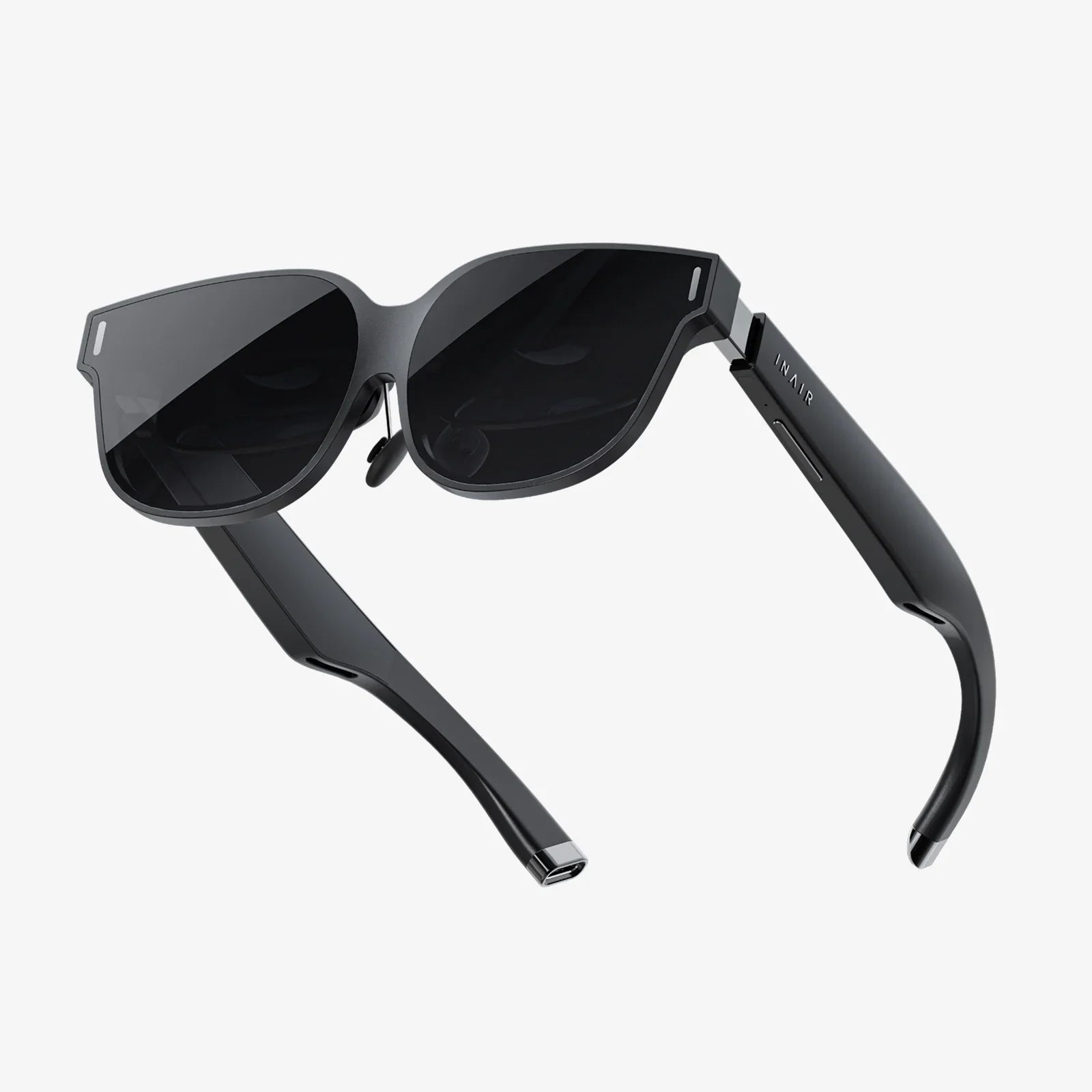
If the phrase computer desk monitor under glass makes you think of sleek, futuristic workspaces and clutter-free desks, you are exactly where you need to be. This setup trend combines style with function, letting you display your screen in a clean, modern way while protecting surfaces and showcasing your desk like a showpiece. But without the right planning, a glass-covered monitor can cause glare, neck strain, heat buildup, and a host of usability issues that turn a beautiful idea into a frustrating daily experience.
This guide walks you through everything you need to know before putting a computer desk monitor under glass: ergonomic placement, glass types, cable routing, cooling, cleaning, and design ideas. Whether you are designing a minimalist home office, a gaming battlestation, or a professional workstation, you will learn how to turn the concept into a practical, comfortable reality that looks as good as it performs.
Why Put a Computer Desk Monitor Under Glass?
Before diving into technical details, it helps to understand why people choose to position a computer desk monitor under glass in the first place. The reasons typically fall into three categories: aesthetics, protection, and organization.
1. Aesthetic appeal
A glass-topped desk with a monitor visible beneath can create a striking, modern look. The clean lines and reflective surface often complement minimalist interiors, creative studios, and tech-focused spaces. Some users even integrate lighting around or beneath the glass to highlight the monitor and surrounding hardware, turning the entire desk into a visual centerpiece.
- Minimal visual clutter: Cables, stands, and brackets can be hidden below the glass, leaving only the image visible.
- Showcase effect: The monitor becomes part of the furniture, almost like a display in a gallery or museum.
- Custom lighting: LED strips or subtle backlighting can emphasize the glass and monitor edges for a dramatic effect.
2. Surface protection
Glass is easy to clean and resistant to stains from pens, drinks, or cosmetics. When a computer desk monitor is positioned under glass, the glass itself protects the desk surface and any integrated components from scratches, spills, and everyday wear.
- Protects wooden or painted desktop surfaces from damage.
- Acts as a barrier against dust settling directly on the screen or frame.
- Makes cleaning easier with a simple glass-safe cleaner and microfiber cloth.
3. Organized cable management
A monitor under glass encourages intentional cable routing. Instead of a tangle of wires hanging behind a typical monitor stand, cables can be guided through channels, cutouts, or trays beneath the glass. The result is a cleaner, more professional-looking workspace that is easier to keep tidy.
- Cables can be hidden below the glass while remaining accessible.
- Power strips and hubs can be mounted under the desk and out of sight.
- Labeling and bundling cables becomes easier when they are organized in one hidden area.
Key Challenges of Placing a Monitor Under Glass
Despite the visual appeal, putting a computer desk monitor under glass introduces a set of challenges that need to be addressed to protect your eyes, posture, and hardware. Understanding these issues upfront helps you design a setup that looks good and feels comfortable hour after hour.
1. Glare and reflections
Glass surfaces are reflective, especially in brightly lit rooms or near windows. When a monitor sits under glass, you have two layers to consider: the monitor screen and the glass above it. Each can reflect light and create visual distractions.
- Overhead lighting: Ceiling lights can reflect directly off the glass into your eyes.
- Windows: Sunlight from behind or beside you can create strong reflections.
- Multiple reflections: The glass and the monitor screen can create layered reflections that make text harder to read.
Glare is not just annoying; it can cause eye strain, headaches, and reduced productivity over time. Managing light sources and glass type is essential.
2. Viewing angle and posture
Ergonomics becomes more complex when the monitor is under glass. Most guidelines suggest that the top of the screen should be at or slightly below eye level, with the screen roughly an arm's length away. If the monitor lies flat or at a shallow angle under glass, you may end up looking down too much, bending your neck, or leaning forward.
- Looking down at too steep an angle can strain the neck and upper back.
- Leaning forward to see the screen clearly can cause shoulder and lower back discomfort.
- Inconsistent posture throughout the day can contribute to long-term musculoskeletal issues.
3. Heat buildup and ventilation
Monitors generate heat, especially larger or brighter models. A computer desk monitor under glass may have less airflow than one on an open stand, especially if the space beneath the glass is enclosed or poorly ventilated.
- Trapped heat can shorten the lifespan of electronic components.
- Excessive heat may lead to reduced performance or automatic dimming.
- Warm air pockets under glass can cause discomfort if your hands rest nearby.
4. Accessibility and adjustments
Most monitors have buttons or joysticks on the bottom or back for power, brightness, and menu navigation. When the monitor is under glass, those controls can be harder to reach.
- Adjusting brightness or switching inputs may require lifting the glass or reaching awkwardly.
- Ports for cables or USB devices may be more difficult to access.
- Frequent adjustments become inconvenient, encouraging a "set and forget" habit that may not suit changing lighting conditions.
5. Cleaning and maintenance
While glass is easy to clean, dust and smudges can be more noticeable, especially when light hits the surface just right. If the glass is large or heavy, lifting it to access the monitor for deep cleaning or repositioning can be a hassle.
Choosing the Right Glass for Your Desk Setup
The type of glass you use above your monitor has a significant impact on safety, comfort, and visual clarity. Not all glass is created equal, and the wrong choice can lead to glare, breakage risk, or a distorted image.
1. Tempered glass for safety
Tempered glass is designed to be stronger and safer than standard glass. If it breaks, it shatters into small, less dangerous pieces instead of large, sharp shards. For a computer desk monitor under glass, this is the preferred option.
- Strength: Better resistance to impact and weight.
- Safety: Reduced risk of severe injury if the glass breaks.
- Stability: Less likely to crack under normal use, especially if you rest your arms or equipment on the surface.
2. Glass thickness and weight
Glass thickness affects durability, weight, and even the way light passes through. Thicker glass is stronger but heavier, which can matter if you plan to lift or adjust it frequently.
- Thin glass (around 4 mm): Lightweight but more fragile, better for small surfaces or protected frames.
- Medium thickness (6–8 mm): A good balance for most desks, offering strength without being excessively heavy.
- Thick glass (10 mm or more): Very sturdy and premium-feeling, but heavy and harder to move.
Ensure the desk frame can support the combined weight of the glass, monitor, and any other equipment beneath or on top of the surface.
3. Clear vs. frosted vs. tinted glass
The finish of the glass affects both aesthetics and usability.
- Clear glass: Offers the sharpest view of the monitor and a clean, modern look. However, it is also the most reflective and prone to glare.
- Frosted or etched glass: Reduces direct visibility of the monitor, creating a softer, diffused appearance. This can reduce glare but may also blur text and fine details, making it less ideal for reading or detailed work.
- Tinted glass: Can reduce brightness and reflections but may alter color accuracy and contrast. This might be fine for casual use but not ideal for color-critical tasks.
4. Anti-reflective or matte coatings
Some glass panels are treated with anti-reflective or matte coatings to reduce glare. These coatings can significantly improve comfort, especially in bright rooms, but they may slightly reduce clarity or introduce a subtle haze.
- Look for coatings designed specifically to minimize reflections.
- Test the glass under typical room lighting before committing to a full build.
- Be aware that some coatings require gentle cleaning methods to avoid damage.
Ergonomics: Positioning a Monitor Under Glass Correctly
Comfort and long-term health should guide how you position a computer desk monitor under glass. A beautiful desk is not worth chronic neck pain or eye strain. With careful planning, you can achieve both style and ergonomic safety.
1. Ideal viewing height
General ergonomic guidelines suggest that your eyes should naturally fall near the top third of the screen when you look straight ahead. When the monitor is under glass, achieving this may require tilting the monitor or adjusting the desk height.
- If the monitor lies flat, you will be looking down more than is ideal.
- Tilting the monitor upward under the glass can bring the image closer to your natural line of sight.
- Adjusting your chair height can help align your eyes and screen more comfortably.
For many users, a slight downward viewing angle is comfortable, but extreme angles should be avoided.
2. Distance from your eyes
The distance between your eyes and the screen should typically be about an arm's length, though this can vary depending on screen size and personal comfort. When the monitor is under glass, the glass surface adds a small extra distance, but the main variable is how far back the monitor sits under the surface.
- Place the monitor so that you do not have to lean forward to read small text.
- Use scaling settings or larger fonts if needed to reduce eye strain.
- Ensure the entire screen is within your comfortable field of view without excessive head movement.
3. Monitor tilt angle
Tilt is crucial when placing a computer desk monitor under glass. A flat orientation is rarely optimal for long sessions. Instead, aim for a gentle angle that lets you view the screen with minimal neck bending.
- Experiment with different tilt angles before locking in the final position.
- Use wedges, brackets, or adjustable mounts to fine-tune the angle under the glass.
- Check the image from your normal sitting position, not just while standing over the desk.
4. Multi-monitor ergonomics
If you plan to use more than one monitor under glass, consider how your neck and eyes will move between them.
- Place primary screens directly in front of you and secondary screens at slight angles.
- Avoid placing frequently used screens far to the side, which can cause repeated neck rotation.
- If only one monitor is under glass, ensure it does not force you into an off-center viewing position.
Designing a Desk to Hold a Monitor Under Glass
Once you understand the ergonomic and visual needs, you can design or choose a desk that supports a monitor beneath a glass surface. This involves thinking about structure, access, and future flexibility.
1. Recessed monitor compartment
Many under-glass setups use a recessed compartment or cutout in the desk where the monitor sits. The glass spans this compartment, providing a flush surface.
- Depth: Ensure the compartment is deep enough to accommodate the monitor's thickness and any tilt.
- Width and height: Allow extra room around the monitor for ventilation and cable routing.
- Support: Provide adequate support beneath the glass, especially around the edges of the compartment.
2. Access panels and hinges
Access is critical for cleaning, cable changes, and hardware upgrades. A fixed glass panel may look sleek but can be impractical in daily use.
- Consider using hinged glass panels that can lift for access.
- Use gas struts or supports if the glass is heavy, so it can be lifted safely.
- Design removable side panels or back panels for cable adjustments without disturbing the glass.
3. Structural support and stability
A glass-topped desk must be stable and free from wobble, especially if the monitor sits in a recessed area. Flexing or shifting can stress the glass and internal components.
- Use a sturdy frame with cross-bracing if necessary.
- Ensure all glass edges are supported, not just the corners.
- Use rubber or silicone pads between the glass and frame to reduce vibration and prevent slipping.
4. Future-proofing your design
Monitors change over time. You may upgrade to a larger display or a different aspect ratio. Designing with flexibility in mind can save you from rebuilding the desk later.
- Leave extra space in the compartment to accommodate slightly larger monitors.
- Use adjustable mounts or brackets that can be repositioned.
- Include multiple routing paths for different cable configurations.
Cable Management and Power Planning
A computer desk monitor under glass offers an excellent opportunity to create a nearly cable-free look on the surface. Achieving that requires deliberate cable management beneath and behind the desk.
1. Planning cable paths
Start by mapping where each cable needs to go: power, display connections, peripherals, and any audio or network lines.
- Route cables through grommets or cutouts that lead from the monitor compartment to the underside of the desk.
- Use cable channels or raceways to guide cables neatly along the frame.
- Bundle related cables together with ties or sleeves for easier management.
2. Integrating power strips and hubs
Keeping power sources off the floor and out of sight improves both safety and aesthetics.
- Mount power strips under the desk or inside a cable tray.
- Use surge protection to safeguard your monitor and connected devices.
- Position USB hubs or docking stations within reach but hidden from the top view.
3. Allowing for movement and adjustments
Even in a carefully planned setup, you may need to move the monitor slightly or adjust cables. Avoid pulling cables too tight.
- Leave a small amount of slack to prevent strain on ports.
- Use flexible cable organizers that can be opened and adjusted easily.
- Label each cable at both ends for quick identification.
Heat Management and Ventilation Strategies
Heat is an often-overlooked factor in under-glass setups. To protect your monitor and maintain performance, you need a plan for airflow.
1. Passive ventilation
Passive solutions rely on natural airflow rather than fans.
- Include vents or openings at the back and sides of the monitor compartment.
- Allow warm air to escape upward or out the back rather than trapping it.
- Avoid sealing the monitor in an airtight box under the glass.
2. Active cooling options
For high-brightness or large monitors, additional cooling may be helpful.
- Use quiet, low-speed fans to move air through the compartment.
- Position fans to draw cool air in and push warm air out.
- Power fans from a dedicated power strip or USB power source for easy control.
3. Monitoring temperature
To ensure your setup stays within safe limits, monitor the temperature around the screen.
- Use a simple digital thermometer inside the compartment.
- Check temperatures after long work or gaming sessions.
- If the area feels noticeably hot to the touch, improve ventilation or reduce brightness settings.
Lighting and Glare Control Techniques
Lighting can make or break your experience with a computer desk monitor under glass. The goal is to minimize glare while maintaining enough light to work comfortably.
1. Positioning the desk relative to windows
The easiest way to reduce glare is to orient your desk thoughtfully.
- Avoid placing the desk with a bright window directly behind you.
- Side-facing windows are often better, especially with adjustable blinds or curtains.
- If a window must be behind you, use light-diffusing shades to soften direct sunlight.
2. Choosing overhead and task lighting
Harsh overhead lights can reflect off glass surfaces. Softer, indirect lighting is usually more comfortable.
- Use dimmable overhead fixtures when possible.
- Add task lighting that can be aimed away from the glass surface.
- Consider bias lighting behind the desk to reduce contrast between the screen and surroundings.
3. Screen and glass cleaning for clarity
Even the best lighting plan cannot overcome a dirty glass surface. Dust, fingerprints, and smudges become more obvious when light hits the glass at an angle.
- Clean the glass regularly with a non-ammonia glass cleaner and a soft, lint-free cloth.
- Clean the monitor screen itself occasionally when you have access, using a screen-safe cleaner.
- Avoid paper towels or abrasive cloths that can scratch coatings.
Practical Use Cases for a Computer Desk Monitor Under Glass
Different users have different needs. Understanding how an under-glass monitor setup fits into your daily activities can help you prioritize features and design choices.
1. Home office and productivity work
For office work, reading, writing, and general productivity, clarity and comfort matter more than dramatic visuals.
- Focus on anti-glare strategies and ergonomic viewing angles.
- Ensure text is clear and easy to read at your usual working distance.
- Consider a single primary monitor under glass with optional secondary displays above or beside the desk.
2. Creative work and design
Designers, photographers, and video editors often need accurate color reproduction and fine detail.
- Use clear glass with minimal tint to preserve color accuracy.
- Control room lighting carefully to reduce reflections without distorting color.
- Test critical visuals both under glass and on a reference display if color fidelity is essential.
3. Gaming and entertainment
For gaming setups, aesthetics and immersion often take center stage.
- Integrate ambient lighting around the glass and inside the monitor compartment.
- Ensure response time and refresh rate are not compromised by excessive heat.
- Design the desk so controllers, keyboards, and headsets have convenient storage that complements the under-glass display.
4. Public displays and shared workspaces
In showrooms, reception areas, or collaborative spaces, a computer desk monitor under glass can serve as an interactive or informational display.
- Use robust, tempered glass to withstand frequent use.
- Design for easy cleaning, as multiple people may touch or lean near the surface.
- Consider touch-capable screens if interaction is required, ensuring the glass does not interfere with touch sensitivity.
Step-by-Step Planning Checklist
To bring your under-glass monitor idea from concept to reality, it helps to follow a structured plan. Use this checklist as a starting point.
- Define your primary use: Work, gaming, creative tasks, or display purposes.
- Measure your monitor: Width, height, depth, and required tilt angle.
- Design the compartment: Size, depth, and placement under the glass.
- Select glass type: Tempered, appropriate thickness, and finish (clear, matte, or tinted).
- Plan access: Hinges, removable panels, or sliding glass for maintenance.
- Map cable routes: Grommets, channels, and under-desk power management.
- Plan ventilation: Vents, passive airflow, and optional fans if needed.
- Arrange lighting: Desk placement relative to windows and choice of overhead and task lights.
- Test ergonomics: Sit at the desk and verify viewing angle, distance, and comfort.
- Refine and adjust: Make small changes to tilt, height, or lighting before finalizing the build.
Common Mistakes to Avoid
When building a computer desk monitor under glass, certain pitfalls show up again and again. Avoiding these mistakes can save you time, money, and discomfort.
- Ignoring glare: Assuming glare will not be an issue and discovering later that reflections make the screen hard to use.
- Over-sealing the compartment: Creating a visually perfect but poorly ventilated space that overheats the monitor.
- Choosing the wrong glass: Using thin, non-tempered glass that is prone to breaking or flexing.
- Neglecting ergonomics: Prioritizing aesthetics over posture, leading to neck and back strain.
- Underestimating access needs: Making it difficult to reach ports, buttons, or cables for everyday adjustments.
- Skipping cable planning: Letting cables pile up in a hidden compartment, making future changes a hassle.
Maintaining and Updating Your Under-Glass Setup
A well-designed computer desk monitor under glass is not a static project. Over time, you may want to upgrade hardware, change lighting, or refine ergonomics as your work habits evolve.
1. Regular inspection
Periodic checks keep your setup safe and efficient.
- Look for signs of heat damage or discoloration around vents.
- Check that the glass remains securely supported and free from cracks.
- Verify that cables are not pinched, frayed, or under excessive tension.
2. Cleaning routines
Cleanliness maintains both appearance and clarity.
- Wipe the glass surface regularly to remove dust and fingerprints.
- Dust the interior compartment occasionally, especially near vents and fans.
- Clean input devices and surrounding surfaces to keep the entire workspace fresh.
3. Planning for upgrades
Technology changes quickly. When it is time to upgrade your monitor or other hardware, a flexible design pays off.
- Keep documentation of your desk design, including measurements and cable paths.
- When choosing a new monitor, check that its dimensions fit your existing compartment.
- Consider using modular mounts or brackets that can be adjusted for different hardware.
When you combine thoughtful ergonomics, deliberate cable management, and careful attention to glass selection and ventilation, a computer desk monitor under glass becomes more than a visual experiment. It transforms into a practical, long-lasting workspace centerpiece that supports your daily work, play, and creative projects. Instead of fighting glare, heat, and awkward posture, you enjoy a clean, modern desk that feels as good as it looks, inviting you to sit down, focus, and make the most of every moment in front of the screen.
Aktie:
touch light control e 163457 Smart Guide to Modern Lighting
Clip On Magnifying Glass For Computer Screen: The Complete 2025 Buyer’s Guide