


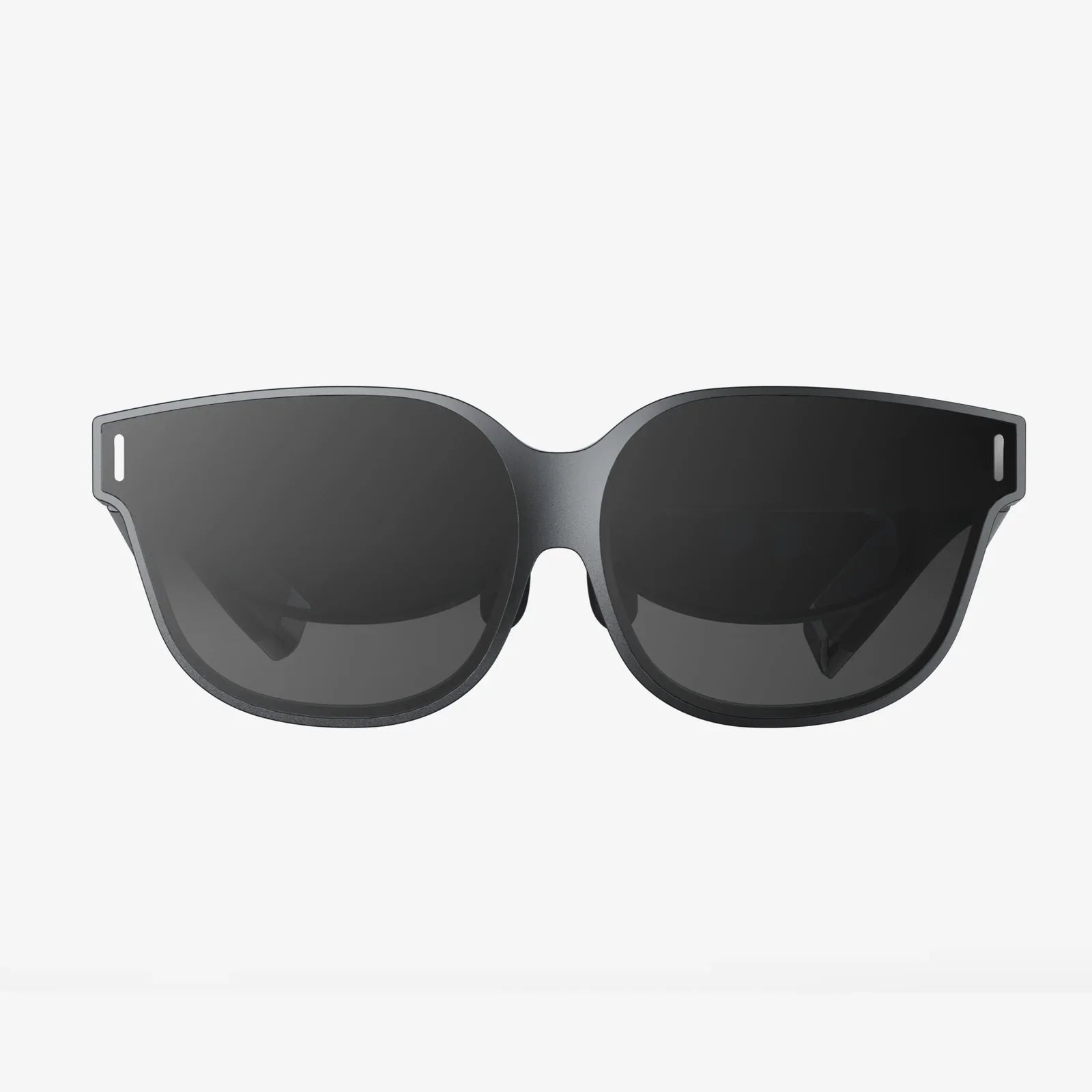
- von wangfred
connect smart glasses to Linux for Hands-Free Productivity and AR Control
- von wangfred
If you have ever wished you could control your Linux system with just a glance, a gesture, or a quiet voice command, learning how to connect smart glasses to Linux is the next step in your setup. Instead of being chained to a desk, you can keep your hands free while still seeing terminal output, system alerts, or documentation right in your field of view. The good news is that with the right approach, smart glasses can integrate surprisingly well with a Linux desktop or laptop, turning your everyday machine into a powerful augmented reality workstation.
This guide walks you through everything you need to know: how smart glasses typically connect, how to pair them with Linux via Bluetooth and Wi-Fi, how to handle USB and display modes, and how to debug and automate your workflow. Whether you are a developer, sysadmin, maker, or just curious about wearable tech, you will find practical steps you can follow to get your glasses talking to your Linux box reliably.
Before you actually connect smart glasses to Linux, it helps to understand the common ways these devices communicate. Most modern smart glasses use one or more of the following channels:
Some smart glasses run a mobile operating system internally, while others behave more like external displays or specialized headsets. On Linux, you will generally treat them as one or more of the following:
Knowing which role your smart glasses play makes it much easier to pick the right tools and configuration steps on your Linux system.
To connect smart glasses to Linux reliably, your system needs a solid foundation. That means supported kernels, working Bluetooth and Wi-Fi drivers, and a few key utilities installed.
Recent kernels often include better Bluetooth, Wi-Fi, and USB support for wearable hardware. On most distributions you can update with a single command:
sudo apt update && sudo apt upgrade
sudo dnf upgrade
sudo pacman -Syu
After updating, reboot so the new kernel and drivers are active.
Most smart glasses use Bluetooth for at least some of their functionality, so you will want the main Bluetooth tools installed:
sudo apt install bluez blueman pulseaudio-module-bluetooth
sudo dnf install bluez blueman pulseaudio-module-bluetooth
sudo pacman -S bluez bluez-utils blueman pulseaudio-bluetooth
Then enable and start the Bluetooth service:
sudo systemctl enable bluetooth
sudo systemctl start bluetooth
For Wi-Fi-based features, ensure that your network manager and wireless drivers are working. On most desktop distributions, NetworkManager is already installed and running. To check:
systemctl status NetworkManager
If it is not running, enable it:
sudo systemctl enable NetworkManager
sudo systemctl start NetworkManager
Command-line tools like nmcli are also useful for scripting connections between your smart glasses and Linux.
Many smart glasses expose a debugging interface over USB, especially if they are based on a mobile operating system. To work with them, install the following:
sudo apt install android-tools-adb android-tools-fastboot
sudo dnf install android-tools
sudo pacman -S android-tools
Even if your glasses are not marketed as developer devices, adb can sometimes connect and give you more control than the default interface.
Bluetooth is usually the first step when you connect smart glasses to Linux, because it enables audio streaming, call handling, and sometimes basic control signals.
Check the instructions that came with your device to enable pairing mode. Typically you will:
On most Linux desktops, you can pair through the system settings:
Once paired, your glasses should appear as an audio device and possibly as an input or control device.
If you prefer the terminal, you can use the bluetoothctl tool:
bluetoothctl
[bluetooth]# power on
[bluetooth]# agent on
[bluetooth]# default-agent
[bluetooth]# scan on
Wait until your smart glasses appear in the scan output with a device address like AA:BB:CC:DD:EE:FF. Then:
[bluetooth]# pair AA:BB:CC:DD:EE:FF
[bluetooth]# trust AA:BB:CC:DD:EE:FF
[bluetooth]# connect AA:BB:CC:DD:EE:FF
After a successful connection, exit with quit. Your glasses should now show up as a Bluetooth audio device and possibly as an input device.
Most users want audio from Linux to play through the smart glasses, and microphones on the glasses to feed into Linux for calls or voice commands. With PulseAudio or PipeWire, you can switch devices as follows:
pavucontrol (sudo apt install pavucontrol on Debian/Ubuntu-based systems) and choose the glasses under the Playback and Input Devices tabs.If audio is choppy or does not connect, check that the correct Bluetooth profile is selected (for example, high-quality audio vs. headset profile). In pavucontrol, you can adjust the profile under the Configuration tab.
Once you have Bluetooth working, Wi-Fi can unlock higher bandwidth features such as streaming, remote display, and remote command execution. There are several typical Wi-Fi scenarios when you connect smart glasses to Linux:
The simplest option is to join both devices to the same Wi-Fi network:
ip a to find your local IP address (for example, 192.168.1.50).With both devices on the same network, you can use SSH, web interfaces, or custom services to exchange data and control commands.
If your smart glasses prefer to join a hotspot, you can turn your Linux system into a Wi-Fi access point. On many desktops, this is built into NetworkManager:
Once connected, your Linux system becomes the central node, which is convenient for local web dashboards, development tools, or streaming services hosted on your machine.
Some smart glasses can broadcast their own Wi-Fi network. In that case:
ip a to see your assigned IP address and gateway.This mode is especially useful in the field, where no other network is available, and you want a direct link between your glasses and your Linux laptop or tablet.
USB connections are often more stable and offer extra capabilities such as file transfer, charging, and low-level debugging. When you plug your smart glasses into a Linux machine via USB, they might show up as:
First, confirm that Linux sees the device at all:
lsusb
Look for a new entry that appears when the smart glasses are connected. If you see a vendor and product ID, the kernel has at least detected the hardware.
If the glasses present themselves as a storage or media device, your desktop environment may automatically mount them. If not, you can use tools like gio mount or simple-mtpfs to access the files.
For example, to mount a media device using simple-mtpfs:
sudo apt install simple-mtpfs  # or equivalent on your distribution
mkdir -p ~/smart_glasses
simple-mtpfs ~/smart_glasses
Now you can browse photos, videos, or logs saved by the glasses directly from your Linux system.
If your smart glasses support debugging, you can connect using the Android Debug Bridge:
adb devices on Linux.If everything is set up correctly, you should see a device listed. You can then:
adb logcat
This is particularly valuable for developers building custom interfaces or debugging connectivity issues between the glasses and Linux.
One of the most exciting reasons to connect smart glasses to Linux is to use them as a heads-up display. Depending on the hardware, you might be able to mirror your entire desktop or send a specific window or application to the glasses.
Some smart glasses support common casting protocols. If your Linux desktop supports casting, you can:
For more advanced control, you can use tools that stream a virtual display over the network. These tools create an extra virtual monitor that can then be streamed to the glasses. This lets you dedicate a specific virtual screen to heads-up information without cluttering your main physical monitors.
On Linux, you can create a virtual monitor using display server tools. Once created, you can place terminals, dashboards, or documentation on that virtual screen and stream it to your smart glasses.
The general workflow is:
This approach is more complex to set up but offers a highly flexible augmented reality workspace once configured.
Even if you do not mirror the whole desktop, you can still send notifications and alerts from Linux to your smart glasses. This is especially useful for developers and system administrators who want to monitor builds, logs, or server status without staring at a monitor.
There are several strategies to send notifications from Linux to your glasses:
For example, you could write a shell script that monitors a log file and sends a message whenever a specific pattern appears. That message could then be displayed on the smart glasses via a web interface or notification service.
On Linux, it is easy to wire up scripts that respond to system events. Consider these examples:
By connecting these scripts to a display or notification system on your smart glasses, you get a constant, unobtrusive stream of relevant information while you move around.
One of the main reasons to connect smart glasses to Linux is to operate your system without using your hands. Voice commands, head gestures, and touchpad gestures on the glasses can all be mapped to actions on your Linux machine.
If your smart glasses support voice input, you can route that audio to your Linux system and process it with speech recognition tools. The basic steps are:
For example, you could say “show system status” and have a script run top, summarize resource usage, and send a short text summary back to the glasses as a notification.
Some smart glasses send gesture or button events over Bluetooth. On Linux, you can capture these events and map them to actions:
Over time, you can build a personalized, gesture-driven control scheme that makes your Linux workflow feel natural and immersive.
When you connect smart glasses to Linux, you are effectively adding a new camera, microphone, and networked display to your environment. It is important to manage security and privacy carefully.
If your smart glasses are connected via Wi-Fi, make sure they are on a network you trust. You can also:
On Linux, tools like ufw or firewalld make it straightforward to limit which ports are accessible from the smart glasses.
Smart glasses often have cameras and microphones that can be activated remotely. Consider the following precautions:
On Linux, you can also monitor which processes are using audio devices and network connections, helping you detect unexpected behavior.
Even with careful setup, you may encounter problems as you connect smart glasses to Linux. Here are some common issues and how to handle them.
If your smart glasses do not show up in the Bluetooth device list:
rfkill list.sudo systemctl restart bluetooth.bluetoothctl.If audio plays through your laptop speakers instead of the smart glasses:
pavucontrol.If the Wi-Fi connection between the glasses and Linux is unreliable:
If Linux does not see the smart glasses when connected via USB:
dmesg | tail after plugging in to check for kernel messages.Once the basics are in place, you can turn your Linux machine and smart glasses into a powerful augmented reality workstation. Consider these ideas to push your setup further:
By treating your glasses as another interface to Linux, rather than a separate gadget, you can build a seamless environment where information flows naturally between your main screens and your field of view.
Now that you know how to connect smart glasses to Linux using Bluetooth, Wi-Fi, USB, and advanced tools, you have everything you need to turn your everyday system into a wearable-friendly powerhouse. From silent notifications and heads-up dashboards to voice-controlled scripts and remote debugging, your glasses become a natural extension of your Linux desktop. The next step is to experiment: pair your device, try mirroring a terminal, forward some alerts, and see how quickly a hands-free interface changes the way you work and explore your system.