


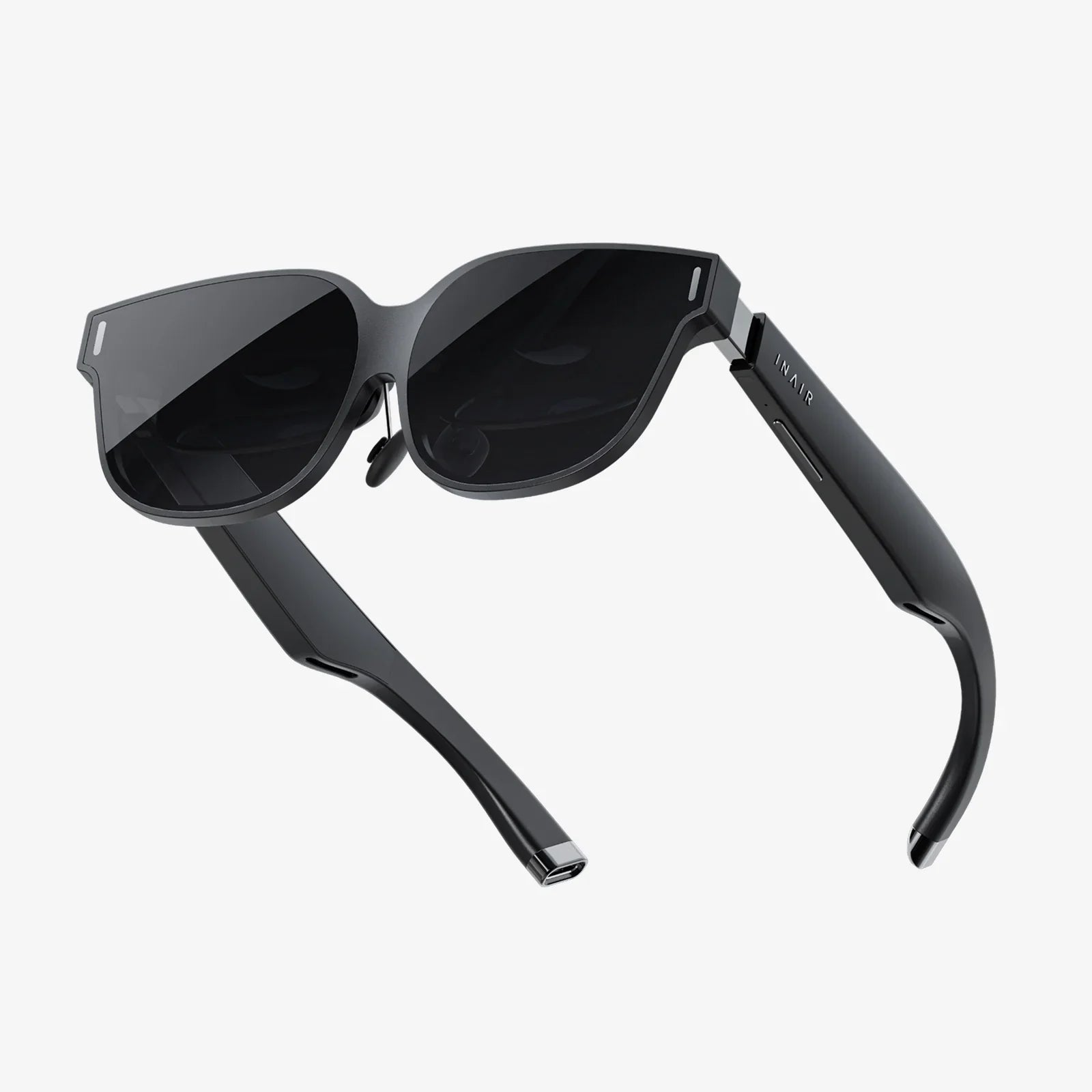
Designing UI for AR glasses is no longer a distant future challenge; it is quickly becoming a core skill for anyone serious about digital product design. As the line between physical and digital worlds blurs, the winners will be the experiences that feel invisible, intuitive, and genuinely helpful in everyday life. If you want your work to stand out in this new medium, you need to think beyond screens, beyond flat layouts, and beyond traditional app patterns.
This article walks through the essential principles, patterns, and pitfalls of designing UI for AR glasses, from spatial layout and ergonomics to input methods, safety, accessibility, and testing. Whether you are a UX veteran or just stepping into immersive design, you will find concrete ideas you can apply to your next project.
Why Designing UI For AR Glasses Is Different From Screens
Most designers approach augmented reality with a mental model built on phones, tablets, and laptops. That is natural, but it can be misleading. AR glasses are not just another display; they are a new context that merges digital content with the user’s lived environment. This changes almost everything about how you should think about interface design.
From Frames To Fields
On a phone, you design within a frame: a fixed rectangle with known dimensions. With AR glasses, you design for a field of view that overlaps with the user’s real-world surroundings. The boundaries are softer, the space is deeper, and the user’s attention is constantly shifting between digital and physical stimuli.
Instead of placing elements on a flat canvas, you are placing them in a three-dimensional field. That means:
- Content can be near or far, above or below, in front or behind physical objects.
- The user can move their head, body, and sometimes entire position in the environment.
- There is no single “screen”; the world itself is the canvas.
Continuous Use, Not Short Sessions
Phones lend themselves to short bursts of interaction. AR glasses can be worn for extended periods, even while walking, working, or socializing. This makes comfort and cognitive load much more important. A UI that is tolerable for 30 seconds on a phone can become unbearable if it floats in your field of view for 30 minutes.
Shared Spaces And Social Presence
Designing UI for AR glasses means designing for shared environments. People will wear these devices around others, in public spaces, at work, and at home. Your interface is not just on the user’s face; it is part of their social presence. Obtrusive or distracting UI can make the wearer look disengaged or rude. Subtle, respectful UI can enhance social interactions instead of disrupting them.
Core Principles For Designing UI For AR Glasses
Before diving into specific patterns, it helps to ground your work in a few core principles that consistently lead to better AR experiences.
1. Respect The Real World First
The physical world is not a background; it is the primary stage. Your UI should enhance it, not compete with it. This means:
- Do not cover important real-world content like faces, signage, or hazards.
- Use subtle overlays that complement the environment instead of dominating it.
- Allow users to quickly hide or minimize digital elements when they need to focus on reality.
Ask yourself for every feature: does this help the user do something in their real environment, or is it just a floating app window for its own sake?
2. Minimize Cognitive Load
AR glasses add information on top of an already information-rich world. If you overload the user with labels, icons, and panels, they will quickly feel overwhelmed. To reduce cognitive load:
- Surface only the most relevant information for the current context and moment.
- Use progressive disclosure: start simple, reveal details on demand.
- Avoid cluttered HUD-style layouts; leave plenty of empty space.
Think of your UI as a helpful companion, not an overexcited tour guide shouting facts at every object in sight.
3. Design For Comfort Over Time
Comfort in AR is both physical and mental. Poorly placed UI can cause neck strain, eye fatigue, and even motion sickness. To design for comfort:
- Place frequently used UI within the central, natural gaze area, not at the edges of the field of view.
- Avoid forcing users to hold fixed gaze positions or awkward head angles for long periods.
- Use gentle motion and avoid rapid or unnecessary animations in peripheral vision.
Always ask: how does this feel after 20 minutes, not just 20 seconds?
4. Make Interactions Discoverable And Learnable
Gestures, gaze, and voice inputs are powerful but can be opaque. Users cannot see the “controls” like they can on a touchscreen. Your design should teach itself through clear affordances and feedback:
- Use visual hints, subtle animations, or onboarding overlays to show how to interact.
- Provide immediate, clear feedback for every action: highlight, sound, or micro-animation.
- Favor simple, consistent interactions over clever but obscure gestures.
5. Prioritize Safety And Situational Awareness
AR glasses are often used while moving through the world. Your UI must never distract the user from hazards or critical tasks. Good AR UX is safety-aware:
- Detect when the user is walking, driving, or operating equipment, and simplify or reduce UI accordingly.
- Avoid placing content directly over the ground or in areas where obstacles or steps might appear.
- Use subtle alerts instead of full-screen interruptions for non-critical events.
Understanding The Spatial Canvas
Designing UI for AR glasses means thinking spatially. You are no longer limited to a flat grid; you have depth, distance, and orientation to play with. Used well, this can make interfaces feel natural and effortless.
Defining Zones In 3D Space
One helpful mental model is to divide the user’s space into zones, each suited to different types of content:
- Primary interaction zone (0.5–1.5 meters in front): Ideal for key UI elements, tools, and content the user interacts with frequently. This zone should be within comfortable focus and gaze.
- Ambient zone (2–4 meters): Good for contextual information like navigation cues, labels on distant objects, and non-urgent notifications.
- Peripheral zone (edges of field of view): Suitable for subtle indicators such as direction arrows, progress rings, or small status icons.
By intentionally assigning content to these zones, you avoid clutter and support a natural hierarchy of attention.
Anchored vs. Head-Locked UI
In AR, you can attach UI elements to the world or to the user’s view:
- World-anchored UI stays in place relative to the environment. For example, a label that appears above a door or a control panel attached to a machine.
- Head-locked UI moves with the user’s gaze, like a floating status bar or a minimal HUD.
Each has strengths and weaknesses:
- World-anchored UI feels more natural and less tiring, since it behaves like a physical object.
- Head-locked UI is useful for essential information that must always be visible, but can quickly become intrusive if overused.
A balanced design uses world-anchored UI for most content and reserves head-locked UI for minimal, high-priority indicators.
Depth, Scale, And Legibility
Text and icons that look fine on a phone can become unreadable at a distance or in 3D. To maintain legibility:
- Use larger text sizes than you would on mobile, especially for content beyond one meter.
- Ensure sufficient contrast between UI elements and the background environment.
- Consider using subtle backplates or blur behind text to separate it from busy backgrounds.
Depth also affects perceived size. Elements placed farther away may need to be scaled up to feel usable. Test your designs at realistic distances instead of judging them on a 2D mockup.
Interaction Models For AR Glasses
Designing UI for AR glasses requires rethinking input as well as output. Users may interact through gaze, gestures, controllers, hand tracking, voice, or even subtle head movements. A good design respects the strengths and limitations of each method.
Gaze-Based Interactions
Gaze is one of the most natural inputs in AR. People naturally look at what they want to interact with. However, gaze alone is not enough; it needs a clear selection mechanism.
Best practices for gaze interactions include:
- Use gaze primarily for targeting, not for activation. Combine it with a confirmation input like a click, pinch, or voice command.
- Provide clear visual feedback when an element is being looked at: highlight, scale, or outline.
- Avoid “gaze traps” where important elements sit in the user’s central view and trigger unintended actions.
Gestures And Hand Tracking
Hand-based interactions can feel magical when they work well, but they can also be tiring and error-prone. To design effective gestures:
- Favor simple, low-effort gestures (like tap, pinch, or grab) over complex sequences.
- Ensure large hit targets, especially for mid-air interactions where precision is harder.
- Provide clear states: idle, hover, active, and completed, with visual feedback at each stage.
Consider ergonomics: holding arms in the air for long periods leads to fatigue. Design flows that allow users to rest their hands and minimize unnecessary gestures.
Voice Commands
Voice is powerful in AR because it frees the hands and does not require precise targeting. It is especially useful for commands like navigation, search, or mode switching. However, it has constraints:
- Ambient noise can reduce accuracy.
- Users may not feel comfortable speaking commands in public or quiet spaces.
- Discoverability is a challenge; users often do not know what they can say.
To make voice work well:
- Provide visual hints for key commands, especially during onboarding.
- Offer confirmation feedback (visual and auditory) when commands are recognized.
- Always provide an alternative input method for critical actions.
Controllers And Hybrid Inputs
Some AR glasses use handheld controllers or companion devices. These can provide precision and reduce fatigue but add hardware complexity. When designing for hybrid input:
- Ensure the core experience still works with hands and gaze where possible.
- Use controllers for tasks that benefit from precision, like drawing or detailed manipulation.
- Keep button mappings consistent and provide on-screen hints for less obvious actions.
Information Architecture In A Spatial World
Designing UI for AR glasses is not just about where elements appear; it is also about how information is organized across space and time. Traditional menus and navigation structures need to be adapted to feel natural in 3D.
Rethinking Navigation
Instead of deep nested menus, consider spatially organized navigation:
- Use spatial groupings: place related tools or panels near each other in the environment.
- Leverage physical metaphors: tool belts, shelves, boards, or floating desks.
- Allow users to “pin” frequently used tools in convenient locations.
Navigation should feel like moving through a workspace, not drilling down through a hierarchy of screens.
Progressive Disclosure In AR
Showing everything at once in AR quickly leads to clutter. Progressive disclosure is essential:
- Start with minimal overlays or icons that hint at deeper content.
- Reveal details when the user looks at, approaches, or interacts with an object.
- Use contextual panels that appear only when relevant, then fade away.
Imagine a world where information gently appears when needed and quietly disappears when not, instead of hovering everywhere all the time.
Temporal Design: Timing And Persistence
Time is a crucial dimension in AR. How long an element stays visible, how quickly it appears, and how it transitions all affect usability and comfort.
Guidelines for temporal behavior:
- Use smooth, predictable transitions that help users track where elements move.
- Allow transient notifications to be recalled if the user misses them.
- Let users control persistence: pin important elements, dismiss or snooze less critical ones.
Visual Design Considerations For AR Glass UI
Visual design for AR is about more than aesthetics; it is about clarity, comfort, and integration with the real world. The environment is constantly changing, and your UI must adapt gracefully.
Color, Contrast, And Lighting
AR glasses often display content on transparent or semi-transparent optics, and the background can be anything from a dim office to bright sunlight. To maintain clarity:
- Use high-contrast color combinations for key information.
- Consider dynamic adaptation: adjust brightness or contrast based on ambient light when possible.
- Use subtle outlines or glows around important elements to keep them visible against complex backgrounds.
Avoid relying on color alone to convey meaning. Use shape, position, and iconography as additional cues.
Typography And Iconography
Typography in AR must be legible at various distances and angles. Best practices include:
- Choose simple, sans-serif typefaces with clear letterforms.
- Use generous line spacing and avoid dense blocks of text.
- Limit the number of font sizes and weights to maintain consistency.
Icons should be bold and recognizable, not overly detailed. Remember that users may view them at an angle or in peripheral vision.
Motion, Animation, And Depth Cues
Motion is a powerful tool in AR but must be used carefully to avoid discomfort. Good use of animation can:
- Communicate relationships: elements that move together feel related.
- Guide attention: subtle motion can draw the eye without being intrusive.
- Reinforce depth: parallax and slight movements can emphasize spatial placement.
However, avoid:
- Fast, large movements close to the user’s face.
- Constant motion in peripheral vision.
- Animations that conflict with the user’s head movement, which can cause discomfort.
Designing UI For AR Glasses In Everyday Scenarios
To make these principles concrete, consider how they apply in common AR use cases. Thinking through real scenarios helps you design interfaces that are grounded in actual needs.
Navigation And Wayfinding
AR glasses are well-suited to navigation, whether indoors or outdoors. Effective navigation UI should:
- Use subtle arrows or paths anchored to the environment, not giant floating signs that block the view.
- Place turn indicators slightly below the central gaze so they do not obscure hazards.
- Provide glanceable distance and direction information in a small, head-locked panel.
When the user approaches a decision point (like a turn or doorway), you can temporarily increase emphasis, then reduce it once they pass the point.
Task Assistance And Training
For tasks like assembly, maintenance, or cooking, AR can overlay step-by-step instructions directly onto real objects. Designing UI for AR glasses in these contexts means:
- Anchoring instructions near the relevant parts of the object, not in arbitrary screen-like panels.
- Using simple diagrams, arrows, and highlights instead of long text paragraphs.
- Allowing users to control pace: next step, repeat step, or show more detail.
Remember that users may have their hands full. Voice commands and simple gestures are especially valuable in these scenarios.
Communication And Collaboration
AR glasses can transform remote collaboration by showing shared annotations, avatars, or pointers in the user’s environment. In these experiences:
- Represent remote collaborators in a way that feels present but not overwhelming.
- Use shared cursors or highlights to show where others are focusing.
- Provide clear controls for privacy: mute, hide, or limit what others can see.
Because these scenarios are social, be especially careful about how visible your UI is to people around the wearer. Avoid designs that make them appear disconnected or inattentive.
Accessibility And Inclusivity In AR UI
Designing UI for AR glasses that only works for a narrow group of users is a missed opportunity. Accessibility should be built in from the start, not bolted on later.
Visual Accessibility
To support users with visual differences:
- Support adjustable text size and high-contrast modes.
- Provide alternatives to color-coded signals, such as shapes or patterns.
- Allow users to reposition UI elements to avoid blind spots or areas of low vision.
Motor And Interaction Accessibility
Not all users can perform complex gestures or hold their arms up for long periods. Design with flexibility:
- Offer multiple input methods: voice, gaze, simple gestures, or controllers.
- Reduce the need for precise targeting by using large interactive zones.
- Allow customization of gesture sensitivity and confirmation requirements.
Cognitive Accessibility
AR can easily become overwhelming. To support users with cognitive differences, and frankly to improve the experience for everyone:
- Keep interfaces consistent and predictable.
- Limit simultaneous information streams; avoid multiple competing overlays.
- Provide clear, step-by-step flows instead of complex multi-branch interactions.
Prototyping And Testing UI For AR Glasses
Even the best theory falls short without real-world testing. Designing UI for AR glasses demands iterative prototyping in actual environments, not just in design tools or on flat screens.
Low-Fidelity Prototyping
Start with simple prototypes to validate concepts:
- Use storyboards and sketches to map out spatial flows and interactions.
- Build quick prototypes using simple shapes and minimal visuals to test placement and scale.
- Simulate AR on tablets or phones for early feedback, while remembering that the experience will differ on glasses.
High-Fidelity Prototyping In Context
As you refine your design, move to high-fidelity prototypes on actual AR hardware where possible. Test in realistic conditions:
- Different lighting environments: bright sunlight, dim interiors, mixed lighting.
- Different physical spaces: small rooms, open areas, cluttered environments.
- Different activities: walking, standing, sitting, interacting with objects.
Observe not just whether users complete tasks, but how they move, where they look, and when they seem confused or fatigued.
Metrics And Feedback Loops
To continuously improve your AR UI, track meaningful metrics:
- Task completion time and error rates.
- Frequency of mis-activations or unintended interactions.
- Subjective comfort ratings over time.
Combine quantitative data with qualitative feedback: interviews, think-aloud sessions, and observation. AR is still a new medium; user expectations are evolving, and direct feedback is invaluable.
Common Pitfalls When Designing UI For AR Glasses
Knowing what to avoid can be as helpful as knowing what to do. Several recurring mistakes show up in early AR designs.
Overloading The Field Of View
One of the most frequent errors is treating AR like a floating desktop, filling the view with panels, charts, and widgets. This leads to:
- Visual clutter that competes with the real world.
- Difficulty focusing on what matters.
- Increased eye strain and mental fatigue.
The fix is simple in principle but hard in practice: show less. Let the environment do some of the work, and reveal details only when needed.
Ignoring Ergonomics
Designs that require constant head tilting, arm lifting, or fixed gaze quickly become uncomfortable. This can show up as:
- Important UI placed too high or too low in the field of view.
- Interactions that require repeated, large gestures.
- Interfaces that demand sustained focus on small, distant elements.
Always prototype with real human posture and movement in mind, and adjust placement and interaction patterns to reduce strain.
Over-Reliance On One Input Modality
Some designs lean too heavily on a single input method, like voice or gestures, without considering context. This can fail when:
- Voice is impractical due to noise or privacy.
- Gestures are tiring or not recognized reliably.
- Gaze interactions lead to accidental selections.
Robust AR UI offers multiple ways to perform key actions and adapts gracefully to different situations.
Practical Workflow Tips For AR UI Designers
Designing UI for AR glasses can feel daunting, but a structured workflow helps you move from idea to usable experience efficiently.
Start With The Real-World Use Case
Before opening design tools, answer:
- Where will this be used? At home, in a factory, on the street?
- What is the user doing with their body and hands?
- What problem is AR uniquely suited to solve here?
Let the answers shape your spatial layout, interaction choices, and information density.
Design In Layers
Think of your AR UI as layers that can appear and disappear as needed:
- Baseline layer: minimal HUD, status indicators.
- Context layer: overlays tied to objects or locations.
- Detail layer: panels and tools that appear on demand.
This layered approach makes it easier to control complexity and keep the experience manageable.
Collaborate Across Disciplines
AR design sits at the intersection of UX, 3D design, engineering, and often hardware. Work closely with:
- Engineers, to understand tracking, performance, and hardware constraints.
- 3D artists, to craft spatially coherent visuals and animations.
- Researchers, to test comfort, usability, and long-term effects.
The more you understand each other’s constraints and capabilities, the more cohesive your AR experiences will be.
The Future Of Designing UI For AR Glasses
Designing UI for AR glasses today is like designing for the web in its early years: the rules are still forming, the tools are evolving, and the best practices are being written by the teams willing to experiment thoughtfully. As sensors improve, fields of view widen, and input methods become more natural, the range of possible experiences will only expand.
The designers who thrive in this space will be the ones who respect the real world, prioritize comfort and clarity, and test relentlessly with real users in real environments. They will treat AR not as a novelty but as a serious medium for work, play, learning, and connection.
If you are ready to move beyond flat screens, now is the time to start designing UI for AR glasses with intention. Begin with a simple scenario, prototype in the environments where your users actually live and work, and refine until the technology fades into the background and the experience feels almost effortless. The interfaces that succeed in this new era will not scream for attention; they will quietly fit into people’s lives so well that they will wonder how they ever managed without them.
Aktie:
computer vision ai technology reshaping the world we see
Benefits of AR Glasses for Work, Learning, and Everyday Life