


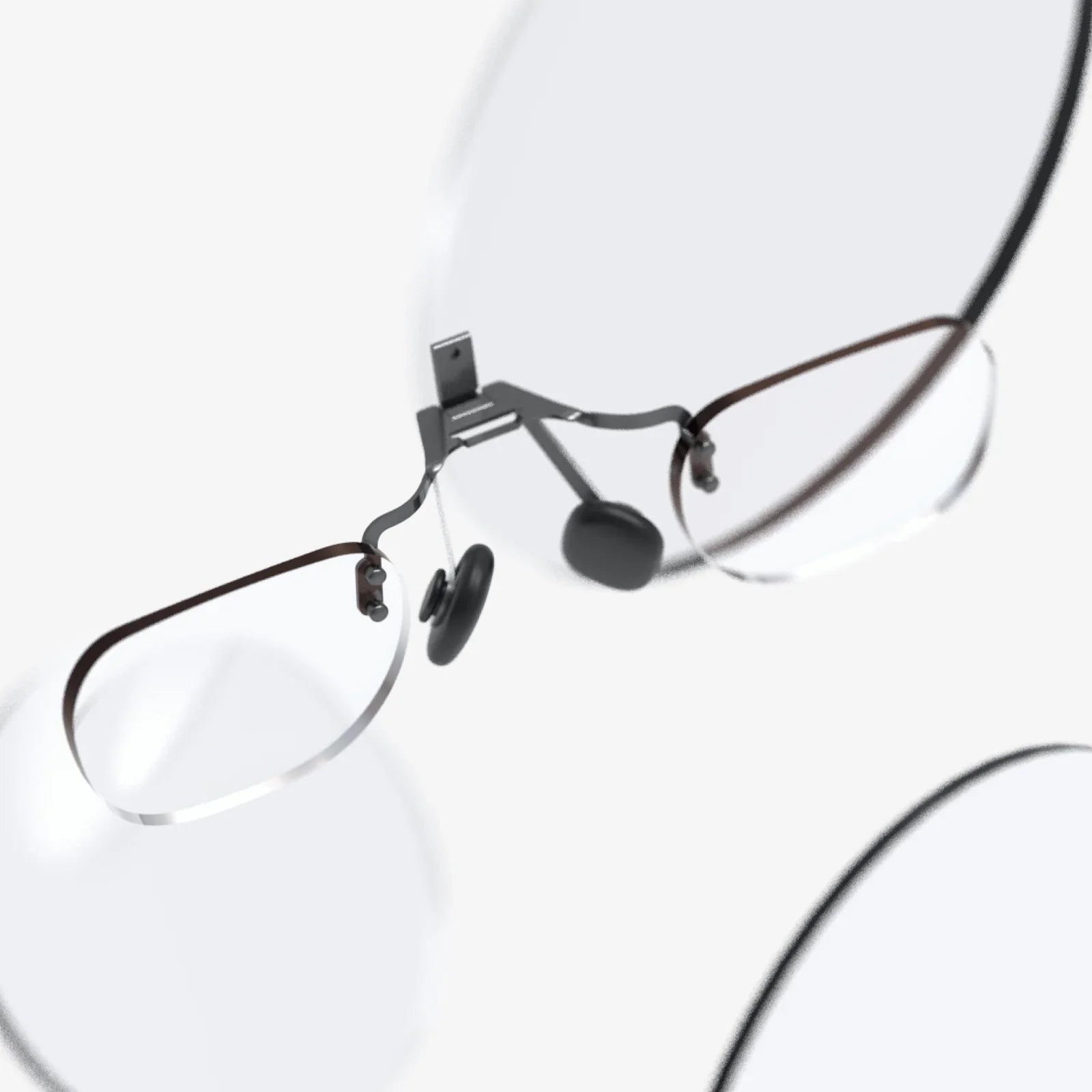
If you have ever wished your living room could magically transform into a private cinema, learning how to watch films on VR headset is the closest thing to that fantasy. A good headset, the right settings, and a few smart tricks can turn an ordinary movie night into a fully immersive experience that feels like you are sitting in the best seat of a massive theater, without noisy crowds or overpriced snacks.
Why Learn How To Watch Films On VR Headset?
Before diving into the practical steps, it helps to understand why watching films in VR is worth the effort. Virtual reality headsets are no longer just for games. They can simulate huge screens, dark theaters, and even themed virtual environments around you. Instead of staring at a TV across the room, you are placed inside a digital cinema where the screen fills your field of view.
For film lovers, this means:
- Cinematic scale: The virtual screen can appear as large as a theater screen.
- Isolation from distractions: The headset blocks out most real-world visual noise.
- Portable movie theater: Watch in bed, on a plane, or in a small apartment without a big TV.
- 3D and 360-degree content: Experience movies that go beyond flat screens.
Learning how to watch films on VR headset is about more than novelty. When done correctly, it can actually be more immersive than a traditional home setup, especially for late-night solo viewings.
Step 1: Make Sure Your VR Headset Is Ready
To watch films comfortably and clearly, your headset needs to be properly prepared. This involves both physical setup and software readiness.
Adjust the Headset Fit
A poor fit can ruin your movie experience, causing pressure points, blurry images, or motion discomfort. Before starting a film:
- Adjust the head straps so the headset is snug but not tight.
- Ensure the weight is balanced between your forehead and back of the head.
- Use additional padding or a comfort strap if your headset supports it.
- Check that the headset does not slide down your nose while you move.
Set the Lens Distance and IPD
Clear visuals are crucial when you watch long films in VR. Many headsets let you adjust the distance between lenses, called IPD (interpupillary distance). If the IPD is wrong, the image may look blurry or cause eye strain.
- Use the physical IPD slider or digital IPD setting to match your eye spacing.
- Look at text in the menu and adjust until it appears sharp and comfortable.
- Make sure the headset sits level on your face so both eyes see clearly.
Check Battery and Storage
Nothing kills immersion faster than a low battery warning mid-movie. Before starting:
- Charge your headset to at least 70–80 percent for a full-length film.
- Ensure you have enough storage for local video files if you plan to copy movies to the device.
- If you use a PC-tethered headset, confirm your cable or wireless connection is stable.
Step 2: Choose How You Want To Watch Films In VR
There are several ways to watch films on a VR headset, and the best choice depends on your device and where your movies are stored. Understanding these options is central to mastering how to watch films on VR headset effectively.
Option 1: Native VR Video Apps
Most standalone headsets and many PC-based platforms offer dedicated VR video apps. These apps typically simulate a cinema or home theater environment and support standard 2D, 3D, and sometimes 360-degree videos.
Common features of VR video apps include:
- Virtual cinema environments (traditional theater, home living room, space station, etc.).
- Screen size and distance adjustments.
- Support for local video files stored on the headset.
- Subtitle support and basic playback controls.
To use these apps, you usually:
- Open the app library inside your headset.
- Launch the video or cinema app.
- Grant storage permissions if prompted.
- Select your movie from the interface.
Option 2: Streaming Video Services With VR Modes
Many popular streaming services offer VR-compatible apps or allow you to access their content through VR browsers. This approach is ideal if you do not want to manage large local video files.
Typical steps to stream films in VR:
- Install the streaming app from your headset's app store, or open a VR web browser.
- Sign in to your account using the VR controller or a paired keyboard.
- Choose the cinema or theater mode if available.
- Play the film and adjust screen size or environment to your liking.
Note that streaming quality depends heavily on your internet connection. A stable, high-speed Wi-Fi network is recommended for high-definition playback in VR.
Option 3: Watching Local Video Files
If you have a library of films stored on your computer or external drive, you can watch them on your VR headset in several ways:
- Direct storage: Copy video files to the headset's internal storage or memory card, then open them in a VR video player app.
- Network streaming: Use a local media server on your home network and connect to it from the VR video player.
- PC-tethered playback: For PC VR, use desktop media players that support VR modes or mirror your desktop into a virtual theater.
When copying files directly:
- Connect the headset to your PC using a USB cable.
- Enable file transfer mode on the headset if prompted.
- Create a dedicated "Movies" folder for easy access.
- Copy your video files into that folder.
- Disconnect and open the VR video app to locate the files.
Step 3: Understand Video Formats For VR Movies
To fully leverage how to watch films on VR headset, you should understand the basic video formats and what they mean for your experience.
Standard 2D Films
Most movies are standard 2D videos. In VR, these appear as a large flat screen in front of you. This is the simplest type of content to watch and usually works with almost any video player app.
Key tips for 2D films:
- Select a cinema or home theater environment for immersion.
- Adjust screen distance so you can see the whole screen without turning your head.
- Increase screen curvature slightly if your player allows it, for a more natural viewing angle.
3D SBS and Over-Under Films
Some films are available in 3D formats specifically designed for VR. The two most common are:
- SBS (Side-by-Side): The left and right eye images are placed next to each other.
- OU (Over-Under): The left and right eye images are stacked vertically.
To watch these correctly:
- Open the video in a VR video player that supports 3D formats.
- Select the appropriate mode: "3D SBS" or "3D OU" depending on the file.
- Ensure the image does not appear doubled; if it does, you may have chosen the wrong mode.
When properly configured, 3D films in VR can feel more immersive than traditional 3D cinema, because the headset delivers separate images directly to each eye.
180 and 360-Degree Videos
Some content is filmed specifically for VR, allowing you to look around the scene. These usually come in:
- 180-degree: You can look left, right, up, and down within a forward-facing half sphere.
- 360-degree: You can look completely around in every direction.
For these videos:
- Use a VR video player that recognizes 180/360 formats.
- Make sure the player is set to the correct projection type (e.g., "360" or "180").
- For 3D 180/360, select the appropriate 3D mode (SBS or OU) in addition to the projection type.
While not traditional films, these experiences can feel like being inside the movie, making them a unique part of learning how to watch films on VR headset.
Step 4: Optimize Video Quality And Comfort
Even the best film will feel disappointing if the image is blurry or your head hurts after 20 minutes. Optimizing quality and comfort is essential for long sessions.
Improve Image Sharpness
Blurriness in VR can come from several sources. To get the clearest picture:
- Clean the lenses with a microfiber cloth before each session.
- Re-adjust the headset position so the lenses align with the center of your eyes.
- Use the highest resolution video file available, as low-resolution files will look worse when magnified in VR.
- On PC VR, increase the rendering resolution or supersampling in your headset software if your computer can handle it.
Reduce Motion Discomfort
Some people feel uneasy when moving around in VR, but watching films generally involves little motion. Still, to minimize discomfort:
- Choose a static cinema environment rather than moving or animated backgrounds.
- Disable head-tracked screen movement if it bothers you; some apps let you lock the screen to your view.
- Sit in a comfortable chair that supports your neck and back.
- Take short breaks between long films or double features.
Adjust Brightness And Color
Long sessions with a bright display close to your eyes can be tiring. Many VR video apps allow you to tweak visual settings:
- Lower brightness slightly in dark scenes to avoid eye strain.
- Increase contrast to make details clearer in films with dim lighting.
- Use a dark theater environment to reduce glare and reflections.
Step 5: Set Up Audio For A True Cinema Feel
Sound is half the experience when learning how to watch films on VR headset. A large virtual screen is impressive, but without good audio, the magic fades quickly.
Use Quality Headphones Or Earbuds
While some headsets have built-in speakers, dedicated headphones or earbuds usually provide better isolation and detail.
- Choose comfortable, lightweight headphones that fit over or around the headset straps.
- Use wired headphones if wireless audio introduces noticeable delay.
- Check that the audio cable does not tug on the headset or your neck.
Enable Surround Or Spatial Audio
Many films are mixed with surround sound, and some VR video apps can simulate this using spatial audio techniques.
- Look for settings like "virtual surround" or "spatial audio" in your video app.
- Position the virtual speakers correctly if the app allows customization.
- Test a few scenes with strong sound design to confirm you can sense directionality.
Balance Volume And Safety
Because VR blocks your view of the real world, you may not notice how loud your headphones are. To protect your hearing:
- Start at a moderate volume and increase slowly.
- Avoid maximum volume for long sessions.
- If you need to hear your surroundings (for children or doorbells), use open-ear headphones or lower the volume.
Step 6: Create The Perfect VR Movie-Watching Environment
Even though VR simulates an environment, your real-world surroundings still matter. A comfortable physical setup can make a huge difference.
Choose A Safe And Comfortable Seat
Since you will be wearing a headset for one to three hours, your seat is important.
- Use a chair with good back and neck support.
- If you prefer lying down, ensure your head and neck are supported and the headset does not press uncomfortably.
- Make sure there is nothing nearby you could accidentally hit with your hands or controllers.
Manage Cables And Accessories
If you are using a PC-tethered headset with cables:
- Route the cable behind your seat to avoid stepping or sitting on it.
- Use clips or hooks to keep the cable from tangling.
- Consider a cable management system above your head for extra freedom of movement.
Prepare Snacks And Breaks
Eating or drinking with a headset on is tricky. To avoid interruptions:
- Have water within easy reach so you can remove the headset briefly during calm scenes.
- Plan short breaks between films for stretching and eye rest.
- Keep a soft cloth nearby to wipe sweat or adjust padding if needed.
Step 7: Watch Films With Friends In VR
One of the most enjoyable aspects of learning how to watch films on VR headset is discovering shared experiences. Many platforms allow you to watch films together with friends in virtual theaters.
Virtual Theater Rooms
Some VR video apps and social platforms offer private or public virtual theaters where multiple users can watch the same film simultaneously.
- Create a private room and invite friends using their usernames or invite links.
- Load a film from your library or choose one from a supported streaming service.
- Use voice chat to talk, laugh, or react together during the movie.
This can recreate the feeling of going to the movies together, even if everyone is physically in different locations.
Screen Sharing And Desktop Mirroring
Another approach is to mirror your desktop into VR and share your screen using a video conferencing or streaming service. While this may not provide perfect synchronization or quality, it is a flexible option for group viewings.
- Open a desktop streaming app on your PC.
- Share your screen with friends.
- Use a VR desktop viewer inside your headset to watch the shared screen in a virtual theater.
Step 8: Troubleshooting Common Problems
Even with careful preparation, issues can arise. Knowing how to solve them quickly keeps your movie night on track.
Blurry Or Double Image
If the film looks blurry or doubled:
- Re-adjust the headset position and IPD.
- Clean the lenses thoroughly.
- Verify that the player is using the correct 2D/3D mode.
- Check the video resolution; very low-quality files may always look soft.
Video Stuttering Or Lag
Stuttering can break immersion and even cause discomfort.
- If streaming, test your internet speed and move closer to the router.
- Close other apps on the headset or PC that may be using resources.
- Reduce streaming quality slightly if necessary.
- For PC VR, lower rendering resolution or graphics settings.
Audio Out Of Sync
Audio that does not match the video is particularly distracting.
- Pause and resume playback to re-sync.
- If using wireless headphones, test wired ones to see if latency is the cause.
- Try a different video player app if the issue persists with specific files.
Overheating Or Battery Drain
Headsets can get warm during long sessions, and battery life is limited.
- Lower screen brightness and close background apps.
- Use an external battery pack if your headset supports charging while in use.
- Give the headset a short break between films if it feels hot.
Step 9: Advanced Tips To Enhance Your VR Film Experience
Once you are comfortable with the basics of how to watch films on VR headset, you can explore advanced tweaks to push the experience further.
Use Custom Theater Environments
Some apps let you import or download custom environments. You can watch a film in a classic red-velvet theater, a futuristic spaceship, or a cozy cabin in the woods.
- Experiment with different environments to find one that feels most immersive.
- Avoid highly animated or bright environments for serious films, as they can distract from the story.
Fine-Tune Screen Geometry
Advanced video players allow you to adjust screen curvature, tilt, and distance.
- Slight curvature can reduce eye strain by matching the natural field of view.
- Position the screen so you do not need to tilt your head up or down for long periods.
- Resize the screen so it feels large but still fully visible without turning your head.
Organize A Dedicated VR Movie Library
A bit of organization goes a long way when you have many films.
- Sort movies into folders by genre, resolution, or 2D/3D format.
- Rename files clearly so you can recognize them inside the VR interface.
- Keep a separate folder for 3D and 360 content to avoid confusion.
Experiment With Different Seating Positions
VR frees you from the fixed viewing position of a traditional TV.
- Try "front row" seats for action-heavy films where you want the screen to dominate your vision.
- Use "middle row" or "back row" positions for longer dramas where comfort and full-screen visibility matter more.
- In some apps, you can even stand or lie down and reposition the screen to match your posture.
Step 10: Build A VR Movie Night Routine
To truly enjoy how to watch films on VR headset, turn it into a ritual rather than a one-time experiment. A simple routine can make every viewing smooth and enjoyable.
Pre-Movie Checklist
Before pressing play, run through a quick mental checklist:
- Headset charged and cleaned.
- Comfortable seat and safe surroundings.
- Correct video file or streaming app ready.
- Audio device connected and volume checked.
- Environment selected (cinema, living room, space station, etc.).
Post-Movie Care
After the film:
- Remove the headset slowly to avoid disorientation.
- Clean lenses and face padding if needed.
- Charge the headset so it is ready for next time.
- Take a few minutes to rest your eyes and re-adjust to normal lighting.
Why VR Can Become Your Favorite Way To Watch Films
As you practice and refine how to watch films on VR headset, you will likely notice that traditional screens start to feel small and distant. The sense of presence, the freedom to choose any virtual theater you like, and the ability to watch anywhere without a huge physical setup make VR a compelling alternative to conventional home theaters.
The key is to approach it thoughtfully: prepare your headset, choose the right apps and formats, optimize comfort and audio, and troubleshoot small issues before they disrupt your viewing. With these pieces in place, your VR headset stops being just a gadget and becomes your own portable cinema, ready whenever you are in the mood for a film that feels larger than life.
Aktie:
Screen Door Glass Holder Ideas for Safer, Smarter Home Entrances
phone screen protector tempered glass buying guide and usage tips