


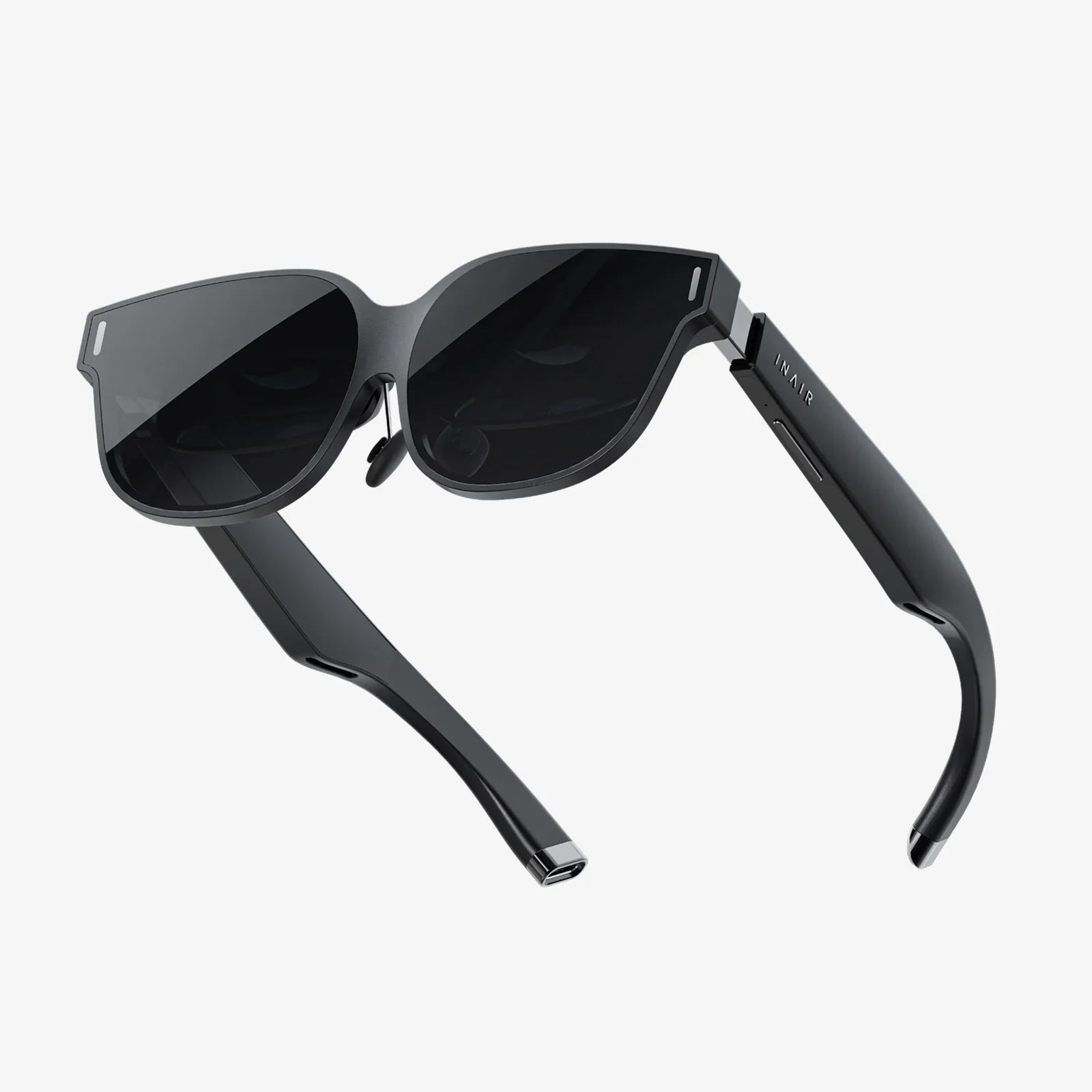
If the phrase invisible touch controls v8 download has caught your eye, you are not alone. Many users search for this kind of tool hoping to unlock hidden control, smoother navigation, and a cleaner interface on their devices. But behind the buzzwords and version numbers, there are important questions: What does it actually do, how safe is it, and is it really worth installing?
This in-depth guide walks you through the idea behind invisible touch controls, what a "v8" version usually implies, where people try to download such tools, and how to protect yourself from risky or fake downloads. By the end, you will know how to get the benefits of invisible touch-style interfaces without putting your data, privacy, or device performance on the line.
Understanding What "Invisible Touch Controls" Really Means
The phrase "invisible touch controls" sounds mysterious, but the concept is fairly straightforward. It usually refers to control zones or gestures on a screen that are not visually obvious. Instead of tapping visible buttons, you use swipes, taps, or areas of the screen that respond without showing a permanent icon or menu.
Common Forms of Invisible Touch Controls
Invisible touch controls can show up in several ways:
- Edge gestures: Swiping from the left, right, or bottom edge of the screen to go back, open a menu, or switch apps.
- Invisible tap zones: Tapping specific corners or sides of the display that trigger actions, even though there is no visible button.
- Multi-finger gestures: Using two or three fingers to perform actions such as taking a screenshot, launching a shortcut, or adjusting volume.
- Context-aware gestures: Controls that only appear or respond in certain apps or situations, such as media playback or gaming.
When you see people searching for invisible touch controls v8 download, they are often looking for a tool that adds or customizes these kinds of hidden controls on their phone, tablet, or even desktop environment.
Why Users Want Invisible Controls
There are several reasons invisible touch controls are appealing:
- Cleaner interface: Removing on-screen buttons can make the display look more modern and less cluttered.
- Faster navigation: Once you learn the gestures, they can feel quicker and more natural than tapping icons.
- More screen space: Invisible controls free up space for content such as videos, games, or documents.
- Customization: Some tools let you assign your own actions to gestures, tailoring the device to your habits.
However, the very fact that controls are invisible can also cause confusion. New users may not know how to trigger certain actions, and poorly designed tools may conflict with existing gestures on your device.
What Does "v8" Suggest in invisible touch controls v8 download?
When a search phrase includes a version tag like v8, it typically suggests that the tool has gone through several iterations. While the exact meaning depends on the specific software, there are some general implications:
- Multiple prior versions: A version 8 usually indicates that the developer has released at least seven earlier builds or major updates.
- Refinement over time: Later versions often come with bug fixes, improved performance, and new features.
- Compatibility changes: A v8 release may be aimed at newer operating systems or updated device hardware.
That said, a version number is not a guarantee of quality, safety, or legitimacy. Some malicious or low-quality tools attach impressive-sounding version labels just to look more established. This is one reason why blindly clicking on invisible touch controls v8 download links can be risky.
Typical Features Promised by Invisible Touch Control Tools
Although different tools vary, many invisible touch control utilities share a similar feature set. When you encounter pages advertising a v8 release, you may see claims like these:
1. Gesture-Based Navigation
One of the core promises is an alternative navigation system. Common options include:
- Swipe from the left edge to go back.
- Swipe up from the bottom to return to the home screen.
- Hold and drag from an edge to open a recent apps overview.
Some tools let you adjust sensitivity so that accidental touches do not trigger actions too easily.
2. Custom Shortcuts
Many invisible control tools allow you to assign custom actions to gestures or tap zones, such as:
- Launching a favorite app.
- Toggling settings like Wi-Fi, brightness, or rotation lock.
- Starting a screen recording or screenshot with a specific gesture.
- Controlling media playback while the screen is on or off.
This level of customization is a major reason people search for invisible touch controls v8 download, especially power users who want more control than the default system offers.
3. Context-Sensitive Controls
More advanced utilities may offer context-aware behavior. For example:
- Different gestures while watching a video versus browsing the web.
- Special controls for games, such as invisible buttons mapped to certain regions of the screen.
- Profiles that change behavior depending on whether headphones are plugged in or a Bluetooth device is connected.
These features can be powerful but also increase complexity. Poorly configured settings may interfere with normal app usage or cause unintended actions.
4. Visual Minimalism and Theme Options
Some tools include subtle visual cues, such as faint lines or dots, that hint at where invisible controls are located. Others are fully invisible but let you customize:
- Haptic feedback when a gesture is recognized.
- Short vibration patterns for different actions.
- Temporary on-screen hints while you are learning the gestures.
These options can help bridge the gap between a completely hidden interface and one that is still discoverable.
Where People Look for invisible touch controls v8 download
When users search for invisible touch control tools, they typically end up in a few common places. Each source has its own level of safety and reliability.
Official App Stores
The safest starting point is usually your device's official app marketplace. Here you can:
- Browse utilities in categories like personalization, tools, or accessibility.
- Read user reviews and see ratings.
- Check how frequently the app is updated.
- Verify that the developer has a track record.
Even if the exact phrase invisible touch controls v8 download does not appear, you may find similar tools that offer gesture navigation, hidden controls, or customizable touch zones.
Third-Party Download Sites
Some users turn to third-party sites that host installation packages. While these sources may advertise specific versions like "v8" and sometimes provide access to tools not available in official stores, they also carry higher risk:
- Files may be modified to include unwanted software or malicious code.
- Version numbers and descriptions can be misleading or completely fabricated.
- There is often little to no moderation or quality control.
If you decide to explore such sites, strict caution is essential. The convenience of a quick invisible touch controls v8 download is not worth compromising your device or personal information.
Forums and Community Recommendations
Discussion boards, social media groups, and technology communities often share tools, tips, and configuration files related to invisible touch controls. These spaces can be useful for:
- Learning which tools are trusted by experienced users.
- Finding guides on how to set up gestures effectively.
- Discovering alternatives if a particular tool is no longer maintained.
However, even when a link is recommended by a community member, you should still verify its safety and origin. Always treat direct download links with skepticism unless you fully trust the source.
Security and Privacy Risks Behind the Download
Invisible touch tools often require deep access to your device's input system. This level of control can be very powerful, but it also opens the door to serious risks if the software is not trustworthy.
Permissions to Watch Out For
Many invisible control utilities request permissions such as:
- Accessibility access: To monitor your touch inputs and overlay custom behavior.
- Overlay permissions: To draw invisible or semi-transparent layers on top of other apps.
- System settings modification: To adjust navigation, gestures, or display behavior.
These permissions are not inherently bad; they are often necessary for the tool to function. The problem arises if a malicious app uses them to log your activity, capture sensitive information, or disrupt normal device operation.
Potential Threats from Untrusted invisible touch controls v8 download Links
Unverified downloads can lead to several problems:
- Hidden malware: The installation file may include code that steals data, displays intrusive ads, or connects your device to a bot network.
- Keylogging behavior: A tool that monitors touches could theoretically capture passwords, messages, or payment details if misused.
- System instability: Poorly written utilities might cause crashes, battery drain, or conflicts with other apps.
To avoid these threats, always prioritize downloads from official or well-vetted sources and pay attention to user feedback and update history.
How to Evaluate an Invisible Touch Control Tool Safely
Before you commit to any invisible touch controls v8 download, it is wise to evaluate the software carefully. A simple checklist can help you decide whether a tool is worth installing.
1. Check the Developer Background
Look for information such as:
- Other apps or tools published by the same developer.
- An official website or documentation.
- Contact information or support channels.
Developers who maintain multiple tools and communicate with users publicly are generally more trustworthy than anonymous one-off uploaders.
2. Inspect Reviews and Ratings
On official app platforms, reviews can reveal a lot:
- Consistent complaints about crashes or suspicious behavior are red flags.
- Detailed positive reviews describing real usage are more reliable than generic praise.
- Recent reviews matter more than very old ones, especially for a "v8" release.
If you are downloading from outside an official store, search the tool's name plus words like "review", "issues", or "safe" to see what the community says.
3. Examine Update Frequency
A version labeled "v8" should ideally be part of an active update history. Check whether:
- The tool has been updated within the last year.
- Changelog notes mention bug fixes and compatibility improvements.
- The developer responds to user feedback with new releases.
Abandoned tools may still work, but they can become incompatible with newer operating systems and may contain unresolved security flaws.
4. Review Permissions Before Installing
During installation or first launch, read the permission requests carefully:
- Ask yourself whether each permission is truly necessary for invisible touch functionality.
- Be cautious if the app requests access to contacts, messages, or location without a clear reason.
- If something feels excessive, consider choosing a different tool.
Modern operating systems often let you deny specific permissions or restrict background activity, which can reduce risk.
Setting Up Invisible Touch Controls Wisely
Once you find a tool that passes your safety checks, the real value comes from how you configure it. Thoughtful setup can turn invisible touch controls into a powerful productivity boost instead of a source of frustration.
Start with a Simple Configuration
It is tempting to assign a gesture to every possible action, but that can quickly become overwhelming. Instead:
- Begin with two or three core gestures, such as back, home, and recent apps.
- Use gestures that feel natural, like swiping from the left to go back.
- Add more actions only after you are comfortable with the basics.
This gradual approach makes it easier to remember your controls and reduces accidental triggers.
Avoid Conflicts with System Gestures
Your operating system may already use certain gestures. To prevent conflicts:
- Check your system settings for existing navigation gestures.
- Disable or adjust overlapping gestures if your tool allows it.
- Test each new gesture in several apps to ensure it behaves as expected.
When invisible controls fight with built-in behaviors, the result can be inconsistent navigation and user frustration.
Use Feedback While Learning
During the first days of using invisible touch controls, enable any available feedback options:
- Short vibrations when a gesture is recognized.
- Temporary visual hints showing the active zone.
- On-screen messages that confirm the triggered action.
Once you are familiar with the layout, you can turn off most of these aids to preserve a cleaner, more invisible interface.
Create Profiles for Different Use Cases
If your tool supports profiles or modes, consider configuring them for specific scenarios:
- A work profile focused on productivity actions like note-taking, email, and multitasking.
- A media profile with gestures for volume, playback, and brightness control.
- A gaming profile that focuses on in-game actions without interfering with normal navigation.
Switching profiles can help you avoid accidental gestures in situations where precision is important, such as gaming or professional apps.
Performance and Battery Considerations
Invisible touch control tools often run in the background, monitoring input and overlaying invisible zones. This can affect performance and battery life if not optimized.
Monitoring Resource Usage
To keep your device responsive:
- Check your system's battery usage screen to see how much power the tool consumes.
- Observe whether the device becomes noticeably slower after enabling the gestures.
- Disable experimental features that seem to cause lag or stuttering.
Well-designed tools should have a modest impact, but older devices or heavy configurations may feel the strain.
Adjusting Sensitivity and Polling
Some utilities allow you to tweak technical settings such as sensitivity or event polling frequency. Practical adjustments include:
- Reducing sensitivity to prevent constant gesture detection when not needed.
- Limiting the areas of the screen where gestures are active.
- Disabling the service when the screen is off, if the tool supports it.
These tweaks can balance responsiveness with efficiency, making invisible touch controls feel smooth without draining your battery.
Accessibility and Usability: Not Just a Visual Upgrade
While many people chase invisible touch controls for aesthetic reasons, there is also an important accessibility angle. For some users, gestures can make devices easier to use than small on-screen buttons.
Benefits for Accessibility
Invisible or gesture-based controls can help:
- Users who have difficulty accurately tapping small icons.
- Individuals who prefer one-handed operation with large screens.
- People who rely on consistent, repeatable motions rather than visually scanning for buttons.
When configured thoughtfully, these tools can reduce strain and make everyday tasks more comfortable.
Potential Accessibility Pitfalls
On the other hand, invisible controls can also create barriers:
- New users may struggle to discover or remember gestures.
- People with limited dexterity may find complex multi-finger actions difficult.
- Inconsistent behavior across apps can be confusing or disorienting.
For this reason, it is important to keep backup navigation options available, such as on-screen buttons or system-level gestures, especially while experimenting with new tools.
Legal and Ethical Dimensions of Hidden Controls
Most invisible touch control utilities are designed for personal customization and convenience, but the same techniques can be misused in ways that raise legal or ethical questions.
Respecting App and System Policies
Certain applications or platforms may prohibit overlays or external control layers for security reasons. When using invisible touch tools:
- Avoid using them to bypass built-in restrictions or protections.
- Do not attempt to automate actions in environments where it is explicitly forbidden.
- Be mindful that some services may detect and restrict tools that interfere with normal interaction patterns.
Using hidden controls responsibly helps ensure that you do not violate terms of use or compromise the integrity of secure apps.
Privacy of Others
If you share your device with family, friends, or colleagues, invisible controls can confuse or mislead them. Ethical use includes:
- Informing others that custom gestures are active on shared devices.
- Avoiding hidden shortcuts that access sensitive information without clear indication.
- Documenting your setup if others need to rely on the device regularly.
Transparent communication pairs well with invisible controls, preventing misunderstandings and accidental data exposure.
When invisible touch controls v8 download Is Not the Right Choice
Despite the appeal, invisible touch tools are not ideal for everyone or every situation. It may be better to skip the download if:
- Your device is already struggling with performance or limited storage.
- You are uncomfortable granting deep permissions to third-party utilities.
- You frequently hand your device to people who are not tech-savvy.
- You rely on highly secure environments where overlays and custom controls are discouraged.
In these cases, exploring built-in gesture options or lighter customization tools may be a safer and more stable path.
Alternatives to Downloading a Dedicated Invisible Control Tool
If you decide that a direct invisible touch controls v8 download is not for you, there are still ways to enjoy cleaner navigation and gesture-based control.
Use Built-In System Gestures
Many modern operating systems include:
- Edge swipes for navigation.
- Gesture-based task switching.
- Quick actions triggered by swipes from the top or bottom of the screen.
These built-in features are typically well-optimized, secure, and supported for the life of the device.
Explore Accessibility Settings
Accessibility menus often hide powerful tools that mimic some aspects of invisible touch controls, such as:
- Custom shortcuts activated by tapping specific areas.
- Gesture shortcuts for common actions.
- Assistive menus that can be minimized or hidden when not needed.
These options are designed with reliability and safety in mind and are usually maintained directly by the platform vendor.
Try Lightweight Gesture Utilities
If you still want more control than the default system provides, look for lightweight utilities that:
- Offer a limited but focused set of gestures.
- Have strong reviews and clear documentation.
- Do not require excessive permissions or constant background activity.
Such tools can give you a taste of invisible touch control without the complexity and risk of larger, heavily modified setups.
Turning Curiosity into a Smart, Safe Setup
Your search for invisible touch controls v8 download is really a search for a smoother, smarter way to interact with your device. Hidden gestures and invisible zones can transform the way you navigate, declutter your screen, and speed up everyday tasks. But the same power that makes these tools attractive also demands careful choices about what you install, how you configure it, and where you get it.
By focusing on trusted sources, reading reviews, checking permissions, and starting with a simple, well-planned configuration, you can capture the benefits of invisible touch controls while avoiding the traps of unstable or unsafe software. Whether you ultimately install a dedicated v8-style tool, rely on built-in gestures, or combine several lighter options, the goal is the same: a device that feels like an extension of your intent, responding fluidly to your touch without clutter or confusion.
If you treat every invisible touch controls v8 download link as an invitation to investigate rather than a shortcut to click blindly, you will be far better positioned to build a control scheme that is elegant, efficient, and secure. Your device can become more than just a screen full of icons; it can become a responsive surface where your gestures quietly shape everything you do.
Aktie:
Model L300 Touch Lamp Control Guide for Effortless Lighting Mastery
Smart Touch Digital Spa Control For Effortless Relaxation And Energy Savings