


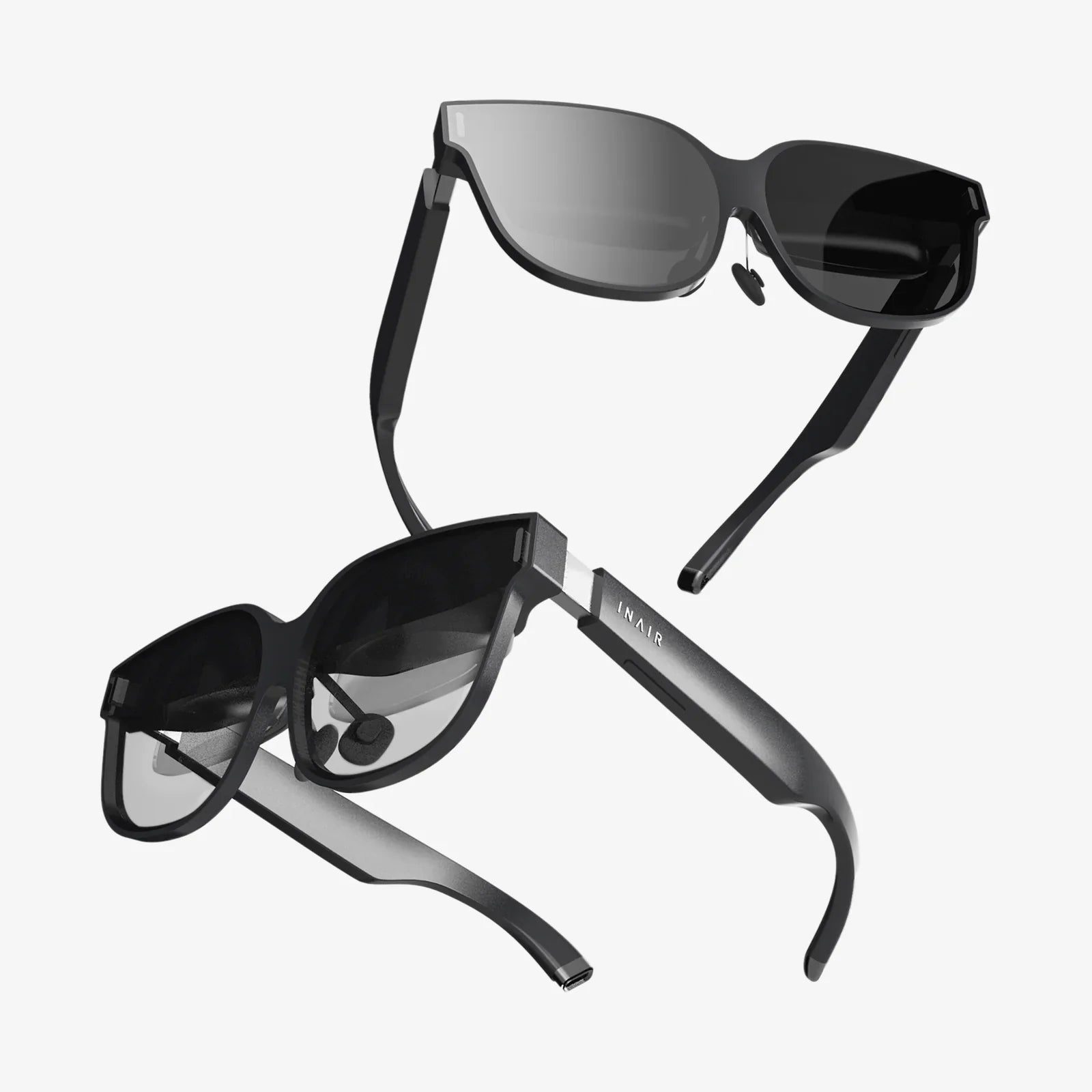
vr goggles for android are rapidly transforming everyday smartphones into powerful, immersive gateways to virtual worlds, and most people still have no idea how much potential they’re carrying in their pocket right now. If you own an Android phone and you’re even a little bit curious about virtual reality, learning how to choose the right goggles and set them up properly can unlock experiences that feel surprisingly close to high-end VR, without the high-end price tag.
This guide walks you through everything: how vr goggles for android work, what features actually matter, how to avoid common compatibility mistakes, and how to get the most out of your first VR sessions. Whether you want to dive into games, watch 3D movies, explore virtual travel, or experiment with fitness and education apps, you’ll find practical, step-by-step advice you can use immediately.
How vr goggles for android Actually Work
Before spending money, it helps to understand what these goggles are really doing with your Android device. That way, you know which specs and features are worth paying for and which are just marketing buzzwords.
The Basic Concept
Most consumer-grade vr goggles for android are essentially a specialized headset that holds your smartphone close to your eyes. The phone’s display shows two slightly different images side by side, one for each eye. Lenses inside the goggles magnify and slightly distort these images so your brain fuses them into a single 3D scene, creating a sense of depth and presence.
Head tracking is usually handled by the sensors already built into your Android phone. These include:
- Gyroscope for detecting rotation and orientation
- Accelerometer for detecting movement and tilt
- Magnetometer (digital compass) for directional reference
When you move your head, the phone’s sensors detect the change and the VR app adjusts the visuals accordingly. This is what makes it feel like you’re really “inside” the scene instead of just watching a flat screen.
Types of VR Experiences on Android
With vr goggles for android, you’ll typically encounter three broad types of experiences:
- 3DoF (3 Degrees of Freedom) – You can look around in every direction, but you can’t move forward, backward, or sideways in the virtual space. Most basic Android VR apps use this model.
- 360-degree video – Pre-recorded videos that surround you. You can look around but not move within the scene.
- Interactive VR apps and games – These may include simple controllers, on-screen gaze controls, or basic hand-tracking, depending on the app and the goggles.
Understanding these limitations will help set realistic expectations. Mobile VR can be immersive and fun, but it’s not identical to the experience of high-end PC or dedicated standalone headsets. Still, for the price and convenience, vr goggles for android can be incredibly impressive when set up correctly.
Key Features to Look for in vr goggles for android
Not all VR goggles are created equal. Some are little more than plastic shells, while others offer refined optics and comfort that make a huge difference in how long you can enjoy VR without discomfort.
1. Lens Quality and Adjustability
The lenses are the most critical component of vr goggles for android. Poor lenses lead to eye strain, headaches, and blurry visuals.
Look for goggles that offer:
- High-quality lenses – Aspheric or anti-distortion lenses help reduce blurring and edge distortion.
- Interpupillary distance (IPD) adjustment – Your eyes need to line up with the center of each lens. Physical sliders or dials are ideal.
- Focus adjustment – Diopter adjustment allows you to sharpen the image without wearing glasses inside the headset. This is particularly helpful if you are nearsighted or farsighted.
When lens alignment is off, you’ll notice double vision, eye strain, and difficulty focusing. Spending a bit more for adjustable lenses can dramatically improve comfort and clarity.
2. Field of View (FOV)
Field of view describes how wide your virtual vision is inside the headset. A larger FOV feels more immersive because you see more of the virtual world at once, while a narrow FOV can feel like looking through a tunnel.
For vr goggles for android, a realistic FOV range is typically around 90 to 120 degrees, depending on the design and your face shape. Product listings may advertise larger numbers, but those are often optimistic. Focus on real user feedback and reviews about immersion rather than the advertised FOV alone.
3. Comfort and Fit
Comfort is often overlooked but absolutely crucial. Even the best visuals won’t matter if you can’t wear the headset for more than ten minutes.
Pay attention to:
- Head strap design – Three-strap designs (over the top and around the sides) usually distribute weight better than single bands.
- Padding quality – Soft, breathable foam around the face prevents pressure points and reduces sweat buildup.
- Weight distribution – Heavier goggles or phones can strain your neck. A balanced design makes a big difference.
- Glasses compatibility – If you wear glasses, look for goggles with enough internal space or adjustable focus so you can use VR comfortably.
4. Ventilation and Heat Management
VR sessions can quickly heat up your phone, which may lead to performance throttling or discomfort. Good vr goggles for android provide airflow around the phone and your face.
Look for:
- Ventilation slots near the phone compartment
- Face padding materials that do not trap heat excessively
- Designs that allow you to slightly slide the front cover open for extra airflow if needed
5. Phone Mounting System
The way your phone is held in place affects both ease of use and alignment. Common mounting methods include:
- Clamp-style holders – Adjustable clamps that grip the phone from the sides. These are flexible for different phone sizes but must be secure enough to prevent slipping.
- Magnetic or snap-in trays – A tray that slides out, holds the phone, and snaps back in. This is convenient but may be less flexible for very large or very small phones.
Whatever the system, make sure it allows you to center the phone screen precisely in front of the lenses. Misalignment leads to uneven focus and eye strain.
6. Controller Support
Some vr goggles for android include a simple handheld controller for navigating menus and playing games. Others rely entirely on gaze controls (pointing with your head) or basic tap-buttons built into the headset.
Consider:
- Whether you want to play interactive games that benefit from a controller
- If the goggles support generic Bluetooth controllers you can buy separately
- How comfortable you are using gaze-based menus and simple tap gestures
Ensuring Your Android Phone Is Compatible
Before buying vr goggles for android, confirm that your phone can handle VR properly. Compatibility issues are one of the most common sources of disappointment for new users.
1. Screen Size and Resolution
Most VR goggles support a range of screen sizes, typically from around 4.7 inches to 6.7 inches or more. Check the headset’s supported size range and compare it to your phone.
Resolution also matters. Higher resolution screens produce sharper images and reduce the “screen door effect” (visible pixels). As a general guideline:
- Full HD (1080p) is the minimum for a decent experience
- Quad HD or higher offers noticeably better clarity
2. Sensor Support
Your Android phone should have a gyroscope for proper head tracking. Without it, VR experiences will feel limited and may not work at all. You can verify sensor support by checking your phone’s specifications or using a sensor test app from the app store.
3. Performance and Battery
VR is demanding. To avoid stuttering and overheating, your phone should have:
- A reasonably powerful processor (mid-range or better from the last few years)
- At least 3 to 4 GB of RAM for smoother multitasking
- Good thermal management to prevent rapid throttling and shutdowns
Battery drain is inevitable during VR sessions. It is wise to start with a high battery level and consider shorter sessions if your phone heats up significantly.
4. Operating System and App Support
Most vr goggles for android rely on standard VR apps available through the main app store or other official distribution channels. Ensure that:
- Your Android version is supported by popular VR apps (usually Android 8.0 or newer works well)
- You have enough storage space for VR games, apps, and 360-degree videos
Setting Up vr goggles for android Step by Step
Once you have your goggles and a compatible phone, proper setup is the difference between a “wow” experience and motion sickness. Follow these steps for the best results.
Step 1: Prepare Your Phone
Before inserting your phone into the goggles:
- Update your Android system and VR apps to the latest versions
- Close background apps to free up memory and processing power
- Increase screen brightness to a comfortable but bright level (VR tends to look dimmer)
- Turn on “Do Not Disturb” to avoid notifications breaking immersion
Step 2: Install VR Apps and Content
Search for VR or 360-degree apps in your app store. You’ll find categories like:
- VR video players and 360-degree movie platforms
- VR games optimized for mobile
- Educational experiences, virtual tours, and simulations
- Meditation and relaxation apps with immersive environments
Install a few starter apps so you can test different types of content once your goggles are set up.
Step 3: Mount the Phone in the Goggles
Open the front compartment of your vr goggles for android and carefully place your phone inside. Align the center of the screen with the center of the headset. If your goggles include alignment guides or markers, use them.
Secure the phone with the built-in clamps or tray. Make sure it is firmly held and not pressing any side buttons that could lock the screen or change the volume.
Step 4: Adjust the Head Straps and Fit
Put the goggles on your head without tightening the straps fully. Adjust the top and side straps so the weight is evenly distributed and the headset feels stable but not tight.
The goggles should sit comfortably on your face with minimal pressure on your nose. If needed, adjust the angle or padding so the lenses are centered in front of your eyes.
Step 5: Tune the Lenses
With a VR app running, look straight ahead and adjust:
- IPD (if available) – Move the lenses closer together or farther apart until the image looks sharp and you see a single, clear picture.
- Focus or diopter – Rotate focus wheels or sliders until text and objects appear crisp. Take your time; small adjustments matter.
If you wear glasses, test whether you can use the goggles with them on or whether the focus adjustment is sufficient without them. Comfort is more important than small differences in sharpness.
Step 6: Test for Comfort and Motion
Start with a simple VR demo or 360-degree video. Sit down, relax, and slowly move your head around. Pay attention to:
- Whether the image stays stable and responsive
- Any immediate eye strain or discomfort
- Heat buildup around your face or on the phone
If anything feels off, adjust the straps, lenses, or phone alignment. It’s normal to need a few minutes of tweaking to find the ideal setup.
Best Uses for vr goggles for android
Once you’re comfortable with your setup, vr goggles for android open up a surprising range of experiences beyond simple novelty demos.
Immersive Gaming
Mobile VR games range from casual experiences to more intense adventures. Common genres include:
- On-rails shooters and action games controlled by head movement and simple taps
- Puzzle and escape-room games that use gaze-based interactions
- Horror and suspense games that leverage 360-degree audio and visuals
For longer gaming sessions, consider pairing your vr goggles for android with a compatible Bluetooth controller. This can make controls more precise and reduce fatigue from constant head-based selection.
Virtual Cinemas and 3D Movies
One of the most appealing uses of VR goggles is turning your phone into a portable cinema. You can watch:
- Standard movies in a virtual theater environment
- 3D side-by-side or over-under videos that simulate stereoscopic depth
- 360-degree narrative films that let you look around during key scenes
Use a dedicated VR video player app that supports various formats and offers virtual environments like large theaters, home cinemas, or space stations. This can transform ordinary content into a more immersive experience, especially when combined with quality headphones.
Virtual Travel and Exploration
With vr goggles for android, you can explore landmarks, natural wonders, and entire cities without leaving home. Many apps offer:
- Guided tours of famous monuments and historical sites
- Underwater or space exploration experiences
- Interactive educational journeys through museums and cultural locations
This is particularly valuable for students, educators, and anyone with a passion for travel who wants a taste of locations before planning real-world trips.
Education and Training
Educational VR apps can make complex concepts easier to understand by letting you interact with 3D models and simulations. Examples include:
- Human anatomy explorers where you can view organs and systems in 3D
- Physics and chemistry simulations that visualize abstract concepts
- Language learning environments that place you in virtual conversations
For teachers and parents, vr goggles for android can turn lessons into interactive experiences that hold attention and boost retention.
Fitness, Meditation, and Wellness
VR is increasingly used for wellness and fitness. With the right apps, you can:
- Follow guided meditation sessions in tranquil virtual environments
- Participate in light workout routines that incorporate simple VR interactions
- Use breathing and relaxation apps that respond to your head movements
While mobile VR may not track full-body movement like more advanced systems, it can still create engaging, calming spaces that help you disconnect from daily stress.
Reducing Motion Sickness and Eye Strain
Some new users feel discomfort when they first try vr goggles for android. You can minimize this by following a few practical guidelines.
Start Slow and Short
Limit your first sessions to 10 or 15 minutes. Give your eyes and brain time to adjust to the new type of visual input. Gradually increase session length as you become more comfortable.
Choose Comfortable Content
Fast-moving games or apps with aggressive camera motion are more likely to cause nausea. Begin with:
- Static or slow-paced 360-degree videos
- Meditation and relaxation apps
- Simple experiences where you mostly look around rather than “move” through the world
Optimize Visual Clarity
Blurred visuals force your eyes to work harder, leading to strain. Make sure:
- The lenses are properly adjusted for your eyes
- The phone screen is clean and free from smudges
- The headset is not tilted or sliding down your face during use
Take Regular Breaks
After each session, remove the headset and focus on distant objects for a minute or two. This helps relax your eye muscles and reduces lingering discomfort.
Maintaining and Caring for vr goggles for android
Proper care extends the life of your vr goggles for android and keeps the experience comfortable and hygienic.
Cleaning the Lenses
Use a soft microfiber cloth to gently wipe the lenses. Avoid using harsh chemicals or rough materials that can scratch the surface. If necessary, lightly dampen the cloth with a lens-safe cleaning solution.
Sanitizing the Face Padding
Because the headset presses against your skin, sweat and oils can build up over time. Periodically:
- Wipe the face padding with a slightly damp cloth and mild soap if the material allows
- Let the headset air dry completely before the next use
- Consider using disposable or washable covers if multiple people share the goggles
Protecting from Dust and Damage
Store your vr goggles for android in a case or on a clean shelf away from direct sunlight. Dust and debris can scratch lenses and interfere with comfort.
Avoid leaving the headset in hot environments, such as inside a car on a sunny day, as high temperatures can warp plastic components and degrade adhesives.
Common Mistakes to Avoid with vr goggles for android
Many frustrations with mobile VR come from a few predictable mistakes. Being aware of these can save you time and money.
Buying Without Checking Phone Compatibility
Always verify that your phone fits the size range of the goggles and supports the necessary sensors. A mismatch here can make the headset unusable.
Ignoring Comfort for the Sake of Price
Ultra-cheap vr goggles for android may look tempting, but poor padding, bad straps, and low-quality lenses can turn VR into a painful experience. Balance budget with basic comfort features.
Skipping Lens and Fit Adjustments
Putting on the headset and jumping straight into VR without adjusting lenses is a recipe for headaches. Spend a few minutes customizing the fit; it pays off every time you use the goggles.
Overlooking Heat and Battery Limits
Extended VR sessions can cause your phone to overheat and drain quickly. Monitor temperature, take breaks, and avoid using VR while charging if your phone becomes excessively hot.
Is Now the Right Time to Try vr goggles for android?
Mobile VR has matured quietly in the background while dedicated headsets grab most of the headlines. Yet vr goggles for android remain one of the most accessible ways to experience virtual reality, especially if you already own a capable phone.
For a relatively modest investment, you can turn idle screen time into immersive adventures, cinematic evenings, educational journeys, and calming escapes. The key is choosing goggles with solid optics and comfort, confirming your phone’s compatibility, and taking the time to fine-tune your setup.
If you’ve been waiting for a sign to step into VR without committing to expensive hardware, this is it. With the right vr goggles for android and a bit of setup, your next favorite game, movie night, or learning experience could happen inside a virtual world that fits in your backpack and runs on the phone you already carry every day.
Aktie:
Tempered Glass Screen Protector for Nintendo Switch 2: Complete Buyer’s Guide
Smart Glass Price: What Affects Cost And How To Choose Wisely