


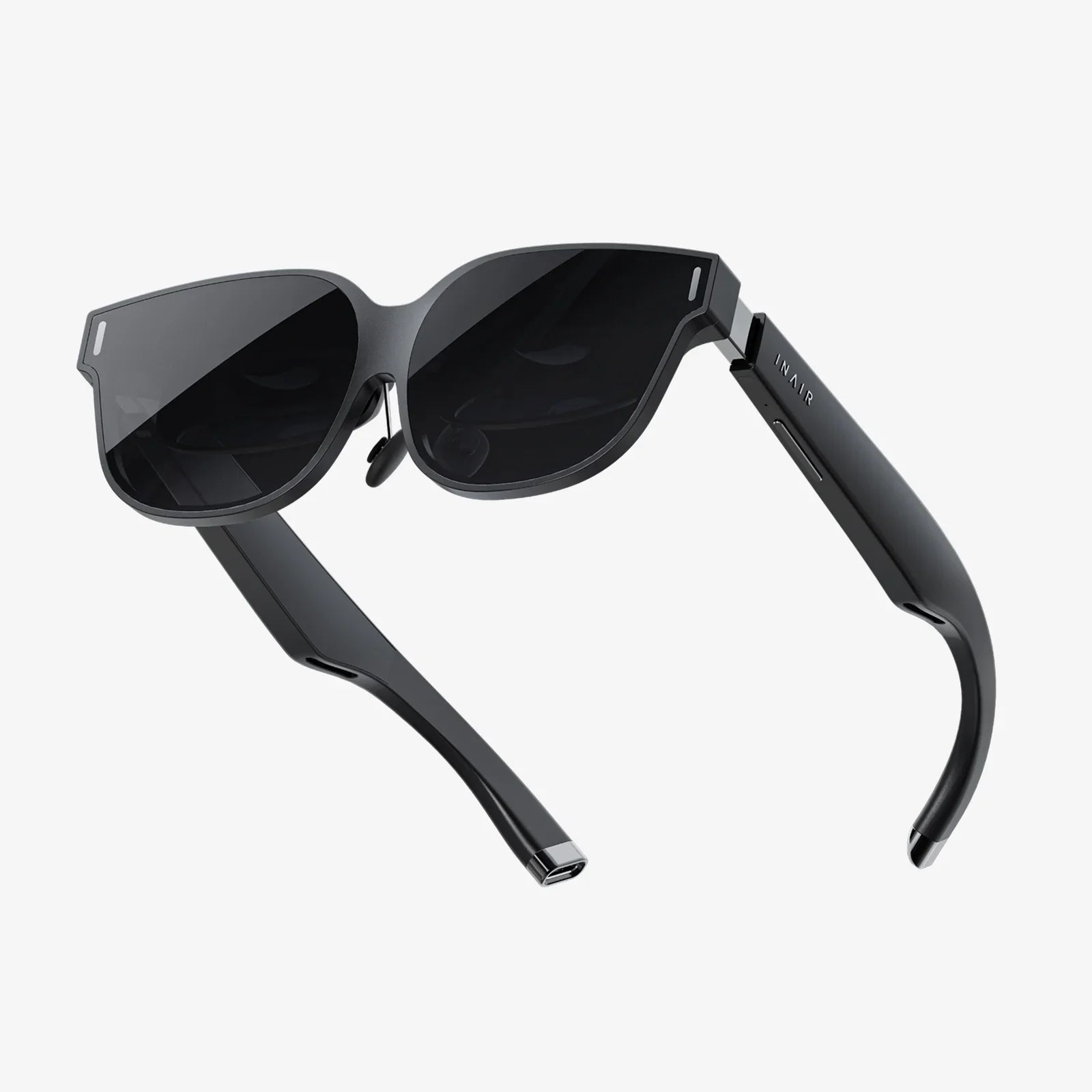
If you are hunting for the best portable computer for VR, you are standing at the crossroads of power and mobility where the wrong choice can leave you with stutters, motion sickness, and a very expensive regret. The right machine, on the other hand, turns any room, hotel, or coworking space into your personal VR playground, ready for gaming, creative work, or professional simulations. This guide walks you through everything that actually matters so you can buy with confidence instead of guesswork.
Virtual reality is more demanding than traditional gaming. You are not just pushing pixels to a flat screen; you are driving two high-resolution displays at high refresh rates while tracking head and controller movements with minimal latency. That means a portable VR-ready computer must be treated more like a compact high-performance workstation than a casual everyday laptop. Let’s break down the critical decisions step by step, from the processor and graphics to cooling, ports, and future-proofing.
Why VR Demands More from a Portable Computer
Before diving into specs, it helps to understand why VR is so demanding. Traditional desktop gaming renders a scene for a single display, usually at 60 to 144 frames per second. VR headsets, however, typically require:
- Two images (one for each eye) rendered simultaneously
- High refresh rates (often 90 Hz or more) to avoid motion sickness
- Low latency between your movement and what you see
- Accurate tracking of your head and controllers in real time
All of this puts heavy load on both the CPU and GPU. Any hiccup or dropped frame can break immersion and make VR uncomfortable. When you shrink this power into a portable form factor, cooling and power delivery become just as important as raw performance.
Key Performance Requirements for a VR-Ready Portable Computer
To identify the best portable computer for VR, you need to focus on four core performance pillars: CPU, GPU, memory, and storage. Skimping on any of these can bottleneck your experience.
CPU: The Brains Behind Your VR Experience
The central processing unit handles game logic, physics, AI, and part of the VR pipeline. For VR, you want a modern multi-core processor with strong single-core performance. Look for:
- At least 6 performance cores, with 8 or more being ideal for heavy VR titles and multitasking.
- High boost clock speeds to keep frame times low and consistent.
- Recent generation architecture (not a several-years-old processor) to ensure efficiency and compatibility with the latest VR runtimes.
While some VR titles lean more on the GPU, underpowered CPUs can cause micro-stutters and inconsistent frame pacing, which feel worse in VR than on a flat monitor. When comparing similar systems, a slightly stronger CPU helps with streaming, recording gameplay, or running background apps while in VR.
GPU: The Single Most Important Component for VR
The graphics processor is the heart of VR performance. It handles rendering two high-resolution images at high frame rates and must support the graphics APIs your headset and software rely on. For a portable VR machine, consider:
- Discrete GPU only: Integrated graphics are not sufficient for modern VR.
- VR-ready performance class: Aim for a GPU class that comfortably meets or exceeds the recommended specs of your target VR headset and games, not just the minimum.
- Ample VRAM: 8 GB of video memory is a realistic baseline; 12 GB or more is ideal for demanding titles and higher-resolution headsets.
VR headsets are steadily increasing in resolution and visual fidelity. A more powerful GPU does not just give you higher frame rates today; it also extends the usable life of your system as VR software evolves.
RAM: Keeping VR Worlds in Memory
Virtual reality applications can be memory-hungry, especially open-world games, complex simulations, and creative tools. For a smooth experience:
- 16 GB of RAM is the bare minimum for modern VR.
- 32 GB of RAM is recommended if you multitask, mod games, or use VR for professional applications like 3D modeling and development.
- Dual-channel memory improves bandwidth and can help overall performance.
If you are choosing between more RAM and a slightly faster CPU at a similar price point, prioritize the RAM once you are already in a strong CPU tier. Running out of memory forces your system to use slower storage as overflow, which can devastate VR performance.
Storage: Fast Loading and Plenty of Space
VR games and applications are large, and you do not want to wait ages for them to load. A modern VR-ready portable computer should have:
- Solid-state storage (SSD) as the primary drive. Avoid mechanical hard drives for anything beyond bulk storage.
- At least 1 TB of SSD space if you plan to install multiple VR titles, plus standard games and apps.
- NVMe SSDs for the fastest load times and snappier overall system responsiveness.
Some systems offer dual SSD slots, which is valuable for future expansion or separating your OS and VR library for easier management.
Display Considerations for VR-Focused Portability
While you will spend most of your time looking at the headset’s displays, the built-in screen of your portable computer still matters. It affects how you configure VR, monitor performance, and use the machine when you are not in VR.
Resolution and Refresh Rate
For VR work, the internal display does not need to be ultra-high resolution, but it should be comfortable to use for extended periods. Look for:
- At least Full HD (1920x1080) resolution.
- Higher refresh rate (120 Hz or more) if you also game on the laptop without VR.
- Good brightness and color accuracy if you do content creation or color-sensitive work.
A high refresh rate display does not directly affect VR headset performance, but it can make non-VR gaming and general use feel smoother. If you must choose between a higher refresh rate and a higher resolution on a tight budget, prioritize performance components for VR first, then the panel.
Screen Size and Portability Balance
Screen size heavily influences overall portability. Popular choices include:
- 14-inch systems: Very portable, lighter, and easier to carry. However, cooling can be more challenging, and you may have fewer ports.
- 15 to 16-inch systems: The sweet spot for many VR users. Better cooling potential, more room for ports, and a comfortable working area.
- 17-inch systems: Maximum screen real estate and often the best cooling, but bulkier and heavier.
If VR is your primary focus and you plan to travel frequently, a mid-sized system that balances weight and thermal performance is usually the best portable computer for VR.
Ports and Connectivity: The Lifeline of VR Headsets
VR headsets often require specific ports and stable, high-bandwidth connections. When comparing portable computers, make sure they align with your headset’s requirements and your preferred setup.
Essential Physical Ports for Wired VR
Depending on your headset and whether you use link cables, you may need:
- USB Type-A ports for older dongles, sensors, and accessories.
- USB Type-C ports with high bandwidth for VR link cables or docking solutions.
- HDMI or DisplayPort output if your headset uses a dedicated video connection.
- Separate audio jack for headphones or external audio setups.
Some modern systems rely heavily on Type-C ports. That can be fine if they support the necessary standards and you are comfortable using adapters or docks, but for hassle-free VR, having at least one full-size video output and multiple high-speed USB ports is ideal.
Wireless Connectivity and VR Streaming
Many people now use wireless streaming to run PC VR games on standalone headsets. For this, your portable computer needs robust wireless capabilities:
- Wi-Fi 6 or newer for higher bandwidth and lower latency.
- Gigabit Ethernet port (or a reliable USB Ethernet adapter) if you want to connect the computer via cable to your router for the best wireless streaming performance to the headset.
- Bluetooth for controllers and other accessories.
If you plan to use wireless VR streaming regularly, network quality matters as much as raw system performance. A strong Wi-Fi card and the ability to connect to a capable router make a noticeable difference in perceived smoothness.
Cooling, Noise, and Thermal Design
VR pushes your portable computer to sustained high loads. A system that looks powerful on paper can underperform badly if it cannot keep its components cool. Thermal design is critical to maintaining stable frame rates and preventing thermal throttling.
Why Cooling Matters More in VR
VR sessions often last for hours. During that time, your CPU and GPU are working near their limits. Poor cooling can lead to:
- Thermal throttling, where performance drops as components overheat.
- Inconsistent frame rates, causing judder and discomfort in VR.
- Uncomfortable chassis temperatures, making the laptop unpleasant to touch.
When evaluating cooling, consider:
- Number and size of fans.
- Heat pipe or vapor chamber design.
- Vent placement (side and rear vents are typically better than bottom-only).
- User reviews and tests that mention sustained performance under load.
Noise Levels and Comfort
High-performance cooling systems can be noisy, especially under VR workloads. While you may not hear the fans as clearly with a headset on, extremely loud systems can still be distracting in shared spaces. Look for:
- Multiple performance profiles (quiet, balanced, performance) so you can tune behavior.
- Reasonable idle noise for non-VR use.
- Thermal headroom so fans do not have to run at maximum speed constantly.
A well-designed cooling system balances performance, temperature, and noise, making VR sessions more comfortable and reliable.
Battery Life and Power Considerations for VR on the Go
VR is power-intensive. Even the best portable computer for VR will struggle to run demanding VR titles on battery alone. However, battery life still matters for general use and light tasks.
Realistic Expectations for VR on Battery
Most high-performance portable systems reduce CPU and GPU power when unplugged to preserve battery life and manage thermals. This means:
- Running intensive VR on battery is often not practical.
- Performance will be noticeably lower compared to when plugged into the wall.
- Battery can drain extremely fast under VR workloads.
For serious VR sessions, plan to use the power adapter. Treat the battery as a convenience for travel, setup, and non-VR tasks rather than the primary power source during VR.
Battery Life for Everyday Use
Even if VR is your main reason for buying, you will likely use the system for browsing, office work, media, and non-VR gaming. In these scenarios:
- 6 to 8 hours of light-use battery life is a good target.
- Power-saving modes and integrated graphics switching can extend battery life when you are not using the discrete GPU.
- Fast charging can be useful if you move between locations frequently.
A balanced system that delivers strong plugged-in performance and decent unplugged endurance gives you more flexibility in how and where you use it.
Weight, Build Quality, and Portability Factors
Portability is not just about fitting into a backpack; it is about whether you actually want to carry the machine regularly. The best portable computer for VR finds a comfortable balance between power and weight.
Weight and Thickness
High-performance VR-capable systems are naturally heavier than ultralight notebooks, but there is still a range:
- Around 1.8 to 2.3 kg (4 to 5 lb) is common for mid-sized VR-ready systems.
- Thicker designs often have better cooling, which is good for VR.
- Ultra-thin designs may look sleek but can struggle with sustained high-performance workloads.
Consider how often you will travel with the machine. If you are frequently on the move, shaving off a bit of weight might be worth a small performance trade-off, but avoid sacrificing cooling and GPU capability too heavily.
Build Quality and Durability
A VR-ready portable computer will see a lot of plugging and unplugging of cables, plus regular movement between rooms or locations. Good build quality helps it survive daily use:
- Sturdy chassis with minimal flex.
- Reinforced hinges for long-term reliability.
- Solid port construction so repeated cable connections do not loosen ports.
Durability is especially important if you take your VR setup to events, friends’ houses, or coworking spaces.
Operating System and VR Ecosystem Compatibility
Most PC-based VR ecosystems are built primarily around desktop-class operating systems that support the necessary drivers, runtimes, and game platforms. When evaluating the best portable computer for VR, consider the software side as carefully as the hardware.
VR Platform Support
Different VR platforms and headsets have specific requirements. When you choose your operating system and hardware combination, ensure it supports:
- The VR runtime for your headset.
- The game platforms you plan to use.
- Developer tools if you intend to create VR content.
Check official documentation for your headset and software to confirm compatibility before purchasing. This avoids unpleasant surprises where a powerful machine cannot run the VR software you rely on.
Driver Stability and Updates
VR performance and reliability depend heavily on graphics and platform drivers. Look for systems with:
- Good track records of driver updates for the GPU.
- Stable chipset and wireless drivers.
- Easy access to manufacturer support and firmware updates.
Regular driver updates can improve performance, fix bugs, and add support for new VR features, extending the useful life of your portable VR rig.
Use Cases: Matching the Computer to Your VR Goals
Not everyone uses VR the same way. The best portable computer for VR depends on whether you are a gamer, creator, or professional. Tailoring your choice to your primary use case helps you spend money where it matters most.
For VR Gaming Enthusiasts
If your primary goal is to play VR games smoothly and with high visual quality:
- Prioritize a powerful GPU and adequate VRAM.
- Choose a fast CPU with strong single-core performance.
- Ensure you have 16 to 32 GB of RAM.
- Focus on cooling and sustained performance for long sessions.
For gamers, features like high-refresh internal displays, RGB lighting, and gaming keyboards can be nice bonuses, but do not let them distract you from the core performance requirements for VR.
For VR Creators and Developers
If you are building VR experiences, creating 3D content, or using VR for design and visualization:
- Opt for 32 GB or more of RAM to handle large projects.
- Consider higher-capacity SSDs for assets and project files.
- Look for color-accurate displays if you do visual work outside the headset.
- Ensure CPU and GPU are strong enough for both real-time VR and offline rendering or baking tasks.
Creators benefit from a balanced system that handles both real-time VR and the heavy lifting of content production tools.
For Professional and Enterprise VR Use
In training, simulation, architecture, and engineering, VR can be mission-critical. In these cases:
- Reliability and thermal stability may matter more than maximum frame rates.
- Enterprise support options and extended warranties can be valuable.
- Port selection for specialized tracking systems or peripherals may be crucial.
- Security features, such as biometric logins and hardware encryption, may be important.
Professional users should also consider how easily the system integrates with their existing workflows and software stacks.
Future-Proofing Your Portable VR Investment
VR hardware and software continue to evolve rapidly. While no system is completely future-proof, you can make choices that keep your portable computer capable for longer.
Choosing the Right Performance Tier
If you buy just enough performance to meet today’s minimum requirements, you may find yourself upgrading sooner than you would like. To extend the life of your system:
- Aim for recommended rather than minimum specs for your current headset and favorite applications.
- Consider a slightly stronger GPU than you think you need right now.
- Start with at least 16 GB of RAM, with the option to upgrade to 32 GB later if possible.
Spending a bit more upfront on core components can pay off by delaying the need for a full replacement.
Upgradability Options
Many portable systems allow some level of upgrading, typically:
- RAM slots for increasing memory capacity.
- M.2 SSD slots for adding or replacing storage.
While the GPU and CPU are usually fixed, having expandable memory and storage gives you flexibility as your VR library and workloads grow. When possible, choose a model that makes these upgrades accessible.
Practical Buying Checklist for the Best Portable Computer for VR
To make your decision easier, here is a practical checklist you can use while comparing options:
- CPU: Modern multi-core processor with strong single-core performance; at least 6 performance cores.
- GPU: Discrete, VR-ready graphics with 8 GB or more of VRAM.
- RAM: 16 GB minimum, 32 GB preferred for heavy use or creation.
- Storage: 1 TB or more of NVMe SSD storage, with room to expand if possible.
- Display: At least 1080p; higher refresh rate if you also game on the laptop screen.
- Ports: Sufficient USB (Type-A and/or Type-C), plus HDMI or DisplayPort if needed by your headset.
- Wireless: Wi-Fi 6 or newer, plus Ethernet option for best wireless VR streaming.
- Cooling: Proven thermal design with good sustained performance and manageable noise.
- Battery: Reasonable life for everyday tasks; understand that VR requires wall power.
- Build: Solid chassis, reliable hinges, and durable ports.
- Software: Full compatibility with your VR headset, platforms, and tools.
- Upgradability: RAM and storage expansion options if possible.
Using this checklist while comparing models helps you cut through the marketing language and focus on what genuinely affects your VR experience.
How to Get the Most from Your Portable VR Computer
Once you have chosen your system, a few best practices can dramatically improve your day-to-day VR experience.
Optimize Power and Performance Settings
Most high-performance systems include tuning software or control panels. For VR:
- Use a high-performance power profile when plugged in.
- Allow the system to run the discrete GPU during VR sessions.
- Keep background applications to a minimum to free CPU and memory resources.
Small adjustments in settings can make the difference between occasional stutters and consistently smooth gameplay.
Maintain Cooling Efficiency
To keep your system running at its best:
- Use the laptop on a hard, flat surface to avoid blocking vents.
- Consider a cooling pad if you regularly push the system to its limits.
- Keep vents and fans clean from dust over time.
Good airflow and clean internals help maintain performance and extend the life of your components.
Keep Drivers and VR Software Updated
Regular updates to graphics drivers and VR runtimes can improve performance, compatibility, and stability. Make it a habit to:
- Check for GPU driver updates every few weeks or before installing major new VR titles.
- Update your VR platform software and headset firmware as recommended.
- Back up important data before major updates, just in case.
Staying current reduces the chances of encountering bugs that disrupt your VR sessions.
Turning Any Space into Your VR Playground
Choosing the best portable computer for VR is ultimately about freedom: the freedom to bring full-scale, immersive experiences wherever life takes you. With the right balance of CPU power, GPU muscle, memory, storage, cooling, and connectivity, you can transform a small apartment, a hotel room, or a home office into a high-end VR arena in minutes.
Instead of being chained to a bulky desktop, a well-chosen portable VR machine lets you experiment, play, create, and collaborate wherever you feel inspired. Take the time to match your system to your headset, your favorite experiences, and your future ambitions in VR. When you finally slip on your headset and everything just works—smooth frame rates, responsive tracking, vivid worlds—you will know that your careful research paid off, and your portable computer has become the gateway to limitless virtual adventures.
共有:
バーチャルリアリティは左右の目の微妙に異なる視界に依存する:没入感を生み出す目に見えないエンジン
仮想現実電子機器:人間の体験とつながりの新たなフロンティア