


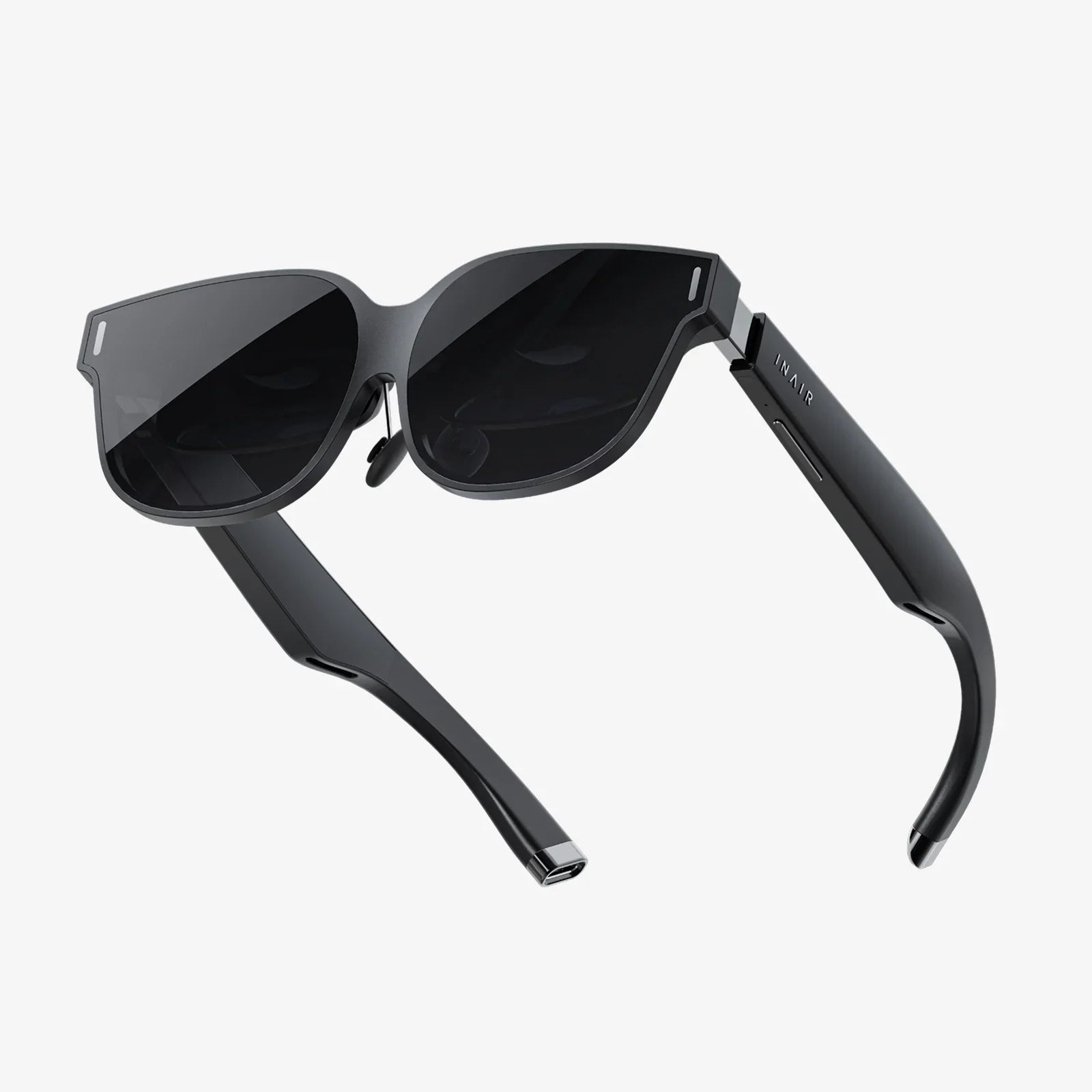
If you have ever stared at a sleek dashboard, a futuristic mobile mockup, or a polished UI kit and wondered how designers achieve that crisp, translucent glass look, you are already halfway to unlocking the power of a glass screen vector. This style has quietly become one of the most versatile visual languages in modern design, shaping everything from app interfaces to data visualizations. Understanding how to build and control this effect can instantly elevate your work and make your visuals look sharper, more professional, and more engaging to clients and users.
Unlike flat shapes or simple gradients, a glass screen vector combines subtle transparency, reflections, soft shadows, and layered lighting to mimic real glass while still remaining fully editable and scalable. That balance between realism and flexibility is exactly why designers rely on vector-based glass screens for responsive layouts, multi-device mockups, and interactive prototypes. Once you master the core principles, you can adapt the same techniques to any context: dashboards, landing pages, wearable interfaces, smart home panels, and more.
What Is a Glass Screen Vector?
A glass screen vector is a digitally drawn, resolution-independent graphic element designed to simulate the appearance of glass. It usually represents a display surface or interface panel and is constructed using paths, fills, strokes, gradients, and effects in a vector graphics editor. Because it is vector-based, it can be scaled to any size without losing clarity, making it ideal for responsive design and high-density screens.
Typical characteristics of a glass screen vector include:
- Transparency: Partial opacity that lets background elements show through.
- Reflections and highlights: Light streaks or soft glow that suggest a reflective surface.
- Soft shadows: Subtle drop shadows that lift the panel off the background.
- Rounded corners: Often used to create a modern, device-like appearance.
- Layered depth: Overlapping panels and floating elements that feel dimensional.
Because the effect is built in vector format, designers can easily adapt colors, radii, and proportions, or export assets in various sizes for web and mobile interfaces without redoing the artwork from scratch.
Why Glass Screen Vector Design Matters in Modern UI
The glass screen vector style is more than just a visual trend. It solves practical problems in interface design while maintaining a clean, contemporary aesthetic. Several factors make it especially relevant:
1. Supports Information Density without Overload
Modern dashboards and control panels must display a lot of data at once. A glass-like panel can separate content from a busy background while still allowing the context to show through. This approach maintains hierarchy and legibility without resorting to heavy, opaque blocks that visually fragment the screen.
2. Works Well with Dark and Light Themes
Glass screen vector elements adapt easily to dark-mode and light-mode designs. By adjusting transparency, blur, and highlights, you can create panels that feel at home on bright or muted backgrounds. This flexibility is crucial for multi-theme products and design systems.
3. Enhances Perceived Quality and Modernity
Translucent, polished surfaces signal sophistication and attention to detail. Users often associate glass-like effects with advanced technology, high-end devices, and premium digital experiences. A well-executed glass screen vector can make even simple layouts feel more refined.
4. Maintains Performance with Vector Efficiency
When built thoughtfully, vector assets are lightweight and efficient to render, especially compared to large bitmap textures. This is valuable in responsive web design and scalable interface systems, where the same asset might appear at multiple sizes and resolutions.
Core Visual Principles Behind Glass Screen Vector Effects
To design a convincing glass screen vector, you need to understand how real glass behaves and translate that behavior into simple, controllable vector techniques. Several visual principles are key:
Transparency and Opacity
Glass is partially transparent. In vector design, this is controlled through opacity settings and blending modes. A glass panel usually sits somewhere between 10% and 60% opacity depending on the background and desired contrast.
- Low opacity creates a more ethereal, subtle effect.
- Higher opacity provides stronger separation and legibility.
- Layering multiple semi-transparent shapes can create richer depth.
Highlights and Reflections
Light reflects off glass surfaces. You can simulate this by adding:
- Thin, bright strokes along edges.
- Soft gradient overlays that run diagonally or vertically.
- Small, concentrated highlight shapes near corners.
These highlights should be subtle. Overdoing them can make the design look plastic or artificial rather than refined.
Soft Shadows and Depth
To make the glass screen vector appear elevated above the background, use soft, blurred shadows. Important considerations include:
- Offset: Small offsets create a gentle lift, while larger offsets feel more dramatic.
- Blur radius: Higher blur values soften the shadow and reduce harsh edges.
- Opacity: Lower-opacity shadows feel more natural and less intrusive.
Edge Treatment and Corner Radius
Modern glass screens rarely have sharp corners. Rounded corners, chamfered edges, and subtle inner shadows can make panels feel more tactile and device-like. Adjusting the corner radius allows you to align the glass screen vector with your overall design system.
Color and Tinted Glass
Glass is not always perfectly clear. Tinted glass can be used to match brand colors or reinforce hierarchy. For example:
- A cool blue tint for system-level panels.
- A warm accent tint for notifications or critical alerts.
- Muted, neutral tints for background panels and containers.
Even a small amount of color in the glass fill can dramatically change the mood of the interface.
Step-by-Step: Building a Basic Glass Screen Vector
Although specific tools differ, the process of creating a glass screen vector follows a similar pattern across most vector editors. The steps below describe a general workflow you can adapt to your preferred software.
Step 1: Define the Base Shape
Create a rectangle or rounded rectangle that will serve as the main panel. Consider the intended device or layout:
- Use a 16:9 or 4:3 ratio for general screens.
- Use taller ratios for mobile-style glass panels.
- Adjust corner radius to match your design language.
Step 2: Apply a Translucent Fill
Set a base color for the glass, often a very light or dark neutral with low saturation. Then reduce the opacity. Start with values around 20% to 40% and adjust based on the background. If your tool supports it, consider using a gradient fill that transitions subtly from slightly lighter at the top to slightly darker at the bottom.
Step 3: Add a Soft Inner Gradient
To mimic the way light passes through glass, add an inner gradient or overlay:
- Use a radial or linear gradient.
- Make the center slightly brighter and the edges slightly darker.
- Keep the contrast gentle to avoid harsh banding.
This step creates a sense of thickness and internal light diffusion.
Step 4: Create Highlights
Add one or more highlight shapes:
- Draw a thin rectangle or curved shape across the top edge.
- Fill it with white or a very light color.
- Apply a gradient so it fades out smoothly.
- Reduce opacity to keep it subtle.
Optionally, add a diagonal streak from one corner to the opposite side to simulate a reflected light source, again with a soft gradient and low opacity.
Step 5: Add Shadows and Depth
Duplicate the base shape and place it behind the glass panel. Fill it with a dark neutral color, then apply a blur. Reduce opacity until the shadow feels natural. Adjust the offset to position the shadow slightly below and behind the panel.
Step 6: Refine Edges and Borders
Depending on the style you are aiming for, you can:
- Add a thin, semi-transparent border to define the edges.
- Use a slightly brighter stroke on the top and left edges and a darker stroke on the bottom and right edges to suggest directional lighting.
- Apply a very subtle inner shadow to hint at thickness.
Step 7: Test on Multiple Backgrounds
Place the glass screen vector on different backgrounds: solid colors, gradients, blurred photos, or abstract textures. Make small adjustments to opacity, highlights, and shadows to ensure the panel remains legible and balanced across environments.
Advanced Techniques for Realistic Glass Screen Vector Effects
Once you master the basics, you can push the glass effect further using more advanced methods. These techniques help your design stand out and feel more tailored to specific use cases.
Using Blurs to Simulate Frosted Glass
Frosted glass is a popular variant of the glass screen vector style. It softens and blurs background content while still letting shapes and colors pass through. To achieve this:
- Place background elements behind the glass panel.
- Apply a blur effect to the portion of the background seen through the glass.
- Overlay your translucent panel on top.
This creates a powerful sense of depth and separation without fully hiding the environment behind the panel.
Layering Multiple Glass Panels
Stacking several glass panels at different depths and opacities can create a sophisticated interface layout. Consider:
- A primary glass panel for main content.
- Secondary, smaller panels for widgets or notifications.
- Floating buttons or icons that partially overlap the glass surfaces.
Adjust each layer’s opacity and shadow strength so the hierarchy is clear and the design does not feel cluttered.
Combining Glass with Gradients and Glow
Gradients and soft glows can emphasize key areas of a glass screen vector. For example:
- A gentle glow behind a central card to draw attention.
- Colorful gradients bleeding through the glass to create a futuristic look.
- Subtle halos around interactive elements like buttons or sliders.
Use these effects sparingly to avoid overwhelming the interface.
Adding Micro-Details
Small details can significantly enhance realism:
- Tiny reflections along one corner of the panel.
- Very faint surface texture to suggest anti-glare coating.
- Minimalistic notch or camera cutout shapes for device mockups.
These micro-details should be nearly invisible at first glance, only revealing themselves on closer inspection. This subtlety contributes to a premium feel.
Practical Applications of Glass Screen Vector Design
The glass screen vector style is incredibly versatile. It can be applied to many digital products and visual contexts, each with slightly different requirements.
Mobile and Web Interfaces
In mobile apps and web dashboards, glass panels can function as:
- Navigation bars that float over background content.
- Cards for content previews or media items.
- Modal windows and dialog boxes.
- Notification banners and system messages.
Because vector assets scale cleanly, you can adapt the same glass screen vector elements across multiple device sizes and pixel densities.
Data Dashboards and Analytics
Glass panels are particularly effective in data-heavy environments. They allow complex charts and metrics to feel organized without visually isolating them from the broader interface. Consider using glass-like containers for:
- Individual charts and graphs.
- Filter panels and control toolbars.
- Summary cards with key performance indicators.
By adjusting opacity and color tint, you can create distinct zones within a dashboard while maintaining a cohesive visual language.
Device Mockups and Presentations
When presenting interface concepts to stakeholders, a polished glass screen vector can bring your designs to life. You can:
- Frame your UI inside a glass-like device outline.
- Create multiple angled views of a screen to show responsiveness.
- Build hero images for case studies, portfolios, or marketing pages.
Because these mockups are vector-based, they are easy to customize for different screen sizes or presentation formats.
Illustration and Concept Art
Beyond interfaces, glass screen vectors can feature in illustrations of smart homes, control rooms, or futuristic environments. Transparent panels floating in space, holographic dashboards, or augmented reality overlays are all natural extensions of the same underlying technique.
Design Best Practices for Glass Screen Vector Interfaces
To use glass screen vector elements effectively, you need more than visual tricks. You also need solid design practices that protect usability and clarity.
Prioritize Legibility
Because glass panels are partially transparent, text and icons can easily become harder to read. To maintain legibility:
- Ensure sufficient contrast between content and the background seen through the glass.
- Use subtle overlays or inner shadows behind text if necessary.
- Avoid placing busy, high-contrast imagery directly behind critical content.
Maintain a Coherent Visual Hierarchy
If everything is translucent and glowing, nothing stands out. Establish a clear hierarchy by:
- Using stronger opacity and contrast for primary panels.
- Reducing brightness and saturation for secondary elements.
- Limiting the number of overlapping glass layers.
Align with Brand and Product Personality
Glass effects can be adapted to many brand personalities. For example:
- A minimal, professional product might use subtle, neutral-tinted glass with restrained highlights.
- A playful or futuristic product might use colorful gradients and dynamic reflections.
Always ensure that your glass screen vector style supports the overall tone of the product rather than distracting from it.
Test Across Devices and Environments
Because the perception of transparency and contrast can vary across devices and lighting conditions, test your designs on:
- Different screen sizes and resolutions.
- Dark-mode and light-mode settings.
- High-brightness and low-brightness displays.
Adjust opacity, color, and shadow values to ensure a consistent experience.
Common Mistakes to Avoid in Glass Screen Vector Design
Even experienced designers can fall into traps when working with glass effects. Watch out for these common issues:
Overuse of Blur and Glow
Excessive blur can make the interface feel muddy and indistinct, while heavy glow effects can cause visual fatigue. Use these tools sparingly and always compare your design with a simpler version to ensure the effect truly adds value.
Insufficient Contrast
Translucent panels can reduce the contrast between foreground and background content. If users struggle to read text or distinguish icons, the design is not functional, no matter how visually impressive it appears. Always prioritize accessibility and clarity.
Inconsistent Lighting Logic
If highlights, shadows, and reflections do not follow a consistent light direction, the glass effect can feel fake or confusing. Choose a primary light source direction and maintain it across all panels and elements.
Ignoring Performance Constraints
While vector graphics are generally efficient, complex layered effects and real-time blurs can impact performance in interactive environments. Simplify where possible and consider static exports for heavy visual compositions.
Workflow Tips for Efficient Glass Screen Vector Creation
To integrate glass screen vector elements into your daily workflow without slowing down, consider these practical tips:
Create Reusable Components
Build a small library of glass panel components with different sizes, corner radii, and opacity levels. Reuse and adapt them instead of recreating the effect from scratch each time. This also helps maintain consistency across your design system.
Use Styles and Tokens
If your design tool supports styles or tokens, define variables for:
- Glass base color and opacity.
- Highlight intensity.
- Shadow color and blur radius.
This allows you to adjust the overall look of your glass screen vector elements globally with minimal effort.
Work with Layer Naming and Organization
Glass effects often involve multiple overlapping layers. Name your layers clearly and group related elements (base, highlight, shadow, content). A clean layer structure makes it easier to tweak the effect later or hand off files to collaborators.
Export Smartly for Different Platforms
When exporting glass screen vector assets for web or mobile development:
- Choose vector formats where supported for maximum scalability.
- Use optimized raster exports at required resolutions when necessary.
- Test exported assets in realistic prototypes to ensure visual fidelity.
Trends and Future Directions in Glass Screen Vector Design
The glass aesthetic continues to evolve as interface design trends shift. Several emerging directions are worth watching as you refine your own approach.
Subtle, Minimal Glass Effects
Designers are increasingly favoring understated glass treatments that focus on clarity and usability rather than dramatic reflections. Expect to see:
- Lower contrast between panel and background.
- Smaller, more controlled highlights.
- Reduced reliance on heavy blur.
Integration with 3D and Motion
As 3D elements and motion graphics become more common in interfaces, glass screen vectors are being animated and combined with depth transforms. Panels may slide, tilt, or respond to user input with parallax effects, enhancing the illusion of physical glass surfaces.
Hybrid Styles with Neumorphism and Flat Design
Some designers are blending glass aesthetics with soft shadows and subtle embossing, borrowing from neumorphism while maintaining a cleaner, more accessible approach. Others mix glass panels with flat, bold typography to create striking contrast.
System-Level Glass Design Languages
Operating systems and design frameworks increasingly incorporate translucent surfaces at the system level. Understanding how to build and adapt a glass screen vector allows you to align custom products with these broader ecosystems, creating a more seamless user experience.
Bringing Your Glass Screen Vector Skills to the Next Level
Mastering the glass screen vector style is not about memorizing one perfect recipe. It is about understanding how transparency, light, and depth interact, then translating that understanding into flexible, reusable techniques. Once you internalize the core principles, you can adapt the effect to any brand, product, or platform while keeping your work performant and accessible.
Whether you are designing a sleek analytics dashboard, a futuristic smart home interface, or a portfolio hero image that grabs attention at first glance, a well-crafted glass screen vector can become the visual anchor that ties everything together. Start experimenting with simple panels, refine your highlights and shadows, and gradually layer in more advanced effects. As you iterate, you will develop your own signature approach to glass, one that turns ordinary layouts into polished, memorable experiences your audience will want to click, explore, and share.
共有:
Bedside Lamp With USB Port And Touch Control: The Complete Buyer’s Guide
Bedside Lamp With USB Port And Touch Control: The Complete Buyer’s Guide