


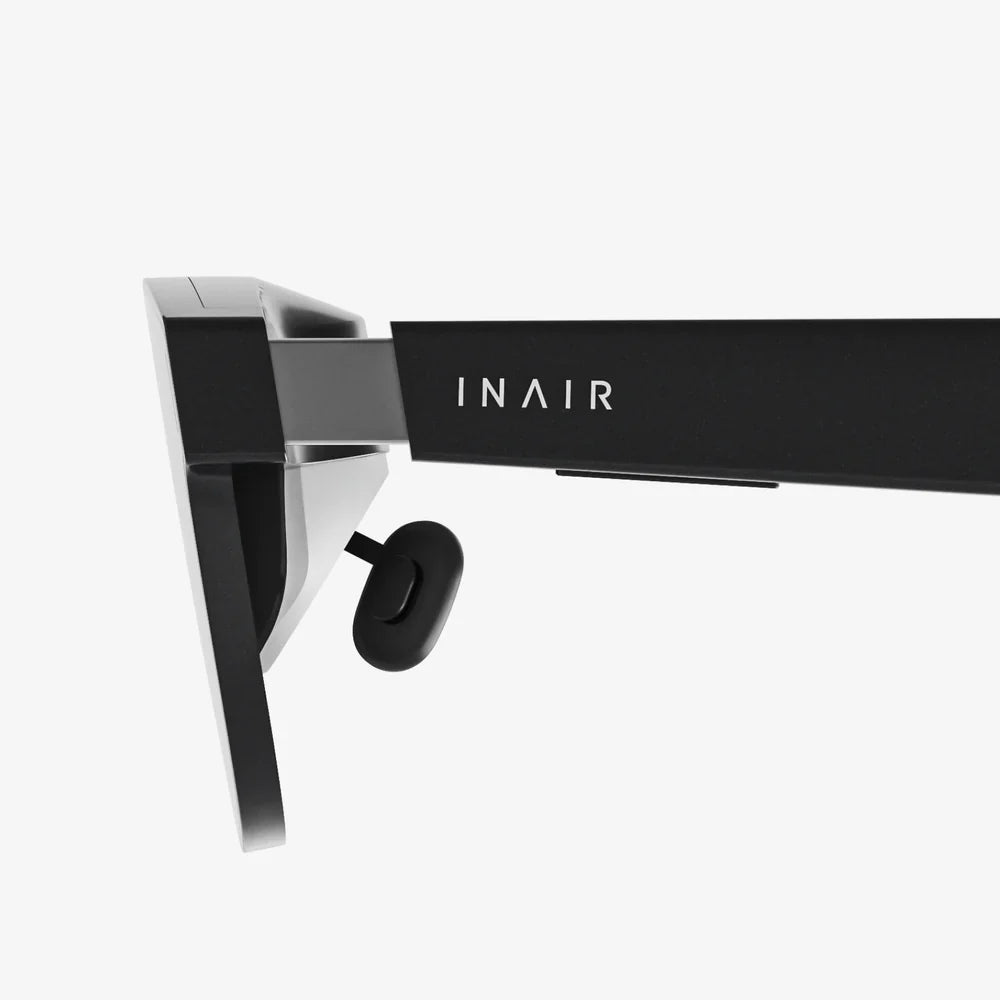
Steam Deck VR capable setups are one of the most talked‑about topics in portable PC gaming, and for good reason: the idea of a handheld PC that can also drive virtual reality feels almost too good to be true. Yet with the right expectations and a careful setup, you can turn this compact device into a surprisingly competent entry-level VR machine that follows you from your desk to your couch and even on the road.
If you are wondering whether this handheld is really strong enough to power VR headsets, what compromises you will need to make, and how to squeeze every last frame out of its modest hardware, this guide walks you through all of it in detail. By the end, you will know exactly when the Steam Deck is VR capable, when it struggles, and how to decide whether this hybrid approach fits your gaming style and budget.
Understanding What "Steam Deck VR Capable" Really Means
Before diving into cables, streaming, and settings, it is important to define what VR capability looks like on a device built first and foremost for handheld gaming. The Steam Deck is a compact PC with a low-power processor and integrated graphics, designed to balance battery life, portability, and performance. Virtual reality, meanwhile, is one of the most demanding types of gaming, requiring high frame rates and low latency to feel comfortable.
When people say the Steam Deck is VR capable, they usually mean:
- It can launch and run VR platforms and games under the right conditions.
- It can maintain a playable experience in selected titles with tuned-down settings.
- It can act as a portable PC that drives a VR headset at home or on the go.
What it does not mean is that you will get the same performance as a powerful desktop with a high-end graphics card. You will be making trade-offs in resolution, graphical detail, and sometimes even comfort if you push the hardware too far. Understanding these limitations is the key to enjoying what the device can do, instead of being disappointed by what it cannot.
Steam Deck Hardware Basics That Affect VR
The first step in evaluating how Steam Deck VR capable scenarios work is understanding the hardware constraints. Several components matter for VR performance:
Processor and Graphics
The device uses a custom system-on-chip with a multi-core CPU and integrated GPU. This is impressive for a handheld, but modest compared to dedicated desktop gaming hardware. VR games tend to be both CPU and GPU heavy, because they must render two views (one for each eye) at high frame rates.
Practically, this means:
- You will need to choose lighter or older VR titles for the smoothest experience.
- Graphical settings like shadows, reflections, and anti-aliasing should often be turned down.
- Resolution and refresh rate targets may need to be lower than what your headset can theoretically support.
Memory and Storage
The device comes with a fixed amount of system memory that is shared between the CPU and GPU. This can become a bottleneck in VR, where high-resolution textures and complex scenes compete for available resources. Choosing lower texture quality and closing background applications can help.
Storage speed also matters. While VR games can technically run from slower storage, they will load faster and stutter less when installed on faster internal storage rather than a slower card. If you are serious about using the Steam Deck as a VR capable machine, prioritizing storage speed for your VR library is a smart move.
Ports and Connectivity
VR headsets often require multiple connections: video output, data, and sometimes power. The device has a single USB-C port, so you will almost certainly need a dock or hub if you plan to connect a wired headset along with peripherals such as a keyboard, mouse, or external display.
Wireless performance is equally important. If you plan to use wireless streaming to a VR headset, your Wi-Fi network quality will significantly affect latency and image quality. A strong, modern router and a clean wireless environment make a big difference in how VR feels.
Wired vs Wireless: Two Paths to VR on the Steam Deck
There are two main routes to unlocking Steam Deck VR capable setups: wired connections and wireless streaming. Each approach has strengths and weaknesses, and your choice will depend on your headset and your tolerance for cables and latency.
Wired VR from the Steam Deck
With a wired connection, you plug your VR headset directly into the device or into a dock attached to it. This approach usually offers lower latency and more consistent performance, but it is less flexible physically and requires the right adapters.
Key considerations for wired setups include:
- Dock or hub: A dock that offers video output, USB ports, and power delivery is almost essential. You will want to connect your headset, possibly an external display for setup, and power at the same time.
- Cable bandwidth: VR headsets that rely on high-bandwidth video connections may push the limits of the USB-C port, especially when shared with other devices through a hub.
- Heat and power: Running VR wired for extended periods can cause the device to get warm and draw significant power. Keeping it plugged in and ensuring good ventilation is important.
Wired setups can be surprisingly effective for simpler VR games or experiences where visual fidelity is not pushed to the maximum. However, you may find that some demanding titles are simply too heavy for comfortable play, even with a cable.
Wireless VR Streaming from the Steam Deck
Wireless streaming involves running VR games on the device and sending the video feed over Wi-Fi to a headset that supports wireless PC VR. This can be more comfortable physically, since you are not tethered by a cable, but it introduces extra latency and relies heavily on network quality.
For wireless streaming, you will want to pay attention to:
- Wi-Fi standard and router placement: A modern router placed close to your play area helps reduce lag and compression artifacts.
- Network congestion: Other devices streaming video or downloading large files can interfere with your VR session.
- Bitrate settings: Wireless VR software often allows you to adjust bitrate, resolution, and other parameters. Lowering these can improve smoothness at the cost of image clarity.
Wireless streaming can make the Steam Deck feel like a flexible, portable VR PC that you can move between rooms without redoing your cable setup. However, it demands more fine-tuning and patience, especially if your home network is not optimized for low-latency streaming.
Operating Systems and VR Platforms on the Steam Deck
Another critical factor in determining how Steam Deck VR capable you can make your system is your choice of operating system and VR platform. The device ships with a Linux-based operating system, but many VR tools and games are built with other platforms in mind.
Using the Default Operating System
The default operating system can run many games through compatibility layers, and there is ongoing work to improve VR support. However, not all VR runtimes and tools are equally mature in this environment. You may encounter extra configuration steps, limited compatibility, or performance quirks.
On the other hand, staying with the default system preserves the handheld experience, simplifies updates, and avoids partitioning or reinstalling. For some users, especially those who only want to experiment lightly with VR, this is a reasonable trade-off.
Installing an Alternative Operating System
Some users choose to install an alternative operating system that has more mature support for VR runtimes and drivers. This can improve compatibility with PC VR platforms and make it easier to manage VR libraries and tools. However, it introduces complexity:
- You may need to partition storage or replace the existing system.
- Driver installation and updates become your responsibility.
- You might lose some of the seamless handheld interface features.
If you are serious about turning your handheld into a VR capable mini-PC and are comfortable with system administration tasks, this approach can unlock more stable VR performance. For casual users, the additional effort may not be worth it.
Setting Up a Steam Deck VR Capable Environment Step by Step
Once you understand the hardware and software landscape, you can move on to practical setup. While exact steps vary depending on your headset and chosen VR platform, the overall workflow tends to follow a similar pattern.
1. Prepare the Device
Start by making sure your handheld is updated:
- Install the latest system updates for better performance and compatibility.
- Update your graphics drivers if your chosen operating system requires manual driver management.
- Ensure you have enough free storage for VR games, ideally on fast internal storage.
Next, consider power and cooling. VR gaming will push the hardware harder than typical handheld titles, so plan to keep the device plugged in and avoid blocking its vents during play.
2. Choose and Configure a VR Platform
Depending on your headset and operating system, you will need to install a VR runtime or platform that can manage your headset and launch VR games. The core steps usually include:
- Installing the VR runtime software that supports your headset.
- Running the platform's setup or room-scale configuration tools.
- Ensuring that your controllers are paired and tracked correctly.
On some systems, you may also need to enable developer options or install additional components for compatibility. Taking time to carefully follow setup instructions from your VR platform provider will save you troubleshooting later.
3. Connect Your Headset
If you are using a wired headset:
- Connect the dock or hub to the USB-C port.
- Attach the headset cable to the appropriate port on the dock.
- Connect power to the dock so the device stays charged.
If you are using a wireless headset:
- Ensure the headset and device are on the same Wi-Fi network.
- Install any required streaming software on both the device and the headset.
- Follow the pairing process described by your VR streaming solution.
For both wired and wireless setups, it is helpful to connect an external display, keyboard, and mouse during initial configuration. This makes it easier to tweak settings without wearing the headset.
4. Install VR Games and Experiences
With the platform and headset ready, you can start installing VR content. Here are some guidelines for choosing titles that will run acceptably on this hardware:
- Favor older or less graphically intense VR games.
- Look for experiences that emphasize stylized visuals over realism.
- Avoid the most demanding, large-scale VR titles, especially those known to tax even high-end PCs.
Once installed, launch each game individually and adjust its settings before committing to long sessions. Your goal is to find a balance between visual clarity and smooth frame rates that feels comfortable.
Performance Tuning for a Better VR Experience
Steam Deck VR capable setups live or die by performance tuning. Out of the box, many VR games will aim for higher quality settings than this hardware can sustain, leading to stutter, dropped frames, and discomfort. With careful adjustment, you can transform a choppy experience into a playable one.
Lowering Resolution and Render Scale
One of the most impactful tweaks is reducing the resolution or render scale. Many VR platforms allow you to set a global resolution multiplier or per-game render scale. Dropping this value reduces the number of pixels the GPU must draw, improving frame rates.
While this can make the image softer, it is often preferable to running at native resolution with frequent frame drops. On this hardware, prioritizing smooth motion over razor-sharp visuals is usually the right call.
Adjusting Graphics Settings
Within each game, look for the following settings to adjust:
- Shadows: Switch to low or disable entirely if possible.
- Reflections: Turn off or reduce their quality.
- Anti-aliasing: Choose a lighter method or lower level.
- Post-processing effects: Disable motion blur, depth of field, and other costly effects.
- Texture quality: Lower this if you encounter stuttering or memory pressure.
Every game behaves differently, so experimentation is key. Start from low settings and work upward until you find a stable configuration that looks acceptable.
Frame Rate Targets and Reprojection
VR headsets often target high refresh rates for comfort, but this hardware may not consistently hit those targets. Some VR platforms support techniques like reprojection or motion smoothing, which attempt to fill in missing frames by predicting motion.
On a Steam Deck VR capable setup, these features can be a double-edged sword: they can make lower frame rates feel smoother, but may introduce occasional artifacts. Try enabling them and see whether the trade-off feels acceptable to you.
System-Level Performance Settings
Beyond in-game options, the device itself usually offers performance profiles that adjust power limits, clock speeds, and fan behavior. For VR sessions, consider:
- Using a higher performance or unrestricted profile when plugged in.
- Allowing the fan to run more aggressively to keep temperatures in check.
- Disabling overlays or background tools that consume CPU or GPU time.
These tweaks can help stabilize performance, but they may increase fan noise and power draw. Since VR sessions are typically shorter and more focused, this is often a reasonable trade.
What Kinds of VR Experiences Work Best?
Not all VR content stresses hardware equally. To make the most of your Steam Deck VR capable configuration, it helps to favor experiences that align with the device's strengths.
Ideal VR Genres for the Device
Certain types of VR games and applications are more forgiving of lower-end hardware:
- Stylized or minimalist games: Titles with simple geometry and clean art styles often run well even at higher resolutions.
- Rhythm and music games: Many of these focus on gameplay over complex graphics, though they still need good frame pacing.
- Puzzle and narrative experiences: Slower-paced content tolerates occasional frame dips better than fast action shooters.
- Creative tools and simple simulations: As long as scenes are not overly complex, these can be very enjoyable.
By contrast, large-scale open-world VR games or graphically intense simulators tend to be tough on this hardware. They may still run, but often with major compromises that undercut the experience.
Seated vs Room-Scale VR
Another factor is how physically active a VR experience is. Seated or stationary games are generally easier to manage on more modest hardware, because rapid head and body movement is less constant. When you are not whipping your head around, you are less likely to notice occasional frame timing issues.
Room-scale games, where you walk, duck, and turn frequently, demand the most from both the hardware and your tracking setup. If you want to play such titles, be prepared to invest extra time in fine-tuning performance and room configuration.
Practical Limitations and Common Pain Points
Being realistic about the limitations of a Steam Deck VR capable setup will help you avoid frustration. Here are some common challenges users encounter.
Thermal Throttling and Heat
VR workloads generate more heat than typical handheld gaming, and the compact chassis has limited cooling capacity. Over long sessions, the device may reduce its performance to stay within safe temperature limits, causing frame rates to drop.
Mitigation strategies include:
- Playing in a cooler room.
- Using a stand that allows more airflow.
- Avoiding placing the device on soft surfaces that block vents.
Even with these measures, you may still encounter some thermal limits in demanding titles.
Battery Life Under VR Load
VR is power-hungry. Running VR games on battery alone will drain the device quickly, often in well under two hours depending on settings. For practical purposes, most VR sessions will be tethered to a power outlet.
If portability is important, you can use a high-capacity external power source, but this adds more cables and weight to your setup. It is better to think of the device as a small, movable PC for VR rather than a truly wireless VR solution.
Setup Complexity
Compared to simply launching a handheld game, configuring VR involves more moving parts: headset drivers, runtimes, streaming software, network tuning, and more. Expect to spend time troubleshooting small issues like controllers not being detected, tracking glitches, or software updates breaking compatibility.
The reward is a highly flexible system, but the path there is not as plug-and-play as many console-like experiences.
Who Should Consider a Steam Deck VR Capable Setup?
Given the trade-offs, a natural question arises: who is this configuration actually for? Not every VR enthusiast will find it appealing, and not every handheld fan needs VR.
Good Candidates
A Steam Deck VR capable configuration makes the most sense if you:
- Already own a compatible VR headset or plan to use one for PC VR.
- Enjoy tinkering with settings and do not mind some trial and error.
- Value portability and the idea of a single device that serves as both handheld and VR PC.
- Are interested in lighter VR experiences rather than the most demanding titles.
For this type of user, the device becomes a versatile gaming hub that can adapt to many situations, even if it is not the most powerful option for any single use case.
Who Might Be Better Served Elsewhere
You may want to look at other options if you:
- Expect top-tier visual fidelity and performance in all VR titles.
- Dislike dealing with technical configuration and troubleshooting.
- Plan to play only the most demanding, cutting-edge VR games.
- Do not already own a VR headset and are starting from zero.
In such cases, a more traditional desktop PC or a dedicated standalone VR system may provide a smoother path to high-quality VR without the compromises inherent in this compact hardware.
Tips for a More Comfortable VR Experience on Modest Hardware
Even when you have achieved a technically Steam Deck VR capable setup, comfort should remain your top priority. VR discomfort can come from low frame rates, poorly tuned lenses, or simply spending too long in a virtual environment without breaks.
Prioritize Frame Consistency Over Visual Detail
On this hardware, a lower but consistent frame rate is usually more comfortable than a higher frame rate that fluctuates wildly. If you notice stuttering or hitching, do not hesitate to lower visual settings further. Comfort matters more than graphical flair.
Use Shorter Sessions and Take Breaks
Because you are pushing a compact device hard, it is wise to keep sessions shorter. This helps with both hardware heat and physical comfort. Take regular breaks to rest your eyes and neck, and to let the device cool down if it feels hot.
Fine-Tune Headset Fit and IPD
Even the best performance tuning will not help if your headset is not adjusted properly. Make sure the lenses are aligned with your eyes, the straps are snug but not tight, and the image is as clear as possible. This reduces eye strain, which can be more noticeable when resolution is lowered for performance reasons.
The Future of Steam Deck VR Capable Experiences
The landscape for VR on portable PCs is evolving quickly. Software updates, improved runtimes, and more efficient streaming technologies are steadily making it easier to run VR on modest hardware. At the same time, new generations of portable devices and VR headsets promise better performance and integration.
As this ecosystem matures, the idea of a small, portable machine that can serve as both a handheld console and a VR PC will only become more compelling. Even if today’s Steam Deck VR capable setups involve compromises and tinkering, they hint at a future where hybrid devices make immersive gaming more accessible and flexible than ever.
If you are curious, patient, and willing to accept the limitations, this compact handheld can be your ticket into a uniquely versatile VR world. With the right expectations and careful tuning, you can enjoy a surprising amount of virtual reality from a device that fits in your bag, turning ordinary spaces into immersive playgrounds whenever and wherever you choose.
共有:
x touch universal controller Setup, Tips, and Workflow Mastery Guide
tws headphones touch contro: A Complete Practical User Guide