


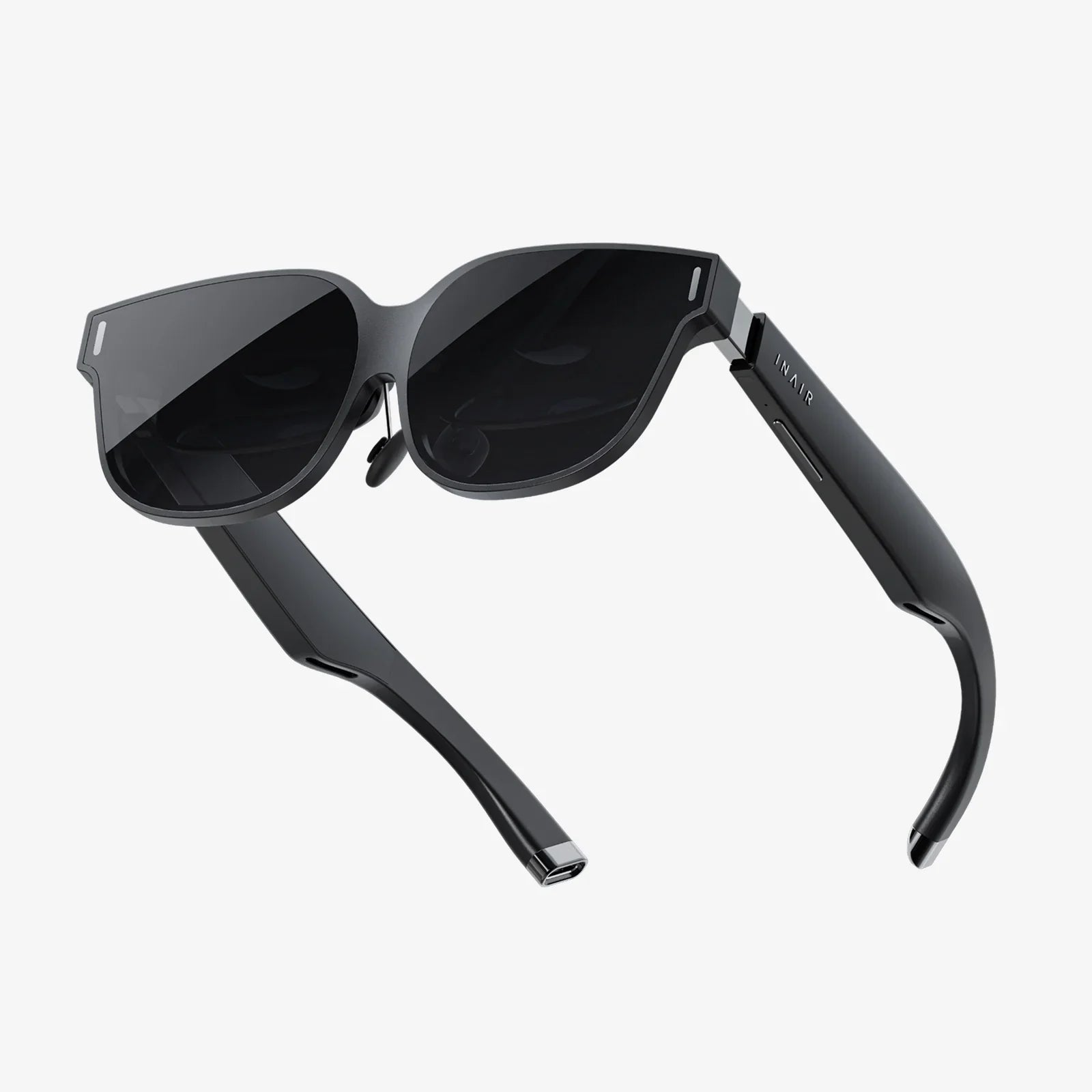
- by wangfred
Two VR Headsets One PC: The Complete Multi-User VR Setup Guide
- by wangfred
Two VR headsets one PC – if that phrase makes you imagine split‑screen chaos or a futuristic holodeck in your living room, you are not alone. The idea of powering two fully immersive virtual reality experiences from a single computer sounds both exciting and slightly impossible. Yet with the right hardware, careful planning, and a bit of patience, it can become the centerpiece of unforgettable multiplayer nights, collaborative work sessions, and next‑level simulations.
Most people assume that every headset needs its own dedicated machine, and for many setups that is still true. But if you are willing to understand how graphics resources, USB bandwidth, and tracking systems work together, running two VR headsets from one PC becomes a realistic project instead of a distant dream. This guide walks you through everything from planning and parts to software tricks and troubleshooting, so you can decide whether this approach fits your goals and your budget.
Before diving into cables and drivers, it helps to be clear about why you want two VR headsets on one PC in the first place. Your reasons will directly influence how you build and configure the system.
One of the biggest attractions is the ability to share virtual worlds with someone in the same physical space. Imagine:
Running two VR headsets on one PC aims to let both users enjoy full VR immersion without duplicating an entire hardware setup.
High‑performance computers are expensive. If you can build one very powerful system and connect two headsets, you may save money compared to purchasing two complete rigs. This is especially attractive for:
That said, the savings are not always as large as people hope, because the single PC must be significantly more powerful than a standard VR machine. Understanding those requirements is crucial.
Maintaining one high-end PC is often simpler than managing two. You only have:
For studios, classrooms, or training centers where space is limited, consolidating into a single tower can also be physically easier than fitting multiple machines into the room.
Despite the potential benefits, running two headsets on one machine is not straightforward. Knowing the main challenges will help you design a realistic and stable setup.
Virtual reality is already demanding for a single user. Each headset needs high frame rates, low latency, and high resolution to avoid discomfort. When you double the number of headsets, you are effectively asking your PC to render two separate real-time 3D views at once.
Key performance considerations include:
Headsets, tracking cameras, and controllers often rely on USB connections. Two VR setups may require several high-speed USB ports each. Common issues include:
Planning USB distribution is just as important as choosing the right graphics hardware.
When two people share the same room, tracking systems must be arranged so that:
Some tracking technologies handle multi-user setups better than others. Room layout and cable management become critical to avoid tangles and accidents.
Most VR platforms were designed with a single headset in mind. Running two headsets raises questions like:
Addressing these issues often involves advanced configuration, third‑party utilities, or creative workarounds.
The heart of this setup is a PC that can comfortably handle two VR workloads. While exact requirements depend on your chosen headsets and software, the following guidelines provide a solid starting point.
Look for a modern processor with:
VR engines can be heavily multithreaded, and running two sessions in parallel benefits significantly from extra cores.
The graphics card is the most important piece. For two headsets, consider:
Some advanced users explore multi‑GPU configurations, but this adds complexity and is not always supported efficiently by VR software. In many cases, a single extremely powerful GPU is more reliable than two mid‑range cards.
For smooth dual VR operation, aim for:
VR games and simulations can consume large amounts of memory and disk space, and running two at once amplifies those demands.
The motherboard must provide:
When planning ports, count not only the headsets but also tracking cameras, dongles for controllers, and any external sensors.
Two VR sessions push hardware close to its limits. To keep the system reliable:
A cool, quiet system will not only last longer but also make VR more comfortable by reducing fan noise in the background.
When planning two VR headsets one PC, you can either use two identical headsets or mix different models. Each approach has trade‑offs.
Benefits of matching headsets include:
This approach is ideal for training, education, or entertainment where you want users to share the same visual quality.
Some setups combine a PC‑tethered headset with a standalone device that can also connect to the PC. This can:
However, mixed setups often require more careful configuration, as each headset may have unique software requirements and tracking constraints.
Different headsets use different tracking methods, such as inside‑out tracking with onboard cameras or external base stations. When planning your space:
If both headsets rely on external tracking, you may need additional sensors to cover the enlarged space properly.
Hardware is only half the challenge. The software side determines how you actually run two VR experiences at once and how independent they can be.
The simplest conceptual approach is to run everything on one desktop:
The downside is that most VR platforms are not designed for two simultaneous sessions. Focus, input, and window management can become tangled quickly. This approach is best for experimentation and basic testing rather than polished multi‑user experiences.
A refinement of the single‑OS approach uses separate user accounts:
This can help isolate settings, libraries, and input bindings. However, most consumer operating systems do not natively support two fully active interactive sessions at once on a single GPU, so results can vary.
For advanced users, running two virtual machines on one powerful host offers the cleanest logical separation:
This approach can provide near‑independent environments for each user. However, it requires:
While powerful, this method is typically reserved for enthusiasts, researchers, or professional labs.
Another possibility is to combine one local headset and one networked session:
This partially offloads the second user’s input and display handling, at the cost of some latency. For certain collaborative or non‑twitch experiences, this can be an acceptable compromise.
Even with the right hardware and system configuration, your success depends heavily on the software you want to run.
A small number of titles are designed with local co‑op or multi‑user features in mind. These may support:
While they might not explicitly support two headsets on one PC, they can be more forgiving when you attempt creative configurations, because they already expect multiple players.
If you want both headsets to run the same game, you might need to:
Some games will simply refuse to launch a second copy, while others might behave unpredictably. Testing is essential.
Many VR titles support networked multiplayer. You can exploit this by:
This approach mirrors how traditional LAN parties work, but with VR clients instead of standard monitors. It can provide a more robust multi‑user experience when the game’s networking code is mature.
Putting theory into practice, here is a high‑level sequence to follow when building a two VR headsets one PC system.
Before adding complexity:
If the system struggles with a single headset, it will not cope with two.
Once the first headset runs smoothly:
Pay attention to USB controller load, and consider adding a dedicated USB expansion card if you encounter connection issues.
Arrange the room so that:
If using external tracking hardware, mount it securely and test coverage from multiple positions.
To avoid confusion and echo:
Headphones or in‑ear monitors can help reduce sound bleed between users.
Depending on your chosen software strategy:
Keep detailed notes of what works and what fails; multi‑headset setups often require iterative refinement.
Even with powerful hardware, you will likely need to optimize settings to maintain comfortable frame rates for both users.
Consider these adjustments:
The goal is to keep frame times low enough that both users experience smooth, responsive motion.
Not all VR experiences are equally demanding. For particularly heavy titles:
Managing expectations about which games run well in dual mode can prevent frustration.
Use monitoring utilities to watch:
These metrics help pinpoint bottlenecks and guide your tuning efforts.
Two VR headsets one PC is an ambitious project, and issues are almost guaranteed. Understanding common failure points will make problem‑solving faster.
If one or both headsets fail to connect reliably:
Persistent disconnects often trace back to power or bandwidth limitations.
Tracking problems may stem from:
Reposition tracking hardware, eliminate reflective objects, and test each headset’s tracking separately before combining them.
If frame rates collapse when both headsets are active:
In some cases, the hardware simply cannot handle two heavy titles simultaneously, and you may need to choose lighter experiences or upgrade components.
When one user’s inputs affect the other’s game, or windows keep stealing focus:
These measures can reduce the chance of one session interrupting the other.
After exploring the technical details, it is worth asking when this approach is genuinely worthwhile.
Running two VR headsets on one PC is most compelling when you:
On the other hand, if you value simplicity and plug‑and‑play reliability above all else, two separate PCs with one headset each may still be the most practical route.
Beyond the technical aspects, think about how your multi‑user VR environment will feel and function day to day.
Thoughtful planning turns a technically impressive setup into a place where people actually want to spend time.
The concept of two VR headsets one PC hints at a future where multi‑user immersion becomes commonplace. As graphics hardware grows more powerful and VR software gains better support for multiple views, it is reasonable to expect:
By experimenting today, you are effectively stepping into that future early. Each challenge you solve and each successful session you host brings you closer to a home or professional setup that feels more like a shared holodeck than a collection of cables and components.
If the idea of two VR headsets one PC still excites you after learning about the requirements and hurdles, you are exactly the kind of person who can make it work. Start with a strong machine, plan your space carefully, experiment with software configurations, and treat setbacks as part of the learning process. When you finally look around a virtual world and see another person standing beside you, powered by the same humming tower of hardware at your feet, the effort will feel more than justified.