


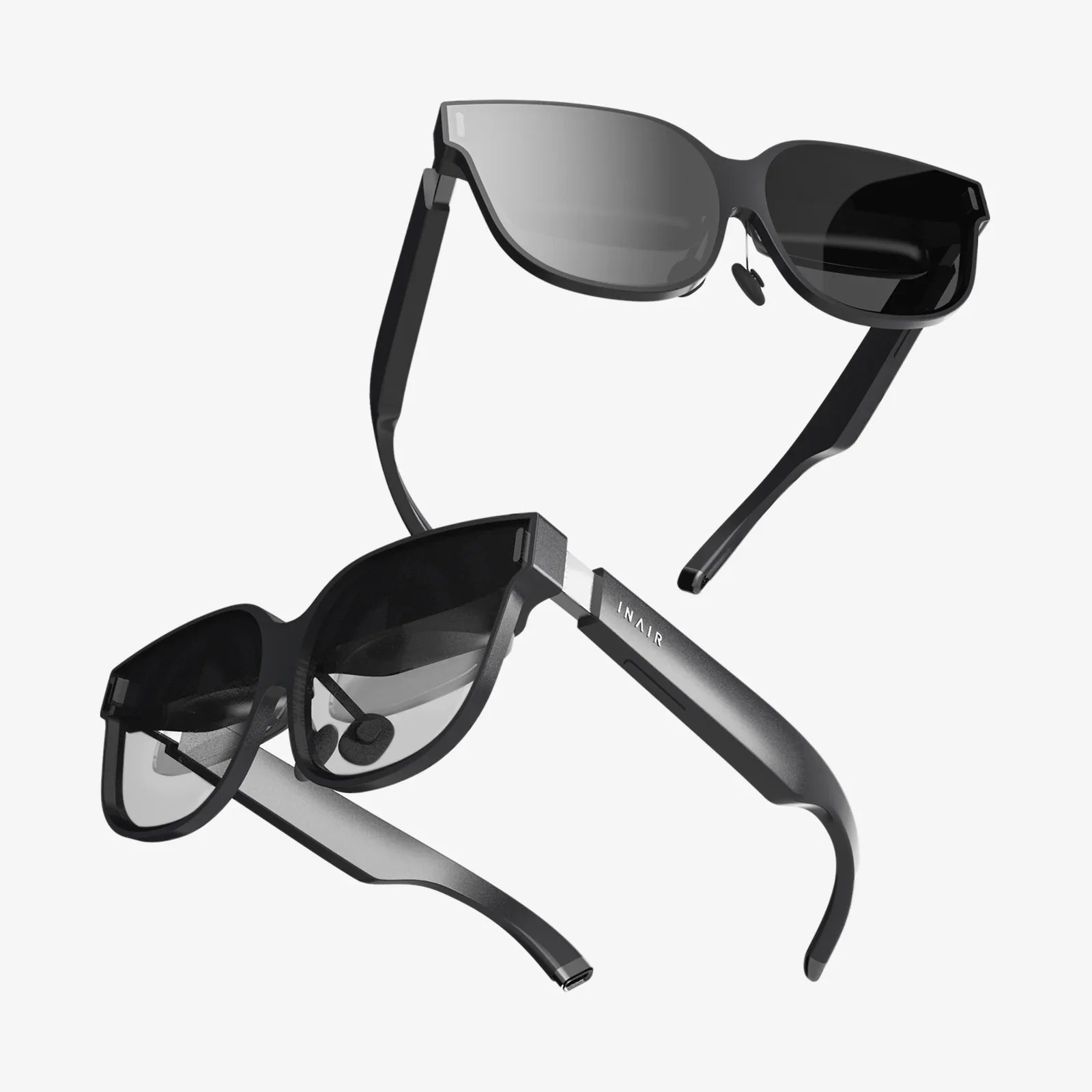
Imagine unlocking your tablet, launching your favorite apps, sending messages, and even controlling your home devices without lifting a finger. A voice command tablet makes this possible, turning a familiar device into a powerful hands-free assistant that can follow your spoken instructions with surprising accuracy. If you have ever wished your tablet could respond like a helpful companion instead of just a touch screen, this is your moment to explore how voice control can completely change the way you work, learn, and relax.
What Is A Voice Command Tablet?
A voice command tablet is a standard tablet device enhanced with software and hardware that allow it to interpret and act on spoken commands. Instead of relying only on taps, swipes, and typing, you can speak to the device to perform actions such as:
- Opening apps and switching between them
- Searching the web or your files
- Dictating notes, emails, and documents
- Setting reminders, alarms, and calendar events
- Controlling volume, screen brightness, and other settings
- Managing smart home devices connected to the same network
At its core, a voice command tablet relies on three key technologies: microphones, speech recognition, and natural language processing. High-quality microphones capture your voice, speech recognition turns spoken words into text, and language processing interprets what you actually want the tablet to do.
How Voice Commands Work Behind The Scenes
Understanding the basics of how voice commands work can help you use your tablet more effectively. The process typically follows these steps:
- Wake word detection: The tablet listens for a specific phrase or button press that signals you want to use voice control.
- Audio capture: After the wake word, the microphone records your command as audio.
- Speech-to-text conversion: The audio is processed locally or in the cloud and converted into text.
- Intent recognition: The system analyzes the text to determine your intent, such as “open browser” or “set alarm for 7 AM.”
- Action execution: The tablet performs the requested action and may provide spoken or visual feedback.
Most modern voice command tablets also learn from your behavior over time. They adapt to your accent, vocabulary, and frequently used apps, gradually improving accuracy and responsiveness.
Key Benefits Of Using A Voice Command Tablet
A voice command tablet is more than a novelty; it offers practical advantages that can transform daily tasks. Here are the most important benefits.
1. Hands-Free Convenience
Hands-free control is the most obvious advantage. You can interact with your tablet while cooking, exercising, cleaning, or relaxing on the couch. Some common hands-free uses include:
- Following recipes step-by-step without touching the screen
- Starting a video or music playlist while your hands are busy
- Answering quick questions during a workout or commute (if you are a passenger)
- Calling or messaging someone when you are unable to type
This convenience becomes especially valuable when you are multitasking or trying to avoid smudging the screen with dirty or wet hands.
2. Enhanced Accessibility
For many people, a voice command tablet is more than convenient; it is essential. Users with limited mobility, visual impairments, or conditions that make typing difficult can benefit from voice-driven interfaces. Examples include:
- Dictating text instead of typing on a virtual keyboard
- Using voice to navigate menus and open apps
- Having on-screen text read aloud
- Controlling settings without complex gestures
By reducing reliance on touch input, voice control helps make technology more inclusive and usable for a wider range of people.
3. Productivity And Multitasking
A voice command tablet can significantly boost productivity when used strategically. You can:
- Dictate long emails or reports faster than you can type
- Set reminders and calendar events while you are thinking about them
- Search through documents or the web without breaking your workflow
- Manage to-do lists and notes on the fly
Voice commands reduce friction. Instead of navigating through multiple menus, you simply say what you want to happen. This can help you stay focused and avoid distractions while working or studying.
4. Entertainment And Media Control
Entertainment becomes more fluid with voice control. A voice command tablet can respond to instructions such as:
- “Play the next episode.”
- “Pause the video.”
- “Turn up the volume.”
- “Show me popular movies in action.”
When your tablet is docked on a stand or connected to external speakers, voice commands turn it into a versatile media hub that you can control from across the room.
5. Smart Home Integration
Many voice command tablets can connect with smart lights, thermostats, cameras, and other devices. With the right setup, you can say:
- “Dim the living room lights.”
- “Set the thermostat to 72 degrees.”
- “Show the front door camera.”
This transforms your tablet into a centralized control panel for your home, accessible through both touch and voice.
Essential Voice Commands To Try First
If you are new to a voice command tablet, start with simple, high-impact commands that you are likely to use every day. Here are categories and examples you can adapt to your own device.
Basic Device Control
- “Turn up the brightness.”
- “Turn on Do Not Disturb.”
- “Take a screenshot.”
- “Open settings.”
Communication Commands
- “Send a message to [contact name].”
- “Call [contact name].”
- “Read my new messages.”
- “Reply: I will be there in 10 minutes.”
Scheduling And Reminders
- “Set a reminder to pay bills on Friday at 8 PM.”
- “Create an event tomorrow at 3 PM: project meeting.”
- “What is on my calendar for today?”
- “Remind me to call the dentist when I get home.”
Information And Search
- “What is the weather like tomorrow?”
- “How long does it take to boil an egg?”
- “Search the web for tablet productivity tips.”
- “Define ‘artificial intelligence’.”
Media And Entertainment
- “Play relaxing music.”
- “Pause the video.”
- “Skip this track.”
- “Show me popular documentaries.”
Accessibility Features
- “Turn on screen reader.”
- “Zoom in.”
- “Increase text size.”
- “Enable color correction.”
Experiment with variations of these commands. Most systems are flexible and can understand similar phrases, not just a single rigid wording.
Optimizing Your Voice Command Tablet For Accuracy
Even the most advanced voice recognition systems benefit from proper setup and habits. To get the best performance from your voice command tablet, focus on these optimization strategies.
1. Configure Voice Recognition Properly
When you first set up your tablet, you may be prompted to train the voice recognition system. Take this step seriously:
- Speak clearly during the training process.
- Use your normal speaking volume and pace.
- Complete any optional training sessions to improve accuracy.
Some systems allow you to improve recognition over time by confirming whether transcribed phrases are correct. Engage with these prompts when possible.
2. Use A Quiet Environment When Possible
Background noise can interfere with accurate recognition. While modern tablets use noise reduction, you will get better results if you:
- Avoid speaking directly next to loud appliances or televisions.
- Move closer to the tablet if it is across the room.
- Use a headset or external microphone when precision is critical.
For tasks like dictating long documents, a quieter environment can dramatically improve the quality of the transcription.
3. Speak Naturally But Clearly
You do not need to sound robotic, but clarity matters. Helpful habits include:
- Pausing briefly before and after your command.
- Avoiding talking over other people or media.
- Using concise phrases for common actions, such as “open browser” or “play music.”
Over time, you will learn which phrases your tablet understands best and adapt your speech accordingly.
4. Keep Software Updated
Voice recognition and language processing improve regularly through software updates. To benefit from these improvements:
- Enable automatic updates for your tablet’s operating system.
- Update key apps that rely on voice input.
- Check for new features in accessibility and assistant settings after major updates.
Staying current ensures you enjoy the latest accuracy and security enhancements.
Privacy And Security Considerations
A voice command tablet is powerful, but it also raises important questions about privacy and data security. Being informed helps you use the technology responsibly.
How Voice Data Is Typically Handled
When you use voice commands, your audio may be processed locally on the device, in remote servers, or a combination of both. Depending on settings, the system may:
- Store snippets of audio to improve recognition accuracy.
- Record anonymized usage statistics.
- Allow you to review and delete stored voice recordings.
Review the privacy settings on your tablet to understand how your data is being used and what control you have over it.
Steps To Improve Privacy
If you are concerned about privacy, there are practical steps you can take without giving up voice control entirely:
- Disable always-on listening if you prefer to activate voice commands manually.
- Regularly delete stored voice recordings from your account or device settings.
- Restrict which apps have access to your microphone.
- Use a strong passcode or biometric lock for the tablet itself.
By adjusting these settings, you can balance convenience with your comfort level regarding data collection.
Use Cases For Different Types Of Users
A voice command tablet is versatile enough to fit into many lifestyles. Consider how different users might take advantage of voice control.
Students And Lifelong Learners
Students can use voice commands to:
- Dictate notes during lectures or study sessions.
- Set reminders for assignment deadlines and exams.
- Quickly look up definitions and explanations while reading.
- Control educational videos and podcasts hands-free.
Voice control helps maintain focus on learning instead of constantly navigating menus and keyboards.
Remote Workers And Professionals
For professionals, a voice command tablet can act as a portable assistant. Common uses include:
- Scheduling meetings and managing calendars.
- Dictating emails and reports while traveling.
- Joining video calls with a simple voice instruction.
- Managing task lists and project notes.
This is particularly helpful for those who move between locations or work away from a traditional desk setup.
Parents And Families
Families can use a voice command tablet as a shared household tool. Examples include:
- Creating shared shopping lists with voice input.
- Setting timers for cooking, chores, or screen time.
- Playing music or stories for children without needing to navigate menus.
- Controlling smart lights or thermostats in common areas.
When the tablet is placed in a central location, voice commands make it easy for everyone to interact with it.
Older Adults
Older adults may find voice control especially helpful if touch screens feel small or difficult to use. A voice command tablet can assist with:
- Making calls or sending messages to family members.
- Setting medication reminders.
- Checking the weather and news headlines.
- Listening to audiobooks, music, or radio stations.
With minimal training, voice commands can make technology feel more approachable and less intimidating.
People With Disabilities
For users with mobility, vision, or dexterity challenges, a voice command tablet can be life-changing. Depending on the specific needs, it can be configured to:
- Provide full screen navigation using voice alone.
- Read aloud on-screen text and notifications.
- Control external assistive devices or smart home equipment.
- Offer alternative input methods when physical interaction is limited.
Many accessibility features are customizable, allowing each person to tailor the device to their abilities and preferences.
Practical Tips For Daily Voice Command Use
To integrate voice control into your daily routine, consider these practical tips that make a voice command tablet feel natural and indispensable.
Create Routines And Shortcuts
Many voice systems allow you to create routines or shortcuts that chain multiple actions together. For example, you can set up a single command such as “morning routine” to:
- Read your calendar for the day.
- Announce the weather forecast.
- Play a news briefing or podcast.
- Adjust the brightness of the screen or connected lights.
Similarly, an evening routine might lower the volume, dim lights, and play relaxing music. Routines reduce the number of commands you need to remember and say.
Use Voice Dictation For Writing
If you find typing on a tablet awkward or slow, voice dictation can be a game changer. To get the best results:
- Speak punctuation marks explicitly when needed (for example, saying “comma” or “period”).
- Dictate in complete sentences to help the system understand context.
- Review and edit the text afterward to fix any misheard words.
Over time, you may find that long messages, notes, and even drafts of articles are faster to create by voice than by keyboard.
Combine Voice And Touch Input
You do not have to choose between voice and touch. The most efficient way to use a voice command tablet is often a combination of both, such as:
- Using voice to open an app, then touch to make precise selections.
- Dictating the body of an email, then editing with the keyboard.
- Starting a search by voice, then scrolling through results by touch.
This hybrid approach takes advantage of the strengths of each input method.
Teach Family Members Simple Commands
If you share the tablet, spend a few minutes teaching other users basic voice commands. Focus on simple, high-value actions such as:
- “Play music.”
- “Set a timer for 10 minutes.”
- “What is the weather?”
- “Call [contact name].”
When everyone in the household understands how to use voice commands, the tablet becomes a more useful and collaborative tool.
Common Challenges And How To Overcome Them
Even the best voice command tablet is not perfect. You may encounter issues such as misheard commands or unexpected actions. Knowing how to respond can prevent frustration.
Misunderstood Commands
If the tablet frequently misunderstands you:
- Check your microphone for dust or obstructions.
- Re-run any voice training or calibration tools available in settings.
- Try slightly different phrasing for the same action.
- Speak a bit slower or more clearly, especially for names and uncommon words.
It can also help to reduce background noise or move closer to the device.
Accidental Activations
Sometimes the tablet may think it heard the wake word when it did not. If this happens often:
- Change the wake word or phrase if the system allows it.
- Disable always-on listening in quiet environments where it is not needed.
- Use a hardware button or on-screen icon to activate voice commands manually.
These steps give you more control over when the microphone is actively listening for commands.
Limited Offline Functionality
Some voice features require an internet connection because they rely on cloud-based processing. If you need offline capability:
- Explore which commands work without a connection, such as basic device control.
- Download offline language packs if your tablet supports them.
- Plan ahead by downloading media and documents you may need while offline.
As technology advances, more voice features are becoming available even without continuous connectivity.
Future Trends In Voice Command Tablets
The capabilities of a voice command tablet today are impressive, but the technology is still evolving. Several trends are shaping the future of voice-controlled devices.
More Natural Conversations
Future systems are moving toward more conversational interactions. Instead of issuing one command at a time, you may be able to have fluid, multi-step conversations like:
“Schedule a meeting for tomorrow afternoon.”
“What time works best?”
“Anytime between 2 and 4 PM.”
“You are free at 3 PM. Should I book it?”
This kind of back-and-forth dialogue will make voice control feel even more intuitive.
Better Personalization
As voice systems learn more about your preferences, they will be able to offer more personalized responses, such as:
- Recommending content based on your viewing or reading habits.
- Recognizing multiple voices in a household and tailoring responses to each person.
- Adjusting language and tone to match your communication style.
This personalization will make each voice command tablet feel more like a unique assistant rather than a generic tool.
Deeper Integration With Other Devices
Voice command tablets are likely to become even more integrated with phones, computers, wearables, and home devices. You may be able to:
- Start a voice command on the tablet and finish it on another device.
- Share context across devices, such as continuing a search or document.
- Use the tablet as a central hub for managing all connected hardware.
This ecosystem approach will make voice control more seamless across your entire digital life.
Is A Voice Command Tablet Right For You?
Choosing to rely on voice control is a personal decision, but several signs suggest that a voice command tablet could be especially valuable for you:
- You frequently multitask and want to keep your hands free.
- You find typing on a tablet slow, uncomfortable, or difficult.
- You are interested in smart home devices and central control.
- You or someone in your household could benefit from accessibility features.
Even if you start with just a few simple commands, you may quickly discover that speaking to your tablet feels more natural than tapping through menus. Over time, your device can evolve from a passive screen into an active assistant that anticipates your needs and responds to your voice with increasing accuracy.
If you are ready to turn your everyday tablet experience into something more intuitive, efficient, and inclusive, exploring the full potential of a voice command tablet is one of the smartest steps you can take. The moment you realize you can manage your digital life with a few simple phrases is the moment your tablet stops being just another gadget and becomes a powerful partner in how you work, learn, and live.
共有:
Speech Recognition Voice Commands: Transforming How We Interact With Technology
Speech Recognition Voice Commands: Transforming How We Interact With Technology