


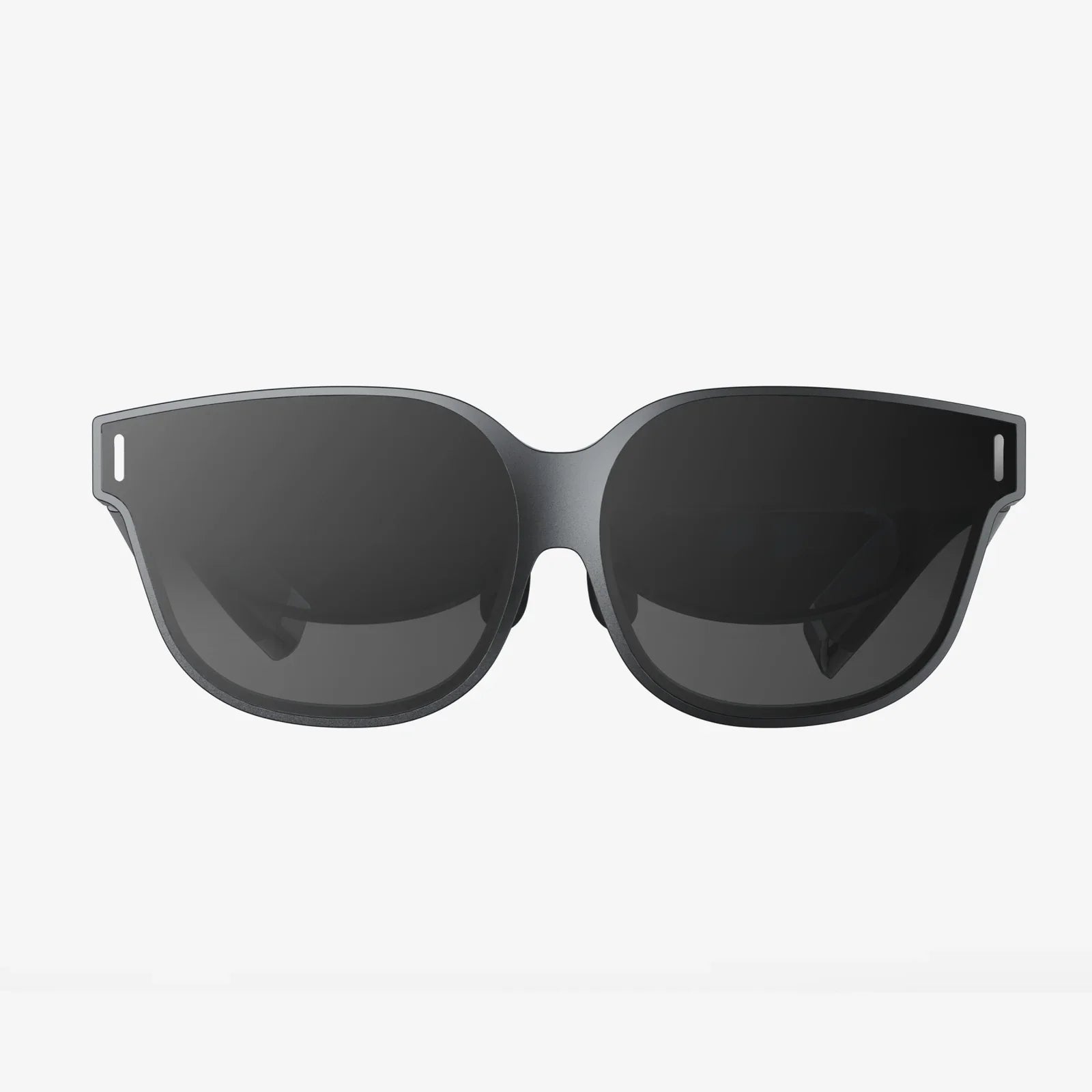
Imagine settling into a plush, velvet seat in a grand, empty cinema, the lights dimming as a screen the size of a building flickers to life. Or perhaps you'd prefer floating in the serene silence of space, with a cosmic panorama as your backdrop for the latest blockbuster. This isn't a scene from a distant future; it's the reality of watching movies on a VR headset today. The quest to transform your device from a gaming gadget into a personal IMAX theater is simpler than you might think, and the payoff is an unparalleled level of immersion that redefines 'movie night'. If you've ever wondered, 'how can I watch movies on my VR headset?' you're about to embark on a journey into the future of home cinema.
Preparing Your Virtual Theater: The Essential First Steps
Before you can dive into other worlds, a bit of preparation in this one is required. The experience can vary slightly depending on whether your headset is a standalone unit or one tethered to a powerful computer, but the core principles remain the same.
Content is King: Sourcing Your Movies
The first question is often about where the movies themselves come from. You have several powerful options at your disposal:
- Dedicated VR Video Platforms: These are applications built from the ground up for virtual reality. They often feature virtual environments and sometimes offer a library of VR-specific content, including 180° and 360° videos, alongside traditional 2D and 3D films.
- Mainstream Streaming Services: Many popular flat-screen streaming apps have VR versions. Through your headset's application store, you can download these apps. They typically project the 2D video feed onto a virtual screen within a themed environment, like a living room or theater.
- Desktop and Media Player Integration: This is one of the most versatile methods. Specialized media player apps can access video files stored on a computer or network-attached storage (NAS) device on your home network. They support a vast range of file formats, including high-bitrate 4K HDR files and 3D movie rips, offering the highest potential quality.
- Web Browsers: The built-in web browser in your headset can be a direct portal to any website that streams video. Simply navigate to your preferred streaming service's website, log in, and play. The browser will project the video onto a floating screen.
Connectivity and Storage: Planning Your Pipeline
For high-resolution video, especially 4K and 3D content, a strong and stable network connection is crucial. If you're streaming from a computer or NAS, a wired Ethernet connection to your router is ideal, with your headset connected via a strong Wi-Fi signal (preferably 5GHz for less interference). For standalone headsets, ensuring you have enough free storage space is important if you plan to download movies directly to the device for offline viewing.
The Main Event: Top Methods for VR Movie Watching
Now, let's break down the primary methods in detail, exploring how to use them and what makes each unique.
1. The All-in-One VR Video Platform Experience
This is often the easiest entry point. You simply find the app in your headset's store, download it, and open it. These platforms are designed to be navigated entirely with your VR controllers. You'll be placed in a stunning virtual environment—perhaps a moonbase, a beach at sunset, or a sleek modern home. Within this space, you'll find a massive screen. The platform's interface will allow you to browse its curated library or access your own personal content libraries.
The magic of these players lies in their environmental customization. You can often change your surroundings, adjust the size and curvature of the screen, and even change the ambient lighting of the virtual space to match the movie's mood. They excel at playing a wide array of formats and are particularly renowned for their superb support for 3D movies, which become incredibly immersive and lifelike in VR, with a stunning sense of depth that surpasses most traditional 3D televisions.
2. The Familiar Streaming Service App
For those who already have subscriptions to major streaming services, this is a seamless transition. Download the VR version of the app from your headset's store. The experience is familiar yet enhanced. You'll typically be in a static virtual environment, like a cozy theater or a stylish apartment. The user interface is a version of what you know from your TV, navigable with your gaze or controllers.
The primary benefit here is convenience and access to your existing watchlists and profiles. The social aspect can also be a draw; some of these apps allow you to invite friends who also have VR headsets to join you in the same virtual room to watch together, complete with avatars and voice chat, making it feel like a genuine shared experience despite being miles apart. The video quality is generally very good, though it is ultimately limited by the bitrate of the streaming service itself.
3. The Power User's Choice: Network Media Players
This method unlocks the highest fidelity experience for the discerning viewer. It involves using a media player app on your headset to connect to a media server on your local network. This server could be a desktop computer running media server software or a dedicated NAS device.
The process involves:
- Setting up a media server on your computer/NAS and ensuring it is powered on and connected to your network.
- On your VR headset, opening your chosen media player app.
- Using the app to browse to and connect to your media server, which will appear as a device on your network.
- Browsing your personal collection of video files through a clean, VR-friendly interface.
The unparalleled advantage of this method is quality. You are not streaming a compressed video from the internet; you are playing a high-bitrate file directly from your local storage. This means crystal-clear 4K, vibrant HDR, and immersive 3D without any buffering or compression artifacts, provided your network is robust. It's the closest you can get to a true cinematic-grade experience at home.
4. The Simple Browser Method
Don't underestimate the humble web browser. Open the browser app in your headset, go to any video streaming website, and full-screen the video player. The browser will intelligently detect the playing video and project it onto a large, clear screen that you can resize and reposition in your virtual space. It's incredibly simple, requires no extra apps, and gives you access to a nearly infinite amount of web-based content. The downside is a lack of environmental customization and potentially lower performance compared to a dedicated app.
Optimizing Your Experience: Pro Tips and Tricks
To move from simply watching to truly experiencing, a few adjustments can make a world of difference.
Visual Comfort is Everything
A blurry or misaligned image is the fastest way to break immersion and cause eye strain.
- IPD Adjustment: The Inter-Pupillary Distance slider on your headset is not a suggestion; it's a requirement. Adjust it so that the image is sharp and a single, clear picture to both eyes. This is the single most important setting for visual clarity.
- Screen Positioning: Don't just accept the default screen position. Grab it (virtually) and place it so you're looking straight ahead or slightly down in a comfortable viewing angle. Resize it to fill a significant portion of your field of view without requiring you to turn your head.
- Lighting and Lenses: Ensure your play area is dimly lit to reduce glare from the outside world. Always use a microfiber cloth to clean the headset's lenses before you start; even small smudges can significantly degrade the image.
Crafting the Perfect Ambiance
Your virtual environment is your theater. Experiment with different settings. A completely dark void can make the colors of the movie pop and eliminate all distractions. A cozy cabin environment can enhance the feeling of a intimate drama. Many apps also allow you to adjust the virtual screen's aspect ratio to perfectly match the film you're watching, eliminating black bars.
Audio: The Hidden Half of Immersion
While the built-in speakers on most headsets are decent, for a truly enveloping experience, a good pair of over-ear headphones is recommended. The 3D spatial audio capabilities of VR headsets are phenomenal; sounds will feel like they are coming from specific points in your virtual room, making you feel truly inside the movie's world. For a more social experience, using a Bluetooth speaker in your real-world room can be a great way to share the audio with others without breaking the VR immersion for yourself.
Comfort for the Long Haul
A two-hour movie requires a different approach than a twenty-minute game. Ensure your headset strap is adjusted for even pressure distribution. Consider investing in aftermarket comfort accessories like a better facial interface or a counterweight for the back of the strap. Have a comfortable swivel chair ready so you can easily turn your head to see different parts of a giant screen without straining your neck.
Beyond the Flat Screen: Exploring 180° and 360° Video
While watching traditional movies is a fantastic use case, VR opens the door to entirely new formats of filmmaking. Dedicated VR video platforms are the primary source for this content.
- 360° Video: These videos place you at the center of the action. You can look up, down, and all around you. It's famously used for concerts, travel documentaries, and short films, making you feel like you're truly on stage or visiting a far-off location.
- 180° 3D Video: This format provides a stereoscopic 3D view of the world in a 180-degree field in front of you. It offers a much higher resolution per degree of view than 360° video, making it ideal for narrative content where the director wants to guide your attention while still providing an incredible sense of depth and presence.
Exploring this content is a must-try experience that showcases the unique magic of VR as a storytelling medium.
Troubleshooting Common Hiccups
Even the best setups can have issues. Here’s how to solve the most common ones:
- Buffering or Stuttering Playback: This is almost always a network issue. For wireless streaming, ensure your computer is connected via Ethernet and your headset is on a strong 5GHz Wi-Fi network. Reduce other network traffic.
- Video Won't Play or Codec Error: Some media players have varying codec support. If a file won't play, try a different player app or consider converting the file to a more compatible format like MP4.
- Audio/Video Out of Sync: This can sometimes happen with high-bitrate files. Most good media player apps have an audio delay offset setting you can adjust to re-sync the track.
The world of virtual reality cinema is vast, exciting, and constantly evolving. From the effortless convenience of a streaming app to the reference-quality playback of a local media server, your VR headset is a ticket to a limitless number of breathtakingly personal theaters. The initial setup is a small investment of time for a reward that pays dividends in wonder every time you hit play. So power on your headset, find your favorite film, and adjust your virtual seat—the previews are just starting, and the best seat in the house is waiting for you.
Share:
Best VR Headset for Watching TV: Your Ultimate Guide to a Personal Cinema
VR Headset for Laptop PC: Your Ultimate Guide to Immersive Computing