


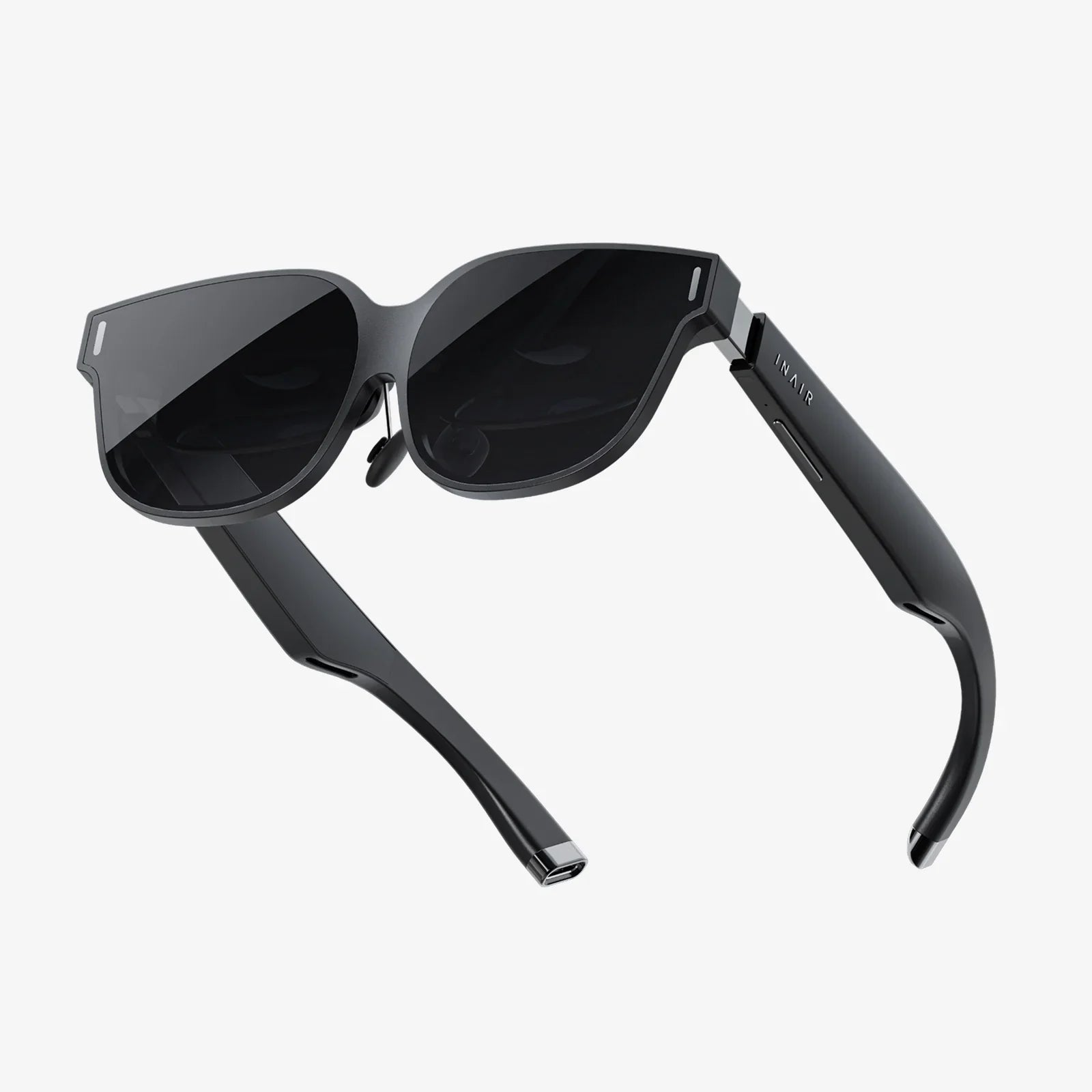
You strap on the headset, eager to dive into another world, but something's wrong. The text is blurry, the edges make your eyes strain, and a faint sense of nausea begins to creep in. This isn't the breathtaking portal to virtual reality you were promised; it's a frustrating, uncomfortable mess. If this sounds familiar, you're not alone. The single biggest factor between a mediocre VR experience and an utterly transcendent one lies in one crucial step: knowing how to adjust your VR screen properly. It’s the difference between watching a movie out of focus and being in it. Mastering this skill doesn't just enhance immersion; it unlocks comfort, clarity, and the true potential of your virtual adventures. Let's fix that blurry world and build a crystal-clear gateway to the virtual realms you deserve.
The Foundation: Understanding Why Adjustment is Crucial
Before diving into the knobs and settings, it's vital to understand what we're trying to achieve. A VR headset isn't like a television; you can't just sit back and watch. It's an optical device placed inches from your eyes, and its configuration is deeply personal. The goal of adjustment is to make the virtual world appear stable, clear, and natural to your unique vision.
The human brain is remarkably adept at processing visual information from two eyes, merging them into a single, coherent 3D image. VR mimics this by presenting two slightly different images—one for each eye. When these images are misaligned due to improper headset adjustment, your brain struggles to reconcile them. This conflict is the primary source of eye strain, headaches, and the visual discomfort that can cut a VR session short. Furthermore, an incorrectly positioned screen can exacerbate the sensory mismatch that leads to simulator sickness, where your eyes tell your brain you're moving, but your body feels stationary.
Proper adjustment, therefore, is not a luxury; it's a necessity for comfort and longevity in VR. It ensures the virtual environment is perceived as intended, with correct scale, depth, and sharpness, allowing you to focus on the experience itself, not on fighting your hardware.
The Three Pillars of VR Screen Adjustment
Achieving visual perfection rests on three interconnected pillars: Physical Fit, Optical Configuration, and Software Calibration. Neglecting any one of these will compromise the entire experience.
Pillar 1: Mastering the Physical Fit
The journey to a clear picture begins with how the headset sits on your head. A loose or crooked headset is a guaranteed path to a blurry world.
- The Straps: Most modern headsets use a three-point strap system: two side straps and a top strap. The top strap is your best friend for weight distribution. Adjust it so the majority of the headset's weight is supported by the crown of your head, not your cheeks. The side straps should then be tightened just enough to hold the headset securely in place without applying uncomfortable pressure. The goal is a snug, even fit that doesn't shift when you move your head quickly.
- The Facial Interface: This is the foam or rubber padding that surrounds the lenses and rests against your face. Its job is to block out external light and provide comfort. Ensure it sits flush against your face. If you wear glasses, you may need a specially designed spacer to provide enough room without pressing the lenses against your glasses, which can scratch both surfaces.
- Finding the "Sweet Spot": This is arguably the most important physical adjustment. The sweet spot is the small area in the center of the lenses where the image is at its absolute clearest. To find it, loosen the straps slightly, put the headset on, and move it up, down, left, and right on your face while looking at a piece of text or a detailed object in the virtual environment. You will notice the clarity change dramatically. Once you find the position where everything is sharpest, tighten the straps to lock it in place.
Pillar 2: Configuring the Optics - The IPD Adjustment
Interpupillary Distance (IPD) is the distance between the centers of your pupils, measured in millimeters. This is the most technical and often the most impactful adjustment you can make.
VR headsets have two main methods for IPD adjustment:
- Software IPD Adjustment: Found on some more affordable headsets, this method uses a software slider to digitally shift the two virtual images closer together or further apart. It does not physically move the lenses. While better than no adjustment at all, software IPD cannot correct for the geometric distortion caused by a physical lens-to-eye mismatch. It can help with scale and reducing eye strain to a degree, but it's a compromise.
- Physical IPD Adjustment: This is the gold standard. Headsets with this feature have a knob, slider, or dial (usually located below the visor) that physically moves the lenses themselves closer together or further apart. This ensures that your pupils are perfectly aligned with the optical centers of the lenses, maximizing the field of view, eliminating blurriness at the edges, and providing the most accurate sense of scale and depth. The world will feel "right."
How to Measure and Set Your IPD:
- In-Headset Measurement: Many modern systems include a software-guided IPD setup tool. This will often display a set of green lines or a similar graphic and ask you to adjust the slider until the image is clearest. Follow these instructions carefully.
- The Mirror Method: Stand in front of a mirror. Hold a ruler against your brow. Close your right eye and align the ruler's zero mark with the center of your left pupil. Now, without moving the ruler, close your left eye and open your right. The measurement directly over the center of your right pupil is your IPD.
- The App Method: Several mobile apps use the phone's camera to provide a reasonably accurate IPD measurement.
Once you have your measurement, set the physical IPD slider to the corresponding number. Fine-tune from there while looking at text; the slightest movement can make a significant difference.
Pillar 3: Software and In-App Calibration
Even with a perfect physical fit and IPD setting, software plays a key role in the final visual output.
- System-Level Settings: Dive into your platform's system settings menu. Here, you can often adjust the virtual floor height, which is critical for establishing correct scale. If the virtual floor doesn't align with your real floor, the entire world will feel off. You can also frequently reset your viewing orientation to ensure you're centered in your play space.
- Per-Application Settings: Many games and experiences offer their own calibration menus. A common setting is "Height Adjustment," which allows you to fine-tune your virtual height if the world feels too large or too small. Some driving or flight simulators offer sophisticated settings to adjust the virtual cockpit's position to match your real-world seating.
- SteamVR and Advanced Settings: On the PC platform, tools like "Advanced Settings" for SteamVR offer a plethora of granular controls. You can adjust the supersampling level (rendering at a higher resolution than the display for a sharper image), modify the chaperone boundaries, and even apply custom offsets to the world's position.
Troubleshooting Common Visual Problems
Even after adjustment, you might encounter some issues. Here’s how to solve them:
- Blurry Image Everywhere: This is almost always a failure to find the "sweet spot" or an incorrect IPD setting. Go back to the basics: loosen the straps, find the clearest position, lock it in, and then meticulously adjust the IPD slider while focusing on small text.
- Blurry Edges Only: This is normal to a very small degree, but if it's pronounced, your eyes are too far from the lenses. Check if your headset has an "eye relief" adjustment—a knob on the sides that lets you move the lens assembly closer to your face. If not, ensure you're using the correct facial interface; a thinner pad might bring your eyes closer to the lenses and improve edge-to-edge clarity.
- Screen Door Effect (SDE): This is the visible grid-like pattern between pixels. It's a hardware limitation, not an adjustment issue. However, ensuring you are in the sweet spot and using higher supersampling settings (on PC) can minimize your perception of it by making the image as sharp as possible.
- God Rays or Lens Flare: These are smears of light that appear around high-contrast objects (e.g., white text on a black background). They are a characteristic of the Fresnel lenses used in many headsets. You can reduce them by ensuring your lenses are clean (smudges make it worse) and, again, by being perfectly in the sweet spot.
Advanced Tips for the Discerning User
For those seeking absolute perfection, consider these pro-level tips:
- Prescription Lens Inserts: If you wear glasses, investing in custom prescription lens inserts that clip onto the headset's lenses is a game-changer. It improves comfort, field of view, and clarity, and completely eliminates the risk of scratching your headset's lenses.
- Optimizing for Performance: A stuttering, low-frame-rate experience will never look good. Ensure your PC meets the recommended specifications for your headset and the software you're running. Close background applications to free up resources.
- Environmental Factors: Control your lighting. Avoid bright lights or windows that can shine directly into the headset's external sensors or cameras, as this can interfere with tracking and cause the world to jitter or drift.
Maintaining Your Clarity
Your initial perfect setup won't last forever without maintenance. Your straps will stretch, the facial interface will compress, and the lenses will get dirty.
- Lens Cleaning: This is critical. Always use a microfiber cloth designed for optics. Never use paper towels, shirt sleeves, or harsh chemicals. Use a small amount of lens cleaning fluid if necessary, but never spray directly onto the lens—spray onto the cloth first, then gently wipe in a circular motion.
- Periodic Re-calibration: Make it a habit to quickly check your IPD and sweet spot every few sessions, or if you share your headset with others. It only takes a minute and ensures you're always getting the best possible experience.
The magic of virtual reality lies in its power to convince your senses that you are somewhere else. That illusion is fragile, and a misadjusted screen is the quickest way to break it. But by methodically working through the physical fit, the optical configuration of IPD, and the software settings, you move from being a passive user to an active architect of your experience. You transform a nauseating, blurry novelty into a comfortable, crystal-clear window to limitless possibilities. The tools for perfection are literally at your fingertips; all it takes is the knowledge to use them. Now that you have it, a perfectly immersive world is waiting—go and adjust your view.
Share:
AR VR Microdisplay News: The Tiny Screens Powering a Giant Leap in Immersive Reality
Spatial Video vs 3D: The Future of Immersive Content is Here