


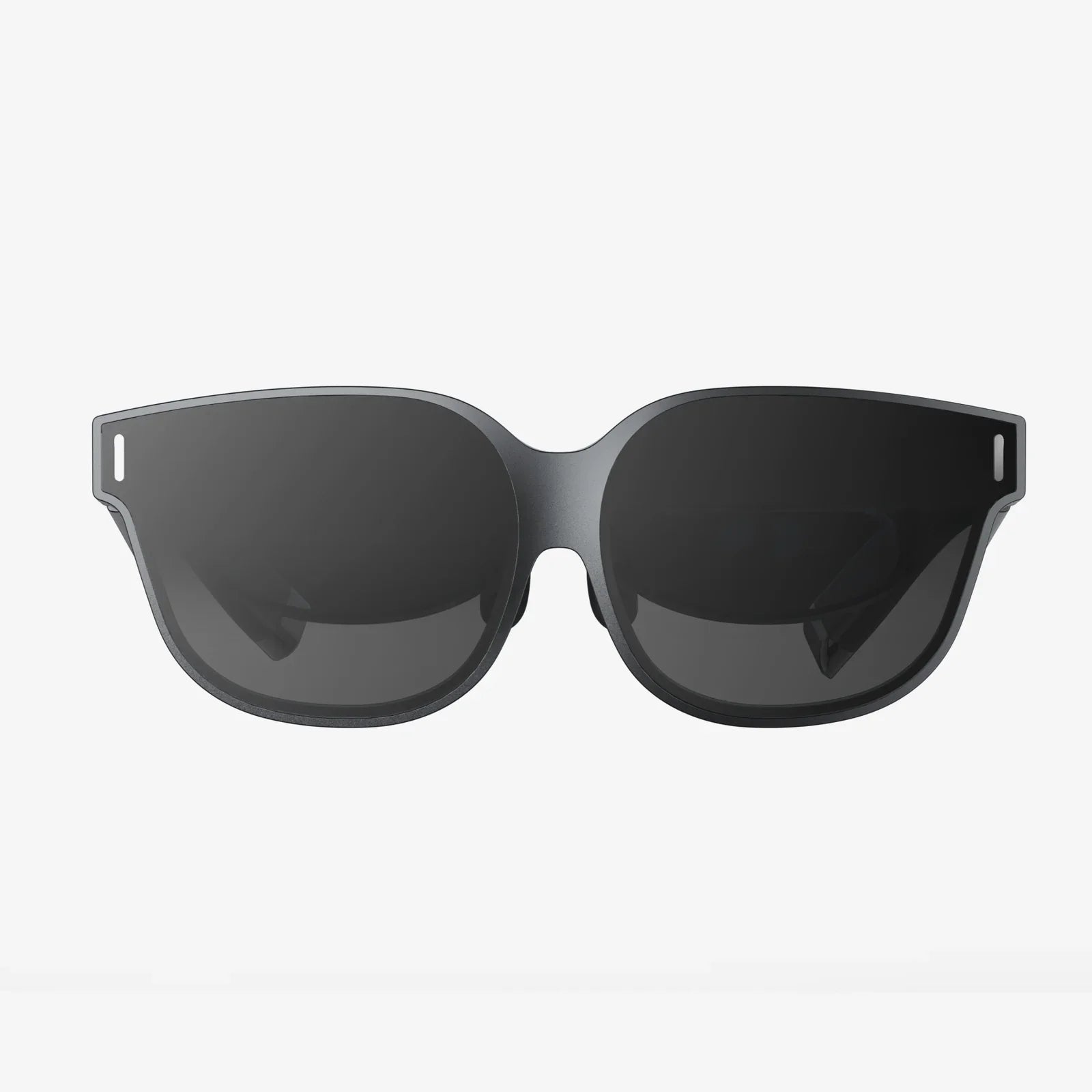
Is my PC capable of VR, or will it turn my virtual dream into a laggy, nauseating mess? If you are asking this, you are already ahead of many people who buy a headset first and only later discover their computer cannot keep up. Before you spend money or time chasing virtual reality experiences, it is crucial to know whether your system can deliver smooth, comfortable performance—or if it will struggle from the very first launch.
VR is far more demanding than traditional gaming. A game that feels fine on a monitor at 60 frames per second can feel unplayable in VR if the frame rate dips, the tracking lags, or the visuals are blurry. The good news: you do not need the absolute latest hardware to enjoy VR, but you do need a balanced system that meets some key requirements. This guide breaks everything down in plain language so you can confidently answer the question: is my PC capable of VR right now, and if not, what can I do about it?
Why VR Demands More Than Regular PC Gaming
To understand whether your computer is VR-ready, you need to understand what makes VR so demanding compared to typical games on a flat monitor.
High frame rates and low latency
VR headsets generally aim for refresh rates of 72 Hz, 90 Hz, 120 Hz, or even higher. That means your PC needs to render a new frame 72–120 times per second for each eye. When frame rates drop or vary wildly, your brain notices, and motion sickness becomes more likely.
Latency is just as critical. The time between moving your head and seeing the world respond must be extremely short. High latency or inconsistent frame delivery leads to a disjointed experience that feels wrong, even if you cannot describe exactly why.
Rendering two images instead of one
Unlike traditional gaming, VR requires your PC to render a separate image for each eye to create a stereoscopic 3D effect. This effectively doubles the rendering workload. Even if the resolution per eye is not enormous, the combined load can be significantly higher than a standard 1080p or even 1440p monitor.
Higher effective resolutions
Many VR headsets use resolutions that exceed typical 1080p displays, and they often apply techniques like supersampling (rendering at a higher resolution and downscaling) to improve clarity. The sharper the image, the more demanding the workload on your graphics card and CPU.
All of this means that a PC that feels “fast enough” for regular gaming might still fall short in VR. So, is my PC capable of VR? To answer that, you need to look closely at your hardware.
Core Hardware Requirements for PC VR
VR performance depends on your entire system, not just one part. However, some components matter more than others. Here is what you should evaluate first.
1. Graphics card (GPU): the biggest factor
The graphics card is the single most important component for VR. It handles the heavy lifting of rendering two high-resolution images at high frame rates.
When you ask “is my PC capable of VR,” the GPU is often the first potential bottleneck. Older or entry-level graphics cards may run basic VR experiences, but they will struggle with modern, visually rich titles.
Key things to check:
- Age of the GPU: Cards released many years ago may support VR in theory but struggle in practice.
- VRAM capacity: At least 4 GB of VRAM is recommended for basic VR; 6–8 GB or more is preferable for modern titles.
- Performance tier: Mid-range and high-end gaming GPUs are typically suitable; low-end or integrated graphics usually are not.
If your GPU is significantly older than your headset’s launch era or is designed for basic office work rather than gaming, your PC is unlikely to handle VR smoothly.
2. Processor (CPU): keeping everything in sync
While the GPU does most of the rendering, the CPU handles game logic, physics, tracking data, and communication with the headset and controllers. A weak CPU can cause stuttering, frame drops, and inconsistent performance even if your GPU is strong.
What to look for:
- Core count: A modern 4-core, 8-thread CPU is typically a baseline, with 6 or more cores providing headroom.
- Clock speed: Higher clock speeds help maintain stable frame rates, especially in CPU-heavy games.
- Generation: Very old processors may support VR technically but struggle with newer titles and multitasking.
If your CPU is many generations old, your PC might run basic VR but choke on demanding simulations or large multiplayer worlds.
3. Memory (RAM): avoiding bottlenecks and stutters
VR titles can be memory-hungry, especially large open-world games or experiences with high-resolution textures.
General guidelines:
- Minimum: 8 GB of RAM can be enough for lightweight VR experiences, but it is not ideal.
- Recommended: 16 GB of RAM is the sweet spot for most VR gaming.
- High-end: 32 GB can help with content creation, streaming, and running multiple VR-related tools at once.
If your system frequently uses almost all its RAM, you will see stutters as it swaps data to disk, which is disastrous for VR comfort.
4. Storage: load times and texture streaming
Storage speed does not affect frame rate directly, but it does affect loading times and how quickly assets stream into the game world.
For a smoother experience:
- Preferred: A solid-state drive (SSD) for your operating system and VR games.
- Capacity: VR games can be large; having at least 250–500 GB free space helps.
Hard drives can work, but long load times and occasional stutters when new areas load are more likely.
5. Power supply and cooling: stability under load
VR pushes your PC harder than typical use. If your power supply is weak or your system overheats, you may experience crashes, throttling, or sudden shutdowns.
Check the following:
- Power supply wattage: Ensure it meets or exceeds the combined requirements of your CPU and GPU.
- Quality: Older or low-quality units can cause instability under heavy load.
- Cooling: Adequate case airflow and clean fans help maintain performance.
If your PC already runs hot during normal gaming, VR will only amplify the issue.
Ports, Connectivity, and Headset Compatibility
Even if your core components are powerful enough, your PC must physically connect to your VR headset and support its data and power requirements.
Display outputs
Most PC VR headsets require one or more of the following on your graphics card:
- DisplayPort
- HDMI
Make sure you have the correct type and number of ports available. Adapters do not always work reliably for VR, especially cheap or passive ones.
USB ports
Headsets, tracking sensors, and controllers may require multiple USB ports. Check your headset’s requirements and ensure you have:
- Enough USB 3.x ports for high-speed data
- Stable power delivery, especially for devices that draw power directly from USB
Using a powered USB hub can help if your motherboard ports are limited, but compatibility varies.
Network connectivity
Some VR setups use Wi-Fi or wired connections for streaming PC-rendered content to a standalone headset. For this, you want:
- Wi-Fi: A fast, modern router and a strong signal where you play.
- Ethernet: A wired connection from your PC to the router is ideal to reduce latency.
Network quality becomes a major factor if you plan to use wireless PC VR streaming.
How to Check Your Current PC Specifications
Before you can answer “is my PC capable of VR,” you must know exactly what hardware you have. Fortunately, this is easy to check.
Finding your GPU and CPU
On most systems, you can find this information in your operating system’s system information tools or settings. Look for sections labeled “Display,” “Graphics,” or “Processor.” Note down:
- The exact GPU model
- The CPU model and clock speed
- The amount of installed RAM
You can then compare your components to typical VR requirements listed by headset manufacturers or VR game developers.
Checking available ports
Physically inspect the back of your PC:
- Identify how many HDMI and DisplayPort outputs your graphics card has.
- Count your USB ports and note which are USB 3.x.
If your monitor already uses your only HDMI or DisplayPort output, you may need to rearrange your setup or use a different port for the headset.
Verifying power supply and cooling
If you built your PC or have access to its documentation, check your power supply’s wattage and brand. If you are unsure, you may need to open the case and look at the label on the power supply unit.
While the case is open, check for:
- Dust buildup on fans and heatsinks
- Blocked airflow due to cables or clutter
A quick cleaning and cable tidy-up can improve cooling and stability during VR sessions.
Using VR Benchmark Tools and Tests
Manual checking is useful, but you can get a more concrete answer by running VR-specific benchmarks or readiness tests. These tools simulate VR workloads and give you a score or rating that indicates how well your PC can handle VR.
What VR benchmarks measure
Typical VR readiness tools measure:
- Average and minimum frame rates under VR-like loads
- How often your system drops or reprojects frames
- CPU and GPU utilization
The results usually categorize your system as:
- Not ready for VR
- Capable of basic VR experiences
- Ready for most VR titles
- VR high-performance or high-fidelity ready
These benchmarks are not perfect, but they give a clear, practical answer to “is my PC capable of VR for what I want to do?”
Different Levels of VR Capability
Not all VR experiences are equally demanding. Your PC might handle some types of VR very well while struggling with others. It helps to think in tiers.
Entry-level VR capability
A PC at this level can handle simple VR experiences, such as:
- Basic exploration or puzzle games
- Stylized, low-detail environments
- Short experiences with limited movement
You may need to lower graphics settings and accept occasional frame dips. For some users, this is enough to enjoy VR without investing heavily in hardware.
Mid-range VR capability
This is where most VR gamers aim to be. A mid-range VR-capable PC can handle:
- Most popular VR games at medium to high settings
- Comfortable frame rates at 90 Hz or higher
- Room-scale experiences with smooth tracking
This level typically requires a reasonably modern GPU, a decent multi-core CPU, and at least 16 GB of RAM.
High-end VR capability
A high-end VR PC is built for:
- Demanding simulations and large open-world VR games
- High supersampling for very sharp visuals
- Stable performance at high refresh rates
If your goal is the best possible visual quality and smoothness, you will want a powerful GPU, a strong CPU, and plenty of RAM and storage. This is also the preferred level if you plan to use VR for professional applications such as design, training, or content creation.
Optimizing Your PC for Better VR Performance
Even if your PC is technically capable of VR, you may need to optimize it to get the best experience. Small tweaks can make a big difference in comfort and enjoyment.
Update drivers and software
Outdated drivers can cause performance issues, crashes, or compatibility problems. Before using VR:
- Update your graphics card drivers.
- Install the latest VR platform software.
- Apply operating system updates.
These updates often include performance optimizations specifically for VR.
Close background applications
VR gaming is resource-intensive. To free up CPU, GPU, and RAM:
- Close web browsers and unnecessary apps.
- Disable overlays and background recording tools if they are not needed.
- Pause large downloads or file transfers.
This helps your PC dedicate its full power to VR rendering and tracking.
Adjust in-game and headset settings
If you are experiencing stutters or low frame rates, try:
- Lowering resolution or supersampling levels.
- Reducing shadow quality, reflections, and post-processing effects.
- Turning off or reducing anti-aliasing if necessary.
Your goal is a stable, consistent frame rate, even if it means sacrificing some visual detail. In VR, smoothness matters more than ultra-high graphics settings.
Improve cooling and airflow
If your PC overheats, it may throttle performance to protect itself. To prevent this:
- Clean dust from fans and heatsinks.
- Ensure there is space around your case for airflow.
- Consider adding case fans if temperatures remain high.
Lower temperatures help maintain consistent performance during long VR sessions.
When Your PC Is Not Quite VR-Ready
After evaluating your system, you might find that the answer to “is my PC capable of VR” is “not yet.” That does not mean you must abandon VR entirely. You have several options.
Targeted upgrades
If your PC is only slightly below VR requirements, upgrading a few components may be enough.
Common upgrade paths:
- GPU upgrade: The most impactful single upgrade for VR.
- RAM upgrade: Moving from 8 GB to 16 GB can smooth out many titles.
- SSD installation: Installing VR games on an SSD improves load times and reduces hitching.
Check that your power supply and case can support a more powerful graphics card before purchasing.
Considering a partial or full system rebuild
If multiple components are outdated, upgrading piece by piece may not be cost-effective. In that case, you might consider:
- Building a new PC with VR in mind.
- Buying a prebuilt system that meets or exceeds VR recommendations.
This approach can give you a balanced, modern system that will handle VR for years.
Using standalone headsets with PC streaming
Some standalone VR headsets can connect to a PC over cable or Wi-Fi to run PC VR titles. While your PC still needs to be powerful enough to render the game, this setup can reduce some hardware and connectivity constraints.
If your PC is borderline for VR, streaming at lower resolutions or using adaptive streaming features may still deliver a usable experience, though not at the highest fidelity.
Comfort, Space, and Safety: Beyond Raw Performance
Even if your PC is technically capable of VR, your overall experience depends on more than frame rates and resolutions. You should also consider your physical environment and comfort.
Play area and room scale
Room-scale VR requires a clear area where you can move without hitting objects. Before you start:
- Clear obstacles like chairs, cables, and small tables.
- Ensure pets and people will not unexpectedly walk into your play space.
- Use your headset’s boundary or guardian system to define safe limits.
Even a small, carefully arranged area can provide a good room-scale experience.
Motion sickness and comfort settings
Performance is a major factor in motion sickness, but so are game design and personal sensitivity. To improve comfort:
- Start with seated or standing experiences before jumping into intense movement.
- Use comfort options like teleport movement, snap turning, or vignette effects.
- Take breaks if you feel dizzy, nauseous, or uncomfortable.
A PC that maintains stable performance will help reduce discomfort, but it is important to listen to your body as well.
Planning for the Future of VR
VR technology is evolving quickly. Headsets are gaining higher resolutions, wider fields of view, and better tracking. Games are becoming larger and more visually detailed. When you ask “is my PC capable of VR,” you might also want to ask, “for how long?”
Building for longevity
If you are upgrading or building a new PC with VR in mind, consider:
- Choosing a GPU that exceeds current minimum requirements.
- Selecting a CPU with enough cores and threads for future titles.
- Installing at least 16 GB of RAM, with room to expand.
- Ensuring your power supply can support future GPU upgrades.
This approach reduces the need for frequent major upgrades as VR evolves.
Balancing budget and expectations
Not everyone needs a top-tier VR rig. If your goal is casual experiences and lighter games, a mid-range system can be perfectly adequate. If you want cutting-edge visuals and demanding simulations, investing in higher-end hardware makes more sense.
Think about the types of VR experiences you care most about and plan your hardware around those, rather than chasing the most expensive components available.
Putting It All Together: Is Your PC Truly VR-Ready?
By now, you should have a clear picture of your system’s strengths and weaknesses. To pull everything together, ask yourself these questions:
- Does my GPU meet or exceed typical VR recommendations for the headset I want to use?
- Is my CPU modern enough to avoid bottlenecks in VR titles?
- Do I have at least 8–16 GB of RAM, with some headroom during gameplay?
- Am I running my games and operating system on an SSD for smoother loading?
- Do I have the required DisplayPort or HDMI outputs and enough USB ports?
- Is my power supply adequate and my cooling sufficient for extended high-load sessions?
- Is my physical play area safe and clear enough for the kind of VR I want to experience?
If you can honestly answer “yes” to most of these questions, then the answer to “is my PC capable of VR” is likely a confident “yes” for many experiences. If you find gaps, you now know exactly where they are and how to address them—whether through targeted upgrades, system optimization, or adjusting your expectations.
Virtual reality can be one of the most immersive, exciting ways to use your PC, but only if your hardware and setup are ready for the challenge. With a clear understanding of your system’s capabilities and a plan for any necessary improvements, you are in a perfect position to step into VR worlds that run smoothly, look great, and keep you coming back for more.
Share:
Can You Clean A Computer Screen With Glasses Cleaner Safely And Effectively
True Touch Control Wireless Earbuds: The Ultimate Guide to Seamless Listening