


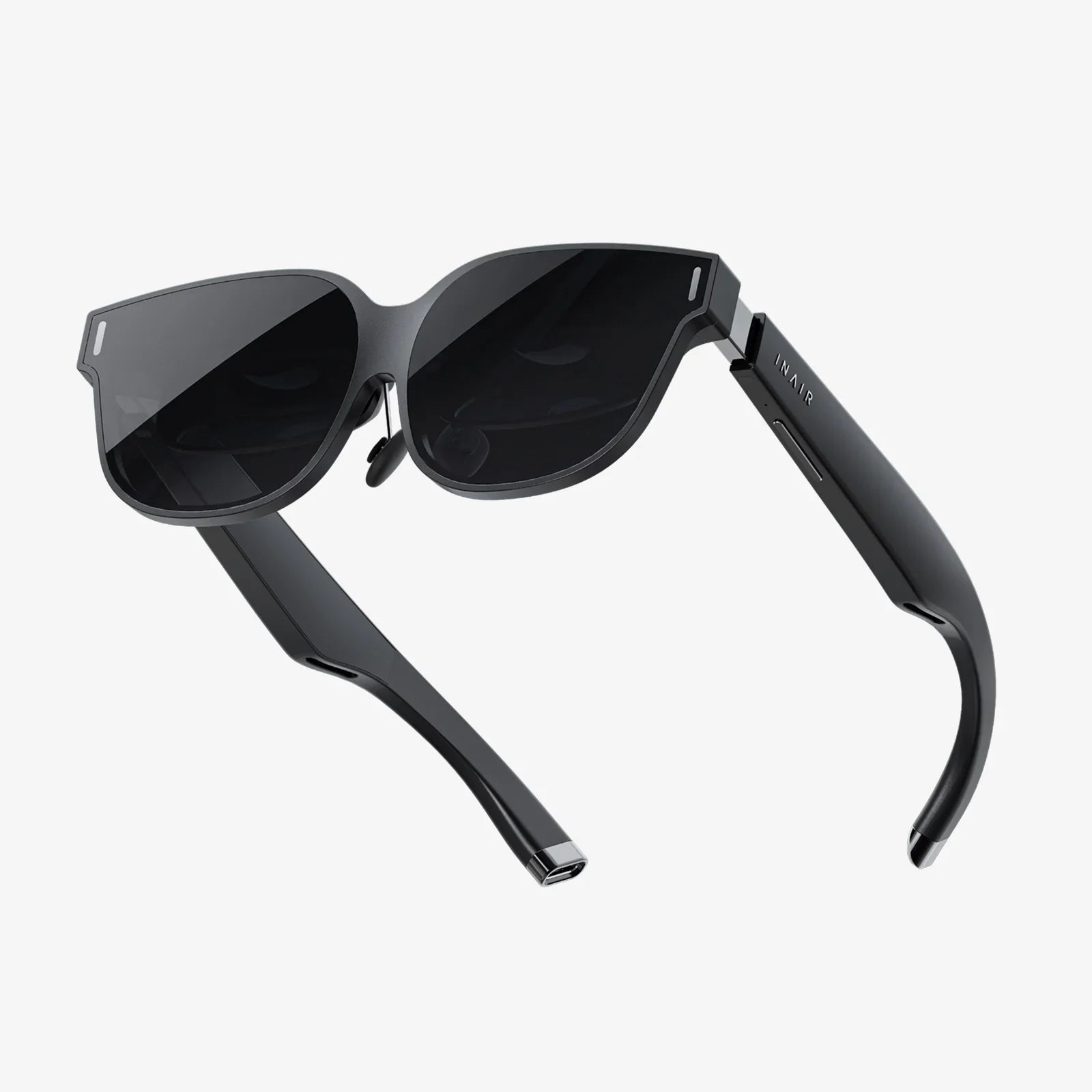
Imagine stepping into the vast, breathtaking worlds of PC-powered virtual reality, from the intricate landscapes of top-tier games to the awe-inspiring depths of educational simulations, all without investing in expensive, dedicated hardware. What if the gateway to these experiences is already in your pocket, waiting to be unlocked? The concept of transforming your smartphone into a VR headset for your PC is not just a tech enthusiast's dream—it's a fully realized, accessible, and incredibly powerful reality. This guide will walk you through every step, demystifying the process and empowering you to harness the untapped potential of your mobile device, merging it with the raw power of your computer to create a seamless and immersive VR experience that rivals dedicated systems.
The Foundation: Understanding Smartphone VR
Before we dive into the technical how-to, it's crucial to understand the core principles that make this technological magic possible. At its heart, a modern VR headset is a sophisticated piece of equipment, but its primary functions can be broken down into three key components that your smartphone already possesses.
The Display: Your Phone's Screen
The most obvious component is the display. High-end VR headsets boast crisp, high-resolution, high-refresh-rate screens designed to minimize the screen-door effect and reduce motion sickness. Fortunately, flagship smartphones have been competing in this same arena for years. Many modern phones feature stunning OLED or AMOLED displays with resolutions exceeding 1440p and refresh rates of 90Hz, 120Hz, or even higher. This means the raw visual canvas for your VR experience is already spectacular. When placed mere centimeters from your eyes inside a headset, this screen becomes your window to another world.
The Sensors: Tracking Your Movement
Another critical element is positional and rotational tracking. Dedicated headsets use external base stations or internal cameras paired with complex algorithms to understand where you are in space and how you are moving. Your smartphone is a treasure trove of sensors. It contains a precise gyroscope to track the rotation of your head (looking up, down, left, right), an accelerometer to measure movement, and a magnetometer (compass) to help with orientation. For basic rotational tracking—the fundamental building block of VR—your phone is already perfectly equipped.
The Brain: Processing Power
Here lies the secret sauce that makes using your phone as a PC VR headset so brilliant. In a standalone headset, the device's internal processor has to render the entire complex virtual environment, a task that demands immense power and generates significant heat. In our scenario, the heavy lifting is handled by your PC. Your powerful desktop graphics card renders the detailed, high-fidelity visuals and sends the video stream to your phone. Your phone, in turn, acts primarily as a sophisticated display and input device. This division of labor allows you to experience graphically intensive PC VR content without needing a standalone headset's processing hardware.
Gearing Up: Essential Hardware You'll Need
While the phone is the star of the show, you'll need a few key pieces of hardware to complete the transformation. This setup is often referred to as a "mobile HMD (Head-Mounted Display)" for PC VR.
1. The Smartphone VR Headset (The Holder)
This is the physical apparatus that holds your phone and attaches to your head. These are readily available and come in two primary flavors:
- Basic Cardboard/Plastic Viewers: These are the most affordable options. Made from reinforced cardboard or simple plastic, they hold the phone in place and have basic lenses to focus your vision. They often lack straps or adjustable lenses, making them better for short, casual experiences.
- Advanced Universal Headsets: For a more comfortable and feature-rich experience, invest in a more advanced universal headset. These typically include adjustable head straps, cushioned face pads, adjustable lenses for different eye distances (IPD), and often a dedicated controller. They provide a far more comfortable and immersive experience for longer sessions.
The key is to ensure the headset you choose is compatible with your phone's screen size.
2. A Powerful Gaming PC
Since your PC is doing all the rendering, it needs to meet certain requirements. While not always as steep as those for a premium headset, you'll still need a capable machine.
- GPU (Graphics Card): A dedicated graphics card is non-negotiable. Look for a modern mid-range card or better. It should support the video encoding required for streaming.
- CPU (Processor): A modern multi-core processor will handle the game logic, physics, and streaming overhead.
- RAM: At least 8GB is recommended, with 16GB being ideal for a smoother experience.
- USB Ports: You'll need available USB ports for optional accessories.
3. A Strong Local Network (For Wireless Play)
For the wireless method, your network is the lifeline between your PC and phone. A strong 5GHz Wi-Fi connection is absolutely essential. For the best possible performance, ensure your PC is connected to your router via a Gigabit Ethernet cable, creating a stable and high-bandwidth backbone for the wireless stream to your phone. This minimizes latency and prevents artifacts and stuttering, which are the enemies of VR immersion.
4. Optional: Additional Controllers
While you can use your phone's touchscreen or a simple headset-mounted controller for some games, true immersion in PC VR titles requires motion controllers. These are the wands or gloves that allow you to interact with the virtual world with your hands. Some software solutions allow you to pair standard Bluetooth game controllers or even use a second smartphone as a basic motion controller. For a full six-degrees-of-freedom (6DoF) experience, you may need to invest in dedicated peripheral tracking hardware.
The Magic Bridge: Software Solutions to Connect PC to Phone
This is where the real transformation happens. Specialized software acts as the bridge, capturing the VR video feed from your PC, encoding it, and streaming it to your phone while simultaneously receiving head-tracking data from your phone's sensors. Here are the primary methods and leading software solutions (without mentioning specific brands).
Method 1: Wired Connection (USB Tethering)
This method involves connecting your phone directly to your PC via a USB cable.
Pros:
- Zero Latency: The direct connection offers the most stable and lowest-latency experience.
- No Network Dependency: Performance is not affected by Wi-Fi congestion or signal strength.
- Continuous Power: Your phone charges while you play, allowing for unlimited session length.
Cons:
- Restricted Movement: A physical cable tethers you to your PC, limiting freedom and increasing the risk of tripping.
- Cable Management: Requires a long, high-quality USB cable that can handle data and power.
Method 2: Wireless Connection (Wi-Fi Streaming)
This is the most popular method, using your local Wi-Fi network to transmit data.
Pros:
- Complete Freedom: Untethered movement is a cornerstone of VR immersion. You can turn, crouch, and move without any cables holding you back.
- Ease of Use: Once set up, connecting is as simple as launching an app on your phone and PC.
Cons:
- Network Dependent: Requires a very strong and uncongested 5GHz Wi-Fi network. Performance can degrade if others are using the network.
- Potential Latency: Slightly higher latency than a wired connection, though often imperceptible on a good network.
- Battery Drain: Streaming video and running sensors will drain your phone's battery quickly.
Choosing and Setting Up Your Software
Several robust software platforms exist to facilitate this connection. The setup process is generally similar across them:
- Install the Server Software on your PC: This application runs on your computer and interfaces directly with SteamVR or other VR platforms. It captures the video output and handles the communication with your phone.
- Install the Client App on your Phone: Download the corresponding application from your phone's app store. This app will receive the video stream and utilize your phone's sensors for tracking.
- Connect the Two: Ensure both devices are on the same network (for wireless) or connected via USB (for wired). Launch the server on your PC and then the client on your phone. They should automatically discover each other.
- Calibrate: The software will guide you through a brief calibration process to set your center point and ensure tracking is accurate.
- Launch SteamVR: Once connected, the software will typically start SteamVR automatically. You'll see the familiar SteamVR grid environment, and you're ready to launch any PC VR title from your library.
Optimizing Your Experience: Pro Tips and Tweaks
To squeeze every drop of performance and visual fidelity from your setup, consider these advanced tips.
1. Network Optimization for Wireless VR
- Dedicated 5GHz Band: If your router supports it, create a separate SSID for your 5GHz band and connect only your PC (via Ethernet) and your phone (via Wi-Fi) to it. This eliminates interference from other household devices.
- Router Placement: Ideally, your play space should be in the same room as your router, or at least have a clear line of sight.
- Channel Selection: Use a Wi-Fi analyzer app to find the least congested channel in your area and set your router to use it.
2. Phone and PC Settings
- Enable Developer Mode: On your phone, enable Developer Options and turn on "Stay awake" to prevent the screen from turning off during your session.
- Close Background Apps: Before starting, close all unnecessary applications on your phone to free up processing power and RAM for the streaming app.
- PC Power Plan: Set your Windows power plan to "High performance" to ensure your PC isn't throttling components.
- Game Settings: Within your VR games, start with medium graphical settings. You can always increase them later. Prioritize maintaining a stable framerate above all else to avoid motion sickness.
3. Enhancing Immersion and Input
- Audio: Use a good pair of wired headphones plugged into your phone for immersive 3D spatial audio. Bluetooth audio can introduce noticeable latency.
- Controller Solutions: Explore software that enables the use of additional controllers. Using a standard Bluetooth gamepad opens up a world of VR-compatible games and simulators that are designed for controller input.
Understanding the Limitations and Trade-offs
While this approach is revolutionary, it's important to have realistic expectations. You are trading cost for some concessions that dedicated hardware solves.
- Limited Tracking (3DoF vs 6DoF): The biggest limitation is tracking. Your phone's sensors only provide rotational tracking, known as 3 Degrees of Freedom (3DoF). This means you can look around in all directions, but you cannot lean forward, crouch, or move your head positionally in space (6DoF). This breaks immersion in games where physical dodging or peeking around corners is required. Some advanced software attempts to use the phone's camera for positional tracking, but results can be mixed.
- Potential Latency: Even on a good network, there is a minuscule delay between your movement and the action on screen. Most people won't notice it, but those sensitive to motion might.
- Battery and Heat: Streaming VR is demanding on your phone. It will generate heat and drain the battery rapidly, even while plugged in. Consider using a low-power mode on the phone's streaming app if available.
- Visual Artifacts: Because the video is being compressed and streamed, you may occasionally see compression artifacts, especially in dark scenes or during very fast motion.
Despite these trade-offs, the ability to access a vast library of PC VR experiences for a fraction of the cost is an incredible proposition. It's a perfect entry point into high-end VR, a fantastic solution for experiencing VR simulations and media, and a testament to the power of repurposing existing technology.
The journey to turn your phone into a VR headset for your PC is a thrilling dive into the democratization of cutting-edge technology. It dismantles the financial barrier to entry, proving that profound immersion doesn't require a four-figure investment. With just a simple holder, the right software, and a bit of technical curiosity, you can unlock a universe of experiences, from soaring through fantastical realms to mastering complex skills in hyper-realistic simulations. Your pocket-sized portal to other worlds is ready—all you have to do is reach in, slide your phone into its headset, and take the leap. The future of accessible VR is already here, and it's waiting for you to hit 'start'.
Share:
What to Look for in a Quality VR Headset: The Ultimate Buyer's Guide
Augmented Reality Smart Glasses News Today 2025: The Year Your World Changed