


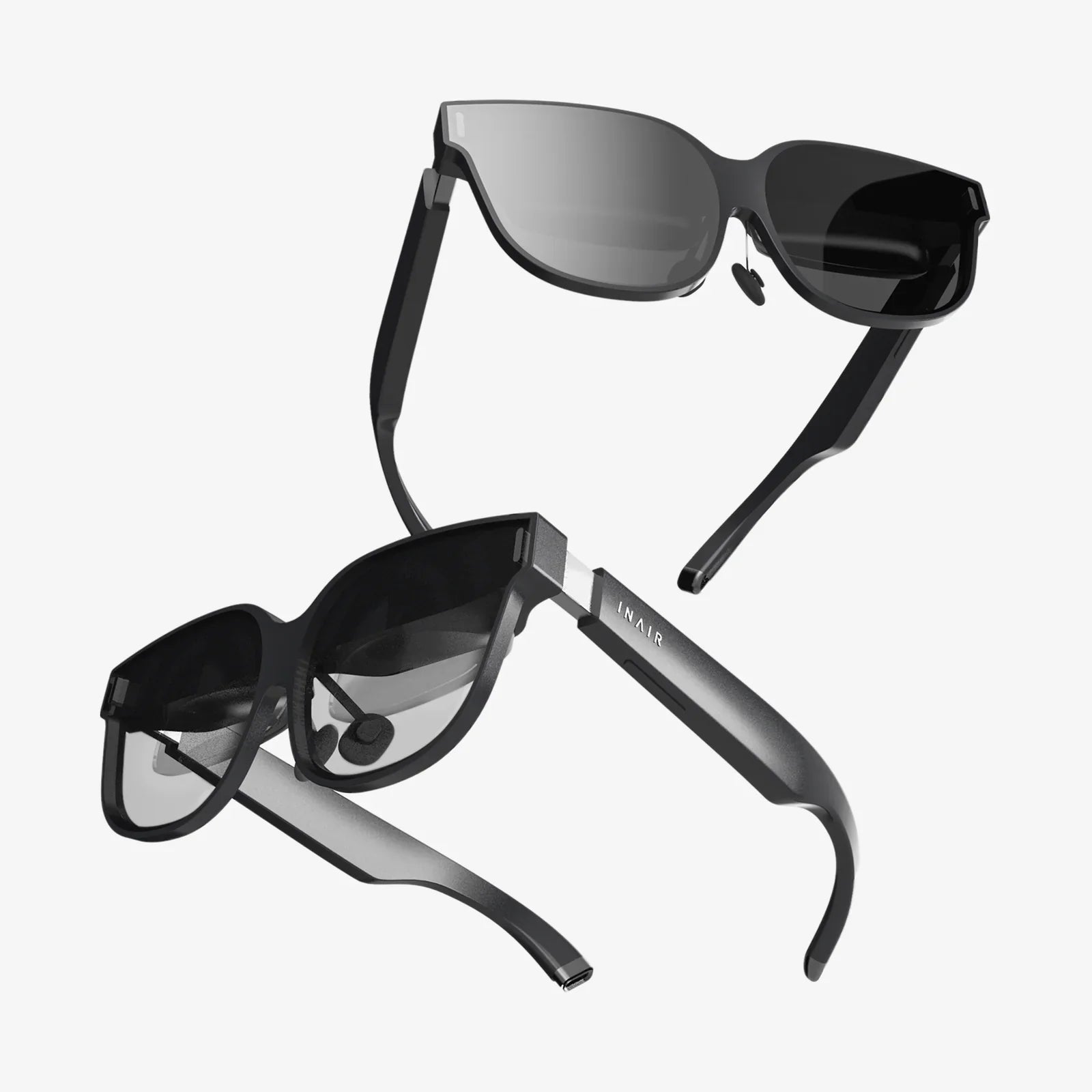
Imagine stepping into breathtaking virtual worlds, exploring fantastical landscapes, and interacting with digital creations, all powered by the incredible technology already in your pocket. The dream of high-fidelity virtual reality is no longer locked behind a prohibitively expensive hardware paywall. What if we told you that the key to unlocking this immersive universe is already in your hand? Your iPhone, with its stunning Retina display, powerful processor, and precise motion sensors, is a VR headset in waiting. This guide will unveil the secrets to transforming your Apple smartphone into a seamless window to PC-powered virtual reality, bridging the gap between mobile convenience and desktop-grade immersion.
The Foundation: Understanding the Technology Behind the Magic
Before we dive into the 'how,' it's crucial to understand the 'what' and 'why.' Using your iPhone as a PC VR headset isn't magic; it's a clever feat of engineering and software that leverages two powerful systems in tandem.
At its core, this process is known as PC-based VR streaming. Your gaming computer or laptop acts as the engine room, doing all the heavy lifting: rendering the complex 3D environments, running the physics simulations, and executing the game's code. This requires a machine with a sufficiently powerful graphics card and processor.
Your iPhone, in this scenario, acts as the display and sensor hub. Its high-resolution screen (often with a higher pixel density than many dedicated VR headsets) shows the visuals streamed from your PC. Meanwhile, its built-in gyroscope, accelerometer, and magnetometer track the rotation of your head with remarkable precision. For a full six degrees of freedom (6DoF) experience—where you can lean in, duck, and move around—additional hardware is needed, which we will cover later.
The critical link between these two devices is your local Wi-Fi network or a wired connection. Specialized software on your PC encodes the video and audio output at incredibly high speeds and low latency, then beams it to a corresponding app on your iPhone. The iPhone app decodes this stream and displays it, while simultaneously sending head-tracking data back to the PC. This constant, high-speed dialogue happens in milliseconds, creating the illusion of a seamless, responsive virtual world.
Gearing Up: The Essential Hardware and Software Checklist
To embark on this journey, you'll need to assemble a few key components. Don't worry; it's significantly less expensive than buying a new headset.
1. The iPhone Itself
Naturally, you'll need an iPhone. Generally, the more recent the model, the better the experience. Key factors include:
- Display: A high-resolution OLED screen (found on most recent models) provides deeper blacks and better contrast, which is crucial for immersion.
- Processor: The powerful A-series chips (A12 Bionic and later) are more than capable of handling the high-speed video decoding and sensor data processing required.
- Refresh Rate: Pro models with 120Hz ProMotion displays can offer a smoother experience if your PC and software support it.
2. The VR Headset Shell
You can't just hold your phone to your face. You need a head-mounted display (HMD) shell. This is a housing that holds your iPhone and contains the most critical component: lenses. These lenses refract the image from your phone's screen, making it fill your entire field of view and creating a stereoscopic 3D effect. Your options are:
- Budget Cardboard-style viewers: Inexpensive and made of plastic or even cardboard. They work but offer minimal adjustability and comfort.
- Mid-range Plastic Headsets: These offer better build quality, adjustable straps, and improved lenses for a clearer image. This is the recommended starting point for most users.
- High-end Shells: Some third-party manufacturers produce premium shells with features like built-in ventilation, adjustable lens distance (IPD), and superior comfort materials.
3. The Powerful PC
This is non-negotiable. Your computer must meet or exceed the recommended specifications for the VR experiences you want to run. This typically means:
- A modern, powerful graphics card (GPU).
- A capable multi-core processor (CPU).
- At least 8GB of RAM (16GB is recommended).
- A stable and fast operating system (Windows 10 or 11 is ideal).
4. The Network: Wired vs. Wireless
Latency is the enemy of VR. It's the delay between moving your head and seeing the image update. Too much latency causes motion sickness.
- Wired (Recommended for beginners): Using a lightning-to-USB cable tethering your iPhone directly to your PC provides the most stable and lowest-latency connection. It's simple and reliable.
- Wireless (The Holy Grail): For true freedom of movement, a wireless setup is ideal. This requires a very strong and stable 5GHz Wi-Fi network. Your PC should be connected to your router via an Ethernet cable to minimize interference. A Wi-Fi 6 (802.11ax) router will provide the best possible wireless performance.
5. The Software Bridge
This is the secret sauce. You will need two pieces of software:
- PC Server Software: This runs on your gaming PC. It handles the VR environment, captures the video feed, encodes it, and sends it to your phone. Examples include RiftCat's VRidge, and ALVR. These programs often have free versions with limited features or paid versions that unlock full potential.
- iPhone Client App: You download this from the App Store. It receives the video stream, displays it on your phone, and sends head-tracking data back to the PC server.
6. (Optional) For Full 6DoF: External Trackers
The iPhone's internal sensors are excellent for rotational tracking (3DoF—looking around). But for positional tracking (moving your head in physical space), you need external sensors. Some software solutions can use a single webcam to track your headset's position, but for a robust, room-scale 6DoF experience, you may need to invest in additional hardware like additional cameras or proprietary tracking pucks that work with your chosen software.
The Step-by-Step Setup Process
Now that you have all the pieces, let's put them together. The exact steps will vary slightly depending on the software you choose, but the general workflow is consistent.
- Research and Choose Your Software: Select a PC-to-phone VR streaming solution. Read recent user reviews and compatibility guides to ensure it works with your iPhone model and PC setup.
- Install the PC Server: Download and install the server application on your gaming PC. Follow its setup wizard, which will typically involve calibrating your VR controllers (if you have them) and setting your streaming quality preferences (resolution, bitrate).
- Install the iPhone Client App: Search for the companion app on the App Store and install it on your iPhone.
- Establish the Connection: Ensure both your PC and iPhone are on the same Wi-Fi network. Open the server software on your PC and then launch the app on your iPhone. The app should automatically discover the server on your network. If you are using a wired connection, connect your phone via USB and follow the software's instructions for a tethered setup.
- Calibrate and Configure: The software will guide you through a calibration process. This usually involves placing your phone into the headset shell and then setting parameters like lens distance and screen alignment to ensure a clear and comfortable image.
- Launch and Play: Once the connection is stable and calibrated, the software will typically launch a VR environment or a compatibility layer like SteamVR. From here, you can launch any VR game or application from your PC library.
Weighing the Experience: The Pros and Cons
Is this method a perfect replacement for a dedicated headset? Let's be objective.
The Advantages:
- Extreme Cost-Effectiveness: The primary advantage. If you already own a capable iPhone and gaming PC, your only expense is a headset shell (often under $50) and the software license (usually under $30).
- Incredible Display Quality: iPhones boast some of the best mobile screens on the market, often surpassing the perceived resolution of first-generation dedicated VR headsets.
- Access to a Vast Library: You gain access to the entire ecosystem of PC VR games on platforms like SteamVR and the Oculus PC store, which is far more extensive than the mobile VR catalog on the App Store.
- Low Barrier to Entry: It's a fantastic way to dip your toes into the world of PC VR without a major financial commitment.
The Challenges and Limitations:
- Latency and Compression: Even under ideal conditions, streaming video introduces a tiny amount of latency and potential visual compression artifacts, which can be noticeable in very fast-paced games.
- Battery Drain: Streaming high-resolution video is demanding. Your iPhone's battery will deplete quickly, making long sessions difficult without a external battery pack.
- Potential for Jitter: A wireless setup is susceptible to network interference, which can cause stuttering or disconnections, breaking immersion.
- Controller Setup Can Be Complex: Getting standard VR controllers to work seamlessly can require additional configuration and might not offer a plug-and-play experience.
- Lack of Advanced Features: You won't get features like eye-tracking, varifocal lenses, or perfect inside-out tracking that are becoming standard on newer dedicated headsets.
Optimizing Your Setup for the Best Possible Experience
To squeeze every drop of performance from your setup, follow these pro tips:
- Prioritize a Wired Connection: For your first attempt, use a USB cable. It eliminates network variables and ensures the most stable performance.
- Kill Background Apps: On your iPhone, close all other applications to free up processing power and RAM for the VR streaming app.
- Tweak PC Settings: In your streaming software, start with a moderate resolution and bitrate. Gradually increase them until you find the sweet spot where visual quality is great without introducing stutter.
- Direct Ethernet for Wireless: If going wireless, absolutely connect your PC to your router via an Ethernet cable. This removes one potential source of network latency.
- Manage iPhone Temperature: Remove your phone's case before placing it in the headset to aid cooling. Consider pointing a fan at your play space to prevent thermal throttling.
- Start with Seated Experiences: Begin with games designed for 3DoF or seated 6DoF before attempting room-scale games, which demand more from your tracking setup.
Beyond Gaming: The Wider World of PC VR on iPhone
While gaming is the most exciting application for many, this setup unlocks far more. Your iPhone becomes a portal to powerful professional and creative tools:
- Architectural Visualization: Walk clients through 3D models of buildings and interiors before a single brick is laid.
- 3D Modeling and Sculpting: Use applications like Adobe Medium to create 3D art in a immersive space.
- Virtual Social Spaces: Attend meetings, concerts, and social gatherings in platforms like VRChat, all from your iPhone.
- Education and Training: Experience immersive historical recreations, explore the human body, or practice complex procedures in a risk-free virtual environment.
The journey to use your iPhone as a PC VR headset is a testament to the power of innovation and software. It democratizes high-end virtual reality, making it accessible to a far wider audience. While it may not yet deliver the flawless, seamless experience of a purpose-built five-hundred-dollar headset, the gap is closing rapidly. The image quality can be stunning, the immersion is genuine, and the sense of accomplishment when you first step into a virtual world powered by your own pocket computer is unbeatable. It transforms your iPhone from a communication and consumption device into a gateway to new realities, proving that the most powerful VR headset you can own might just be the one you already have.
Share:
Extended Reality Experience: The Seamless Merging of Our Digital and Physical Worlds
VR for Apple iPhone: The Ultimate Guide to Mobile Immersion