


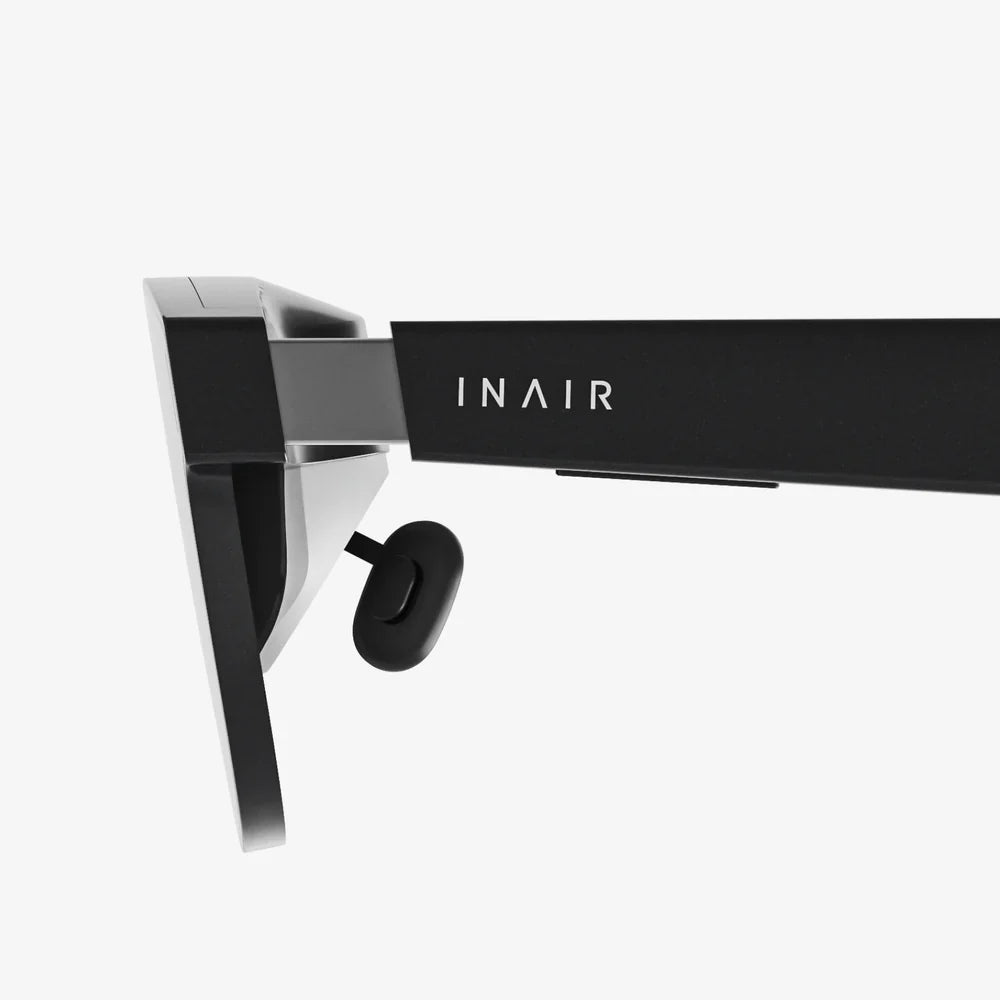
Viture glasses blurry edges are one of the most common complaints people raise right after that initial wow moment of seeing a giant virtual screen floating in front of their eyes. You put them on, the center looks sharp, but the sides feel soft, smeared, or slightly out of focus. If you are wondering whether this is normal, whether your eyes are the problem, or whether you can actually fix it, you are in exactly the right place.
This guide walks you through what really causes blurry edges in wearable display glasses, how to tell normal optical limitations from fixable setup issues, and which adjustments can dramatically sharpen your view. By the time you finish reading, you will know how to dial in your fit, configure your focus and interpupillary distance (IPD), tweak software settings, and troubleshoot like a pro so you can enjoy a crisp, immersive image instead of constantly squinting at the sides.
Why do Viture-style glasses get blurry edges?
To understand why the edges of the image can look blurry, you need to know a bit about how modern display glasses work. They are not just mini screens; they are a combination of microdisplays, lenses, and optical coatings designed to project a large virtual screen at a comfortable distance.
1. Lens design and optical sweet spot
Most wearable display glasses use complex lenses that are optimized for a sharp central region, often called the optical sweet spot. As you move away from that central zone, various types of aberrations become more noticeable. These include:
- Field curvature – The image plane is slightly curved, but your eyes expect a flat plane, so the edges can appear out of focus if the center is sharp.
- Astigmatism – Light does not focus evenly in all directions, causing lines or details at the periphery to look smeared or stretched.
- Chromatic aberration – Different colors focus at slightly different points, leading to faint color fringes and softness at the edges.
This is not unique to Viture glasses; it is a fundamental trade-off in compact optics. However, how noticeable it is depends heavily on how the glasses sit on your face and how your eyes align with the lenses.
2. Misalignment between your eyes and the lenses
Even perfectly designed optics will look blurry if your pupils are not aligned with the intended viewing zone. Two main factors matter here:
- Interpupillary distance (IPD) – The distance between the centers of your pupils. If the virtual image is rendered for a different IPD than your actual eyes, one or both eyes may end up closer to the lens edge, where blur is more pronounced.
- Vertical and horizontal positioning – If the glasses sit too high, too low, or shifted sideways, your eyes may not be looking through the lens center.
Because these glasses are lightweight and designed to resemble regular eyewear, a slight tilt or slip on your nose can push your eyes out of the sweet spot and make the edges look noticeably worse.
3. Your own vision and prescription needs
Many people underestimate how much their own eyesight affects clarity in wearable displays. Common issues include:
- Uncorrected nearsightedness or farsightedness – Even mild refractive errors can make the edges appear softer, especially if the virtual screen is simulated at a certain distance that does not match your natural focus.
- Astigmatism – Astigmatism in your eyes can amplify lens astigmatism, making peripheral blur more pronounced.
- Presbyopia – Age-related difficulty focusing on near objects can interact with how the virtual distance is simulated.
If you are using the glasses without your usual corrective lenses, or if your prescription is outdated, you might be blaming the hardware for a problem that is partly optical and partly biological.
4. Focus, diopter, or virtual distance settings
Some display glasses support diopter or focus adjustments. If these are not set correctly for your eyes, you may find that only part of the image appears sharp. Often the center looks okay, but as your eyes move outward, the mismatch in focus becomes more obvious.
Even when there is no manual diopter adjustment, the virtual screen is typically simulated at a fixed distance (for example a few meters away). If your eyes do not naturally focus comfortably at that distance, you may experience a mix of eye strain and perceived blur.
5. Software scaling and resolution issues
Blurry edges are not always purely optical. They can be made worse by software factors such as:
- Low rendering resolution – If your device outputs a lower resolution than the glasses can display, text and details at the edges will look soft.
- Scaling and overscan – Some systems scale the image or crop it in ways that push UI elements toward the periphery, where optical blur is stronger.
- Incorrect display mode – Mirroring vs extended desktop modes can change how text is sized and positioned, affecting perceived clarity at the edges.
Because the center of the image usually hosts the most important content, software-related blur is often noticed first at the edges where small UI elements or text may be rendered less optimally.
How to tell if your blurry edges are normal or fixable
Before you start adjusting everything, it helps to determine whether you are experiencing a typical optical limitation or a solvable setup issue. Here is a practical way to test it.
Step 1: Use a test pattern or text grid
Create or open a simple test image on your connected device, such as:
- A grid of lines covering the entire screen.
- Text in all four corners and at the center.
- High-contrast shapes like circles and squares near the edges.
Look straight ahead at the center, then move only your eyes (not your head) to inspect the edges. Note which side looks worst and whether both eyes see the same level of blur.
Step 2: Move the glasses, not just your eyes
Now slowly tilt and slide the glasses up, down, and sideways while keeping your gaze fixed on a corner target. If you find a position where the corner becomes noticeably sharper, that is a strong sign that alignment and fit are the main issues, not an inherent hardware limitation.
Step 3: Check with and without your usual corrective lenses
If you normally wear glasses or contacts, test both with and without them:
- If clarity improves significantly when you use your prescription, your own vision is a major factor.
- If clarity is worse with your prescription, you may need a different focus or diopter setting (if available) or a more accurate prescription.
Make notes about which configuration gives the best overall sharpness, not just at the center.
Step 4: Try a different device or resolution
Connect the glasses to another device or change the output resolution. If the nature of the blur changes, or if one setup looks clearly sharper at the edges, software scaling and resolution are part of the equation.
Practical fixes for Viture glasses blurry edges
Once you have a sense of what is causing the blur, you can start applying targeted fixes. The goal is to maximize how often your eyes are looking through the optical sweet spot and to minimize the impact of optical and software limitations.
1. Optimize the physical fit and alignment
Fit is the single most underrated factor in edge clarity. Small changes in how the glasses sit on your face can make a big difference.
Adjust nose pads and frame angle
Most display glasses include adjustable nose pads or a flexible nose bridge. Experiment with these:
- Raise or lower the frame – If the glasses sit too low, you may be looking through the upper part of the lenses; too high, and you are using the lower edge. Aim for a position where the virtual screen feels centered in your natural line of sight.
- Adjust tilt – Slightly tilting the glasses forward or backward can align your eyes more directly with the lens sweet spot.
Do not rush this step. Spend a few minutes finding a position that makes the center and edges look simultaneously acceptable.
Use optional nose pieces or support accessories if available
If your glasses tend to slide down your nose, consider using thicker nose pads or support accessories that keep the frame stable. Movement during use can cause the edges to drift in and out of clarity, which is especially annoying during long sessions.
2. Align the virtual image with your IPD
If your glasses or companion software allow IPD adjustments, take the time to set them correctly.
Measure your IPD
You can measure your IPD in several ways:
- Ask an optometrist to measure it during an eye exam.
- Use a ruler and mirror to measure the distance between your pupils.
- Use a smartphone app designed for IPD measurement.
Once you know your IPD, set it in the software or choose the closest available setting. Re-test the edge clarity using the grid or text pattern.
Look for signs of incorrect IPD
Clues that your IPD is misaligned include:
- One side of the screen is consistently blurrier than the other.
- You feel eye strain or a slight pulling sensation when focusing.
- 3D or depth effects (if available) feel uncomfortable or distorted.
Fine-tuning IPD can dramatically improve comfort and peripheral clarity, especially for long-term use.
3. Use the correct focus or diopter settings
If your glasses support diopter or focus adjustments, do not skip them. Here is a simple method to dial them in:
- Display a high-contrast text page or test pattern.
- Close one eye and adjust the focus for the open eye until the center text looks as sharp as possible.
- Switch eyes and repeat for the other side if the system allows independent adjustment.
- Open both eyes and check the edges while making small fine-tuning adjustments.
Remember that your goal is a comfortable balance: the center should be crisp, and the edges should be as clear as the optics reasonably allow without causing eye strain.
4. Integrate your prescription correctly
If you have a prescription, you have three main options depending on the system design:
- Wear your regular glasses or contact lenses under or with the display glasses.
- Use prescription inserts or adapters if the model supports them.
- Use built-in diopter adjustments to compensate for mild refractive errors.
Whichever approach you use, test edge clarity systematically. Users with astigmatism often benefit the most from proper prescription integration, since uncorrected astigmatism tends to exaggerate peripheral blur.
5. Tweak software, resolution, and scaling
Once the hardware is dialed in, software tweaks can further improve perceived clarity.
Choose an optimal resolution
Set your output device to a resolution that matches or scales cleanly to the glasses' native resolution. Avoid overly low resolutions that cause text to look jagged or blurry when enlarged.
Adjust scaling and font size
If you are using the glasses as a monitor replacement for work:
- Increase system text scaling so that text remains near the center and is large enough to read comfortably.
- Avoid placing important UI elements in the extreme corners where optical blur is strongest.
For gaming or media, check in-game or app-specific resolution and scaling settings as well.
Use sharpness and contrast controls
Some companion apps or devices offer sharpness and contrast sliders. Increasing sharpness slightly can make edges feel clearer, but avoid going too far, as excessive sharpening can create halos or noise that are distracting in their own way.
6. Adjust your viewing habits and expectations
Even with perfect setup, the very edges of the image in compact display glasses will rarely be as sharp as the center. Instead of fighting this, you can adapt how you use the device:
- Keep critical content (text, UI panels, subtitles) closer to the center of the screen.
- Use the edges mostly for peripheral awareness rather than detailed reading.
- When you need to inspect something at the edge, move your head slightly instead of relying only on eye movement.
This is similar to how people adjust to wide field-of-view VR headsets: the center is where you read and focus, while the edges support immersion rather than fine detail.
Common scenarios and how to handle blurry edges in each
Different use cases expose the blurry edge issue in different ways. Here are some tailored tips for common scenarios.
1. Using Viture-style glasses for productivity and coding
When you are working with documents, spreadsheets, or code, edge clarity matters more because you might place toolbars, panels, or secondary windows near the sides.
Layout tips for productivity
- Keep your main document or code editor centered.
- Place secondary panels (like chat windows or file explorers) in regions that are near the center but not at the extreme edges.
- Increase font size slightly rather than pushing windows further out to fit more on screen.
If you still find the edges too soft for reading, consider narrowing your window layout so that text-heavy content stays within the sharpest region of the virtual display.
2. Watching movies and videos
For media consumption, blurry edges are usually less problematic, but they can still be noticeable in subtitles or UI overlays.
Media-specific adjustments
- Use player settings to increase subtitle size and position them slightly above the bottom edge.
- Choose display modes that keep the active video area centered, with black bars or neutral space at the extreme edges if necessary.
- Ensure the room lighting is comfortable; eyestrain from high contrast can make blur feel worse.
Because your focus is mostly on the center of the screen during movies, a well-adjusted fit will make the edges fade into the background of your awareness.
3. Gaming with Viture-style glasses
Games often push UI elements into the corners: health bars, mini-maps, ammo counters, and more. That is exactly where optical blur tends to be most noticeable.
Gaming interface strategies
- Use in-game UI customization to move critical HUD elements closer to the center when possible.
- Increase UI scale so small icons and text are easier to read even if they are near the edges.
- Choose higher rendering resolutions if your hardware can handle it, as this reduces pixelation and improves perceived sharpness.
For fast-paced games, clarity at the edges is less important than responsiveness and central detail, but a few minutes of UI customization can make a big difference in comfort.
When blurry edges indicate a deeper issue
Most of the time, Viture glasses blurry edges can be managed with fit and settings. However, there are some warning signs that something more serious might be going on.
Signs of potential hardware or compatibility problems
- Severe blur across the entire field – If even the center never looks sharp, you may have a defective unit or a serious mismatch between your vision and the device settings.
- Asymmetrical blur that does not change with adjustment – If one side is always much blurrier no matter how you adjust fit, IPD, or focus, there could be an alignment issue inside the glasses.
- Double images or ghosting – Persistent double images, especially if they do not respond to IPD adjustments, can indicate a calibration problem or a significant binocular vision issue.
- Headaches, nausea, or eye pain – Mild eye fatigue can be normal during early use, but strong or persistent symptoms suggest that the device is not properly aligned with your visual system.
If you encounter these issues, it may be worth testing the glasses with another person. If they see the same problems, you may be dealing with a hardware defect or extreme optical misalignment that requires professional support.
When to consult an eye care professional
Sometimes, display glasses reveal vision issues you did not know you had. Consider seeing an eye care professional if:
- You have never had a comprehensive eye exam and notice persistent blur or discomfort.
- You experience double vision, dizziness, or difficulty focusing in daily life, not just with the glasses.
- Your last prescription is several years old, and the glasses seem strangely uncomfortable even after careful adjustment.
A proper eye exam can clarify whether the problem lies with your eyes, the device, or both, and can often lead to solutions that improve your overall visual comfort beyond just using wearable displays.
Tips for long-term comfort and clarity
Once you have reduced blurry edges to a manageable level, you can take a few extra steps to keep your experience consistently comfortable.
1. Take regular breaks
Even with a perfect fit, staring at any display for hours can cause eye fatigue. Use short breaks to let your eyes relax:
- Follow the 20-20-20 rule: every 20 minutes, look at something 20 feet away for 20 seconds.
- Blink consciously to avoid dry eyes, which can make blur feel worse.
2. Keep lenses clean and scratch-free
Smudges, dust, and micro-scratches can all contribute to perceived blur, especially at the edges where light passes through the lens at more oblique angles.
- Use a microfiber cloth and appropriate cleaning solution.
- Avoid paper towels, clothing, or harsh chemicals that can damage coatings.
3. Store and transport the glasses properly
Protecting your glasses from physical damage preserves their optical performance:
- Use a hard case when traveling.
- Do not leave them lens-down on surfaces.
- Avoid exposing them to extreme temperatures that could warp materials.
4. Revisit your settings periodically
Your needs can change over time. You might switch devices, update your prescription, or simply get used to a particular way of using the glasses.
- Recheck IPD and focus settings after major system updates or hardware changes.
- Experiment with new layout or scaling options as your usage evolves.
Turning blurry edges into a non-issue
Viture glasses blurry edges do not have to ruin the magic of wearing a giant, portable screen on your face. Once you understand that some peripheral softness is a normal byproduct of compact optics, and that a large part of the problem is usually fit, focus, and configuration, it becomes much easier to take control of your experience.
By carefully adjusting how the glasses sit on your face, aligning the virtual image with your IPD, dialing in focus or diopter settings, integrating your prescription correctly, and optimizing software resolution and layout, you can transform a frustratingly blurry periphery into a comfortable, immersive field where the important details stay crisp and readable. Instead of wondering whether you made a mistake by investing in display glasses, you can start enjoying them as a flexible, portable screen for work, gaming, and media.
If you are tired of squinting at the edges, use the steps in this guide as a checklist: test, adjust, and refine. The difference between a quick plug-and-play setup and a properly tuned configuration can feel like night and day. Once you have experienced these glasses at their best, you may find yourself reaching for them far more often, not because you have to, but because they finally deliver the clarity and immersion you were hoping for from the start.
Share:
Full Android On AR Glasses: The Next Screen That Changes Everything
AR glasses app compatibility: The Complete 2025 User and Developer Guide