


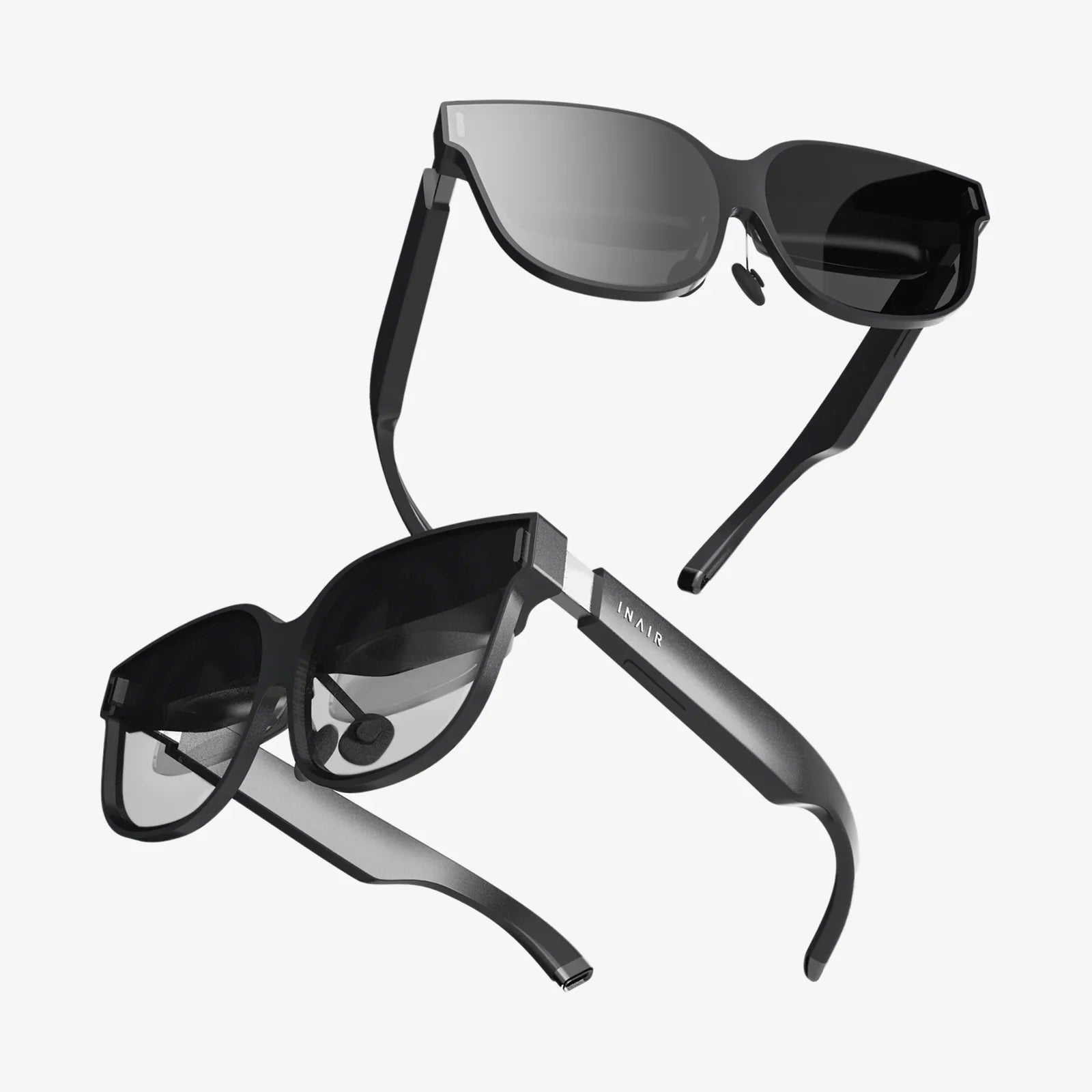
VR capable graphics cards are the secret engine behind those jaw-dropping virtual reality experiences that make you forget the real world even exists. Whether you dream of exploring photorealistic worlds, training in professional simulators, or just enjoying the latest immersive games, your graphics card will decide if VR feels magical or makes you reach for the motion-sickness bag. Before you spend serious money on a new GPU or VR headset, it pays to understand exactly what "VR capable" really means and how to pick the right card for your needs.
This guide walks you through everything essential: what makes a graphics card ready for VR, which specs truly matter, how to balance price and performance, and how to optimize your setup so you get smooth, comfortable, and future-ready VR. If you are planning to build or upgrade a PC for virtual reality, this is the roadmap you need before you click "buy".
Why VR Capable Graphics Cards Matter So Much
Virtual reality pushes your system harder than almost any regular game. A normal monitor might run at 60 or 75 frames per second (FPS), but VR headsets often target 90 FPS or higher per eye. On top of that, the headset renders two images at once, one for each eye, at high resolutions. That means your graphics card has to do far more work, with stricter timing demands.
If your GPU cannot keep up, you will notice:
- Stuttering and frame drops that break immersion
- Motion sickness from inconsistent frame delivery
- Blurry visuals due to aggressive resolution scaling
- Input lag, making interactions feel slow or disconnected
VR capable graphics cards are specifically powerful enough to maintain high frame rates at the resolution and refresh rate required by modern VR headsets. They also support the necessary technologies and interfaces that make VR work smoothly, such as low-latency rendering, appropriate video outputs, and VR-focused driver optimizations.
Core Requirements for VR Capable Graphics Cards
Not every GPU that can run modern games is automatically a good fit for VR. Here are the main criteria that determine whether a card is truly VR capable.
1. Raw Performance: Frame Rate and Headroom
The most important factor is performance. VR generally aims for:
- At least 90 FPS for most headsets
- Stable frame times (consistent delivery, not just high averages)
For comfortable VR, you want a GPU that can handle your headset’s resolution and your target games with some extra headroom. Running at 60–70% usage in typical scenes is better than constantly pegging at 100% and struggling in busy moments.
When you read benchmarks, focus on:
- How the card performs at higher resolutions (1440p, 4K), since VR internal rendering can be similar or higher.
- Minimum and 1% low FPS, not just averages.
- Performance in demanding 3D titles, not just competitive shooters.
2. VRAM (Video Memory) Capacity
Virtual reality scenes use high-resolution textures, complex lighting, and geometry. All of that must fit into the GPU’s VRAM. If you run out of VRAM, you get hitching, stuttering, and degraded quality.
As a general guideline for VR capable graphics cards:
- 6 GB VRAM: Bare minimum for light VR and older titles.
- 8 GB VRAM: Reasonable baseline for modern VR gaming.
- 10–12 GB or more: Better for demanding titles and future-proofing.
If you plan to run high-resolution headsets, heavy mods, or professional VR applications, err on the side of more VRAM. It is one of the easiest ways to avoid performance bottlenecks in complex scenes.
3. Supported APIs and VR Technologies
VR platforms rely on modern graphics APIs and special techniques to keep latency low and frame rates high. Your GPU should support:
- DirectX 11 and 12 for Windows-based VR titles
- Vulkan or OpenGL for some cross-platform engines
- Asynchronous reprojection / timewarp support via drivers
- Hardware-accelerated VR features like lens-matched shading or variable rate shading (depending on the card)
These technologies help your system compensate when frames are late, reduce wasted work in the periphery of your vision, and improve overall responsiveness. Most modern gaming GPUs support these features, but older or entry-level cards may struggle.
4. Display Outputs and Connectivity
VR headsets connect to your PC through high-bandwidth video outputs. Common requirements include:
- DisplayPort (often preferred by newer headsets)
- HDMI (used by many older or mainstream VR devices)
Before choosing a card, check:
- That it has the right type and number of ports for your headset.
- That the ports support the required version (for example, HDMI 2.0 or higher for certain resolutions and refresh rates).
- Whether you will still have outputs left for your monitor setup.
A card can be powerful enough for VR but still be inconvenient if you cannot connect everything cleanly without adapters.
5. Power Supply and Case Compatibility
VR capable graphics cards tend to sit in the mid to high performance tiers, which means higher power draw and larger physical size. When selecting a GPU, verify:
- Power supply wattage: Ensure your PSU can handle the GPU plus the rest of your system with some margin.
- Power connectors: Check how many 6-pin, 8-pin, or other connectors are required.
- Card length and thickness: Confirm the card fits in your case and does not block important slots.
An otherwise ideal VR GPU is useless if it cannot physically or electrically fit into your current PC.
Understanding VR Performance: Resolution, Refresh Rate, and Frame Timing
To choose among VR capable graphics cards intelligently, you need to understand how VR rendering stresses your GPU. The main factors are resolution, refresh rate, and frame timing.
Headset Resolution and Supersampling
Every VR headset has a native resolution per eye. However, VR often renders at a higher internal resolution than the display’s native resolution. This technique, known as supersampling or resolution scaling, helps counteract lens distortion and improve clarity.
For example, a headset might have a resolution of 1832 × 1920 per eye, but the VR runtime may render at a higher effective resolution. That means your GPU is working harder than the raw panel resolution suggests.
Higher resolution headsets demand more from your GPU. If you plan to use a high-end headset or aggressive supersampling to sharpen the image, you should lean toward more powerful VR capable graphics cards.
Refresh Rate and Motion Smoothness
Most VR headsets operate at 90 Hz or higher. Some newer models support 120 Hz or even 144 Hz. Your GPU must produce a new frame for each eye at that rate, or at least maintain a stable fraction of it for reprojection techniques to work effectively.
Common refresh rates include:
- 72 Hz: Often used in entry-level or standalone headsets.
- 90 Hz: Standard for many PC VR headsets.
- 120 Hz or higher: High-end options for ultra-smooth motion.
The higher the refresh rate, the more frames per second your GPU must render, which increases the performance requirement. If your card cannot keep up, the system may rely heavily on reprojection, which can reduce perceived smoothness and clarity.
Frame Timing and Latency
In VR, it is not enough to hit an average FPS target. What matters is consistent frame timing and low latency. A single dropped frame or spike can feel jarring because your brain is highly sensitive to discrepancies between head movement and visual feedback.
VR capable graphics cards, paired with well-optimized drivers, are designed to:
- Deliver frames on a strict schedule.
- Work with VR runtimes to predict head movement.
- Support techniques that fill in missing frames when rendering falls behind.
When you test your system, tools built into VR platforms can show you frame timing graphs. Smooth, flat lines indicate that your GPU is comfortably handling the workload.
Matching VR Capable Graphics Cards to Your Use Case
Not everyone needs the same level of VR performance. The right choice depends on what you want to do in VR and which headset you plan to use.
Entry-Level VR Experiences
If your goals are relatively modest—casual VR games, simpler experiences, or older titles—you can get by with mid-range VR capable graphics cards, provided they meet minimum VR requirements and have enough VRAM.
For this category, look for:
- At least 6–8 GB of VRAM.
- Solid performance at 1080p and 1440p in traditional games.
- Modern API support and at least one DisplayPort or HDMI port compatible with your headset.
You may need to lower some settings or use moderate resolution scaling, but you can still have a comfortable VR experience.
Mainstream VR Gaming
For most VR gamers who want to play current titles with good visual quality and stable performance, mainstream to upper-midrange GPUs are ideal. These VR capable graphics cards offer a balance between cost and power.
For this segment, prioritize:
- 8–12 GB of VRAM for headroom.
- Strong 1440p performance in non-VR games.
- Support for advanced features like variable rate shading where available.
This level of GPU can handle popular VR games at high or ultra settings on many headsets, often with some supersampling for sharper visuals.
High-End and Professional VR
If you are targeting the most demanding VR applications—flight simulators, racing sims with heavy mods, complex engineering visualizations, or high-resolution headsets—you will want high-end VR capable graphics cards.
Focus on:
- 10–16 GB or more VRAM.
- Excellent 4K gaming performance in benchmarks.
- High memory bandwidth and strong compute capabilities.
These GPUs are expensive, but they provide the horsepower needed to maintain high frame rates at demanding settings, which is crucial in professional or highly immersive use cases where visual fidelity and smoothness are non-negotiable.
How to Read Specs and Benchmarks for VR
When comparing VR capable graphics cards, you will see a flood of technical specs. Some matter more than others. Here is how to interpret them with VR in mind.
Key Specs That Matter
- VRAM (GB): More VRAM helps with high-res textures and complex scenes.
- Memory bandwidth: Higher bandwidth helps feed the GPU with data quickly.
- Core count and clock speed: These contribute to raw processing power.
- TDP (Thermal Design Power): Indicates power and heat; higher TDP often correlates with higher performance but requires better cooling and a stronger PSU.
Do not obsess over every minor spec. Instead, use them to understand the general class of performance. Real-world benchmarks are often more informative.
Using Game Benchmarks as a VR Proxy
Not every review includes VR-specific benchmarks, but you can infer a lot from traditional game testing:
- Look at performance at 1440p and 4K in demanding titles.
- Focus on minimum and 1% low FPS, which reflect stability.
- Compare cards within the same generation to see relative gains.
If a card can comfortably handle modern AAA games at 1440p or 4K, it is more likely to perform well in VR, especially at standard headset resolutions.
VR-Specific Benchmarks and Tools
Some testing tools and reviews evaluate VR performance directly. These can show:
- How often the GPU meets the target frame rate.
- How much reprojection is used.
- Frame time consistency under VR workloads.
If you can find such data for the GPUs you are considering, it is one of the best ways to judge how "VR capable" they truly are.
Optimizing Your System Around a VR Capable Graphics Card
Even the best VR capable graphics cards will not perform at their peak if the rest of your system holds them back. A balanced setup is critical for smooth VR.
CPU and RAM Considerations
While the GPU does the heavy lifting in VR, your CPU still matters. VR engines track head and controller movement, physics, AI, and game logic. A weak CPU can cause bottlenecks, especially in complex simulations.
A good VR-ready system should have:
- A modern multi-core CPU with strong single-thread performance.
- At least 16 GB of system RAM.
More RAM can help if you run heavy multitasking alongside VR, such as streaming, recording, or using professional tools.
Cooling and Airflow
VR sessions can last for hours, keeping your GPU under sustained load. Proper cooling is essential to avoid thermal throttling and maintain stable performance.
Make sure your case has:
- Good airflow with intake and exhaust fans.
- Enough clearance for the GPU’s cooling solution.
- Clean filters and well-managed cables to promote airflow.
Monitor your GPU temperature during VR sessions. If it consistently runs very hot, consider improving your case airflow or adjusting your fan curves.
Driver and Software Optimization
Drivers play a critical role in VR performance. To get the best from VR capable graphics cards:
- Keep GPU drivers up to date, especially when new VR titles release.
- Use VR platform tools to fine-tune settings for each game.
- Disable unnecessary background tasks that may cause stutters.
Some VR platforms include performance overlays and tuning options that let you adjust resolution scaling, refresh rates, and reprojection modes. Use these tools to strike the best balance between clarity and smooth motion.
Balancing Budget and Future-Proofing
VR capable graphics cards span a wide price range. Spending more usually delivers better performance, but there is a point of diminishing returns. The key is to buy a card that meets your needs today while giving you some runway for future titles and headsets.
How Long Should a VR GPU Last?
Graphics card lifespans vary, but many users keep a GPU for 3–5 years. In the VR context, this means:
- Entry-level VR cards may feel limited sooner as games grow more demanding.
- Mid-range to high-end VR capable graphics cards can remain viable across multiple headset upgrades.
If you plan to stick with the same headset and mostly play lighter VR titles, you can be more conservative. If you are excited about next-generation headsets and cutting-edge visuals, investing in a stronger GPU now may save you from upgrading again too soon.
Where You Can Save Money
You can often reduce costs without hurting your VR experience by:
- Choosing a slightly lower-tier GPU and lowering some non-critical settings.
- Skipping extreme refresh rate modes if your headset offers multiple options.
- Reusing a quality power supply and case if they already meet requirements.
On the other hand, it is usually not wise to compromise heavily on VRAM or to buy very old cards that may lack driver support and essential VR features.
Common Mistakes When Choosing VR Capable Graphics Cards
Many buyers fall into predictable traps when shopping for a VR GPU. Avoiding these mistakes can save you frustration and money.
Relying Only on Minimum Specs
Headset manufacturers often publish minimum GPU requirements, but these are just that—minimums. They indicate the lowest level of hardware that can run VR at all, not what you need for a smooth, high-quality experience.
Using the bare minimum card often means:
- Lower visual quality settings.
- More reliance on reprojection and motion smoothing.
- Greater risk of motion sickness due to inconsistent performance.
Treat minimum specs as a starting point, not a target.
Ignoring VRAM in Favor of Raw Speed
Some cards offer high compute performance but limited VRAM. In traditional gaming at lower resolutions, this might be acceptable. In VR, however, you can easily encounter VRAM limits as you increase texture quality and resolution.
A slightly slower card with more VRAM can sometimes deliver a better VR experience than a faster card with too little memory, particularly in large or detailed environments.
Underestimating the Rest of the System
Spending heavily on a top-tier GPU while keeping an old, weak CPU and a small power supply is a recipe for bottlenecks and instability. VR is unforgiving of system imbalances.
Before you commit to a GPU, verify that:
- Your CPU is reasonably modern and capable.
- Your power supply is reliable and has sufficient wattage.
- Your case and cooling setup can handle the heat output.
Practical Setup Tips After You Install a VR Capable Graphics Card
Once you have chosen and installed your new GPU, a few practical steps can significantly improve your VR experience.
Calibrate VR Settings Per Game
Different VR titles have different performance profiles. A flight simulator may be far more demanding than a simple rhythm game. Take time to:
- Adjust resolution scaling or supersampling to find the sweet spot.
- Reduce shadows, reflections, and post-processing in heavy titles.
- Use platform-specific tools to monitor performance and frame timing.
Once you find settings that feel smooth and look good, save them and move on to enjoying the experience rather than constantly tweaking.
Manage Cables and Play Space
High-performance VR capable graphics cards are only part of the comfort equation. Cable management and play space layout affect safety and ease of use.
Consider:
- Routing headset cables in a way that minimizes tangles.
- Leaving enough space around your PC so GPU exhaust does not heat your play area excessively.
- Positioning base stations or tracking devices where they have clear line of sight.
Monitor System Health Over Time
VR places a sustained load on your hardware. It is wise to occasionally check:
- GPU and CPU temperatures during long sessions.
- Fan speeds and noise levels.
- Driver updates and known issues with specific VR titles.
Proactive maintenance helps keep your system stable and extends the life of your VR capable graphics card.
Why Now Is a Good Time to Care About VR Capable Graphics Cards
Virtual reality has matured significantly. Headsets are more comfortable, tracking is more reliable, and the library of VR games and applications is broader than ever—from fitness and social experiences to serious training and design tools. At the same time, graphics cards have become more efficient and feature-rich, making high-quality VR more accessible.
By choosing the right VR capable graphics card today, you position yourself to enjoy this growing ecosystem without constant hardware worries. Smooth, convincing VR is no longer reserved for specialized labs and arcades; it is achievable in a well-planned home setup.
If you are on the fence about an upgrade, think of your GPU as the ticket that determines which VR experiences are available to you and how good they feel. Investing wisely in a truly VR ready card means fewer compromises, more comfort, and a far more immersive journey every time you put on your headset.
Share:
vbar control touch Advanced Guide for Modern RC Helicopter Pilots
touche lighting controls out of business: What It Means and What To Do Next