


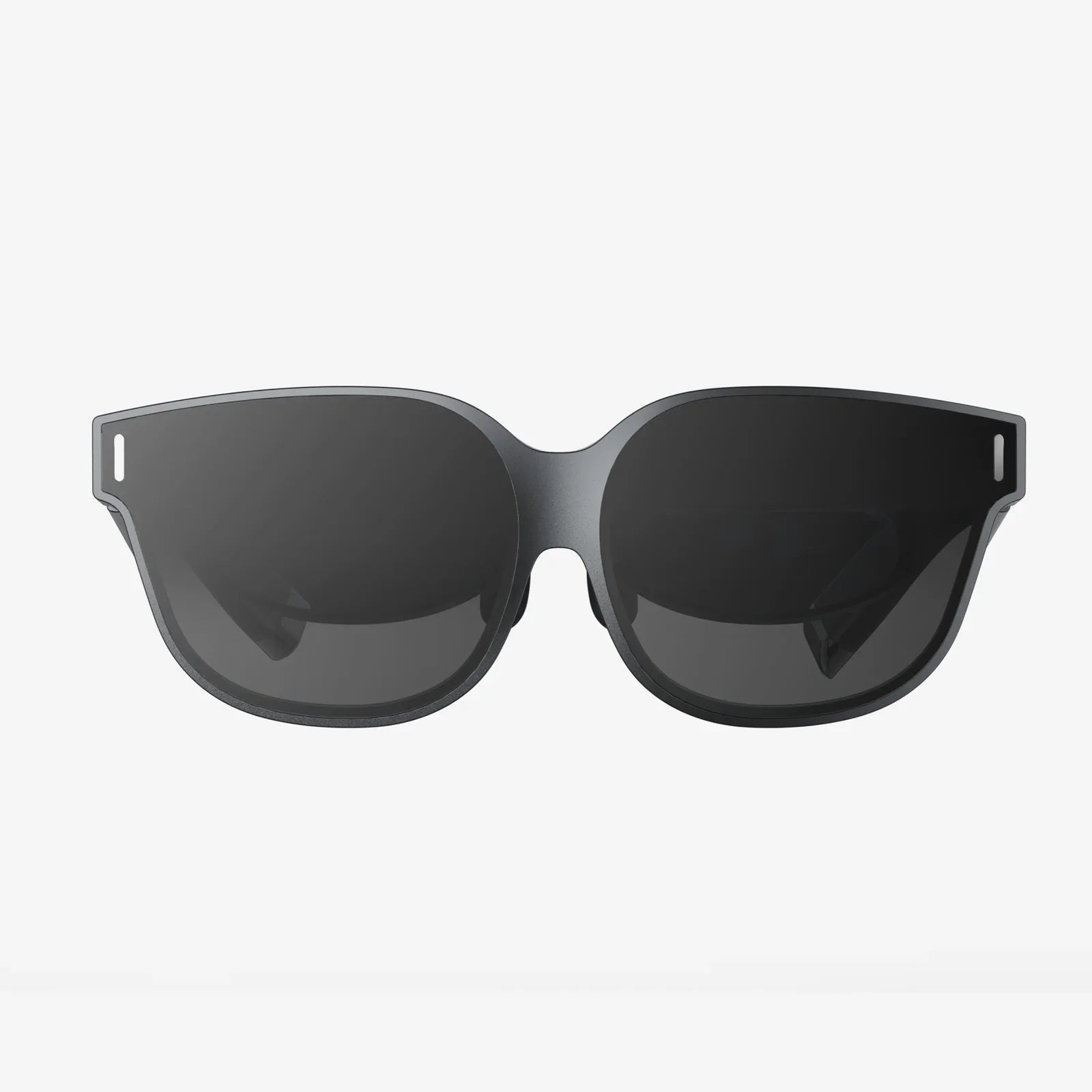
You’ve cleared your playspace, you’ve charged the controllers, and you’re ready to dive into a breathtaking virtual world. You slip the headset over your eyes, and instead of being greeted by a stunning digital landscape, you’re met with a blank screen, a frustrating error message, or worse—a completely unresponsive piece of hardware. The sinking feeling is all too familiar for many virtual reality enthusiasts. A non-functional VR headset can feel like a personal betrayal, a high-tech paperweight that cuts off access to your favorite escapes, workouts, and social hubs. But before you resign yourself to an expensive replacement or a lengthy support ticket, know that the vast majority of issues are solvable from your home. This guide is your definitive manual for diagnosing and resolving the problem, transforming you from a frustrated user into a confident troubleshooter.
Before You Panic: The Universal First Steps
When your VR headset isn't working, the instinct might be to assume the worst. However, the most effective troubleshooting always starts with the simplest solutions. Overlooking these basic steps is the most common reason for prolonged troubleshooting headaches.
The Sacred Ritual: Power Cycling
It sounds almost too trivial to mention, but completely powering down your headset and its associated hardware (like a connected personal computer or gaming console) remains the single most effective first step. This isn't just about turning it off and on. For a PC-connected device, you must fully shut down your computer, unplug the headset's power cable (if applicable), wait a full 60 seconds, and then restart everything. This action clears temporary caches, resets USB controllers, and can resolve a huge number of transient software glitches that cause black screens and tracking failures.
The Foundation: Cable Connections
VR systems are a web of cables, and a loose connection is a prime suspect. Meticulously check every single cable connection at both ends. For headsets that connect to a computer:
- Ensure the USB and display cables are firmly seated in their ports on both the headset and the computer.
- If your headset uses a separate power adapter, confirm it's plugged in and receiving power.
- Try using different USB ports on your computer, preferably those directly on the motherboard rather than on a hub or the front panel of a desktop case.
Decoding the Symptoms: A Diagnostic Flowchart
Not all "not working" states are created equal. The specific symptom you're experiencing is your biggest clue. Use this section to identify your issue and follow the targeted path to a solution.
Symptom: The Headset Has No Power or Won't Turn On
If the device shows absolutely no signs of life—no lights, no sounds—the issue is likely power-related.
- Check the Power Source: Verify the outlet is working by plugging in another device. Ensure the power adapter is securely connected to both the outlet and the headset.
- Inspect Cables: Look for any obvious physical damage to the power cable, such as fraying, kinks, or cuts.
- Battery (for wireless models): If it's a standalone headset, it might simply be completely out of battery. Leave it plugged in to charge for at least 30 minutes before trying to power it on again.
Symptom: Black Screen or "No Display" Message
This is one of the most common and disheartening issues. The software on your computer may indicate the headset is connected, but you see nothing inside the lenses.
- Software is Key: This is almost always a software or driver issue. Fully close the VR application and its background services. Open your task manager and ensure no processes related to your headset are running before restarting the software.
- Graphics Drivers: Outdated or corrupt graphics drivers are a leading cause of display problems. Visit your graphics card manufacturer's website and download the very latest drivers. During installation, choose the "Clean Install" option if available, which will remove old driver files before installing the new ones.
- Direct Display Mode: Some PC VR software has a setting like "Direct Mode" or something similar. Toggling this setting off and on can sometimes shock the display back into life.
Symptom: Poor Tracking or "Guardian Failed" Errors
If your view is jittery, the world is sliding around, or your controllers are floating away, you have a tracking problem.
- Environment is Everything: The tracking cameras on your headset need visual information to work. Ensure your room is well-lit, but avoid direct sunlight or blindingly bright lights, which can wash out the cameras. Also, check for reflective surfaces like mirrors, glossy TVs, or glass tables, which can confuse the tracking algorithms.
- Camera Lenses: Gently wipe the external tracking cameras on the headset with a microfiber cloth. A smudge on one lens is enough to degrade tracking performance significantly.
- Recalibrate: Your system's software will have an option to rerun the room setup or guardian calibration. This process re-teaches the headset the boundaries and layout of your space, which can resolve persistent tracking drift.
Symptom: Audio Not Working or Crackling
Immersion is broken without sound. If audio is missing or distorted, check the following.
- Output Device: On your computer or in the headset's settings, ensure the correct audio output device is selected. Sometimes Windows or other systems will default back to built-in speakers or a monitor.
- Physical Connections: For headsets with removable headphones, ensure they are plugged in all the way. For USB audio, try a different port.
- Sample Rate: A less common but known issue is a sample rate mismatch. In your Windows Sound Settings, find the headset's audio device, go to its Properties, and under the Advanced tab, try setting the default format to a different sample rate (e.g., 44100 Hz or 48000 Hz).
Delving Deeper: Software and Driver Solutions
Since VR is a complex interplay of hardware and software, many solutions require digging into your system settings.
The Nuclear Option: Reinstalling Software and Drivers
If basic restarts don't work, a clean reinstall might be necessary.
- Uninstall the primary VR application from your computer.
- Go to Device Manager, find your headset under "Monitors" or "Mixed Reality devices," right-click, and select "Uninstall device." Check the box that says "Delete the driver software for this device" if available.
- Download the latest version of the VR application from the official source.
- Reboot your computer.
- Reconnect your headset and run the new installer. It will detect the hardware and install fresh drivers.
Windows and System Settings
Your operating system itself can be a source of conflict.
- Power Management: Windows can sometimes turn off USB ports to save power, which can disconnect your headset mid-session. Go to Device Manager, find your USB hubs under "Universal Serial Bus controllers," right-click, select Properties, and under the Power Management tab, uncheck "Allow the computer to turn off this device to save power."
- Background Apps: Other applications, especially those that overlay graphics (like Discord overlays, performance monitors, or recording software), can conflict with VR. Try disabling these to see if it resolves the issue.
- Windows Updates: Ensure your operating system is completely up to date. Critical fixes for security and hardware compatibility are often delivered this way.
When It's Hardware: Physical Inspection and Repairs
If all software avenues are exhausted, the problem may be physical.
Cable Degradation: The Silent Killer
The tether cable is a consumable part. It undergoes constant twisting, bending, and occasional stepping. Carefully inspect the entire length of the cable for any permanent kinks, pinch points, or fraying. If you find damage, the cable will likely need to be replaced by the manufacturer.
Lens and Screen Care
Never use harsh chemicals or abrasive cloths on the lenses. Only use the provided or a high-quality microfiber cloth. If the screen has dead pixels or permanent discoloration, this indicates a hardware failure that will require professional repair.
Controller Woes
If controllers are not pairing or responding, try replacing their batteries with brand-new ones, even if the old ones show some charge. Re-pair them via the headset's Bluetooth settings. Check for physical damage to the tracking rings or analog sticks.
Preventative Care: Keeping Your VR Headset Healthy
An ounce of prevention is worth a pound of cure, especially in VR.
- Proper Storage: When not in use, store your headset in a cool, dry place away from direct sunlight. Sunlight focused through the lenses can burn the internal screens permanently.
- Cable Management: Use a pulley system or simply be mindful to avoid twisting the cable too tightly during play. Regularly untangle it.
- Firmware Updates: Always keep your headset and controller firmware updated. These updates often include critical performance and stability patches.
- Define a Playspace: Always set up your guardian or boundary system. It protects both your headset and your physical surroundings from collisions.
The journey from a silent, black screen to the vibrant hum of a virtual world can feel daunting, but it's a path well-traveled and mapped out. By approaching the problem methodically—starting with the simple act of a reboot and systematically moving through connections, software, drivers, and hardware—you empower yourself to reclaim your digital domain. Remember, the global community of VR users has almost certainly encountered your exact issue before; a quick search with your specific symptoms will often yield a treasure trove of tailored advice. So take a deep breath, grab a microfiber cloth, and methodically work through the checklist. Your next great adventure is waiting, and it's closer than you think.
Share:
VR Headset News Today 2025: The Year Virtual Reality Became Indistinguishable From Reality
Best Upcoming VR Headset: A Deep Dive into the Next Generation of Immersive Technology