


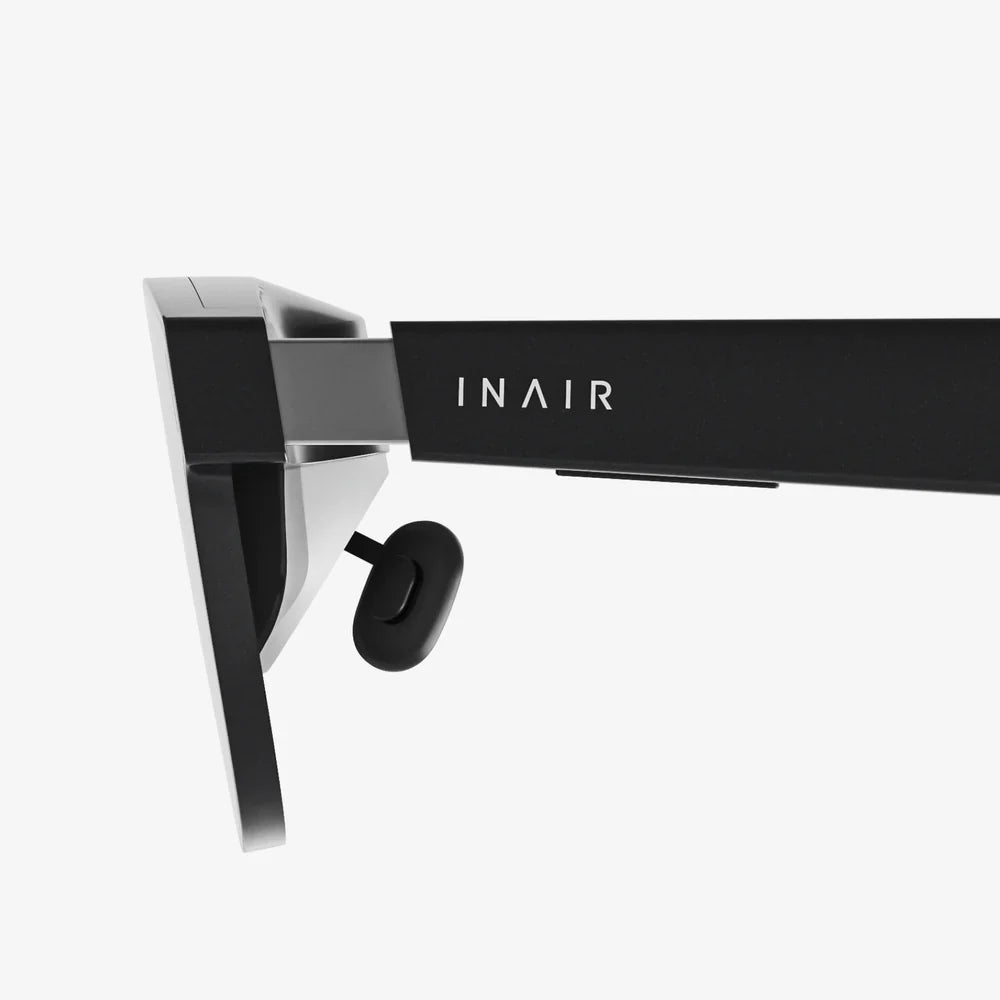
Xreal Nebula alternative tools are quietly reshaping how people use AR glasses, and most users do not even realize how many powerful options they already have on their phones, laptops, and the web. If you are tired of being locked into a single app for mirroring, virtual displays, or AR media, there are smarter ways to build your own flexible setup that can be faster, more stable, and more future-proof than relying on one piece of software.
Instead of thinking of one perfect Xreal Nebula alternative, it is more useful to imagine a toolkit: a combination of mobile apps, desktop software, web platforms, and streaming services that together can give you virtual monitors, immersive movie watching, and remote gaming. With the right mix, you can often get better performance, more customization, and fewer compatibility headaches than sticking to a single vendor ecosystem.
What Xreal Nebula Actually Does And Why Alternatives Matter
Before choosing an Xreal Nebula alternative, it helps to understand what that type of app actually does for AR glasses. In simple terms, these apps usually focus on three main functions:
- Screen casting and mirroring from phones, tablets, or PCs to the glasses
- Virtual multi-monitor setups so you can see several screens at once
- AR-enhanced experiences such as immersive video, basic 3D content, or spatial layouts
Many users only need one or two of these functions, not the entire bundle. That is where alternatives shine: you can pick the best tool for each job instead of accepting compromises in an all-in-one solution.
Key reasons people search for an Xreal Nebula alternative include:
- Platform limitations: Some features might only work on certain phones or operating systems.
- Performance issues: Lag, stuttering, or connection drops when mirroring or streaming.
- Interface preferences: Cluttered menus, confusing layouts, or missing settings.
- Feature gaps: Lack of advanced multi-monitor support, poor window management, or limited app compatibility.
- Future-proofing: Wanting solutions that will keep working even if one vendor changes direction.
Once you break down your needs, you can replace or supplement each part of the experience with a dedicated alternative that might do that job better.
Core Features To Look For In Any Xreal Nebula Alternative
Not every alternative has to do everything. But if you want to replicate or surpass a typical AR companion app, pay attention to these core features.
1. Stable Screen Mirroring And Casting
For many people, the main goal is simply to get their phone or computer screen into the glasses. A good Xreal Nebula alternative should offer:
- Low-latency streaming so typing, gaming, and navigation feel responsive.
- Reliable connections over USB or Wi-Fi, with automatic reconnections.
- Support for common protocols such as system-level casting, wired display modes, or virtual display drivers.
- Resolution control so you can balance clarity and performance.
If your AR glasses are recognized as an external display by your device, you already have a basic alternative: your operating system’s built-in display mirroring. But dedicated tools can enhance this with better window management and streaming quality.
2. Virtual Multi-Monitor Support
One of the most compelling reasons to use AR glasses is the ability to work with multiple large virtual screens in a tiny physical space. When evaluating alternatives, look for:
- Support for two or more virtual displays from your laptop or desktop.
- Flexible layout controls so you can arrange screens side by side or stacked.
- Easy switching between different virtual desktops or workspaces.
- Reasonable GPU and CPU usage so your system does not overheat or slow down.
Some desktop tools can create virtual monitors that your operating system sees as real screens. You then position windows on those monitors and stream them to your AR glasses, effectively recreating or even upgrading typical AR workspace features.
3. Input And Control Options
AR glasses are only as useful as the ways you can interact with them. A solid Xreal Nebula alternative should respect your preferred control style:
- Keyboard and mouse for productivity on laptops and desktops.
- Game controllers for cloud gaming or remote play.
- Touch input from your phone used as a trackpad or virtual mouse.
- Shortcut keys to quickly reposition windows, switch apps, or adjust focus.
Some tools even allow you to use a phone as a wireless trackpad or remote, which can be extremely handy when you are leaning back with glasses on and do not want a full keyboard on your lap.
4. Cross-Platform Compatibility
If you use multiple devices, cross-platform support is crucial. When choosing an alternative, consider:
- Support for major desktop systems: Windows, macOS, and sometimes Linux.
- Mobile support: Android and iOS for content casting or remote control.
- Web-based clients: Browser access for streaming or remote sessions without extra installs.
The more platforms a tool supports, the easier it is to keep your AR workflow consistent as you move between work, home, and travel devices.
5. Performance, Compression, And Image Quality
AR glasses expose every flaw in your streaming setup. Blurry text, compression artifacts, or lag can quickly ruin the experience. A capable Xreal Nebula alternative should give you:
- Configurable bitrates to match your network conditions.
- Resolution and frame rate options to optimize clarity vs. smoothness.
- Hardware acceleration on modern GPUs when available.
- Reasonable battery usage on mobile devices during long sessions.
If you plan to use AR glasses for extended work sessions, it is worth spending time tuning these settings for your environment.
Types Of Xreal Nebula Alternative Solutions
Instead of one monolithic alternative, you can combine several categories of tools. Each category covers a part of the overall experience that a typical AR companion app tries to deliver.
1. Native Screen Mirroring And Casting
The simplest Xreal Nebula alternative is already built into your devices: native casting and display mirroring. Depending on your hardware, you might be able to:
- Use your phone’s wired display output mode if your glasses connect over cable.
- Mirror your desktop display to the glasses just like an external monitor.
- Extend your screen so the glasses act as a second display.
This approach works best for:
- Watching videos from streaming apps or local media players.
- Basic productivity like browsing, writing, and reading.
- Simple presentations when you only need one main screen.
The downside is that native mirroring rarely gives you AR-specific features like pinned virtual windows in space or multi-monitor layouts inside a single field of view. But as a baseline, it is often more stable than complex third-party setups.
2. Desktop Virtual Display And Remote Desktop Tools
Desktop software that creates virtual displays or supports remote sessions can serve as a powerful Xreal Nebula alternative, especially for work and gaming. These tools typically:
- Create extra virtual monitors that your operating system recognizes.
- Stream those monitors to another device or to a web browser.
- Allow remote control with low latency over local networks.
When combined with AR glasses, this enables scenarios like:
- Multiple virtual monitors mapped inside the glasses while your laptop lid stays closed.
- Remote access to a powerful desktop from a lightweight laptop or tablet.
- High-end gaming streamed from a desktop to your glasses for large-screen play.
Look for desktop tools that specifically mention low-latency streaming, hardware-accelerated encoding, and multi-monitor awareness. These clues usually indicate better performance when driving AR displays.
3. Cloud Gaming And Game Streaming Platforms
If your main use case is gaming, a cloud gaming or remote play service can be a highly effective Xreal Nebula alternative. These platforms run games on remote servers or on your own console or PC, then stream the video feed to your device.
When combined with AR glasses, you get:
- A giant virtual screen for immersive gaming without a TV or monitor.
- Controller support via Bluetooth or USB.
- Consistent performance when your local hardware is not powerful enough.
To make this work smoothly, focus on:
- Using a fast and stable network connection, preferably 5 GHz Wi-Fi or wired.
- Reducing background network traffic on your router.
- Adjusting resolution and frame rate for your glasses and bandwidth.
In many cases, a dedicated game streaming platform will offer better latency and visual quality for games than a general-purpose AR companion app.
4. Web-Based Remote Access And Virtual Desktops
Web-based remote desktops and virtual workspaces are often overlooked as Xreal Nebula alternative solutions. Modern browsers are surprisingly capable of handling remote sessions with decent performance.
Some advantages of browser-based tools include:
- No heavy installation on your main device.
- Access from almost any platform that has a modern browser.
- Easy switching between different remote machines or cloud desktops.
If your AR glasses can mirror a browser window from your laptop or tablet, you can use that browser as a gateway to a remote desktop that provides multiple virtual monitors, development environments, or creative suites.
5. Media-Centric Apps For Movies And TV
For people who mainly want to watch movies, shows, and videos in AR, a lightweight media-focused Xreal Nebula alternative can be more enjoyable than a full-featured AR workspace app.
Ideal features for media playback include:
- Support for common video formats and streaming protocols.
- Subtitle and audio track selection for international content.
- Basic virtual theater modes like dark backgrounds or curved screens.
- Simple controls for pause, seek, and volume.
Often, a dedicated media app on your phone or laptop, combined with simple screen mirroring to the glasses, gives a smoother viewing experience than trying to manage video inside a more complex AR layout system.
Building A Practical Xreal Nebula Alternative Setup
Instead of searching for one perfect app, it is more effective to design a setup tailored to your habits. Here are practical configurations for common use cases, using a mix of alternatives.
Scenario 1: Mobile Productivity And Note-Taking
If you mostly work on the go with a phone or tablet and AR glasses, you might prioritize simplicity and battery life.
A practical setup could look like this:
- Use native wired display mode from your phone or tablet to the glasses for low-latency output.
- Pair a compact Bluetooth keyboard and optionally a small mouse or trackpad.
- Run your usual productivity apps (document editors, note apps, email, browser) directly on the mobile device.
- Use a minimal launcher or window manager on the mobile device to keep the interface clean and distraction-free.
This approach relies less on a specialized AR app and more on the strength of existing mobile software. The glasses simply act as a large, sharp external display.
Scenario 2: Laptop-Based Multi-Monitor Workstation
For serious work, many users want multiple virtual monitors and precise window management. A laptop combined with AR glasses can replace a full desk setup.
An effective Xreal Nebula alternative workflow might be:
- Connect the glasses as an external display so your operating system sees them as monitor 2.
- Install a virtual display driver or multi-monitor utility to create additional virtual screens (e.g., monitor 3 and 4).
- Use a desktop streaming or remote tool to capture and stream those virtual monitors into a single combined view that appears inside the glasses.
- Arrange windows by task: communication on one screen, documents on another, reference material on a third.
- Create keyboard shortcuts to move windows between virtual screens quickly.
This setup can outperform many AR-specific apps in terms of flexibility and control, though it may require more initial configuration.
Scenario 3: Immersive Gaming Without A TV
If your main goal is gaming on a huge virtual screen, you can build an Xreal Nebula alternative around game streaming and controllers.
A typical configuration could be:
- Connect AR glasses to a laptop, handheld device, or compatible console that supports video output.
- Launch a cloud gaming service or a local game streaming client on that device.
- Pair a wireless controller directly to the device running the game stream.
- Adjust streaming settings for 1080p or similar resolution and a frame rate that your network can handle reliably.
- Use a dark or theater-style background to make the virtual screen feel more immersive.
This approach uses the strengths of dedicated game streaming technology, which is often tuned for fast response and high visual quality, and simply routes the video to your glasses instead of a TV.
Scenario 4: Remote Development Or Creative Work
Developers, designers, and editors often need powerful hardware that is not very portable. AR glasses plus remote access can give you a full workstation anywhere.
A robust Xreal Nebula alternative setup might involve:
- A powerful desktop or cloud machine running your development tools, creative software, or large datasets.
- A lightweight laptop or tablet that you carry with your AR glasses.
- A low-latency remote desktop tool configured for high-resolution text and graphics.
- Multiple virtual monitors defined on the remote machine for code, logs, previews, and documentation.
- Fine-tuned encoding settings to keep text crisp and interaction lag low.
In this scenario, the glasses become a portal into a powerful remote environment that is far more capable than any mobile device, and you are not tied to a single AR companion app to access it.
How To Evaluate And Compare Xreal Nebula Alternative Tools
With so many possible combinations, it is important to evaluate alternatives systematically. Instead of installing everything at once, follow a simple testing process.
Step 1: Define Your Primary Use Cases
Write down the top three things you want to do with your AR glasses. Examples:
- “I want two big virtual monitors for coding and documentation.”
- “I want to play console and PC games on a huge screen.”
- “I want a portable movie theater for travel.”
These priorities will guide which alternatives you test first.
Step 2: Test Native Mirroring As A Baseline
Before adding more software, test what your devices can do out of the box:
- Connect the glasses to your phone, tablet, or laptop.
- Enable display mirroring or screen extension.
- Open your usual apps and work for at least 30 minutes.
Note any issues with clarity, lag, or comfort. This baseline helps you judge whether an Xreal Nebula alternative is actually improving the experience.
Step 3: Add One Tool At A Time
Introduce alternatives gradually:
- Pick a desktop streaming or virtual display tool and test it for your work tasks.
- Try a cloud gaming or remote play service for games.
- Experiment with a dedicated media player setup for movies.
Use each tool for a few sessions before deciding whether it deserves a permanent place in your workflow.
Step 4: Measure Comfort And Fatigue
AR glasses can be demanding on your eyes and neck. When comparing alternatives, pay attention to:
- Text readability at your preferred virtual screen size.
- Color and contrast for long reading or design sessions.
- Head position required to see the whole virtual display.
- Session length before you feel strain.
Sometimes a technically impressive setup is not worth it if it causes fatigue. Simpler alternatives may be more sustainable for daily use.
Step 5: Check How Well Tools Work Together
The best Xreal Nebula alternative ecosystem is one where tools do not fight each other. As you build your setup, verify that:
- Your virtual display tools do not conflict with system-level mirroring.
- Game streaming apps coexist peacefully with remote desktop tools.
- Audio routing is predictable when switching between work and media.
- Shortcuts and hotkeys do not overlap in confusing ways.
Over time, you will discover a combination that feels natural, where moving from work to entertainment is as simple as switching apps.
Security And Privacy Considerations
Any Xreal Nebula alternative that involves remote access, streaming, or cloud services deserves a quick security review. Even if you are not dealing with sensitive corporate data, it is wise to protect your accounts and machines.
Good practices include:
- Using strong, unique passwords and enabling multi-factor authentication where available.
- Limiting remote access tools to specific devices and networks when possible.
- Checking encryption settings for remote desktop or streaming sessions.
- Keeping software updated to patch security vulnerabilities.
- Reviewing permissions for mobile apps that access your screen, microphone, or files.
AR glasses themselves are usually just displays, but the tools you use with them may have deep access to your system. Treat them with the same caution you would apply to any powerful remote or system-level software.
Future Trends That Will Shape Xreal Nebula Alternative Choices
The landscape of AR and spatial computing is evolving quickly. The alternatives you choose today will likely gain new abilities over the next few years, and entirely new categories of tools will appear.
Trends that will influence future Xreal Nebula alternative options include:
- Better operating system integration: Native support for spatial windows and virtual displays may reduce the need for heavy companion apps.
- Browser-based spatial experiences: Web standards could enable 3D and AR layouts that run directly in the browser, accessible from any device.
- More powerful mobile chips: Phones and tablets will increasingly handle multi-monitor and AR workloads without relying on remote desktops.
- Improved wireless streaming protocols: Lower latency and higher bandwidth will make wireless AR setups more viable for work and gaming.
- Hybrid local-cloud workflows: Seamless movement between local apps and cloud desktops will make AR glasses feel like portals to a unified workspace.
By building your setup on flexible, cross-platform tools rather than a single proprietary app, you position yourself to take advantage of these trends without starting over each time a new device or service arrives.
Why A Modular Toolkit Beats A Single App
When you first search for an Xreal Nebula alternative, it is tempting to look for one magic app that does everything: virtual monitors, AR layouts, media playback, and gaming. But in practice, the most satisfying setups are modular.
A modular approach gives you:
- Resilience: If one tool breaks or is discontinued, your whole workflow does not collapse.
- Customization: You can swap in the best tool for each job instead of accepting compromises.
- Performance tuning: You can optimize each component (work, media, gaming) separately.
- Control over updates: You are not forced into major changes because a single vendor decided to redesign everything.
Think of your AR glasses as a display canvas and your devices as engines. The real magic comes from how you connect them with software that you control, not from staying inside one closed ecosystem.
If you are willing to experiment for a few evenings, you can build an Xreal Nebula alternative setup that feels tailored to the way you work, play, and watch content. And once you see your favorite tools spread across a wall of virtual screens that travel with you, going back to a single fixed display will feel strangely limiting.
Share:
AR Voice Commands Not Working: Causes, Fixes, And Prevention Guide
Rokid station multiple displays: Unlocking Next-Level Multi-Screen Experiences