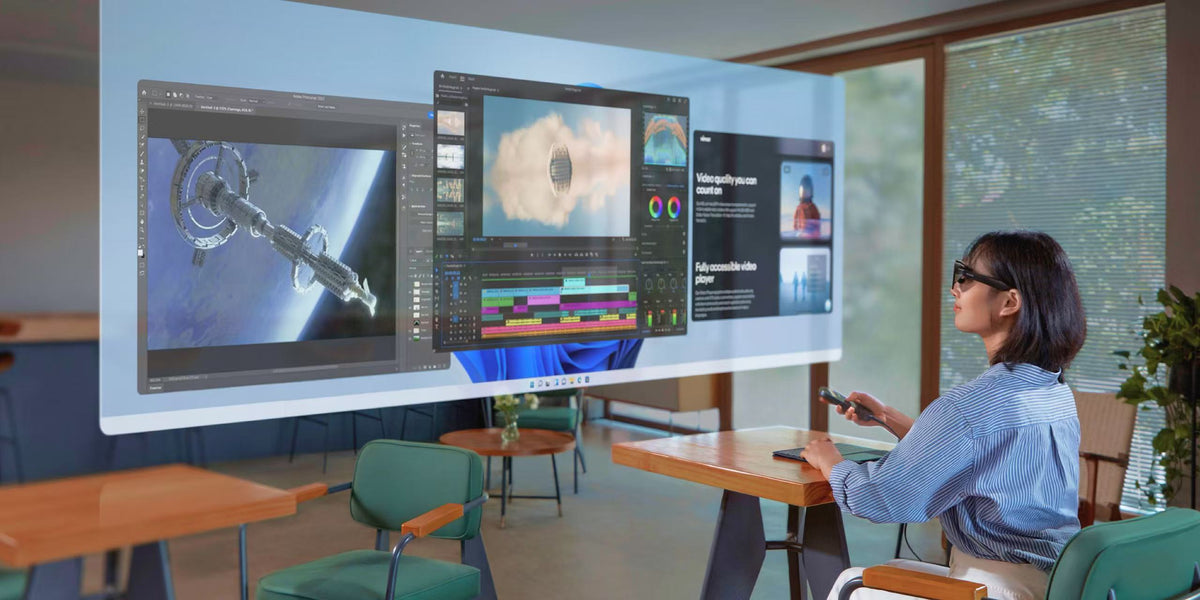
Your laptop fits on the café table. Your notebook barely does. Add a portable monitor, and the workspace you packed for flexibility suddenly needs a bigger desk.
For students, interns, and professionals who move between locations, that is the practical question behind AR glasses vs portable monitor: how much of your desk do you want to recreate every time you sit down?
A portable monitor adds another physical screen.
INAIR offers a different approach—a wearable display that lets you build your workspace around the room you have.
If your back-to-school plans include library sessions, trips home, or an internship alongside coursework, here is why an
INAIR setup is worth considering before you buy another panel.
Why INAIR Belongs on Your Travel Work Shortlist
A second display can help you arrange your work, but carrying one also means finding somewhere to put it.
With AR glasses, the display is worn. You still need space for your source device, keyboard, and other essentials, but you do not need to stand a second panel beside your laptop.
That difference matters when your workspace changes throughout the week.
Instead of choosing equipment around an ideal desk, you can choose a display format that fits your routine: a shared study table today, a compact desk at home tomorrow, and a temporary workspace during your next trip.
AR Glasses vs. Portable Monitor at a Glance
For individual travel work, focus on how each option fits into your day.
| Your priority |
Portable monitor approach |
INAIR approach |
| Working at a small desk |
Find room for a second panel and its support |
Wear the display and reserve the surface for your other equipment |
| Moving between study locations |
Pack and position a physical screen each time |
Build a setup around glasses and the devices your workflow requires |
| Keeping your existing computer |
Connect a compatible external display |
Check your computer for a compatible INAIR connection |
| Exploring virtual display layouts |
Use the physical panel’s available desktop space |
Explore supported layouts through INAIR Space |
| Accessing a computer left at home |
A monitor alone does not provide remote access |
Explore INAIR’s documented Pod, Space, and Wakey workflow |
| Reviewing work beside another person |
Share the physical screen directly |
Use a separate shared display when both people need to view the same content |
If your priority is individual work in changing spaces, the wearable approach gives you a clear reason to look beyond a portable monitor.
Three Back-to-School Scenarios Where INAIR Makes Sense
-
The Library Desk That Has to Hold Everything
Your laptop, reading materials, notebook, and water bottle already compete for space. A second panel adds another object to arrange.
INAIR moves the display off the desk. For students who mostly work alone, that makes it an option worth testing for writing, reading, and project work.
Start with your usual assignment. Open your document and reference material, adjust the text size, and check how the layout works with your input devices.
The purchase decision becomes concrete: does this setup fit the way you study at the desks you actually use?
-
The Trip Home That Still Includes Coursework
Travel does not always mean time away from assignments. You may still need to finish a report, update a presentation, or review notes between visits.
If you bring your computer, consider a compatible computer-connected
INAIR setup. You can keep using your desktop applications while changing how you view them.
Before buying a portable panel specifically for these occasional workspaces,
check INAIR 2 Pro against your computer’s connection requirements.
-
The Semester Split Between Study and an Internship
Moving between coursework and individual work projects can mean using the same computer in several locations.
INAIR is worth considering when you want a wearable display for that routine. Begin with the applications you already use, then choose the hardware and software features needed to support them.
For a companion-device configuration,
explore INAIR Pod. Check whether your required applications will run locally or need access to a separate computer before selecting your setup.
Go Beyond the Idea of “One More Screen”
A portable monitor is a familiar way to extend a laptop workspace. INAIR also offers a route into supported virtual display layouts.
That gives you a more useful question to ask than “How big is the display?” Ask: “How do I want to arrange my work?”
You might start with:
-
A document and reference material for essay writing.
-
An editor and terminal for a coding assignment.
-
A presentation and supporting notes for project preparation.
These are layouts to test with your chosen configuration. Available features depend on the source device, software, and connection mode.
Start with a simple arrangement that keeps text readable. Add more work areas only when they serve the task.
Choose the INAIR Setup That Fits Your Routine
You do not need to start by selecting every accessory. Start with where your applications run and where you plan to work.
Bring Your Computer: Start with INAIR 2 Pro
If your laptop travels with you, first check whether it supports the required connection.
INAIR specifies DisplayPort over USB-C for compatible direct use with INAIR 2 Pro. A USB-C connector alone does not establish compatibility; verify your device’s video-output capabilities before ordering.
Explore a Companion Device: Consider INAIR Pod
If you are interested in a setup built around INAIR’s companion device, review the Pod and its supported workflows.
Make a short list of the applications you need for class or work. Confirm how each one will be accessed, and select your input devices around the tasks you perform most often.
Leave Your Computer at Home: Review Remote Access
If your goal is to reach a computer from another location, INAIR documents a workflow using INAIR Space, INAIR Pod, and INAIR Wakey.
INAIR currently specifies one remote screen for cross-network streaming; multi-screen remote setups require the devices to share a local network. Network and regional carrier restrictions can affect access, as explained in the
official workspace FAQ.
Compare the Complete Setup Before You Buy
The useful comparison is between the equipment you will actually carry and use.
For a portable monitor, include the panel, its stand or cover, cables, and any required power equipment.
For INAIR, include the
glasses,
case,
keyboard, and any companion hardware or input devices your chosen workflow requires. Do not compare the glasses alone with a complete monitor kit if your INAIR setup needs additional components.Welcome to
custmize your own INAIR workplace.
Then consider your most frequent working conditions:
-
Do you usually work alone?
-
Is room for another physical display often limited?
-
Will you bring your computer or access it remotely?
-
Which applications must work?
-
What does the complete configuration cost?
If your answers point toward individual work at small or changing desks, INAIR deserves a closer look.
When a Portable Monitor Still Has a Role
A physical monitor remains useful when a classmate or colleague regularly needs to look at the same screen beside you.
For INAIR, the key checks are personal fit, readable text, compatible connections, and the capabilities of your selected mode. If your work requires specific color, resolution, or other display characteristics, verify those against the exact product.
Use these checks to choose an INAIR configuration that fits your requirements before checkout.
Frequently Asked Questions
Why choose AR glasses instead of a portable monitor for travel work?
The main reason is display placement. AR glasses let you view content without positioning a second physical panel on your desk. That can make them an appealing option for individual work where surface space is limited.
Can I use INAIR with my existing laptop?
Check your laptop’s video output and the requirements of the INAIR features you intend to use. For compatible direct use, INAIR specifies DisplayPort over USB-C. Software-enabled layouts have additional requirements.
Do I need INAIR Pod for every setup?
INAIR documents a direct computer connection as well as Pod-based workflows. Choose the components required for your intended use rather than assuming every configuration needs the same hardware.
Can INAIR give me multiple remote screens while traveling?
INAIR currently states that cross-network remote streaming supports one screen. Multi-screen remote setups require both devices to be on the same local network. Check the current documentation before purchasing for a particular display arrangement.
Which INAIR setup should I choose for back-to-school work?
If you bring a compatible computer, start by reviewing
INAIR 2 Pro. If you want a companion-device workflow or remote access, explore
INAIR Pod and the additional components required. Let your coursework and study locations guide the choice.
Make Room for Your Work This Semester
Before adding another physical screen to your bag, consider how often you will have room to use it.
If your semester involves individual work across libraries, shared desks, and trips home, INAIR offers a wearable approach worth building around. Check your computer, choose the workflow you need, and put together a setup for the places where you actually study.