


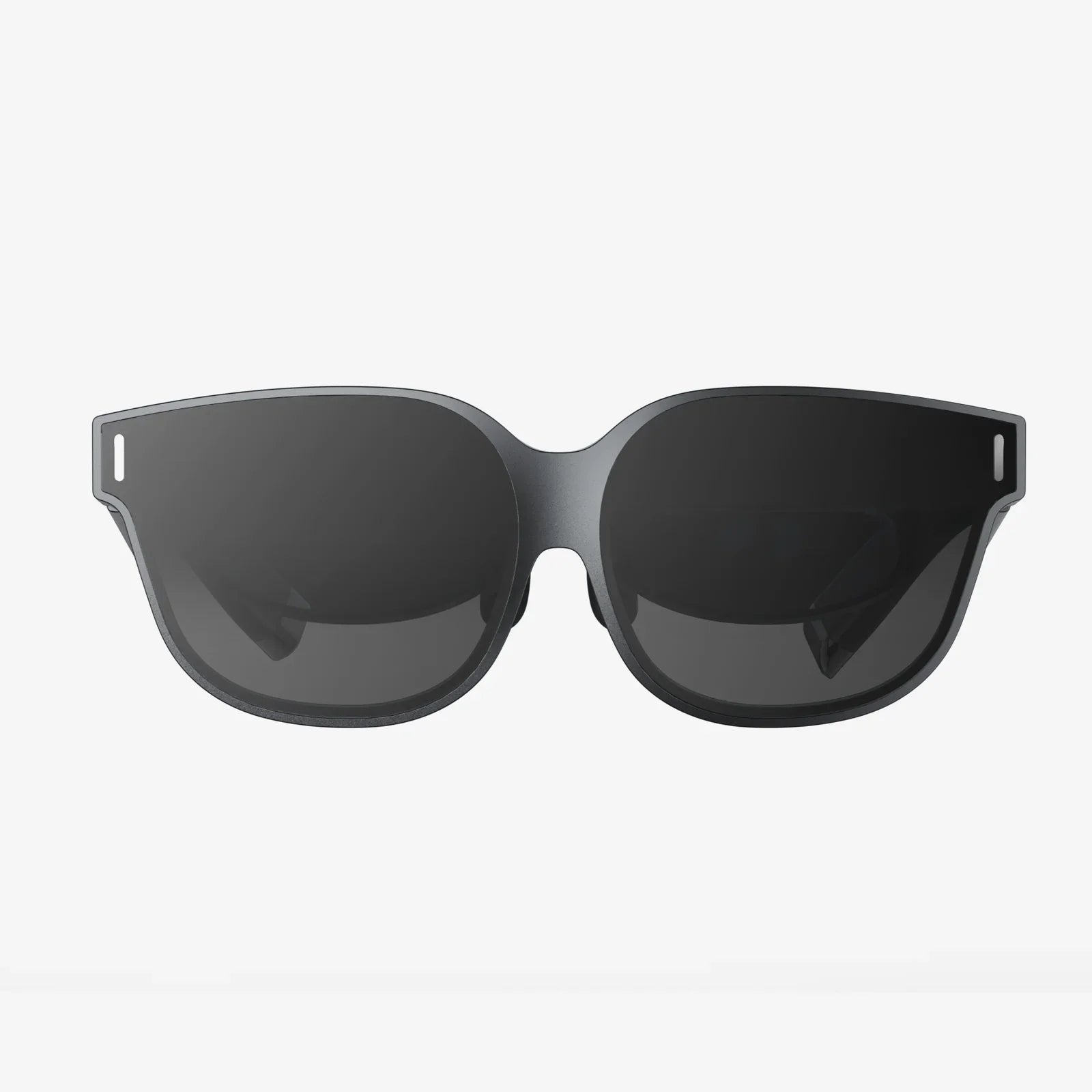
Imagine being able to rearrange, resize, and multiply your screens at will, without touching a single cable or buying a new monitor. That is the promise of virtual display management: turning the way you work with screens into a flexible, software-defined experience. Whether you are juggling dozens of browser tabs, coding across multiple environments, or supporting remote users, mastering virtual display management can instantly change how productive and comfortable your digital life feels.
Virtual display management is more than just adding another monitor. It is the strategic control of how visual workspace is created, organized, and delivered across physical and virtual environments. Instead of being limited by the number and size of physical screens on your desk, you use software and system settings to create virtual displays, segment existing monitors, and manage layouts that match your tasks, not your hardware.
What Is Virtual Display Management?
Virtual display management refers to the practice and tools used to create, configure, and control displays that may not correspond one-to-one with physical monitors. It includes:
- Creating virtual monitors that the operating system treats as real screens
- Dividing a single physical monitor into multiple logical workspaces
- Managing layouts, resolutions, and orientations through software
- Streaming or redirecting displays over networks for remote access
In a traditional setup, you plug in a monitor, the system detects it, and you drag windows around. With virtual display management, you can:
- Simulate additional monitors even if your machine has only one physical display
- Predefine complex layouts for specific workflows, such as development, design, or trading
- Assign applications to specific virtual screens automatically
- Mirror, clone, or extend displays across local and remote environments
This approach is especially powerful in remote work, virtual desktop infrastructure, and high-density workstations where physical space and hardware ports are limited.
Why Virtual Display Management Matters Today
The rise of remote work, cloud computing, and virtual desktops has pushed display needs beyond traditional hardware-based setups. Several trends make virtual display management increasingly important:
- Remote and hybrid work: Users want multi-monitor experiences even when connecting from laptops or thin clients.
- Complex workflows: Developers, designers, analysts, and creators depend on multiple screens to track tools, documentation, and live outputs simultaneously.
- IT standardization: Centralized control over display configurations simplifies support, onboarding, and policy enforcement.
- Space and cost constraints: Not every workspace can accommodate multiple large monitors, but virtual displays can simulate similar workflows.
Virtual display management bridges the gap between what users want for productivity and what physical environments or hardware limitations allow.
Core Concepts Behind Virtual Display Management
To use virtual display management effectively, it helps to understand a few foundational concepts that apply across platforms and tools.
1. Logical vs Physical Displays
A physical display is a tangible monitor connected by a cable. A logical or virtual display is a screen representation that the operating system recognizes, regardless of whether it is backed by dedicated hardware.
Virtual display management lets you:
- Map multiple logical displays to a single physical monitor
- Expose logical displays over remote sessions
- Create temporary displays for specific tasks or users
2. Display Topology and Layouts
Display topology describes how multiple displays are arranged and related. Common topologies include:
- Extended: Each display has its own workspace, forming a larger combined desktop.
- Mirrored or cloned: Multiple displays show the same content.
- Stacked or tiled: Displays are arranged in grids or custom patterns.
Virtual display management tools often let you create and save multiple topologies, so you can switch between them depending on your current activity.
3. Resolution, Scaling, and Aspect Ratio
Virtual displays may not match the resolution or aspect ratio of physical monitors. Management tools need to handle:
- Resolution mapping: Choosing logical resolutions that fit or scale correctly on physical screens.
- Scaling factors: Adjusting font and interface size so text remains readable.
- Aspect ratio constraints: Maintaining proportions to avoid distortion, especially for design and media work.
Balancing resolution and scaling is crucial for comfort and clarity, especially when multiple virtual displays share a single physical panel.
4. Session Types: Local vs Remote
Virtual display management operates in two broad contexts:
- Local sessions: All displays are driven by a local machine, but virtual partitioning and layouts are used to optimize workflows.
- Remote sessions: Displays are transmitted over a network, such as in remote desktop or virtual desktop infrastructure setups.
Remote sessions introduce additional considerations like bandwidth, latency, compression, and security, which virtual display management must account for.
Key Use Cases for Virtual Display Management
Virtual display management is applicable across many roles and industries. Here are some of the most impactful scenarios.
1. Remote Work and Virtual Desktops
Remote workers often connect from laptops, tablets, or thin clients that offer limited physical screen space. Virtual display management can:
- Provide multi-monitor experiences inside a remote desktop session
- Allow users to configure distinct virtual displays for chat, video conferencing, and work tools
- Enable IT to standardize display layouts for specific departments or roles
For example, a remote support engineer might use one virtual display for diagnostics, another for documentation, and a third for communication tools, all within a single remote session.
2. Software Development and Engineering
Developers and engineers frequently juggle code editors, terminals, documentation, logs, and test environments. Virtual display management supports these workflows by:
- Creating persistent layouts where each tool has a dedicated virtual display
- Allowing quick switching between context-specific layouts (for example, debugging vs reviewing)
- Maintaining consistent setups across local and remote environments
This reduces the friction of constantly rearranging windows and helps maintain focus.
3. Design, Media, and Creative Work
Designers, video editors, and content creators benefit from large, organized visual workspaces. Virtual display management can:
- Split a high-resolution monitor into multiple logical panels for different tool sets
- Dedicate one virtual display to previews and another to tool palettes
- Support color-accurate workflows by keeping reference content isolated on specific screens
Creative professionals often need to test content in multiple aspect ratios and resolutions. Virtual displays make it easier to simulate different viewing conditions without physical hardware changes.
4. Trading, Monitoring, and Operations Centers
Environments that rely on dashboards and real-time monitoring, such as trading floors, security operations, or network operations centers, often use complex display walls. Virtual display management helps by:
- Defining logical zones within large, high-resolution panels
- Assigning specific data sources or applications to fixed virtual areas
- Allowing operators to reconfigure layouts quickly during incidents or special events
This improves situational awareness and reduces the cognitive load of scanning large, unstructured display surfaces.
5. Education, Training, and Presentations
Trainers, educators, and presenters frequently share screens while needing private workspaces. Virtual display management can:
- Provide a dedicated virtual display for shared content
- Keep notes, chat, and control panels on separate, private virtual screens
- Enable seamless transitions between different lesson or presentation layouts
This allows presenters to stay organized and responsive without exposing sensitive information.
Core Features of Effective Virtual Display Management
Not all virtual display management tools are equal. The most effective solutions typically offer several key capabilities.
1. Flexible Virtual Monitor Creation
At the heart of virtual display management is the ability to create and manage virtual monitors. Useful features include:
- Configurable number of virtual displays per user or session
- Customizable resolutions, orientations, and aspect ratios
- Support for both extended and mirrored virtual setups
Advanced implementations may allow dynamic creation and removal of virtual displays without restarting sessions.
2. Layout Templates and Profiles
Time is lost every day rearranging windows and panels. Layout templates solve this by allowing users to:
- Save preferred arrangements of virtual displays and application positions
- Switch between profiles for different tasks, such as meetings, focus work, or collaboration
- Share templates within teams to standardize common workflows
Profiles are especially valuable in organizations where multiple users share similar responsibilities and tools.
3. Policy-Based Management and Centralized Control
In managed environments, virtual display management should integrate with centralized administration. Typical capabilities include:
- Defining allowed numbers and types of virtual displays per user group
- Enforcing resolution and layout policies for security or compliance reasons
- Deploying standard configurations automatically during onboarding
This reduces support overhead and ensures consistent experiences across devices and locations.
4. Application-Aware Window Management
Virtual display management becomes more powerful when it understands applications. Useful behaviors include:
- Auto-placing specific applications on designated virtual displays
- Remembering window positions across sessions
- Handling full-screen and borderless window modes gracefully
For example, collaboration tools might always open on a communication-focused virtual display, while analytics dashboards occupy a dedicated monitoring screen.
5. Performance Optimization and Resource Management
Creating and managing multiple virtual displays can be resource intensive. Effective solutions address this by:
- Optimizing rendering paths to reduce CPU and GPU load
- Adjusting frame rates and compression levels for remote sessions
- Prioritizing active displays or applications to maintain responsiveness
Performance tuning is especially important in high-density virtual desktop environments with many concurrent users.
6. Accessibility and Usability Features
Virtual display management should enhance, not hinder, usability. Accessibility-related features include:
- Clear visual indicators of active virtual displays
- Keyboard shortcuts for switching displays and layouts
- Compatibility with screen readers and assistive technologies
These capabilities ensure that the benefits of virtual display management are available to all users.
Implementing Virtual Display Management in Practice
Turning the concept of virtual display management into a working setup involves several steps, from planning to configuration.
1. Assess User Needs and Workflows
Start by understanding how people actually work:
- Which applications do they use most frequently?
- How many windows do they typically have open?
- Do they need persistent layouts or occasional multi-screen setups?
- Are they working locally, remotely, or in hybrid environments?
Documenting these patterns helps you design virtual display configurations that genuinely support productivity instead of adding complexity.
2. Define Standard Display Profiles
Based on workflow analysis, create a small set of standard profiles. Examples might include:
- Focus profile: One main virtual display with minimal distractions.
- Collaboration profile: Separate virtual displays for video conferencing, chat, and shared documents.
- Development profile: Virtual displays dedicated to editor, terminal, documentation, and monitoring.
- Operations profile: Gridded virtual displays for dashboards and alerts.
These profiles can be refined over time as users provide feedback.
3. Configure Operating System and Environment Settings
Most modern operating systems provide baseline display management features that supplement virtual display management tools:
- Enable extended desktop modes where appropriate.
- Set default resolutions and scaling factors to balance clarity and readability.
- Configure power and sleep settings to avoid disrupting virtual display sessions.
In virtualized or remote environments, coordinate display settings across the host, guest, and client systems to avoid conflicts.
4. Integrate with Remote and Virtual Desktop Solutions
If users work in remote sessions or virtual desktops, ensure that virtual display management integrates smoothly with these technologies:
- Confirm support for multiple virtual monitors in remote protocols.
- Test how display changes are handled when network conditions vary.
- Establish guidelines for maximum resolution and number of displays per session.
Balancing user experience with bandwidth and server resource constraints is critical in these setups.
5. Train Users and Provide Clear Guidance
Virtual display management can feel unfamiliar at first. Effective adoption requires:
- Simple guides showing how to switch profiles and move windows between virtual displays
- Short training sessions or videos illustrating real-world examples
- Quick-reference materials for keyboard shortcuts and best practices
Encouraging users to experiment and customize within defined boundaries helps them find configurations that truly support their work.
6. Monitor, Measure, and Iterate
After deployment, gather feedback and performance data:
- Are users actually using the virtual displays as intended?
- Which layouts are most popular or effective?
- Are there performance or stability issues under peak load?
Use this information to refine policies, profiles, and technical configurations over time.
Security and Compliance Considerations
Virtual display management introduces additional layers in the visual stack, which can have security implications.
1. Data Leakage and Screen Sharing
When users share screens during meetings or remote support sessions, virtual displays can help isolate sensitive information. However, misconfiguration can expose data unintentionally. Mitigation strategies include:
- Designating specific virtual displays as “safe to share” zones
- Training users to keep confidential information on private virtual screens
- Implementing policies that limit what can be displayed in shared environments
2. Access Control and Session Isolation
In multi-user systems or shared environments, ensure that virtual display configurations respect access boundaries:
- Prevent cross-session display access or leakage
- Segregate administrative screens from standard user displays
- Audit display configuration changes in sensitive environments
Proper isolation is especially important in regulated industries and shared infrastructure setups.
3. Logging and Monitoring
For compliance and troubleshooting, maintain visibility into virtual display configurations:
- Log changes to display profiles and policies
- Track which applications are assigned to which virtual displays
- Monitor for unusual patterns that might indicate misuse
These practices support both security operations and user support teams.
Performance Tuning and Optimization Tips
To get the best experience from virtual display management, pay attention to performance tuning.
1. Right-Size Resolutions and Scaling
Excessively high resolutions across many virtual displays can overload systems. Balance visual fidelity with performance by:
- Using resolutions appropriate to screen size and viewing distance
- Applying consistent scaling factors to reduce rendering complexity
- Limiting maximum resolution on secondary or less critical virtual displays
2. Prioritize Active Workspaces
Not all virtual displays are equally important at all times. Optimize by:
- Reducing refresh or update rates on background dashboards
- Prioritizing interactive displays where users are actively working
- Suspending or minimizing rarely used virtual displays during heavy workloads
3. Optimize for Network Conditions in Remote Use
For remote sessions, network performance is a key factor:
- Adjust compression and image quality based on available bandwidth
- Use adaptive protocols that respond to latency and jitter
- Limit the number of active virtual displays for users on constrained connections
Monitoring network performance and user feedback helps fine-tune these settings.
Common Pitfalls and How to Avoid Them
Virtual display management is powerful, but certain mistakes can undermine its benefits.
1. Overcomplicating Layouts
It is tempting to create many virtual displays and intricate layouts, but complexity can overwhelm users. Avoid this by:
- Starting with simple, task-focused profiles
- Limiting the number of default virtual displays
- Allowing advanced users to customize while keeping defaults straightforward
2. Ignoring User Feedback
Top-down configurations that do not reflect real workflows often fail. Instead:
- Solicit regular feedback from different user groups
- Run pilots before wide deployment
- Iterate on layouts and policies based on actual usage patterns
3. Underestimating Training Needs
Even technically savvy users may be unfamiliar with virtual display concepts. Mitigate confusion by:
- Providing clear, concise onboarding materials
- Highlighting practical examples rather than abstract features
- Offering support channels for questions and troubleshooting
4. Neglecting Hardware Constraints
Virtual displays do not eliminate hardware limitations entirely. Be mindful of:
- GPU and CPU capabilities on endpoints and servers
- Physical monitor quality and size
- Peripheral limitations such as docking stations and adapters
Align virtual display strategies with realistic hardware expectations.
The Future of Virtual Display Management
Virtual display management is evolving alongside broader shifts in computing and user interfaces. Several emerging trends are shaping its future.
1. Integration with Virtual and Augmented Reality
As virtual and augmented reality devices become more common, virtual display management will expand beyond flat screens. Users may:
- Arrange floating virtual monitors in 3D space
- Combine physical and virtual displays seamlessly
- Use immersive environments for complex data visualization
Managing these experiences will require new paradigms for layout, interaction, and performance.
2. Context-Aware and Adaptive Layouts
Future virtual display systems are likely to become more intelligent, adapting automatically based on:
- Current tasks and applications in use
- Time of day or work schedule
- User behavior and preferences over time
For example, when a meeting starts, a collaboration-focused layout could activate automatically, then revert once the meeting ends.
3. Deeper Integration with Workflow and Automation Tools
Virtual display management will increasingly tie into automation and orchestration platforms. Potential capabilities include:
- Triggering layout changes based on project or ticket status
- Synchronizing display configurations across devices and locations
- Embedding display-related actions in scripts and automation workflows
This will make virtual display management a more integral part of digital operations, not just a visual convenience.
Practical Steps to Start Using Virtual Display Management Today
You do not need a massive infrastructure overhaul to benefit from virtual display management. You can begin with a few targeted actions:
- Map your workflows: Identify one or two high-impact tasks that would benefit from structured multi-display layouts.
- Create basic virtual layouts: Use existing system capabilities or dedicated tools to define simple virtual displays that support those tasks.
- Experiment with profiles: Build a small set of profiles, such as focus, collaboration, and monitoring, and test them over a week.
- Gather feedback: If you are in a team or organizational setting, ask others what works and what does not.
- Refine and expand: Gradually add complexity only where it clearly improves productivity and comfort.
By approaching virtual display management as an iterative process rather than a one-time configuration, you can steadily transform your visual workspace into a powerful asset.
If your digital workspace often feels cramped, cluttered, or chaotic, virtual display management offers a direct path to relief. Instead of fighting with overlapping windows and constant rearranging, you can design your screens around the way you actually think and work. Whether you are an individual professional seeking better focus or an organization aiming to standardize and streamline complex workflows, embracing virtual display management can unlock a more organized, efficient, and adaptable computing experience that scales with your ambitions, not just your hardware.
Aktie:
AR Multiple Monitors: The Future Of Infinite Virtual Screens Explained
Natural Interaction AR And The Future Of Human-Centered Immersive Experiences