


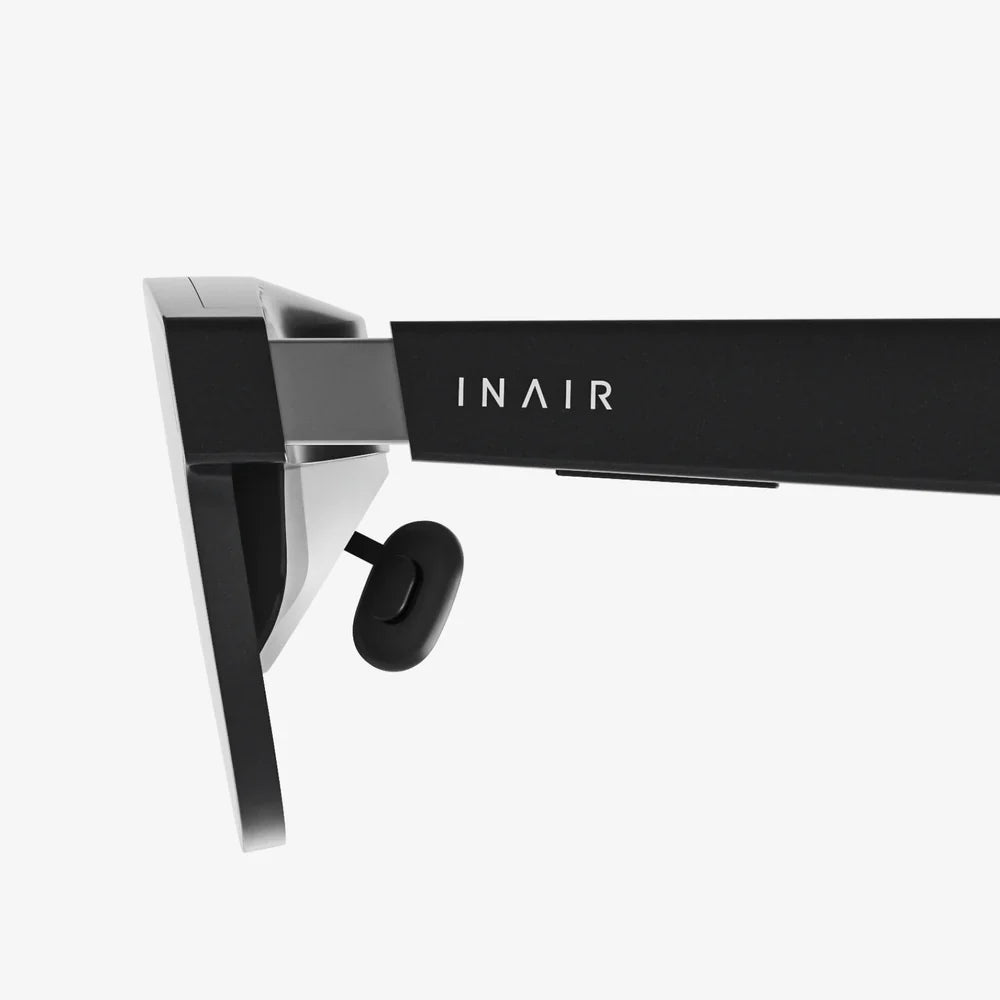
vr glasses for android are quickly turning ordinary phones into personal cinema screens, immersive gaming rigs, and virtual travel machines. If you have ever wondered whether your current Android device can transport you into 360-degree worlds, the answer is almost certainly yes — but only if you understand how to choose the right headset, configure your phone correctly, and avoid the common pitfalls that make some people give up on mobile VR too soon.
This guide walks you through everything that matters: compatibility, comfort, key specifications, setup, apps, and advanced tweaks that most buyers never discover. By the time you finish reading, you will know exactly how to pick vr glasses for android that match your budget and expectations, and how to turn your existing phone into a surprisingly powerful VR engine.
What Are vr glasses for android, Really?
At their core, vr glasses for android are head-mounted shells that hold your smartphone in front of your eyes, using specialized lenses to split and magnify the screen so each eye sees a slightly different image. Your brain combines these images into a single 3D scene, creating the illusion of depth and presence. Motion sensors in your phone track head movements so when you look around, the virtual world moves accordingly.
Most vr glasses for android fall into three broad categories:
- Basic viewers: Simple plastic or cardboard-style shells with fixed lenses and minimal straps. They are cheap and lightweight but often less comfortable and less adjustable.
- Mid-range headsets: Better padding, adjustable lenses, improved straps, sometimes integrated touch buttons or basic controllers. These are ideal for most new users.
- Premium mobile headsets: More robust build, improved lenses, better ventilation and weight distribution, and more advanced adjustment options.
Unlike standalone VR headsets, vr glasses for android rely entirely on your phone for processing power, display quality, storage, and most tracking. That means your headset is only as good as the phone you pair with it, which is why understanding compatibility is crucial.
Compatibility: Will Your Android Phone Actually Work?
Before buying vr glasses for android, confirm that your phone can support a decent VR experience. Several factors matter more than most people realize.
1. Screen Size and Aspect Ratio
Most vr glasses for android are designed to fit phones within a specific size range, usually somewhere between 4.7 and 7 inches (measured diagonally). Check the headset specifications carefully, then compare them with your phone’s dimensions.
Key points to consider:
- Too small: The phone may shift inside the headset, causing misalignment and blurring.
- Too large: The phone might not fit at all, or may press against the edges and activate buttons unintentionally.
- Screen shape: Extra-tall aspect ratios can sometimes cause slight cropping or black bars in certain apps.
2. Display Resolution and Pixel Density
Resolution heavily influences clarity. Because the screen is so close to your eyes and magnified by lenses, low-resolution displays can look grainy, a phenomenon often called the “screen door effect.”
For vr glasses for android, aim for:
- Minimum: Full HD (1920 x 1080)
- Better: 2400 x 1080 or higher
- Best: Quad HD or above (e.g., 2560 x 1440 or similar)
Higher pixel density (measured in pixels per inch, or PPI) reduces visible pixels and improves text readability inside VR.
3. Performance: Processor, RAM, and Thermal Behavior
VR is demanding. Your phone must render two images (one for each eye) at high frame rates. Weak processors or insufficient RAM can result in stuttering, lag, and overheating.
When evaluating your phone for vr glasses for android, consider:
- Processor: A modern mid-range or flagship chipset is highly recommended.
- RAM: 4 GB is a practical minimum; 6 GB or more is preferable for smoother multitasking.
- Cooling: Thin phones can heat up quickly. If your device throttles performance when hot, VR sessions might become choppy.
To test this, run a graphically intensive game on your phone for 15–20 minutes. If it becomes uncomfortably hot or laggy, expect similar or worse behavior in VR.
4. Sensors: Gyroscope and Accelerometer
Head tracking in vr glasses for android depends on your phone’s motion sensors. A gyroscope is essential for accurate rotational tracking. Without it, the experience will be jerky or incomplete.
To verify sensor support:
- Search online for your phone model plus “gyroscope” or “VR support”.
- Install a free sensor test app from the app store and check for gyroscope readings.
5. Software Compatibility
Your Android version should be relatively modern to ensure compatibility with VR apps and 360-degree video players. Android 10 or later is a comfortable baseline, though many apps still support older versions.
Key Features to Look For in vr glasses for android
Once you have confirmed that your phone is capable, the next step is choosing the right headset. Not all vr glasses for android are created equal, and subtle design choices can dramatically affect comfort and immersion.
1. Lens Quality and Adjustability
The lenses are the heart of any VR headset. Poor lenses can cause distortion, blurriness, and eye strain.
Look for:
- High-quality optical lenses: Aspheric lenses often provide better clarity and less distortion than simple spherical ones.
- Interpupillary Distance (IPD) adjustment: This allows you to move the lenses closer together or farther apart to match the distance between your eyes. Proper IPD alignment significantly reduces eye fatigue.
- Focus adjustment: Some vr glasses for android let you adjust the distance between the lenses and your eyes, which can help users with mild nearsightedness or farsightedness.
2. Comfort and Weight Distribution
Even the sharpest visuals will not matter if you can only wear the headset for a few minutes. Comfort is critical, especially for longer sessions.
Evaluate:
- Padding: Soft, breathable foam or fabric around the face reduces pressure points and sweat buildup.
- Straps: A three-point harness (top and sides) usually distributes weight better than a simple single strap.
- Weight balance: Some vr glasses for android feel front-heavy, especially with larger phones. A well-balanced design reduces neck strain.
3. Ventilation and Heat Management
VR can warm up both your phone and your face. Good vr glasses for android include ventilation gaps or design elements that allow heat to escape and prevent lenses from fogging.
Helpful features include:
- Openings near the nose or sides for airflow.
- Room for a small anti-fog insert or cloth if needed.
- Designs that do not press the phone directly against your skin, so heat can dissipate.
4. Built-In Controls and Input Options
Some vr glasses for android include simple built-in buttons that tap the phone screen, while others rely entirely on external controllers.
Common input options:
- Touch button on the headset: Suitable for basic menu navigation and simple games.
- Bluetooth controller: Great for more complex games and interactive experiences.
- Headset buttons: Some models include volume controls or basic navigation buttons on the side.
If you plan to play more advanced games, a separate Bluetooth controller is often worth having, regardless of the headset you choose.
5. Field of View (FOV)
Field of view describes how wide the virtual world appears when you wear the headset. A wider FOV feels more immersive and less like looking through binoculars.
For vr glasses for android, realistic FOV numbers typically range from about 80 to 110 degrees. Many budget headsets exaggerate FOV in their marketing, so take claims with a grain of salt. User reviews and hands-on impressions are often more reliable than printed numbers.
Setting Up vr glasses for android for the First Time
Once you have your headset and compatible phone, proper setup makes the difference between a frustrating and a fantastic experience. Follow these steps to get started.
1. Prepare Your Phone
Before inserting your phone into vr glasses for android:
- Update your apps and system: Ensure the latest Android and app updates are installed.
- Close background apps: Free up memory to improve performance and reduce stuttering.
- Increase brightness: Set screen brightness to at least 70–80% for better clarity. You can reduce it later if needed.
- Disable auto-rotate lock: VR apps typically manage orientation automatically.
- Enable “Do Not Disturb” mode: Prevent calls and notifications from interrupting your session.
2. Install Essential VR and 360 Apps
Search your app store for:
- VR video players: For 3D and 360-degree movies and clips.
- 360 photo viewers: To explore panoramic photos and virtual tours.
- VR games and experiences: Start with simple, well-reviewed titles optimized for mobile.
Many apps will automatically detect that you are using vr glasses for android and split the screen into two images. Look for settings labeled “VR mode,” “stereoscopic,” or “cardboard” to enable this view if it is not automatic.
3. Align the Phone in the Headset
Proper alignment ensures that each eye sees the correct portion of the screen, reducing blur and discomfort.
To align correctly:
- Open the front cover of your vr glasses for android.
- Launch your chosen VR app and switch it to VR mode.
- Place the phone so that the central dividing line between the two images aligns with the center of the headset.
- Use any built-in phone holders or clamps to secure the device.
- Close the cover gently, ensuring no side buttons are being pressed.
4. Adjust Fit and Focus
Put on the headset and tighten the straps until it feels secure but not constricting. Then:
- Use IPD adjustment knobs or sliders to align lenses with your eyes. The image should become sharper and more comfortable.
- Use focus or distance adjustments, if available, to refine clarity. Small changes can have a big effect.
- If you wear glasses, test both with and without them. Some vr glasses for android have enough space for prescription glasses, while others work better if you remove them and adjust focus instead.
Best Use Cases for vr glasses for android
Once everything is set up, vr glasses for android can transform everyday content into immersive experiences. Here are some of the most compelling ways to use them.
1. Immersive Movies and TV
VR cinema apps create virtual theaters where your screen appears as a massive floating display. You can watch standard 2D movies, 3D films, or 360-degree video content.
Tips for better movie experiences:
- Download videos locally when possible to avoid streaming hiccups.
- Use a good pair of wired or Bluetooth headphones for spatial or stereo sound.
- Adjust brightness and contrast in your video player if the image looks washed out or too dark.
2. 360-Degree Travel and Exploration
vr glasses for android shine when exploring 360-degree photos and videos of real-world locations. You can stand in the middle of a famous landmark, explore underwater scenes, or walk through museums without leaving your home.
Look for:
- Virtual tourism apps with curated city tours.
- Nature and wildlife experiences filmed in 360 degrees.
- Educational VR content that combines narration with interactive elements.
3. Gaming and Interactive Experiences
Many mobile VR games are designed for short, intense sessions: flying simulators, puzzle rooms, horror experiences, and more. These can be surprisingly engaging, especially with a Bluetooth controller.
When choosing games for vr glasses for android:
- Check that the game explicitly supports VR or stereoscopic mode.
- Read user reviews for comments about motion sickness, performance, and controls.
- Start with slower-paced games before trying fast action or intense motion.
4. Education, Training, and Productivity
Beyond entertainment, vr glasses for android can be powerful learning tools. You can explore human anatomy, practice public speaking in simulated environments, or visualize complex data in 3D.
Potential uses include:
- Language learning with immersive environments.
- STEM education with interactive simulations.
- Soft skills training like negotiation, customer service, or presentations.
Reducing Motion Sickness and Eye Strain
Some new users experience discomfort when first trying vr glasses for android. This is often related to motion sickness, eye strain, or poor setup. Fortunately, most issues can be minimized.
1. Start with Short Sessions
Limit initial VR sessions to 10–15 minutes. Gradually increase duration as your body adapts. If you start feeling dizzy, nauseous, or overly tired, remove the headset and rest.
2. Choose Low-Intensity Experiences First
Apps that simulate walking, flying, or fast movement without your real body moving can confuse your senses. Begin with:
- Static 360-degree photos or videos.
- Seated experiences where you mainly look around.
- Slow-paced puzzle or exploration games.
3. Optimize Visual Settings
To reduce eye strain with vr glasses for android:
- Ensure lenses are clean and free of smudges.
- Adjust focus and IPD until text and objects appear crisp.
- Maintain a reasonable brightness level; too bright can be harsh, too dim can strain your eyes.
4. Keep the Headset Stable
Loose straps can cause the image to move with every head motion, worsening discomfort. Tighten the straps just enough to keep the headset stable without causing pressure headaches.
Advanced Tips to Get the Most from vr glasses for android
Once you are comfortable with the basics, there are several ways to enhance the performance and versatility of your setup.
1. Improve Performance with Simple Tweaks
Even if your phone is not the latest flagship, you can often squeeze better VR performance out of it.
Try the following:
- Switch on a performance or gaming mode in your phone settings, if available.
- Disable battery saver modes during VR sessions, as they can cap performance.
- Free up storage space; low storage can slow down app loading and cause stutter.
- Keep your phone cool by avoiding direct sunlight and removing thick protective cases while in VR.
2. Use High-Quality Content
Low-resolution or poorly encoded videos will look bad no matter how good your vr glasses for android are. Look for:
- 4K or higher 360-degree videos when your phone can handle them.
- VR apps that explicitly mention optimization for mobile devices.
- Content that has positive feedback specifically from Android VR users.
3. Experiment with Headphones and Audio Settings
Sound dramatically increases immersion. For vr glasses for android:
- Use over-ear or in-ear headphones for better isolation.
- Enable spatial audio or virtual surround sound when supported by the app.
- Keep volume at safe levels; it is easy to turn it up too high in immersive environments.
4. Keep Lenses and Screens Clean
Dust and fingerprints can ruin image clarity. Clean your vr glasses for android regularly with:
- A microfiber cloth for lenses and phone screen.
- A small amount of lens cleaning solution if necessary (never apply liquid directly to the lenses; put it on the cloth first).
Common Problems with vr glasses for android and How to Fix Them
Even with careful setup, you might run into issues. Here are frequent problems and practical solutions.
1. Blurry Image
If the image looks blurry or out of focus:
- Re-align the phone so that the center line matches the lens center.
- Adjust IPD and focus settings gradually while looking at text or fine details.
- Clean both the lenses and the phone screen.
- Ensure the headset sits level on your face; tilting can distort the image.
2. Double Vision or Eyes Not Aligning
This usually indicates misaligned lenses or improper IPD settings in your vr glasses for android.
To fix it:
- Use the IPD adjustment to match your eye distance.
- Check the app settings; some apps allow manual alignment or calibration.
- Make sure the phone is centered horizontally and vertically in the headset.
3. Overheating and Battery Drain
VR is demanding, so heat and battery drain are common concerns.
Mitigation strategies:
- Lower in-app graphics settings if available.
- Reduce screen brightness slightly once you are comfortable.
- Avoid charging the phone while using VR, as this increases heat.
- Take short breaks between sessions to let the phone cool down.
4. Headset Feels Uncomfortable
If vr glasses for android are causing discomfort after a few minutes:
- Reposition the straps to distribute weight more evenly.
- Add or adjust padding if possible; some users attach additional foam or fabric covers.
- Check that the headset is not pressing too hard on your nose or cheeks.
- Limit session length and gradually build up tolerance.
Safety and Health Considerations
While vr glasses for android are generally safe, a few precautions help ensure a healthier experience.
1. Take Regular Breaks
Extended VR sessions can cause eye fatigue and mild disorientation. A common guideline is to take a 10–15 minute break after every 30–45 minutes of use. Listen to your body; if you feel strained or dizzy, stop immediately.
2. Use VR in a Safe Environment
Always use vr glasses for android while seated or standing in a clear area. Because your vision is blocked, avoid using VR near stairs, sharp corners, or fragile objects. If you are using experiences that encourage physical movement, ensure you have enough space and consider enabling any safety boundaries in the app if available.
3. Age Recommendations
Many VR manufacturers recommend their products for users above a certain age, often around 12–13 years old, due to ongoing visual development in younger children. If children use vr glasses for android, supervise closely and limit session length.
4. Hygiene
VR headsets sit directly on your face, so hygiene matters, especially if multiple people share the same device.
Good hygiene practices include:
- Wiping down padding and plastic surfaces with gentle, non-alcoholic wipes.
- Using replaceable face covers when sharing the headset.
- Allowing the headset to dry fully after cleaning before use.
When Are vr glasses for android the Right Choice for You?
With all the talk about high-end standalone headsets and PC-based systems, it is fair to ask where vr glasses for android fit in. They excel in several scenarios:
- Budget-conscious users: If you already own a capable Android phone, vr glasses for android offer an inexpensive path into VR.
- Casual explorers: Perfect for people who want to watch occasional VR videos, explore virtual travel, or play light games without investing in a dedicated system.
- Students and educators: A classroom can share multiple headsets with a set of Android devices for interactive learning experiences.
- Travelers: Compact headsets can turn long flights or train rides into private movie theaters or immersive reading spaces.
If you expect console-level graphics, complex motion tracking, and advanced controllers, mobile VR may feel limited. But if you approach vr glasses for android as a flexible, portable gateway to immersive media, they can be surprisingly satisfying.
How to Choose the Right vr glasses for android for Your Needs
To narrow down your options, match your priorities to specific features before you buy.
1. For Movie Lovers
If your primary goal is watching films and videos:
- Prioritize comfort and padding for long sessions.
- Look for a wide field of view to make the virtual screen feel larger.
- Ensure good ventilation to reduce fogging during extended use.
2. For Gamers
If you want to play VR games on Android:
- Choose vr glasses for android that work well with Bluetooth controllers.
- Focus on secure phone mounting to avoid movement during intense gameplay.
- Consider lighter headsets to reduce fatigue during active sessions.
3. For Education and Training
If you are using VR for learning or professional development:
- Look for durable construction that can handle frequent use.
- Ensure easy cleaning and replaceable face pads for multiple users.
- Choose headsets with flexible adjustments to fit different head sizes and glasses.
4. For Families and Shared Use
When multiple people will use the same vr glasses for android:
- Ensure wide adjustability for IPD and focus.
- Pick models with simple, intuitive phone mounting mechanisms.
- Consider buying extra face covers to maintain hygiene.
Taking the Next Step with vr glasses for android
vr glasses for android give you a powerful way to turn the phone you already own into a window to other worlds. With the right headset and a few smart setup choices, you can sit in a virtual cinema, stand atop distant mountains, or explore interactive learning environments without leaving your home or spending a fortune on dedicated hardware.
If you are ready to move beyond flat screens and experience your media, games, and educational content in a more immersive way, start by checking your phone’s compatibility, then choose a headset that aligns with how you plan to use it most. A careful match between your device, your expectations, and the features outlined in this guide will help ensure that your first steps with vr glasses for android feel exciting, comfortable, and worth coming back to again and again.
共有:
vr augmented reality: How Immersive Tech Is Rewriting Everyday Life
ai smart glasses And The Quiet Revolution On Your Face