


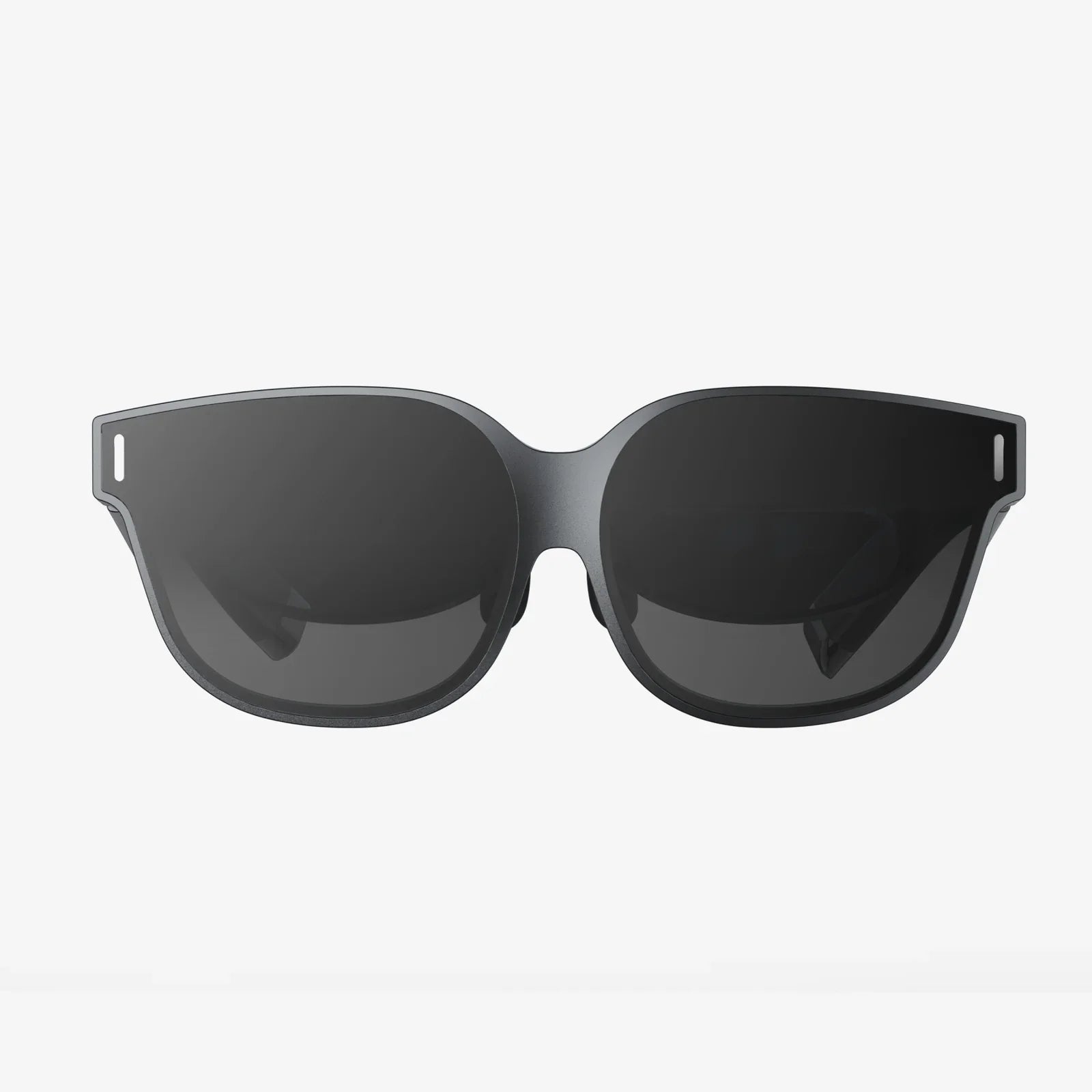
If you have ever wondered whether you can get a VR headset running on Steam Deck and carry your virtual worlds in your backpack, you are not alone. The idea of a handheld PC that can drive a full VR experience sounds almost too good to be true, yet with the right expectations, tweaks, and accessories, it is possible to explore VR on this compact device. Before you start buying cables and rearranging your play space, it is worth understanding what works, what struggles, and how to squeeze the most out of this small but capable gaming machine.
Using a VR headset with the Steam Deck is not as straightforward as plugging in a monitor, but it is also not an impossible technical challenge. The Deck is a portable PC with a custom AMD APU, running a Linux-based operating system and capable of booting into desktop environments. That means it can, in theory, run the same PC VR platforms as a desktop computer, though with far tighter power and performance budgets. The key to success is knowing the hardware limits, choosing the right connection method, and being realistic about which VR experiences you are trying to run.
Understanding The Reality Of A VR Headset Running On Steam Deck
Before you dive into cables and configuration, it helps to ground your expectations. The Steam Deck was designed first as a handheld gaming PC for flat-screen titles, not as a dedicated VR machine. Its GPU and CPU are tuned for efficiency rather than raw power, and VR is one of the most demanding workloads you can throw at any PC. That does not mean VR is impossible; it means you need to carefully pick your battles.
When you think about a VR headset running on Steam Deck, imagine three broad scenarios:
- Direct wired PC VR: The headset is connected to the Deck via cable, and the Deck renders everything.
- Wireless streaming from a more powerful PC: The Deck plays a secondary role, or none at all, while another computer does the heavy lifting.
- Standalone headset with Steam Link-style streaming: The Deck acts as a host for non-VR games, while the headset’s own environment handles display and tracking.
Of these, the first option is the most demanding and the least forgiving. The Steam Deck must drive high frame rates, low latency, and dual displays. The second and third options lean on external hardware and are often more practical if you want smoother, more complex VR experiences. Still, many enthusiasts are drawn to the challenge of using the Deck itself as a PC VR host, and with careful tuning, it can work for lighter and older titles.
Hardware Requirements For Running VR On Steam Deck
To get a VR headset running on Steam Deck in a wired configuration, you need more than just the headset and the Deck itself. You will likely want a docking solution or at least a USB-C hub that can provide:
- Display output: HDMI or DisplayPort, depending on your headset’s requirements.
- USB ports: For headset data, tracking cameras or base stations, and any additional accessories.
- Power delivery: So the Deck can charge while running VR, which is power intensive.
Some VR headsets rely on a single cable that carries both power and data, while others need a separate breakout box or link box. Ensure your hub or dock can handle the bandwidth and power needs; you do not want the connection dropping mid-session. Also, consider a stable stand or mount for the Deck, as you will not be holding it while in VR.
Another important factor is your playspace. Even though the Steam Deck is portable, room-scale VR still requires a safe area with clear boundaries. Make sure you have enough space for your headset’s tracking system, whether that means external base stations, inside-out cameras, or a mix of both. The Deck’s portability does not remove the need for a safe, unobstructed environment.
Software Setup: Getting SteamOS Ready For VR
The Steam Deck ships with SteamOS, which is based on Linux. Many PC VR runtimes and tools are traditionally built for Windows, so the first decision you must make is whether to stay on SteamOS or install a Windows environment on the Deck. Each approach has trade-offs.
Staying On SteamOS
Using a VR headset running on Steam Deck under SteamOS is the more experimental path, but it has some advantages:
- No OS reinstall: You keep the default system and its optimizations.
- Lower maintenance: Fewer drivers to manage, and updates are handled through SteamOS.
- Better battery management: SteamOS is tuned for the Deck’s hardware.
However, VR support on Linux is more limited. Some VR runtimes do offer Linux builds or community-supported layers, but compatibility is not universal. You may find that certain headsets or tracking systems do not work reliably, or that some VR games simply refuse to launch. If you are comfortable troubleshooting and experimenting, this can be a rewarding avenue, but it is not plug-and-play.
Installing Windows On The Steam Deck
For many users, installing Windows on the Deck is the more practical route to achieve a VR headset running on Steam Deck. Windows has mature VR drivers, broader runtime support, and better compatibility with PC VR games. The trade-offs are:
- Additional setup time for installation and driver configuration.
- Potentially higher power usage and different performance characteristics.
- More manual tweaking to get controller mappings and display scaling right.
Once Windows is installed, you will need to:
- Install the appropriate GPU, audio, and chipset drivers for the Deck.
- Install your VR headset’s PC software and runtime.
- Install the Steam client and enable SteamVR.
- Configure your headset, room setup, and controller bindings.
After this, the Steam Deck behaves much more like a small Windows PC. Performance is still limited by the hardware, but compatibility with VR ecosystems improves dramatically.
Connecting The VR Headset To The Steam Deck
Physical connection is where many users hit their first roadblock. Not all USB-C docks are equal, and not all cables are suited for VR data rates. Here are the main considerations when connecting a VR headset running on Steam Deck:
- Bandwidth: Ensure your dock or hub supports the USB and video bandwidth required by your headset. High-resolution, high-refresh-rate headsets require more bandwidth.
- Cable length: Longer cables are more convenient for room-scale VR but may introduce signal degradation. Use certified high-quality cables where possible.
- Power delivery: The Deck should be plugged into power through the dock to avoid rapid battery drain.
- Port mapping: Some docks share bandwidth across ports; plug the headset into the highest-bandwidth port available.
Once physically connected, power on the headset and the Deck, boot into the OS you are using, and launch your VR runtime. Follow the headset’s setup instructions, including room configuration and controller pairing. If the headset is not detected, double-check cables, restart the Deck, and verify that the dock is properly negotiating video and data connections.
Performance Expectations And Limitations
Even with everything connected correctly, a VR headset running on Steam Deck is constrained by the device’s hardware. VR demands high frame rates (often 72 Hz or higher) and low latency to feel comfortable. The Deck’s GPU can struggle to maintain such performance in modern, graphically rich VR titles, especially at native headset resolutions.
To keep your experience playable, you will likely need to:
- Lower rendering resolution: Reduce the VR render scale to ease GPU load.
- Use aggressive FSR or similar upscaling: Allow the Deck to render at lower resolution while upscaling the image.
- Disable or reduce shadows, reflections, and post-processing: Visual flourishes can be expensive in VR.
- Target lighter games: Older VR titles, simple experiences, and less demanding environments will run better.
Frame rate consistency is more important than visual fidelity in VR. A stable, lower-fidelity image at a steady refresh rate is far more comfortable than a beautiful but stuttery experience. When tuning settings, prioritize stability and comfort over detail.
Thermals, Power, And Comfort Considerations
Running a VR headset on Steam Deck pushes the device close to its limits. Sustained high loads mean more heat and higher power draw. This has several implications:
- Fan noise: Expect the Deck’s fan to run at high speeds during VR sessions.
- Heat buildup: Ensure the Deck has good airflow and is not placed in an enclosed space.
- Battery drain: Even while plugged in, the Deck may slowly drain if the power supply is insufficient.
- Session length: Shorter VR sessions may be more comfortable for both you and the hardware.
Because you will not be holding the Deck, you can place it on a stand or dock away from your main play area, reducing the chance of accidental damage. Monitor device temperature and behavior during early sessions so you can adjust settings if it seems to be running too hot.
Optimizing SteamVR And Game Settings
Once you have your VR headset running on Steam Deck, fine-tuning SteamVR and individual game settings can dramatically improve the experience. Here are some key areas to adjust:
SteamVR Settings
- Video resolution: Lower the global render resolution, then fine-tune per-application.
- Refresh rate: If your headset allows, use a lower refresh rate to reduce GPU load.
- Motion smoothing or reprojection: Enable techniques that synthesize frames to maintain comfort when native frame rates dip.
- Advanced supersampling: Avoid high supersampling values; these can crush performance.
Per-Game Configuration
Within each VR game, look for settings that have the biggest impact on performance:
- Resolution or render scale
- Shadow quality and distance
- Ambient occlusion, reflections, and volumetric effects
- Anti-aliasing method and level
Start with the lowest settings and gradually increase until you find a balance between clarity and smoothness. Keep a close eye on frame timing using SteamVR’s performance overlays if available, and adjust when you notice spikes or stutters.
When To Use The Steam Deck As A VR Client Instead
For many people, the most practical use of a VR headset running on Steam Deck is not to have the Deck render VR itself, but to involve it in a broader streaming setup. There are two common patterns:
Streaming From A More Powerful PC To The Headset
In this scenario, a desktop or larger laptop handles all VR rendering. The headset connects to the PC either via cable or wirelessly. The Steam Deck can then be used as a secondary screen, controller, or portable library manager, but it is not the device doing the heavy VR computation. This is ideal if you already own a capable PC and want to keep the Deck for its strengths: portable flat gaming and library access.
Using The Deck To Stream Flat Games Into A Standalone Headset
Some standalone VR headsets allow you to stream traditional, non-VR games into a virtual theater environment. In this setup, the Steam Deck acts as the host for the game, while the headset simply displays it on a giant virtual screen. This is far less demanding than full VR, because the game is still rendered as a flat application. It is a creative way to enjoy your Steam library on a massive “screen” without asking the Deck to handle full 6DoF VR rendering.
Best Types Of VR Experiences For The Steam Deck
Not every VR experience is equally suited to the Steam Deck’s hardware. To make your VR headset running on Steam Deck feel worthwhile, focus on content that plays to the device’s strengths:
- Older VR titles: Early-generation VR games often have simpler graphics and lower system requirements.
- Stylized and minimalist experiences: Games with clean, low-poly art or limited environments are easier to run.
- Seated experiences: Cockpit games, simulators, and seated adventures reduce tracking complexity and motion.
- Short sessions: Experiences designed for shorter play sessions align well with the Deck’s thermal and power constraints.
Highly detailed open-world VR games, large-scale physics sandboxes, and cutting-edge visual showcases will likely be frustrating on the Deck, especially if you insist on high settings. Reserve those for a more powerful PC and use the Deck for lighter, more focused VR content.
Practical Tips For A Smoother Experience
To make your journey with a VR headset running on Steam Deck as smooth as possible, keep these practical tips in mind:
- Update everything: Keep the Deck’s OS, GPU drivers, VR runtime, and Steam client fully updated.
- Use wired connections where possible: For initial setup and maximum stability, avoid wireless links for the headset if you can.
- Test one variable at a time: Change one setting, test, then move on. This helps you understand what actually improves performance.
- Back up your configuration: Once you find stable settings, note them down or back up configuration files.
- Mind your posture and breaks: VR is physically and mentally demanding. Take regular breaks, especially on a system that may not always deliver perfectly smooth performance.
Who Should Try VR On Steam Deck (And Who Should Not)
A VR headset running on Steam Deck is a fascinating project, but it is not the right path for everyone. You are a good candidate if:
- You enjoy tinkering with hardware and software.
- You are comfortable with experimental setups and occasional troubleshooting.
- You mainly want to run lighter VR titles or test concepts, not chase maximum fidelity.
- You already own the necessary accessories (dock, cables, compatible headset).
You may want to skip this route if:
- You expect plug-and-play simplicity with minimal configuration.
- You are sensitive to frame rate drops and motion artifacts.
- You want to play the latest, most demanding VR blockbusters at high settings.
- You are not willing to install or maintain an additional operating system.
In many cases, a hybrid approach works best: use the Steam Deck primarily for flat games and portable play, while relying on a more powerful PC for serious VR sessions. The Deck can still be part of your VR ecosystem without being the central rendering engine.
Future Prospects For Portable PC VR
The very idea of a VR headset running on Steam Deck hints at where portable gaming could be headed. As APUs become more efficient and powerful, and as VR runtimes improve their support for a wider range of hardware and operating systems, the gap between desktop and handheld VR will shrink. Features like smarter upscaling, foveated rendering, and more efficient tracking algorithms could make devices like the Deck far more capable VR hosts than they are today.
For now, the Steam Deck sits at the edge of what is feasible. It can run VR, but only within tight constraints and with a fair amount of manual tuning. Enthusiasts who enjoy pushing hardware to its limits will find the challenge rewarding. Everyone else may be better served by seeing the Deck as a flexible companion to more traditional VR setups rather than a replacement.
If you are tempted to experiment, the next steps are clear: verify your headset’s compatibility, gather the right cables and dock, decide on your operating system strategy, and plan to spend time dialing in settings. With patience and realistic expectations, you can experience the surprising possibilities of a VR headset running on Steam Deck and decide for yourself whether this ambitious combination deserves a permanent place in your gaming setup.
共有:
ar devices Transforming Everyday Life, Work, and Play
ar devices Transforming Everyday Life, Work, and Play