


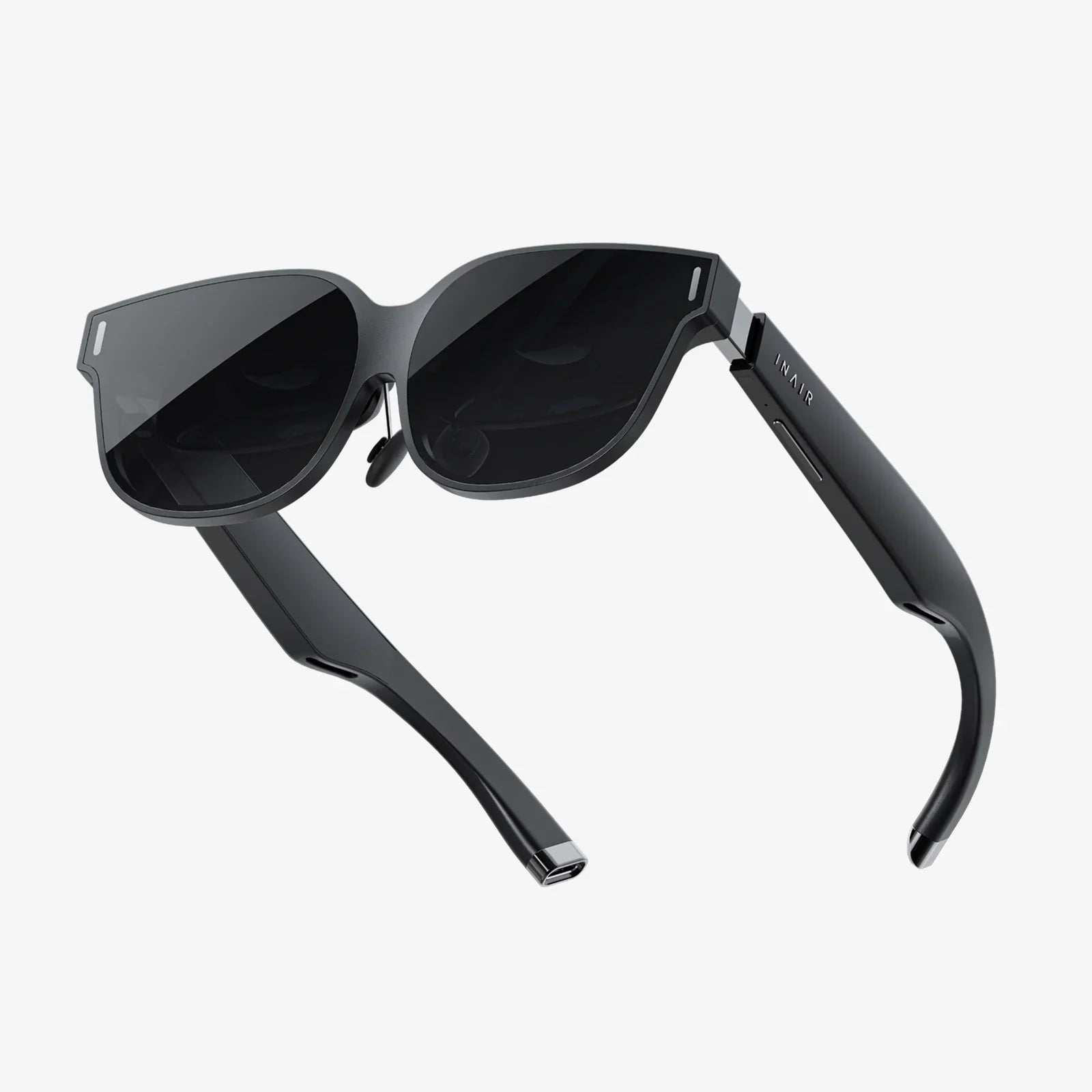
You’ve just upgraded your device to the sleek, new Android 12, eager to explore its personalized Material You design and enhanced privacy features. But when you strap on your VR headset for an immersive escape, you’re met with a jarring reality: a blank screen, a frozen image, or a frustrating error message. The excitement curdles into confusion. Why is your Android 12 VR not working? You’re not alone. This widespread issue has plagued users, turning a promised gateway to virtual worlds into a source of digital frustration. Before you consider your headset a brick or your phone flawed, know that the solution is often within reach. This deep dive will not only guide you through fixes but also illuminate the technical reasons behind the rift between Android 12 and your VR experience.
Unpacking the Core Conflict: Why Android 12 Disrupted VR
To effectively troubleshoot, it's crucial to understand what changed. Android 12 wasn't just a visual overhaul; it introduced fundamental shifts in how the operating system handles key processes that are critical for a seamless VR experience. The problem isn't typically one single bug but a confluence of several systemic changes.
The Privacy Sandbox and Restrictive Permissions
Android 12 placed a monumental emphasis on user privacy, a laudable goal that had unintended consequences for VR. The introduction of more granular permissions and privacy indicators (like the green dot for camera access) means apps can no longer access sensors and hardware freely in the background.
VR applications are uniquely hardware-dependent. They require constant, unimpeded access to:
- The gyroscope and accelerometer for head tracking.
- The magnetometer (compass) for orientation.
- The camera for positional tracking (in many mobile VR setups).
- High-performance GPU modes for rendering two high-resolution displays at high frame rates.
If any permission is denied, not granted correctly, or if the system interrupts this access, the VR application will fail to initialize or run properly, leading to a black screen or a crash.
Bluetooth and Connectivity Instability
Many VR headsets rely on a Bluetooth connection to a handheld controller. Android 12 made changes to the Bluetooth stack to improve security and efficiency. However, these changes can sometimes cause increased latency, dropouts, or pairing failures with peripherals that were designed for previous Android versions. A controller that won't connect or lags severely can make any VR app seem "broken."
Background Process Limitations and Doze Mode
Android's aggressive battery optimization features, supercharged in Android 12, can severely hamper VR apps. When your phone is placed inside a VR headset, it's easy for the system to misclassify the actively running VR app as a background process and throttle its performance or network access to save power. This can result in stuttering, lag, and overheating, ultimately causing the app to shut down.
App Compatibility: The Critical Factor
This is perhaps the most significant reason for Android 12 VR not working. Most VR applications on major app stores were built and last updated targeting APIs for Android 10 or 11. When Android 12 launched, these apps suddenly found themselves operating in a new, more restrictive environment they weren't designed for.
Developers need to update their apps to:
- Explicitly request new, more specific permissions.
- Target the new Android 12 (API level 31) SDK.
- Adapt to new background execution limits.
- Test and optimize for the new OS's behavior.
This process takes time, leaving users in a limbo where their phone is updated but their VR software is not.
Your Step-by-Step Troubleshooting Protocol
Now that we understand the "why," let's tackle the "how to fix it." Work through these steps methodically.
Step 1: The Foundational Checks
Before diving deep, eliminate the simple possibilities.
- Reboot Your Device: The oldest trick in the book remains one of the most effective. A full power cycle can clear temporary software glitches and reset faulty driver states.
- Inspect Your Hardware: Ensure your VR headset lenses are clean, the phone compartment is free of debris, and that your headset's NFC tag (if it has one) is intact and clean.
- Re-seat Your Phone: Physically remove your phone from the headset and put it back in, ensuring it's centered correctly. A misaligned phone can fail to trigger the headset's viewer mechanism.
Step 2: Granting Explicit Permissions
This is a critical step specific to Android 12's new privacy model.
- Go to Settings > Apps.
- Find your VR application in the list and tap on it.
- Select Permissions.
- You will see a list of permissions like Camera, Location, Microphone, and Physical activity (for sensors).
- Ensure every permission the app could possibly need is set to Allow or Allow only while using the app. Do not select "Deny" or "Ask every time" for critical permissions.
- Also, check for "Additional Permissions" or a similar menu for more granular controls.
Step 3: Taming Battery Optimization
You must prevent Android from putting your VR app to sleep.
- Go to Settings > Apps again and select your VR app.
- Tap on Battery.
- Select Unrestricted. This allows the app to run in the background without restrictions, ensuring it gets the system resources it needs when active.
- For a more nuclear option, you can disable "Adaptive Battery" entirely in the main Battery settings, though this is less recommended for overall device battery life.
Step 4: Updating and Reinstalling Software
Eliminate software corruption and ensure you have the latest compatible version.
- Update Everything: Go to the Play Store and check for updates to your VR service app and all individual VR applications. Developers are constantly releasing patches for Android 12 compatibility.
- Clear Cache and Data: For your VR service app (e.g., the app that manages the headset), go to Settings > Apps, select the app, and tap Storage & Cache. Clear both the cache and the data. Warning: Clearing data will reset the app, so you may need to log in or set it up again.
- The Nuclear Reinstall: If clearing data doesn't work, completely uninstall the VR service app and all related VR apps. Reboot your phone, then reinstall them fresh from the Play Store. This ensures a clean slate with no corrupted files from the previous OS version.
Step 5: Advanced Developer Options
If you're comfortable with advanced settings, this can help.
- Enable Developer Options on your phone by tapping the Build Number in Settings > About Phone seven times.
- Go into Developer Options.
- Look for these settings:
- Disable Bluetooth A2DP Hardware Offload: This can sometimes resolve Bluetooth audio latency issues in VR.
- Background Process Limit: Set this to "Standard limit."
- Stay awake: Keep the screen on while charging, which can help during setup.
- Caution: Do not change other settings you do not understand, as they can destabilize your system.
Step 6: The Factory Reset (Last Resort)
If all else fails, a factory reset can eliminate any deep-seated software conflicts from the Android 12 upgrade process. This will erase all data on your phone, so it is an absolute last resort. Ensure you have a complete backup of all your important data before proceeding. After the reset, set up your phone and immediately update all system apps before reinstalling your VR software.
Looking Ahead: The Future of VR on Android
The current friction between Android 12 and VR is a growing pain in the evolution of both platforms. As Google continues to refine its privacy-centric approach, the developer community will adapt. The key to a stable future lies in:
- Developer Adoption: Widespread updating of apps to target Android 12+ and adhere to its new rules.
- OS Refinement: Google providing clearer APIs and better backward compatibility guidance for immersive applications.
- User Vigilance: Users checking app compatibility notes before performing major OS updates.
While disruptive now, these changes will ultimately lead to a more secure and potentially more stable VR ecosystem on Android, where users have greater control over what data their immersive apps can access.
That dreaded black screen in your headset isn't a death sentence for your mobile VR dreams. It's a solvable puzzle rooted in the natural evolution of software. By methodically working through the permissions, battery settings, and software updates that Android 12 demands, you can almost certainly bridge the gap. The virtual world you invested in is still there, waiting on the other side of a few smart configuration changes. Your next immersive adventure is just a few taps away—don't let a software update be the barrier between you and it.
Share:
How to Make 3D Models for VR: The Complete Guide to Immersive Creation
Best VR Headset 2020 Under $100: A Buyer's Guide to Affordable Immersion