


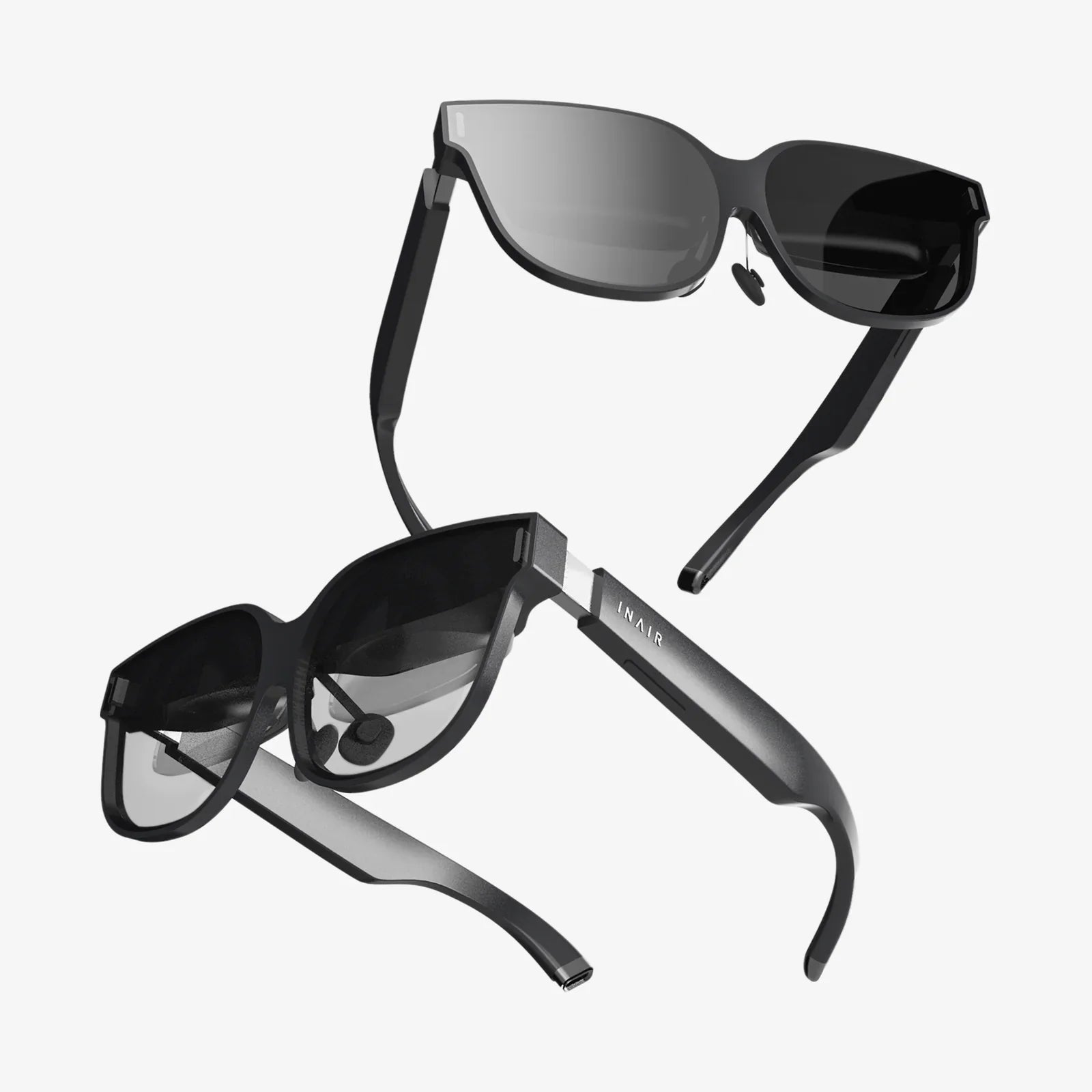
You’ve strapped on your headset, the familiar hum of the hardware signals it’s ready, and you launch Bigscreen VR, eager to meet friends in a virtual cinema or focus in your personal immersive workspace. But instead of being transported to a new reality, you’re greeted by nothing but an abyss—a complete and utter void. The Bigscreen VR black screen issue is a jarring, frustrating experience that pulls you out of the virtual world before you even get in. It’s a problem that has plagued numerous users, turning excitement into confusion. But fear not, for this deep dive is your ultimate guide to not only bringing your virtual world back to life but understanding why it vanished in the first place. Let’s illuminate the darkness.
Decoding the Void: It's More Than One Problem
First, it’s crucial to understand that a "black screen" is a symptom, not a single disease. The cause can range from a trivial software hiccup to a more serious hardware incompatibility. Pinpointing the exact nature of your black screen is the first step toward a solution. Does the audio continue to play? Can you hear your friends or the environment? Is the screen completely black, or are there faint outlines or a frozen image? These clues are vital for diagnosis.
The First Line of Defense: Immediate Quick Fixes
Before we delve into complex troubleshooting, always start with these simple steps. More often than not, they resolve the issue.
1. The Universal Restart
It sounds cliché, but it works. Completely close the Bigscreen VR application. Then, restart your VR headset itself. For many standalone devices, this means a full shutdown and power-up, not just a sleep mode. Finally, reboot your computer if you’re using a PC-connected headset. This clears temporary caches and resets software states that can cause conflicts.
2. Verify Basic Connections (PCVR Only)
If you’re using a headset that connects to a computer, ensure every cable is securely plugged in at both ends—the headset, the computer's graphics card, and any power adapters. A slightly loose connection can cause a loss of video signal, manifesting as a black screen.
3. Check for Overheating
VR is computationally intensive. Feel your headset and computer. If either is excessively hot, allow it to cool down completely before attempting to restart. Overheating can cause components to throttle or fail, leading to a black screen.
Software and Settings: The Common Culprits
If the quick fixes didn’t work, the issue likely lies within the software ecosystem.
1. Graphics Driver Updates and Rollbacks
Your graphics card drivers are the translators between your PC and your VR headset. An outdated, corrupt, or even a brand-new but buggy driver can break this communication.
- Update: Visit your graphics card manufacturer’s website and download the latest stable driver. Avoid beta versions for troubleshooting.
- Rollback: If the problem started immediately after a driver update, roll back to the previous version. This is done through the Device Manager on Windows.
- Clean Install: When installing new drivers, use the "Custom Install" option and select "Perform a clean installation." This removes all old driver files before installing the new ones, preventing conflicts.
2. SteamVR and Oculus Software Conflicts
Bigscreen VR often runs on top of other VR platforms. These layers can introduce complexity.
- SteamVR Beta: If you are opted into the SteamVR beta program, try opting out to revert to the stable release. Beta versions can introduce instability.
- Oculus Software: Ensure your Oculus PC app is fully updated. Try disabling features like "Oculus Link" and re-enabling them.
- Super Sampling: Extremely high resolution scaling settings in SteamVR or your GPU control panel can overwhelm the encoder, causing a black screen. Reset these values to 100% (auto) for testing.
3. Bigscreen VR Specific Settings
Within Bigscreen VR itself, certain settings can cause issues on specific hardware configurations.
- Environment Rendering: Try switching to a simpler environment (like the Void cinema) to see if the problem is related to rendering a complex space.
- Resolution and Refresh Rate: If you’ve manually overridden these settings, set them back to application-controlled or default values. A mismatch between headset and application refresh rate can cause a black screen.
Hardware and Deep System Issues
When software isn’t to blame, we must look deeper at the hardware and system configuration.
1. USB Power and Bandwidth
PCVR headsets rely on USB ports for data and power. A poor-quality USB hub or an underpowered motherboard USB controller can cause intermittent black screens.
- Always plug your headset into a USB port directly on your motherboard, not on the front of the case or through a hub.
- If possible, use a USB 3.2 port (typically blue) as specified by your headset's requirements.
- In your computer’s power management settings, ensure that the option to "allow the computer to turn off this device to save power" is disabled for your USB hubs.
2. Conflicting Software and Overlays
Other applications can interfere with VR’s exclusive control over the graphics card.
- Discord Overlay: The Discord in-game overlay is a notorious culprit for VR issues. Disable it completely.
- MSI Afterburner/Riva Tuner: These hardware monitoring tools use an on-screen display that can conflict with VR. Close them entirely.
- Antivirus/Firewall: Temporarily disable your antivirus and firewall software to see if they are blocking Bigscreen VR’s access to critical resources. Remember to re-enable them afterward and create an exception for the app.
3. The Nuclear Option: Reinstallation
If all else fails, a clean slate can work wonders.
- Uninstall Bigscreen VR through your platform (Steam/Oculus).
- Navigate to its installation directory and delete any remaining folders.
- Reinstall the application fresh. This ensures no corrupted local files or incorrect settings are persisting.
Understanding the Technical Why: A Peek Behind the Curtain
To truly appreciate the fixes, it helps to know what’s happening. The black screen often occurs at the point of "encoding." Your PC renders the virtual environment, but to send it to your headset’s display, it must compress (encode) that video signal into a data stream. This is handled by a dedicated encoder chip on your graphics card. If the driver is faulty, the settings are too high, or there’s a system conflict, this encoding process fails. The headset receives no valid video signal, resulting in a black screen, even though the application and audio are running perfectly fine in the background. This is also why problems are often unique to PCVR and not standalone headsets, which handle rendering and display internally without this complex data transmission step.
When to Seek Help and Community Wisdom
If you’ve exhausted all options, it’s time to turn to the community. The Bigscreen VR Discord server and subreddit are invaluable resources. When posting for help, be specific:
- State your exact headset and computer specs.
- List the steps you’ve already tried.
- Describe the black screen in detail (is there sound? can you see the menu?).
- This information allows developers and experienced users to quickly identify known issues or suggest highly targeted fixes.
That moment of anticipation shattered by a black void doesn’t have to be the end of your virtual journey. This guide provides a structured path from the simplest reboot to a deeper understanding of PCVR’s complexities. By methodically working through these steps—checking connections, updating drivers, managing software conflicts, and understanding the hardware encoding pipeline—you equip yourself with the knowledge to not only solve the Bigscreen VR black screen issue but to prevent it from happening again. The virtual cinema, the social lounges, and the productivity rooms are waiting on the other side; you just have to turn the lights back on.
Share:
Wearable Music Player The Ultimate Guide to Unplugged Audio Freedom
Wearable Music Player The Ultimate Guide to Unplugged Audio Freedom