


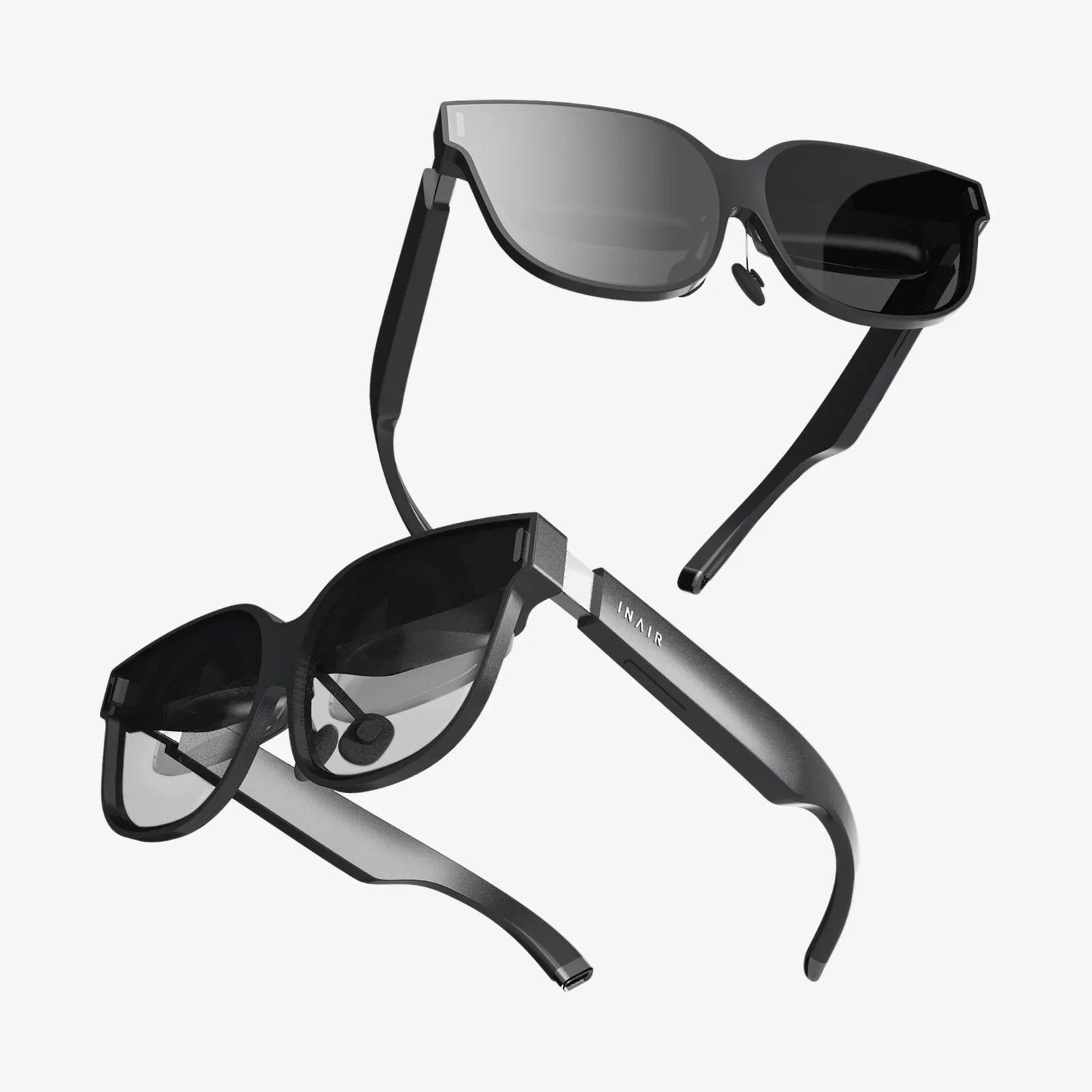
When your headset screen looks fuzzy right in the middle of an intense game or a cinematic VR experience, it can feel like the magic has been shattered. Blurry text, smeared details, and washed-out edges not only ruin immersion, they can also cause headaches and eye strain. The good news is that a fuzzy headset display is usually fixable with a bit of troubleshooting and some smart adjustments you can do at home.
This guide walks you through every major reason your headset screen looks fuzzy and how to fix each one, step by step. From lens cleaning and fit adjustments to software tweaks and visual optimization, you will learn how to reclaim the crisp, clear image your headset is capable of delivering.
Why Your Headset Screen Looks Fuzzy In The First Place
Before changing settings or blaming the hardware, it helps to understand why a headset display can appear blurry or out of focus. Most problems fall into a few broad categories:
- Optical issues: Dirty lenses, misaligned lenses, or incorrect eye-to-lens distance.
- Fit and ergonomics: Headset not sitting correctly on your face or straps too loose/tight.
- Visual settings: Wrong interpupillary distance (IPD), wrong focus adjustment, or incorrect render resolution.
- Software and performance: Low rendering quality, motion blur, or compression artifacts.
- User-specific factors: Vision problems, wearing glasses incorrectly, or eye fatigue.
Most of the time, the fix is not a single change but a combination of small adjustments that together turn a fuzzy image into a sharp, comfortable view.
Step 1: Check The Obvious Physical Causes
Clean The Lenses The Right Way
Smudged or dusty lenses are one of the most common reasons a headset screen looks fuzzy. Even a thin film of oil from your skin can scatter light and soften details.
Use this cleaning process:
- Power off the headset and remove it from your head.
- Use a dry microfiber cloth designed for lenses. Avoid tissues, shirts, or paper towels, which can scratch the lenses.
- Wipe gently in circular motions, starting from the center and moving outward.
- If there are stubborn smudges, lightly dampen a corner of the cloth with a lens-cleaning solution or clean water, then dry with a dry section of the cloth.
Avoid using household cleaners, alcohol, or abrasive materials on the lenses. Scratches or chemical damage can cause permanent blur that no software setting can fix.
Inspect For Condensation And Fogging
If your headset screen looks fuzzy mainly after you put it on or during intense sessions, fogging might be the culprit. Warm skin and breath inside a relatively closed device can cause condensation on the lenses.
To reduce fogging:
- Let the headset acclimate to room temperature before use, especially if the room is cool and you are warm from exercise.
- Adjust the facial interface to allow a small amount of airflow without breaking immersion.
- Take short breaks and remove the headset if you notice fogging building up.
- Use a fan in the room to keep air moving and reduce humidity.
Clear lenses are the foundation of a sharp image, so always start here before diving into more complex fixes.
Step 2: Adjust The Fit And Position On Your Head
Even with perfectly clean lenses, a poorly fitted headset can make everything look soft and out of focus. The optics are designed so that your eyes sit in a specific “sweet spot.” If the headset is too high, too low, or tilted, the image will look fuzzy.
Find The Visual Sweet Spot
Put on the headset and slowly adjust its position while focusing on text or a detailed object in the center of your view. Move the headset:
- Up and down on your face.
- Closer or farther from your eyes (if the headset allows distance adjustment).
- Tilted slightly up or down.
Make micro-adjustments until the center of the image looks as sharp as possible. Many users are surprised by how much clarity they gain just by shifting the headset a few millimeters.
Balance The Straps Correctly
Straps that are too loose allow the headset to sag, while straps that are too tight can cause discomfort and distort the facial interface, misaligning the lenses.
To optimize strap tension:
- Start loose, then tighten gradually until the headset feels stable without pressing hard into your face.
- Distribute pressure between top and side straps so weight is balanced and the headset does not slide down your nose.
- Check alignment again after adjusting straps, since tension changes can move the lenses relative to your eyes.
A well-fitted headset should feel secure, with the clearest image appearing when you look straight ahead, not when you push or hold the device in place with your hands.
Step 3: Dial In Your IPD (Interpupillary Distance)
One of the most crucial settings for clarity is IPD: the distance between the centers of your pupils. If the lenses are too far apart or too close together relative to your eyes, the headset screen looks fuzzy, especially around the center and edges.
Know Your IPD
You can find your IPD by:
- Checking a previous eye exam report.
- Using a smartphone app designed to estimate IPD.
- Measuring with a ruler in a mirror (less precise, but can give a rough estimate).
Most adults have an IPD between 58 mm and 72 mm, but even a few millimeters off can cause blur and discomfort over time.
Adjust The IPD Mechanically Or Digitally
Depending on your headset, IPD may be adjusted by a physical slider, preset steps, or software settings. Follow these guidelines:
- If there is a physical slider, move it while wearing the headset and focusing on a piece of text or a static object. Stop when the object is sharp and feels natural to focus on.
- If there are preset steps (for example, three IPD positions), try each setting while focusing on fine details and choose the one with the sharpest overall image.
- If IPD is software-based, go into the headset’s settings and set your IPD to the closest value to your measured number.
When IPD is correct, you should notice less eye strain, improved clarity, and more natural depth perception.
Step 4: Consider Focus And Eye Relief Adjustments
Some headsets offer a focus or eye-relief adjustment that changes the distance between the lenses and your eyes. If this is set incorrectly, the headset screen looks fuzzy even if IPD and fit are good.
Adjust For Vision With Or Without Glasses
Ask yourself how you normally see best:
- If you wear glasses or contacts for distance, you will usually need them in VR as well, unless your headset has a built-in focus adjustment that can compensate.
- If you are near-sighted and remove your glasses, you may be able to see the screens clearly if you adjust eye relief so the lenses sit at an appropriate distance.
- If you are far-sighted, you are more likely to need your glasses or contacts inside the headset.
If your headset supports it, use the focus or eye-relief wheel or slider and slowly adjust while looking at fine text or a menu. Stop when the text appears crisp without strain.
Use Spacer Inserts If Needed
If you wear glasses, many headsets include or support a spacer to increase the distance between your glasses and the lenses. Without the spacer, your glasses may press against the lenses, causing discomfort and potential scratching that will permanently make the headset screen look fuzzy.
Make sure the spacer is installed correctly and that your glasses are clean and free of smudges. Dirty glasses plus dirty lenses is a guaranteed recipe for blur.
Step 5: Optimize Software And Resolution Settings
Even with perfect optics and fit, software settings can make or break clarity. If the image is being rendered at low resolution or heavily compressed, the headset screen looks fuzzy no matter how carefully you adjust the hardware.
Check Render Resolution And Supersampling
Many headsets allow you to control the rendering resolution or supersampling level through their companion software or system settings. Higher resolution generally means sharper visuals but demands more performance from your computer or console.
To optimize:
- Increase render resolution gradually until you find a balance between clarity and smooth performance.
- Use supersampling if available to render the image at a higher internal resolution and then downscale, which can reduce jagged edges and improve text clarity.
- Avoid going too high if it causes frequent stuttering or dropped frames, as this will hurt comfort even if the static image looks sharper.
For standalone headsets, look for performance or quality modes in the settings. Choose quality or high-resolution modes if your usage does not demand maximum frame rate.
Disable Excessive Motion Blur Or Post-Processing
Some games and apps add motion blur, depth-of-field blur, or other visual effects that can make the headset screen look fuzzy, especially during fast movement.
Open the in-game settings and:
- Turn off or reduce motion blur.
- Disable depth-of-field blur if possible.
- Reduce film grain or sharpening filters that can create a smeared or noisy look in VR.
VR is very sensitive to blur because the screen is so close to your eyes. What looks cinematic on a monitor often feels messy inside a headset.
Step 6: Evaluate Performance And Latency
If your system is struggling to keep up, the headset screen looks fuzzy in a different way: details may smear, frames may ghost, and the whole image can feel unstable.
Identify Performance Bottlenecks
Look for these signs of performance problems:
- Choppy or inconsistent frame rate.
- Ghosting or smearing when you move your head quickly.
- Visual artifacts like double images or flickering.
These issues can make the image feel blurry even if the underlying resolution is high.
Optimize For Smoothness
To improve clarity through better performance:
- Lower graphics settings in demanding games, especially shadows, reflections, and post-processing.
- Close background applications that consume CPU, GPU, or memory resources.
- Use wired connections instead of wireless streaming when possible to reduce compression and latency.
- Update graphics drivers and headset firmware to benefit from performance optimizations.
A smooth, stable image is perceived as sharper and more comfortable than a high-resolution image that stutters or lags.
Step 7: Understand The Limits Of The Display
Sometimes, the reason your headset screen looks fuzzy is simply the resolution and pixel structure of the display itself. Older or budget models may show visible pixelation, screen-door effects, or limited clarity for fine text.
Recognize Screen-Door Effect And Pixelation
If you notice a grid-like pattern or visible gaps between pixels, you are seeing the screen-door effect. This is not something you can fix entirely through settings, but you can minimize its impact:
- Focus on content designed for your headset rather than extremely text-heavy interfaces.
- Increase render resolution within reason to make the most of the available pixels.
- Use darker themes or environments when possible, as bright solid backgrounds make pixel structure more obvious.
Knowing the limits of your display helps set realistic expectations and prevents you from chasing fixes that do not exist in software.
Step 8: Factor In Your Eyes And Visual Health
Even with perfect hardware and settings, your own vision can influence how sharp or fuzzy the headset looks. VR and AR place unique demands on your eyes, which may reveal vision issues you do not notice in everyday life.
Check For Uncorrected Vision Problems
If you have not had a recent eye exam, or if you suspect your prescription has changed, schedule a checkup. Signs that your eyes may be part of the problem include:
- Persistent blur in the headset even after careful tuning.
- Headaches or eye strain after short sessions.
- Needing to squint or tilt your head to see clearly.
Correcting astigmatism, near-sightedness, or far-sightedness with updated glasses or contacts can dramatically improve clarity in a headset.
Use VR-Friendly Habits To Reduce Fatigue
Eye fatigue can make the headset screen look fuzzy over time, even if it looks sharp at the start of a session. To reduce fatigue:
- Take regular breaks every 20–30 minutes, especially during long sessions.
- Blink consciously to prevent dry eyes, which can reduce visual clarity.
- Adjust room lighting so that your eyes are not straining between bright screens and a very dark environment.
Comfortable, rested eyes perceive more detail and tolerate longer sessions without blur or discomfort.
Step 9: Troubleshoot Special Cases Of Fuzziness
Sometimes the headset screen looks fuzzy only in certain situations, which can give clues about the underlying cause.
Blur At The Edges But Not The Center
If the center of your view is sharp but the edges are fuzzy, this can be partly due to lens design. Many headsets have a smaller “sweet spot” of optimal clarity in the center.
To minimize edge blur:
- Keep important content centered in your view whenever possible.
- Avoid reading small text at the edges; turn your head rather than just moving your eyes.
- Fine-tune IPD and fit again to ensure you are truly centered in the lens sweet spot.
Some edge blur is normal, but extreme blur may indicate misalignment or a defective lens.
Blur During Fast Movement Only
If clarity is fine when you are still but the headset screen looks fuzzy when you move your head quickly, performance or motion interpolation may be involved.
Try these steps:
- Reduce in-game graphics to improve frame rate.
- Disable or adjust motion smoothing or reprojection features if they introduce artifacts.
- Check cable connections or wireless signal quality if you are streaming from another device.
Stable motion and sufficient frame rates are essential for maintaining clarity during quick head turns.
Blur In Specific Apps Or Games Only
If only certain apps look fuzzy, the issue is likely with that specific software’s resolution or settings.
To diagnose:
- Compare multiple apps. If others look sharp, the headset is probably fine.
- Check in-app resolution or quality options and increase them if possible.
- Look for VR-specific settings like text scaling or anti-aliasing that affect clarity.
Sometimes developers prioritize performance over resolution; knowing this helps you adjust expectations or tweak settings appropriately.
Step 10: Maintain Your Headset For Long-Term Clarity
Once you have solved the immediate problem of why your headset screen looks fuzzy, a few maintenance habits can keep it looking sharp for the long run.
Protect Lenses From Scratches And Dust
Small scratches accumulate over time and can permanently reduce clarity. To protect your lenses:
- Always store the headset in a case or on a stand where the lenses will not rub against surfaces.
- Use a lens cover or soft cloth over the lenses when the headset is not in use.
- Keep the play area dust-free and avoid placing the headset lens-down on any surface.
Regular gentle cleaning, combined with careful storage, will preserve the optical quality of your device.
Keep Software And Firmware Updated
Manufacturers often release updates that improve visual quality, performance, and compatibility with different systems.
Make a habit of:
- Checking for firmware updates on a regular schedule.
- Updating companion apps and drivers on your computer or console.
- Re-running setup wizards after major updates to ensure IPD, room scale, and calibration are still accurate.
Small software improvements can noticeably enhance clarity, especially in newer platforms where optimization is ongoing.
When To Suspect A Hardware Defect
Most cases where a headset screen looks fuzzy are fixable through cleaning, adjustment, and settings. However, there are times when a hardware defect may be involved.
Signs Of Potential Hardware Issues
Consider the possibility of a defect if you notice:
- One eye consistently blurrier than the other, even after adjusting IPD and focus.
- Uneven brightness or sharpness across the screen that does not change with settings.
- Visible cracks, deep scratches, or internal dust inside the lens assembly.
- Persistent double images that do not respond to calibration.
In such cases, further tweaking may not resolve the issue, and professional inspection or repair might be necessary.
Putting It All Together: A Quick Clarity Checklist
When your headset screen looks fuzzy, working through a simple checklist can save time and frustration. Use this sequence:
- Clean the lenses with a microfiber cloth and check for fogging.
- Adjust the fit so the headset sits comfortably and stably on your face.
- Set the IPD to match your eyes, using sliders or software.
- Fine-tune focus and eye relief, especially if you wear glasses or have a prescription.
- Optimize software settings like render resolution, supersampling, and motion blur.
- Improve performance by lowering demanding graphics options and closing background apps.
- Evaluate your own vision and consider an eye exam if blur persists.
- Watch for hardware defects if one side is always blurry or if artifacts remain after all adjustments.
Each step builds on the previous one, and together they address almost every common cause of a fuzzy headset display.
If your headset screen looks fuzzy, you do not have to accept a permanently blurry virtual world. With a few targeted adjustments, some smart software tuning, and good long-term habits, you can transform your experience from hazy and uncomfortable to crisp, immersive, and genuinely impressive. The next time you slip on your headset, you will know exactly what to tweak to keep every pixel working in your favor—and every moment in your virtual environment as sharp as it was meant to be.
Share:
AR glasses as a standalone device: The Next Computing Revolution
Smart Glass Touchpad Issues and How to Fix Them Effectively