


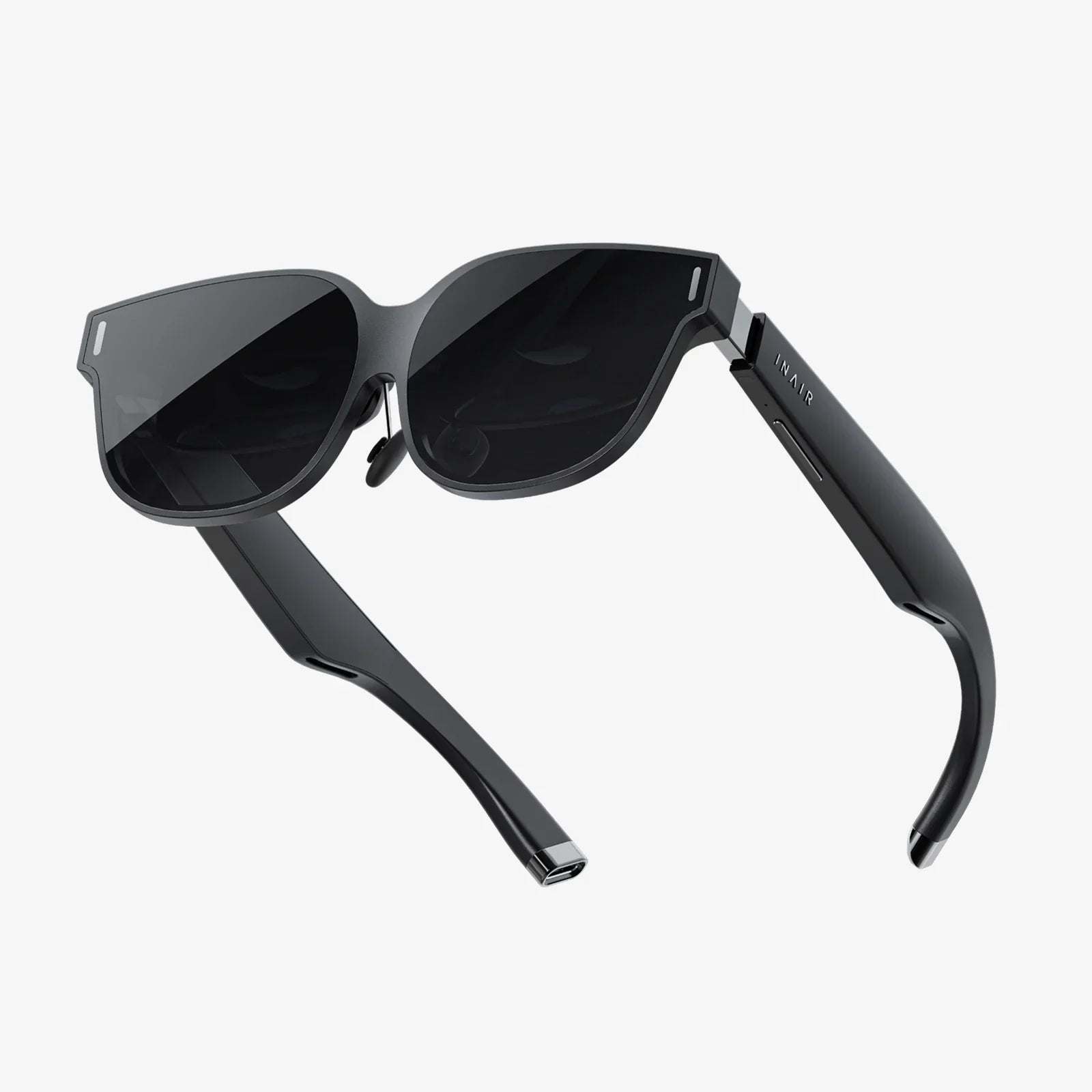
- by wangfred
How Do I Set Up Spatial Audio - The Ultimate Immersive Sound Guide
- by wangfred
Imagine the sound of rain not just playing in your ears, but feeling as if individual drops are falling all around you, or the sensation of a helicopter in a movie flying directly over your head, from front to back. This isn't a glimpse into a distant technological future; it's the immersive reality available today through Spatial Audio. If you've ever asked, "how do I set up spatial audio," you're about to unlock a revolutionary way to experience music, movies, and games, transforming flat, stereo sound into a rich, three-dimensional soundscape that places you at the very center of the action. This guide will demystify the process, ensuring you can effortlessly step into this new dimension of audio.
Before diving into the setup, it's crucial to understand what you're enabling. Spatial Audio is an advanced audio technology that creates a multi-dimensional, immersive listening experience. It uses sophisticated algorithms, head-tracking technology (in some cases), and Dolby Atmos to make sounds seem like they are coming from all around you—front, back, above, and below.
Unlike traditional stereo (left and right channels) or even surround sound (which uses multiple fixed speakers), Spatial Audio is dynamic and responsive. It can tie the soundscape to your device's screen, so turning your head while wearing compatible headphones makes it feel like the sound source remains fixed in space, or it can create a sphere of sound that feels expansive and real, even as you move.
Setting up Spatial Audio isn't universally identical; it depends on your ecosystem. However, some common requirements cut across most platforms.
This is the most important factor. You will need:
You can't listen to just any song or watch any movie and expect Spatial Audio to work. The content itself must be mastered or encoded to support it. Look for labels like Dolby Atmos, 360 Reality Audio, or Spatial Audio in the description.
Now, let's get to the core of the question: "how do I set up spatial audio?" The process varies slightly depending on your device's operating system.
The setup process within this ecosystem is famously streamlined.
The process on a Mac is very similar to that on an iPhone.
The landscape here is more varied, as these are open platforms with many different manufacturers. However, the general principles remain.
Simply turning it on is only the first step. To get the most out of it, consider these pro tips.
If your device offers ear scanning or a similar personalization feature, do not skip it. This is arguably the single biggest factor in moving the experience from "cool" to "mind-blowing." It calibrates the sound to your unique anatomy.
Seek out content specifically designed for it. Re-watch a big-budget action movie you know well or listen to a Spatial Audio music playlist featuring artists you love. The difference compared to the standard stereo version will be immediately apparent and demonstrate the technology's true potential.
Try the different modes. For watching movies on a tablet, Head Tracked mode is incredible. For listening to music while working on a computer, Fixed mode might be more practical so the soundstage doesn't shift as you glance away from the screen.
Sometimes, things don't work perfectly on the first try. Here's how to solve common problems.
This is almost always due to one of three things:
Spatial Audio is not a gimmick; it's a fundamental shift in how we interact with sound digitally. As the technology becomes more widespread and the library of supported content grows, it will quickly become the new standard, making traditional stereo sound feel flat and dated. From giving filmmakers and musicians a new canvas for creativity to providing gamers with unparalleled immersion, its applications are vast and exciting.
You now hold the key to unlocking this immersive world. The question isn't just "how do I set up spatial audio," but rather, what will you listen to first? The subtle nuances of a symphony orchestra recorded in a grand hall, the heart-pounding suspense of a thriller, or the immersive environment of an open-world game—each is waiting to be rediscovered. The barrier to entry is low, but the payoff is monumental, offering a fresh and breathtaking perspective on every piece of audio you thought you knew. Your next listening session is about to become an event.
Share:
When Will Virtual Reality Happen? The Long Road to a True Metaverse
Virtual Reality in Multimedia: The Complete Immersive Revolution Reshaping Our Digital World