


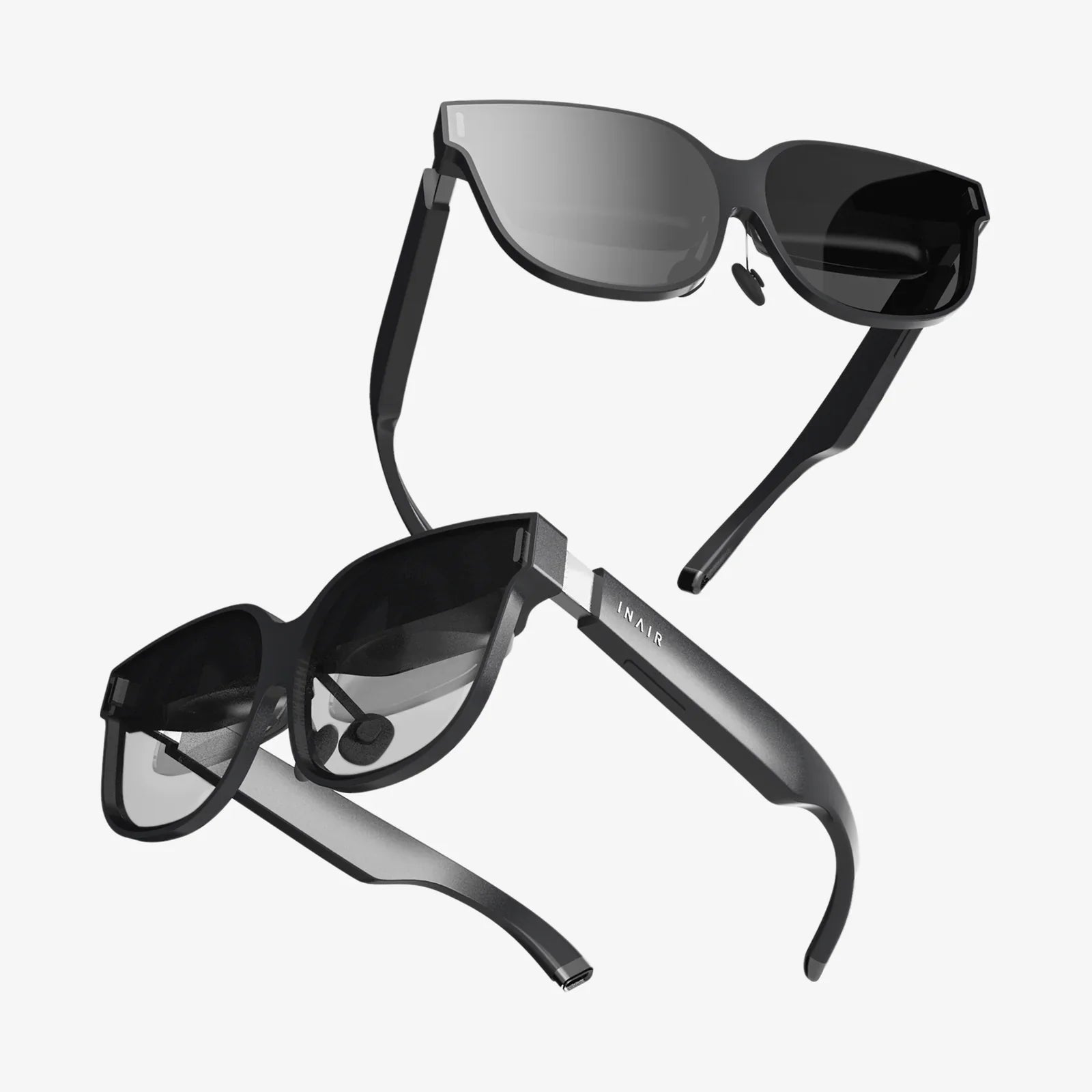
Imagine the scene: you’re exploring an alien planet, dodging meteor showers, or perhaps painting in three-dimensional space. The experience inside your headset is breathtaking, but to everyone else in the room, you’re just a person swaying silently with controllers in hand. Now, imagine bridging that gap. By connecting your VR headset to your TV, you can transform a solitary adventure into a shared spectacle, allowing friends and family to see your virtual world and cheer you on. It’s the key to turning your living room into a portal for collective wonder. Whether you're aiming to demo the magic of VR, stream your gameplay, or simply avoid bumping into the furniture while others watch, this guide will demystify the entire process. We'll navigate the cables, settings, and technologies to get your virtual journey displayed on the big screen, making you the star of your own show.
The Foundation: Understanding Your Hardware
Before you start plugging in cables, it’s crucial to understand the cast of characters in this technological play. Not all VR headsets and TVs communicate the same way, so identifying what you’re working with is the first and most important step.
Types of VR Headsets
Your connection method is almost entirely determined by the category of headset you own.
- Standalone Headsets: These are all-in-one devices that require no external computer or console. They have their own internal processor, battery, and software ecosystem. They are designed for ease of use and often prioritize wireless functionality.
- PC-Powered Headsets: These headsets act as a display and sensor portal, but they derive their processing power from a high-performance gaming computer. They connect to the PC via a thick cable that bundles data and video signals.
- Console-Powered Headsets: Designed to work exclusively with a specific video game console, these headsets are a more specialized subset. The console handles all the processing.
Your TV's Capabilities
Modern televisions are marvels of connectivity, but it's important to know what inputs yours has. Look for these ports on the back or side:
- HDMI: The universal king of modern audio/video connections. This will be your go-to for most wired solutions.
- USB: While not typically used for video input, some TV models allow for certain types of media playback or peripheral connection.
- Screen Mirroring Technologies: Many smart TVs support standards like Miracast (common on Windows and Android devices) or have built-in receivers for proprietary systems like AirPlay (for Apple devices).
Method 1: The Wired HDMI Connection (The Universal Solution)
This is often the most reliable and lowest-latency method, providing a direct, stable link between your source device and the TV. The concept is simple: you need to get the video signal that is being generated for the headset to also output to your television.
For PC-Powered VR Headsets
Since your headset is powered by a computer, the video signal originates from your computer's graphics card. The goal is to mirror your PC's desktop display to the TV.
- Locate the HDMI port on your PC's graphics card. This is usually on the back of your desktop tower or on the side of a laptop.
- Connect one end of a high-speed HDMI cable to this port. Ensure you're using a reliable cable capable of handling high-resolution video.
- Connect the other end of the HDMI cable to an available HDMI input on your TV.
- Power on your TV and PC. Using your TV remote, select the correct HDMI input source (e.g., HDMI 1, HDMI 2).
- Configure your PC's display settings. On Windows, right-click the desktop and select Display settings. Find the multiple displays option and set it to Duplicate these displays. This will ensure whatever appears on your PC monitor is also sent to the TV.
- Launch your VR platform and content. The VR experience should now be mirrored on your TV screen. What the TV shows is typically a 2D representation of what the user sees in their headset (often a single eye's view or a combined panoramic view).
For Console-Powered Headsets
The process here is even more streamlined, as the console is designed to output to a TV by default.
- Your console should already be connected to your TV via HDMI for normal gameplay.
- When you power on the headset and console, the system will typically handle the mirroring automatically. The TV will often display a social screen—a tailored 2D view designed specifically for spectators to watch comfortably.
- If the image does not appear, check the console's settings menu for options related to VR display or social screen mirroring to ensure the feature is enabled.
Method 2: Wireless Screen Mirroring (The Cord-Free Approach)
For those who want to avoid tripping hazards or whose physical setup makes running a long cable impractical, wireless casting is an elegant solution. This is particularly popular with standalone headsets.
For Standalone Headsets
Most modern standalone headsets have built-in casting functionality. The general process is similar across platforms, though the specific names of the settings may vary.
- Ensure your headset and your smart TV are connected to the same Wi-Fi network. This is non-negotiable; both devices must be on the same network to communicate.
- Put on your headset and navigate to the Settings or Share menu. Look for an option labeled Cast, Stream, or Screen Mirroring.
- Select the option to cast. Your headset will scan the network for compatible devices.
- Select your TV from the list of available devices. The list might show your TV's model name or a custom name you've set.
- Accept the connection on your TV if prompted. After a few moments of buffering, your headset's display should appear on the TV.
Some headsets also allow you to cast to a smartphone app first, and then use the phone's built-in casting功能 (like Chromecast or AirPlay) to send that video stream to the TV. This can be a useful workaround if your TV is older but you have a modern streaming dongle plugged into it.
For PC-Powered Headsets via Wireless Protocols
If your PC is connected to the same Wi-Fi network as your smart TV or a wireless display adapter (like a Microsoft Wireless Display Adapter), you can use Windows' built-in wireless display feature.
- On your Windows PC, open the Action Center (click the speech bubble icon in the bottom-right taskbar) and select Connect.
- Your PC will search for wireless displays. Select your TV or adapter from the list.
- Once connected, set your PC to duplicate displays as described in the wired method. This will wirelessly transmit the mirrored screen to your TV.
Method 3: Utilizing External Streaming Devices
Don't have a smart TV? No problem. The ubiquity of affordable streaming sticks and dongles has made wireless casting accessible to almost everyone. These devices plug into your TV's HDMI port and connect to your Wi-Fi, effectively making any TV with an HDMI port a smart TV for casting purposes.
- Plug your streaming device into your TV's HDMI port and power it on. Complete its initial setup, connecting it to your Wi-Fi network.
- Follow the exact same wireless casting instructions for your headset or PC. The streaming device will appear on your network as a cast target just like a native smart TV would.
- This method is incredibly versatile and often provides a more reliable and updated casting experience than some older built-in smart TV systems.
Troubleshooting Common Hurdles
Even with the right cables and steps, technology can be fickle. Here’s how to overcome common obstacles.
- No Signal on TV: Double-check that you've selected the correct HDMI input on your TV. Try a different HDMI cable and a different HDMI port on the TV to rule out hardware failure.
- Audio is Playing Through the Wrong Device: On a Windows PC, right-click the sound icon in the taskbar, select Open Sound settings, and under Output, ensure the correct device is selected (e.g., your PC speakers or headset for your audio, and the TV will play its own audio from the HDMI signal).
- Wireless Casting is Laggy or Choppy: This is almost always a Wi-Fi issue. Ensure both devices have a strong signal. For the best performance, connect both your headset/PC and your TV to the 5GHz band of your router if available, as it is less congested than the 2.4GHz band. Moving closer to the router can also help.
- TV Doesn't Show Up in Cast List: Reboot both your headset and your TV/router. Ensure they are unequivocally on the same network. Some network configurations (like guest networks or AP isolation settings) can prevent devices from seeing each other.
- Black Bars or Cropped Image on TV: The aspect ratio of the VR feed is often different from a standard 16:9 TV. This is normal. Some systems offer a setting to adjust the zoom or crop of the social screen within the VR platform's settings.
Enhancing the Spectator Experience
Once you have the technical connection sorted, consider these tips to make the viewing experience even better for your audience.
- Explain What You're Seeing and Doing: Narrate your experience. Your spectators can only see the screen, not feel the immersion. Tell them when to duck, where you're looking, and what you're planning to do next.
- Mind the Cable (If Using One): If you're tethered to a PC, use a rug or ceiling pulley system to manage the cable to avoid tripping and to give yourself more freedom of movement, making the performance more fun to watch.
- Curate Your Content: Choose games and experiences that are visually interesting and fun to watch from a third-person perspective. Some games are better for spectators than others.
- Adjust the Volume: Find a balance where the game audio is exciting for the audience but not overwhelming, and where you can still hear their reactions and commentary.
The magic of virtual reality shouldn't be confined to a single pair of eyes. By connecting your headset to your TV, you tear down the invisible wall between the user and the audience, creating a shared experience that is far more powerful and engaging. It transforms you from a solitary player into a guide, a performer, and a source of collective awe. Whether you choose the steadfast reliability of an HDMI cable or the sleek convenience of wireless casting, the process is a gateway to a new dimension of entertainment. So grab your headset, power on your TV, and prepare to amaze everyone in the room. Your living room is about to become the most exciting destination there is.
Share:
iPhone 16 Pro Max VR Headset: The Unseen Portal to a New Reality
What's The Latest VR Headset - A Deep Dive Into The New Generation of Immersive Technology