


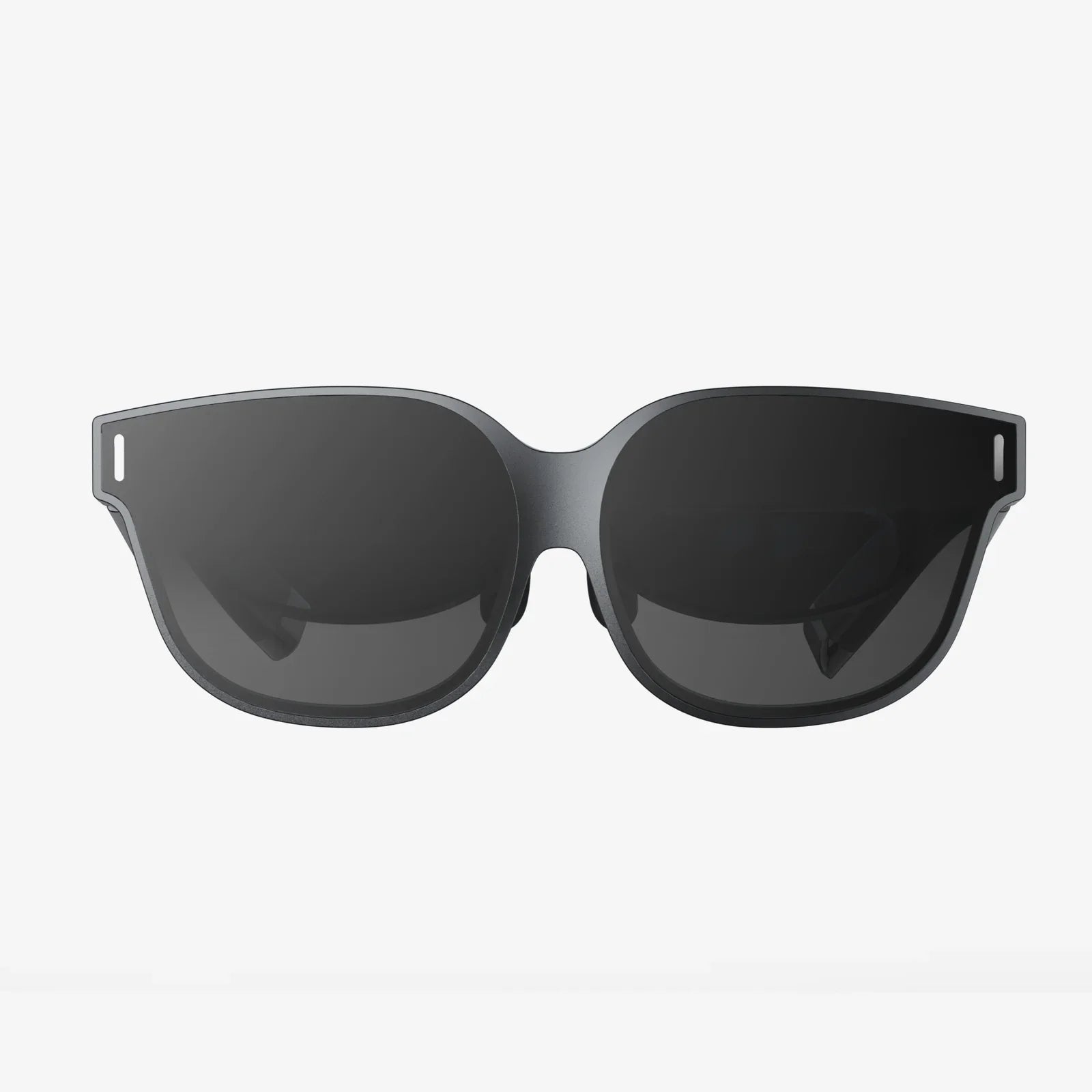
Imagine holding a portal to another dimension in the palm of your hand. Your smartphone, a device of immense power, is the key to unlocking breathtaking virtual worlds, and it all begins with a single, crucial action: placing it correctly into a VR headset. This isn't just about sliding a screen into a slot; it's the foundational step that separates a blurry, nauseating mess from a truly immersive and magical experience. Ready to transform your living room into a deep-space observatory, a front-row concert seat, or a prehistoric jungle? Let's dive into the precise art and science of how you put your phone in a VR headset.
The Foundation: Understanding Your Gear
Before you even touch your headset, it's vital to understand the two core components you're about to unite. Not all phones and not all headsets are created equal, and a mismatch can lead to disappointment.
Know Your Phone
The star of the show is your phone. Its specifications directly dictate the quality of your VR journey.
- Screen Size: This is the most critical factor. Headsets are designed for specific phone size ranges (e.g., 4.7 to 6.2 inches). A phone that's too small will leave you with a glaring "binocular" effect, while one that's too large simply won't fit. Always check your headset's specifications for its compatible phone dimensions.
- Screen Resolution: VR places your eyes just centimeters from the screen. A low-resolution display (720p) will look incredibly pixelated, breaking immersion. A high-resolution display (1080p or better, ideally Quad HD or 4K) is essential for a sharp, clear image where you can't distinguish individual pixels.
- Sensors: True VR relies on a gyroscope and an accelerometer to track your head movements. Virtually all modern smartphones have these, but it's worth confirming if you have a very old model.
- Processing Power: Rendering two high-frame-rate images (one for each eye) is demanding. A powerful processor ensures smooth, lag-free gameplay and video playback, which is crucial for preventing motion sickness.
Know Your Headset
The headset is your window to the virtual world. Its design dictates how you interface with your phone.
-
Loading Mechanism: This is the core of our question. Headsets typically use one of three methods:
- Clamp/Slide: The most common. The front faceplate slides or hinges open. You place the phone into a dedicated tray or against a set of guides, then close the faceplate, which clamps the phone securely in place.
- Spring-Loaded Tray: A more advanced mechanism where you pull out a tray, place your phone on it, and then slide the tray back into the headset body. This often provides a more secure and precisely aligned fit.
- Magnetic/Clip-On: Simpler, often cardboard-based viewers may use elastic straps or magnetic clips to hold the phone. These require extra care to ensure the phone doesn't shift during use.
- Lens Quality: The plastic lenses between your eyes and the phone are responsible for focusing the image. Higher-quality lenses made from materials like acrylic offer better clarity and a wider "sweet spot"—the area where the image is perfectly in focus—reducing eye strain.
- Adjustability: Look for headsets with adjustable straps, pupil distance (IPD) sliders, and focal dials. These features allow you to customize the fit for maximum comfort and visual clarity.
The Pre-Flight Checklist: Preparing for Immersion
You wouldn't pilot a spacecraft without a pre-flight check. Treat your VR setup with the same respect. A few minutes of preparation will drastically improve your experience.
- Cleanliness is Key: This is non-negotiable. Use a high-quality microfiber cloth to meticulously clean your phone's screen. Every fingerprint, every speck of dust, will be magnified once it's inches from your face. Similarly, gently blow or wipe any dust off the headset's internal lenses to avoid blurry visuals.
- Close Background Apps: VR is resource-intensive. To free up RAM and processing power, close all unnecessary applications running in the background on your phone. This prevents notifications from popping up in your headset and ensures the VR app runs as smoothly as possible.
- Enable Do Not Disturb: The last thing you want while exploring a haunted house VR experience is a banner notification from a messaging app sliding across your view. Activate "Do Not Disturb" or "VR Mode" if your phone has it to block all calls and notifications.
- Charge Your Phone: VR apps drain battery life at an astonishing rate. Ensure your phone is fully charged or, even better, keep it plugged into a power bank during extended sessions to avoid your headset dying mid-flight.
- Clear Your Play Area: While mobile VR is often stationary, you will be moving your head and potentially your body. Ensure you have a clear space around you to avoid accidentally knocking over drinks or hitting furniture with your controllers.
The Main Event: A Step-by-Step Guide to Insertion
Now, the moment you've been waiting for. Let's walk through the universal process, highlighting critical steps to ensure perfection.
Step 1: Open the Access Hatch
Locate the mechanism that allows access to the phone compartment. This is usually on the front of the headset. It might be a faceplate that slides upward, a lid that hinges open, or a tray that pulls straight out. Handle it gently to avoid breaking any plastic clips or hinges. If you're unsure, refer to the headset's manual—a quick online search for your headset model's name and "manual" will usually find it.
Step 2: Orient Your Phone Correctly
This is the step where most mistakes happen. You must place the phone in the precise orientation the headset expects.
- Screen Facing the Lenses: The phone's display must always face inward, toward the headset's lenses. This seems obvious, but in the excitement, it's a common error.
- Top is Top: The top of your phone (where the ear speaker is) must align with the top of the headset. The headset's lenses are designed to split the screen into a left-eye and right-eye image, and the software expects the display to be in a specific portrait or landscape orientation. Placing the phone upside down will result in an inverted image that is uncomfortable and unusable.
- Center It: Once placed, gently nudge the phone so it is perfectly centered within the compartment. Most headsets have guides or ridges to help with this. Proper centering is crucial for aligning the screen with the lenses to avoid a crooked or blurry picture.
Step 3: Secure the Connection
Once the phone is correctly oriented and centered, it's time to lock it down. If your headset has a faceplate, close it firmly until you hear a click or feel it snap securely into place. If it uses a tray, slide it gently but firmly back into the headset body. The goal is to eliminate any wobble or movement. The phone must be absolutely stationary relative to the headset. Any shifting during use will cause the virtual world to jitter, which is a fast track to simulator sickness.
Step 4: The Final Alignment Check
Before you strap the headset to your face, do a final visual check. Look through the lenses from the outside. You should see two identical images or one large image split down the middle, and it should look clear and straight. If something looks off, repeat the process. It's easier to fix now than after it's on your head.
Beyond the Basics: Optimizing Your Experience
Putting the phone in is just the start. To truly master mobile VR, you need to fine-tune the experience.
Calibrating for Comfort
Once the headset is on, you'll likely need to make some adjustments.
- IPD Adjustment: The Inter-Pupillary Distance is the space between the centers of your pupils. Many headsets have a slider that moves the lenses closer together or farther apart. Adjust this while looking at a screen with text until the image is sharp and clear for both eyes simultaneously.
- Focus Dials: Some headsets have a dial on the top that adjusts the focus, much like binoculars. This is especially useful for users who wear glasses (though many headsets are designed to accommodate glasses). Spin the dial until the virtual world snaps into perfect clarity.
- Strap Adjustment: The headset should be snug but not painfully tight. It should feel balanced on your face, not front-heavy. The goal is to block out all external light without applying uncomfortable pressure to your brow or cheeks.
Choosing the Right Content
The magic of your setup is realized in the apps you use. Explore official app stores for dedicated VR sections. You'll find a range of experiences:
- 360-Degree Videos: Explore real-world locations, concerts, and documentaries.
- Interactive Games: From simple puzzle games to more advanced titles with Bluetooth controllers.
- Experiential Apps: Virtual tours of museums, educational apps that take you inside the human body, and meditation apps that transport you to serene environments.
Always read reviews and check compatibility before downloading.
Troubleshooting Common Issues
Even with perfect placement, things can go wrong. Here's how to fix them.
- Blurry Image: Recheck phone and lens cleanliness. Adjust the IPD and focus dials. Ensure the phone is perfectly centered.
- Image is Double or Cross-Eyed: The phone is almost certainly upside down. Open the compartment and flip it.
- App Crashes or is Laggy: Close all other apps. Restart your phone. Ensure your phone meets the app's minimum requirements.
- Overheating: VR is demanding and can cause phones to get hot. Take breaks every 20-30 minutes to let it cool down. Remove it from the headset during these breaks to aid cooling.
A Note on Safety and Etiquette
Your physical safety and the safety of your device are paramount.
- Always use the headset's included safety strap to secure it to your head.
- Be intensely aware of your surroundings. It's easy to become so immersed that you forget where real-world walls and tables are.
- Take frequent breaks. Prolonged use can lead to eye strain, nausea, or disorientation. Start with short sessions of 10-15 minutes.
- Never expose the headset's lenses to direct sunlight. The lenses can act like a magnifying glass, focusing the sun's rays and permanently burning your phone's screen in seconds.
That small, seemingly simple act of placing a rectangle of glass and metal into a plastic holder is your summoning ritual for new realities. It's the modern equivalent of aligning a telescope's lens or threading film into a projector. By mastering this fundamental skill—by ensuring a clean screen, a perfect orientation, and a secure fit—you guarantee that the only thing between you and the experience is a pair of lenses, not a barrier of technical frustration. The worlds are waiting on your phone; you now hold the knowledge to set them free. Your journey into the virtual expanse begins not with a leap, but with a careful, deliberate click.
Share:
How to Use VR on Android: The Ultimate Immersive Guide
What Is The Best VR Headset To Buy Right Now? A 2024 Buyer's Guide