


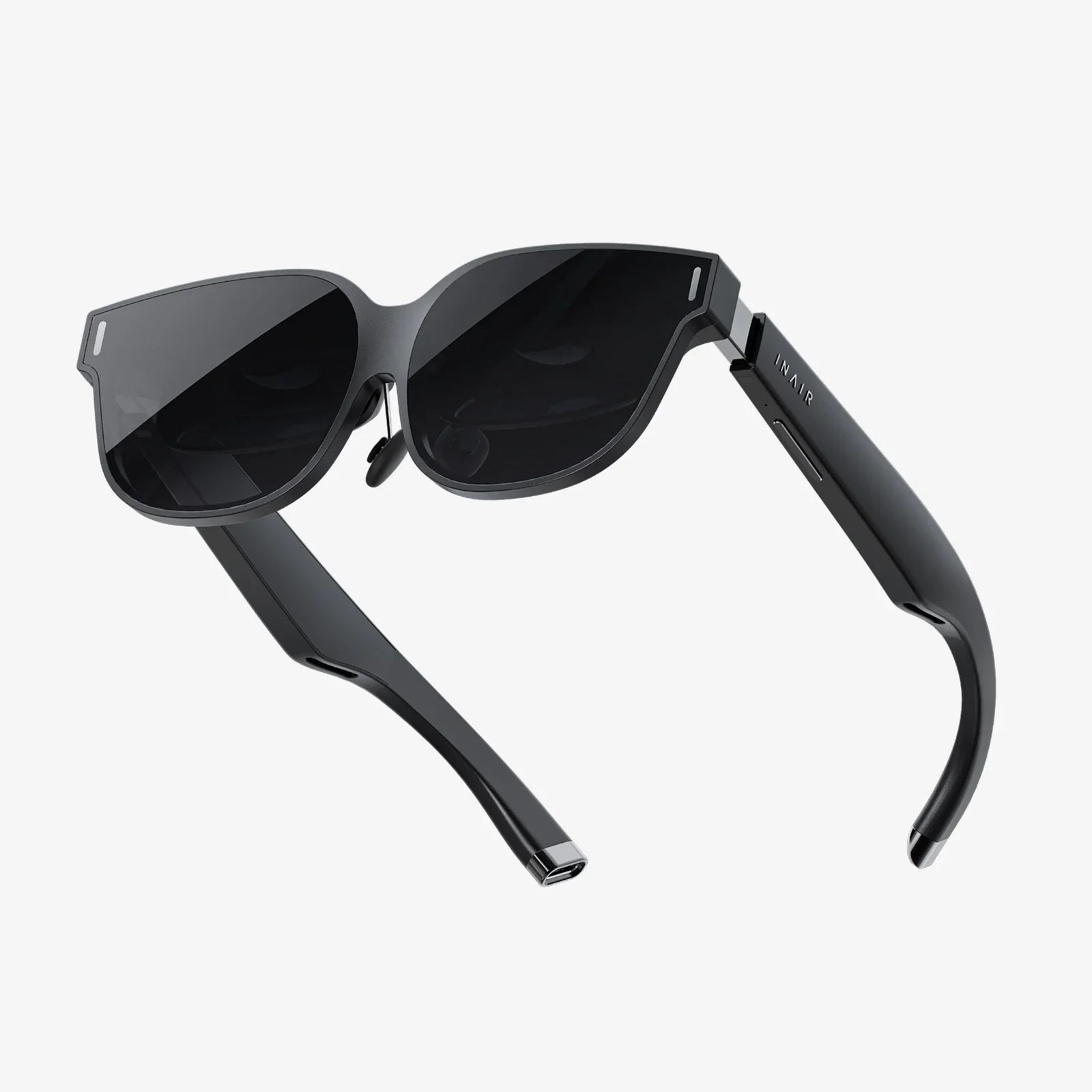
Imagine pointing your Android device at a city street and seeing historical facts pop up like digital ghosts, or visualizing a new piece of furniture perfectly scaled in your living room before you buy it. This is the magic of Augmented Reality (AR), and it’s no longer a futuristic fantasy—it’s a powerful tool waiting for developers to harness. For Android developers, the world's most popular mobile operating system represents the largest canvas for creating these immersive experiences. The journey from a novel idea to a polished, interactive AR application is an exciting technical adventure, blending 3D graphics, computer vision, and intuitive user interface design. This guide will demystify the entire process, providing you with the foundational knowledge and practical steps to start building your own AR world on Android.
The Core Pillars of Mobile Augmented Reality
Before writing a single line of code, it's crucial to understand how AR functions on a mobile device. Unlike Virtual Reality (VR), which creates a completely digital environment, AR overlays digital information onto the real world. Achieving this seamless blend relies on several key technologies working in concert.
1. Environmental Understanding: How the Device Sees the World
The smartphone is your user's window into the augmented world, and its sensors are the eyes. A successful AR experience hinges on the device's ability to comprehend its surroundings.
- Motion Tracking: Using the device's accelerometer and gyroscope, the AR system tracks the phone's orientation and movement in physical space. This allows digital objects to remain locked in place as the user moves around.
- Environmental Learning: The device's camera analyzes the visual features of the room—edges, corners, unique patterns—to create a point cloud map of the environment. This process is often called SLAM (Simultaneous Localization and Mapping).
- Light Estimation: Advanced AR systems can analyze the ambient light in a scene and apply similar lighting to digital objects. This shadows and highlights correctly, making the virtual object appear to belong in the real world, drastically increasing realism.
2. Anchoring Digital Content to Reality
You can't just float a 3D model in the camera feed; it must be anchored to something real. There are several common types of anchors used in Android AR development.
- Horizontal Planes: The most common anchor. The AR system detects flat surfaces like floors, tables, and countertops, allowing you to place objects on them.
- Vertical Planes: Similar to horizontal planes, but for walls and other vertical surfaces. Essential for placing posters, windows, or wall-mounted objects.
- Feature Points: Anchoring content to a specific, distinct point in the environment that the system has identified, useful for more precise placement without a large flat surface.
- Image Targets: Digital content is triggered when the camera recognizes a specific 2D image, like a poster or product box. This is great for marketing and interactive print media.
- Face Tracking: Using the front-facing camera, the AR system can map a user's face to apply filters, masks, or accessories in real-time.
Choosing Your Development Arsenal
The Android ecosystem offers robust, powerful tools specifically designed for AR development. Your choice will depend on your project's requirements and your desired level of control.
The Premier Tool: ARCore
This is the foundational SDK provided for building AR experiences on Android. It handles the complex computer vision heavy lifting—motion tracking, environmental understanding, light estimation—and provides a stable API for developers. It's the equivalent of the toolkit for building AR apps, offering cross-platform compatibility and deep integration with the Android ecosystem. It provides APIs for Java, Kotlin, Unity, and Unreal Engine, making it accessible to a wide range of developers.
3D Rendering Engines: Giving Life to Your Models
While you can render 3D graphics using OpenGL ES or Vulkan directly, most developers use a game engine to simplify the process. These engines provide powerful tools for importing 3D assets, creating materials, writing shaders, and managing the entire scene graph.
- Sceneform (Now maintained by the community): Originally developed to make 3D rendering easier for Java and Kotlin developers without OpenGL expertise. It simplified loading and interacting with 3D assets.
- Unity with the AR Foundation package: Unity is a massively popular game engine, and AR Foundation is a cross-platform framework that lets you build AR apps for both Android and iOS from a single project. It uses ARCore on Android and is a top choice for complex, game-like AR experiences.
- Unreal Engine: Known for its high-fidelity graphics, Unreal is an excellent choice for AR experiences that demand the highest level of visual realism, though it has a steeper learning curve.
A Step-by-Step Development Walkthrough
Let's outline the practical process of creating a simple AR application for Android that places a 3D object on a detected surface.
Step 1: Setting Up Your Development Environment
First, ensure you have Android Studio installed. Then, you need to add the necessary dependencies. If you're using native Android development with Kotlin, you would add the ARCore SDK to your app's build.gradle file. For a Unity project, you would import the AR Foundation and ARCore XR Plugin packages through Unity's Package Manager. You must also update your AndroidManifest.xml to declare that your app uses AR and require certain hardware features, like the camera.
Step 2: Checking for AR Availability
Not all Android devices support ARCore. Your app's first job is to check whether the user's device is compatible. This is done by querying the ARCore session. If the device isn't supported, you should gracefully handle this by displaying a helpful message or disabling AR functionality. You can also use the Google Play Store’s distribution method to ensure your app is only installed on compatible devices.
Step 3: Configuring the AR Session and Camera
Initialize an AR session. This session is the core component that manages the AR lifecycle and connects to the device's camera. You'll configure what capabilities you need, such as plane detection and light estimation. The session automatically handles acquiring the camera feed and processing the images for motion tracking and environmental understanding.
Step 4: Rendering the Camera Feed
The user needs to see the real world through your app. The AR session provides a texture containing the live camera feed. You are responsible for rendering this texture onto the screen. In a game engine like Unity, this is handled automatically by the AR camera component. In native Android, you would use a SurfaceView or TextureView to display the feed.
Step 5: Detecting Planes and Visualizing Feedback
As the user moves their device, the AR system will begin to detect flat surfaces. It's important to provide visual feedback to the user during this process. You can render semi-transparent grids or polygons on detected planes. This shows the user where they can place objects and confirms that the system understands the environment. This feedback is critical for a good user experience.
Step 6: Handling User Input and Placing an Object
The core interaction in many AR apps is a tap to place an object. You set up a tap listener on your screen. When the user taps, you perform a raycast from the screen coordinates into the 3D world. If the raycast hits a detected plane (or other trackable), you get a pose (position and rotation) in the real world. At this pose, you instantiate your 3D model—whether it's a simple cube, a complex animated character, or a piece of furniture—and add it to the AR scene. The framework ensures it stays locked to that real-world position.
Step 7: Interacting with the Virtual Object
Basic placement is just the beginning. You can add functionality to rotate, scale, or move the object with touch gestures. Implementing pinch-to-scale and two-finger rotate gestures will make your app feel polished and professional. You can also add physics, allowing virtual objects to collide with each other or with the real world (though this requires more advanced environmental meshing).
Designing for an Intuitive User Experience
AR is a novel paradigm, and a poor UX can quickly lead to user frustration. The interface must be minimal, helpful, and contextual.
- Onboarding: Don't assume users know how to use AR. Provide simple, clear instructions: "Move your phone slowly to scan the room," or "Tap on a highlighted surface to place the object."
- Visual Cues: Use animations and icons to guide the user. An icon showing how to move the phone or a pulsating effect on detected planes teaches the user how to interact with your app.
- Performance is Key: AR is computationally intensive. Optimize your 3D models, use efficient shaders, and maintain a high frame rate. A laggy or jittery experience breaks immersion instantly and can cause motion sickness.
- Consider the Environment: Design for various lighting conditions and physical spaces. Test your app in a bright room, a dark room, and on different textured surfaces.
Advanced Concepts to Explore
Once you've mastered the basics, a world of advanced possibilities opens up.
- Occlusion: Making virtual objects be realistically hidden by real-world objects. For example, a virtual ball rolling behind a real couch should disappear from view.
- Collaborative AR: Enabling multiple users to see and interact with the same virtual objects in a shared physical space from their own devices, often using cloud anchors.
- Environmental Meshing: Creating a detailed 3D mesh of the environment, allowing for incredibly realistic interactions like having virtual water flow down a real ramp or a character sitting on a real chair.
- Augmented Images: Beyond simple image targets, this allows for tracking images that move or are only partially visible, enabling more dynamic interactions with printed media.
Testing and Deployment
Thorough testing is non-negotiable. Test on a variety of Android devices with different hardware capabilities and camera qualities. Use the Google Play Console to deploy your app, taking advantage of its internal testing tracks to share early builds with testers. Remember to write compelling store listings with screenshots and videos that showcase the AR experience, as it's difficult to convey in static images alone.
The barrier to creating captivating augmented reality on Android has never been lower. With powerful, accessible tools and hardware in the pockets of billions, developers are equipped to overlay digital creativity onto our physical reality in ways we are only beginning to imagine. The process is a challenging but immensely rewarding fusion of technical skill and creative vision. By understanding the core principles, leveraging the right tools, and prioritizing the user experience, you can transform a blank screen into a portal that blends bits and atoms. Stop reading about what's possible and start building it; the real world is waiting for your layer of magic.
Share:
Augmented Reality Experiential Marketing: The Ultimate Guide to Immersive Brand Engagement
What Are VR Glasses? A Deep Dive Into Virtual Reality Headsets