


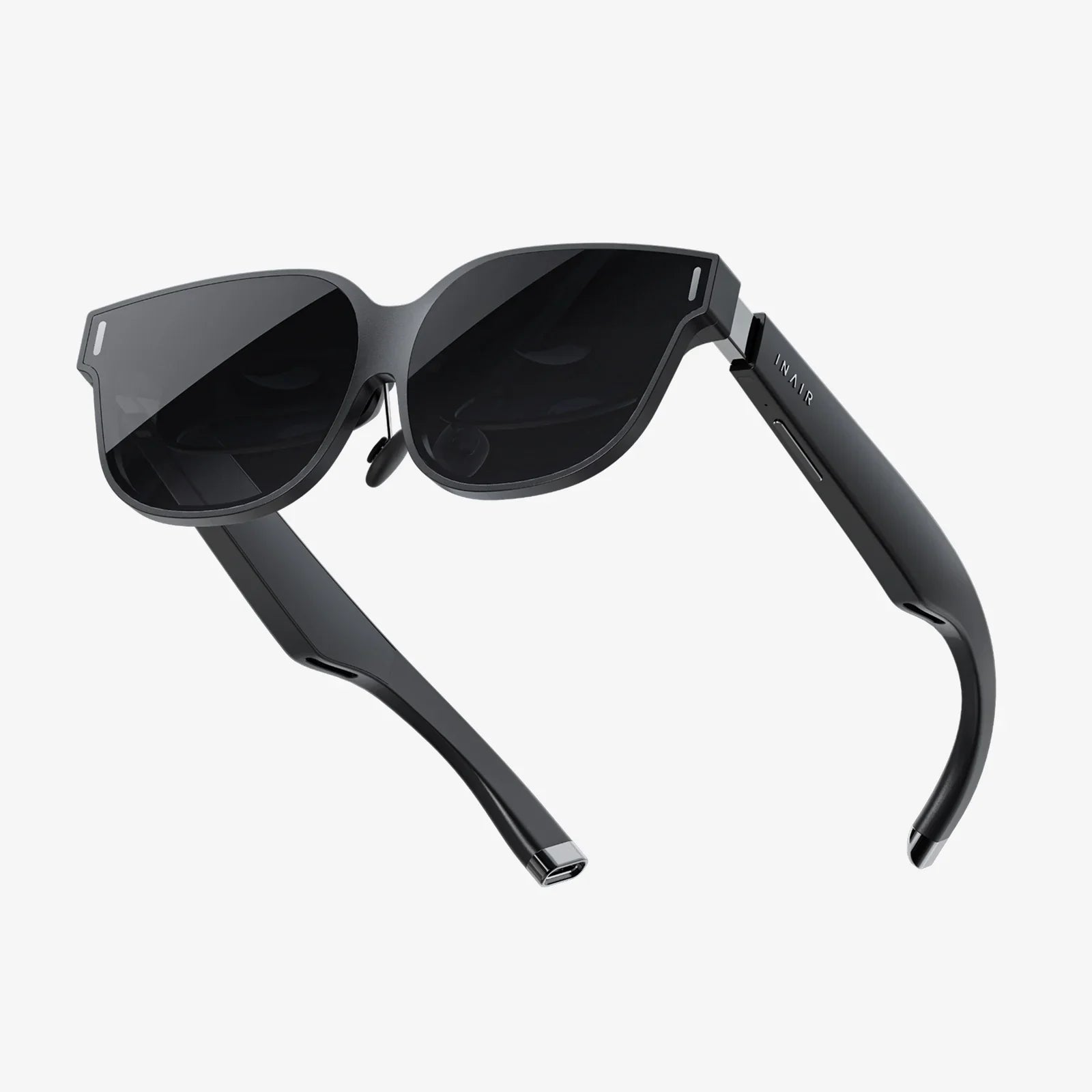
You've just unboxed your portal to other worlds, your ticket to immersive experiences beyond imagination—but without a lifeline to the digital realm, it's just a sophisticated piece of hardware. Connecting your VR headset to the internet is the crucial first step, the magic spell that breathes life into the device, unlocking vast libraries of games, social platforms, and boundless content. This isn't just about getting online; it's about forging a gateway to new realities, and we're here to ensure you do it flawlessly, without a single frustrating hiccup. Let's dive in and transform that headset from a standalone unit into a window to the universe.
Understanding Your VR Headset's Connectivity Options
Before you start pressing buttons and entering passwords, it's vital to understand the methods available for connecting your device. Not all headsets are created equal, and their pathways to the internet can differ significantly. Generally, you will be dealing with one of two primary categories: standalone headsets and PC-powered or console-powered headsets.
Standalone headsets are all-in-one units that operate independently. They have their own internal operating system, much like a smartphone, and are designed to connect directly to your Wi-Fi network. They handle everything onboard, from running applications to processing your movements.
PC-powered or console-powered headsets, on the other hand, act as a display and sensor system. Their primary connection is to a powerful computer or game console via a cable or, in some cases, a dedicated wireless dongle. The internet connection for these devices is typically handled by the host computer. Your PC is already online, so the headset leverages that connection. However, some of these headsets also have their own Wi-Fi radios for specific features like wireless PC streaming or standalone functionality for updates and basic browsing.
Identifying which type you own is the first step to a successful setup.
Method 1: The Wireless Connection - Getting Onto Wi-Fi
This is the most common method, especially for standalone headsets and for enabling wireless features on others. The process is similar to connecting a smartphone or laptop to a new network.
Step-by-Step Wi-Fi Connection Guide
1. Power On and Access Settings: Put on your headset and navigate to the main dashboard or home environment. From here, you need to find the Settings menu. This is often represented by a gear icon. On most systems, a universal menu bar is accessible by pressing a controller button.
2. Locate the Network Menu: Inside Settings, look for a section labeled "Network," "Wi-Fi," "Internet," or something similar. Selecting this will open your network interface.
3. Scan for Networks: Ensure the Wi-Fi toggle is switched on. Your headset will automatically begin scanning for available networks. After a moment, a list of all discoverable SSIDs (your network names) will appear.
4. Select Your Network: Find your home network from the list. If you don't see it, ensure you are within range and that the network is not set to "Hidden." If it is hidden, there will be an option to "Add Network" or "Join Hidden Network" where you can manually type the name.
5. Enter Your Password: Select your network. A prompt will appear for you to enter the security key (password). This is where VR typing comes into play. You can use your controllers to point and click on a virtual keyboard, or some headsets support voice-to-text for easier entry. Double-check for typos, as they are the most common cause of connection failures.
6. Connect and Confirm: After entering the password, select "Connect" or "Join." The headset will attempt to authenticate with your router. If successful, you will see a confirmation message and an icon (usually a star or checkmark) next to your network name. The headset will also typically display the connection strength and IP address information.
7. Test the Connection: It's good practice to test the connection. Many settings menus have a "Test Network" or "Check Connection" option. This will verify that you have full internet access, not just a local link to your router. You can also try launching a web browser or a store app that requires live data.
Optimizing Your Wi-Fi for VR
A simple connection isn't enough for VR; you need a stable, high-speed, low-latency connection. Stuttering or lag in VR is more than an annoyance—it can break immersion and cause discomfort.
* Use the 5 GHz Band: If your router is dual-band (2.4 GHz and 5 GHz), always connect your VR headset to the 5 GHz network. The 5 GHz band is faster and has less interference from other devices like microwaves and Bluetooth gadgets, which heavily use the 2.4 GHz band. The trade-off is slightly reduced range, but for VR, speed and stability are paramount.
* Reduce Range and Obstacles: Try to use your headset in the same room as your router. Walls, floors, and large metal objects can significantly degrade the wireless signal. The closer you are to the source, the stronger and more reliable your connection will be.
* Limit Network Congestion: If other people in your household are streaming 4K video, downloading large files, or playing online games, your available bandwidth shrinks. This can lead to a poor VR experience. Schedule large downloads for off-hours or consider Quality of Service (QoS) settings on your router if available, which can prioritize traffic to your headset.
* Consider a Dedicated Network: For serious users, setting up a dedicated 5 GHz network solely for your VR headset and wireless streaming can eliminate almost all interference and bandwidth contention issues.
Method 2: The Wired Connection - Maximum Stability with Ethernet
For PC-powered headsets that support wireless PC streaming (like Air Link or similar), a wired Ethernet connection is not just an option—it's highly recommended. This method doesn't connect the headset itself directly to Ethernet (as it's wireless); instead, it involves wiring the host computer to the router.
Why a Wired Host PC is Crucial for Wireless VR
Here’s the logic: when you stream a VR game from your PC to your headset wirelessly, the data flow is intense. Your PC is rendering the game, then encoding the video and audio stream and sending it to your headset over your local network. The headset is also sending tracking data back to the PC. This entire conversation happens through your router.
If your powerful gaming PC is connected to the router via Wi-Fi, you are adding an unnecessary wireless hop, creating a bottleneck. The router must now manage wireless traffic from both the PC and the headset, leading to increased latency and potential stuttering. By connecting your PC directly to your router with an Ethernet cable, you create a super-fast, dedicated lane for the data, leaving the router to focus only on the wireless communication with your headset. This results in a dramatically smoother and more responsive wireless VR experience.
Setup is simple: Run an Ethernet cable from your computer's LAN port to an available port on your router. Your computer will automatically detect the wired connection and should disable Wi-Fi for that device. Ensure the connection is recognized in your PC's network settings.
Direct Ethernet for Standalone Headsets (Advanced)
Some standalone headsets have a USB-C port that supports Ethernet adapters. This is a niche but valuable setup for environments with poor Wi-Fi but easy access to an Ethernet drop, such as in a conference room or a specific part of a house. You would need a compatible USB-C to Ethernet adapter. Once connected, you would go into the headset's network settings and the wired connection should appear as an option, often overriding the wireless connection.
Troubleshooting Common Connection Problems
Even with the best preparation, things can go wrong. Here’s how to diagnose and fix common issues.
Problem: "Can't connect to network" or "Authentication error."
Solution: This is almost always an incorrect password. Go back into your network settings, "Forget" the network, and re-enter the password carefully. Check for case sensitivity (capital letters).
Problem: Connection is successful but incredibly slow or unstable.
Solution: Run a speed test on another device in the same location. If it's also slow, the issue is with your internet service or router. Reboot your router and modem. If the problem persists, check for interference or ensure you are on the 5 GHz band. Move closer to the router.
Problem: The headset doesn't see my network at all.
Solution: Ensure your router is broadcasting its SSID (not hidden). Try rebooting the router. Check if your router is using a new or uncommon wireless standard; while rare, some very old headsets might have compatibility issues.
Problem: PC streaming is laggy and stutters, even with a good Wi-Fi signal on the headset.
Solution: This is the number one sign that your host PC is on Wi-Fi. Connect it to your router via Ethernet immediately. Also, ensure your router is using a clear 5 GHz channel.
Problem: General "weirdness" and glitches.
Solution: The classic IT fix works wonders here: restart everything. Power cycle your VR headset, your router, and your modem. Turn them off, wait 30 seconds, and power them back on. This clears cached data and resets the connection from end-to-end.
Security and Privacy on Your Connected VR Device
Your VR headset is a network-connected computer, and it should be treated with the same security awareness as your laptop or phone.
* Keep Software Updated: Always install the latest system updates for your headset. These updates often include critical security patches that protect your device and your data from vulnerabilities.
* Be Wary of Public Wi-Fi: Avoid connecting your headset to open public Wi-Fi networks in cafes or airports. These networks are unsecured and can be hunting grounds for malicious actors. If you must use one, consider using a reputable virtual private network on the headset if supported.
* Review App Permissions: Pay attention to the permissions that VR applications request. Does a simple game really need access to your microphone or personal files? Be selective and manage permissions in your settings.
* Secure Your Router: The first line of defense for all your smart home devices, including your VR headset, is a secure home router. Change the default administrator password and ensure it uses strong encryption (like WPA2 or WPA3).
Beyond Basic Browsing: What a Good Connection Unlocks
A stable internet connection is the key that unlocks the true potential of your VR headset. It's not just for downloading games. It enables you to:
* Live-Stream Your Gameplay: Broadcast your VR adventures directly to platforms like Twitch or YouTube.
* Engage in Social VR: Hang out with friends in virtual spaces, attend live concerts and events with thousands of other avatars, or collaborate in virtual workrooms.
* Access Cloud Gaming and Services: Stream high-end VR games directly from the cloud without the need for a powerful local PC.
* Seamless Multiplayer Gaming: Dive into competitive and cooperative online matches without the fear of lag-induced defeat.
Your journey into virtual reality is limited only by the quality of the bridge you build to the internet. A shaky connection means a shaky experience, holding you back from the full immersion that VR promises. But by following this guide—choosing the right band, optimizing your setup, and troubleshooting like a pro—you’ve done more than just connect a device; you’ve built a rock-solid foundation for every adventure to come. Now, with that robust connection established, your virtual world is waiting, stable, vivid, and ready to explore without limits. Go on, your next reality is just a headset away.
Share:
What Can Virtual Goggles Be Used For in Society? Exploring the Impact of Immersive Technology
Virtual Eye Goggles Are Reshaping Reality and Redefining Human Experience