


Imagine pointing your phone at your living room to see a new piece of furniture perfectly placed within the space, or watching a dinosaur stomp across your kitchen table. This isn't science fiction; it's the magic of Augmented Reality (AR) on your Android phone, and it's more accessible than you think. The digital and physical worlds are colliding in spectacular fashion, and your device is the keyhole to this new dimension. But first, you need to know how to unlock it.
What Exactly is Augmented Reality on Android?
Before we dive into the 'how,' let's clarify the 'what.' Augmented Reality is a technology that superimposes a computer-generated image, video, or 3D model onto your view of the real world. Unlike Virtual Reality (VR), which creates a completely artificial environment, AR enhances your existing reality by adding digital elements to it. On an Android phone, this is primarily achieved through the camera, sensors, and powerful processing chips. The phone sees the world, understands it through software, and then paints a digital layer on top of your screen, creating a seamless and interactive experience.
The Prerequisites: Is Your Android Phone AR-Ready?
Not every Android phone can handle advanced AR features. The experience relies heavily on specific hardware and software capabilities. Here’s a checklist to see if your device is prepared for an AR journey.
Essential Hardware Components
- A Quality Camera: This is the eye of AR. It needs to be good enough to capture the environment in detail for the software to analyze.
- An Accelerometer and Gyroscope: These sensors track the precise movement and orientation of your phone. They ensure that the digital object stays anchored in the real world when you move around.
- A Powerful Processor (CPU/GPU): Rendering complex 3D models in real-time is a computationally intensive task. A modern, mid-to-high-range processor is necessary for a smooth, jitter-free experience.
Software: The Role of ARCore
For a unified and high-quality AR experience, most modern Android applications rely on a platform developed by Google called ARCore. Think of ARCore as the engine that powers AR. It provides the essential software foundations that allow developers to build AR apps. It handles complex tasks like:
- Motion Tracking: Using the camera to track your phone's position relative to the world.
- Environmental Understanding: Detecting the size and location of horizontal surfaces like floors and tables.
- Light Estimation: Analyzing the ambient light in a room to light digital objects realistically so they don't look out of place.
Therefore, the first step to enabling AR is ensuring your phone supports ARCore.
Step-by-Step: How to Enable and Set Up AR on Your Android Device
Enabling AR isn't about flipping a single switch in your settings. It's a process of ensuring your device is properly configured and ready to run AR applications. Follow these steps.
Step 1: Check for ARCore Compatibility
The easiest way to check is to visit the Google Play Store and search for "Google Play Services for AR." This is the package that delivers ARCore updates to your phone. If you can find it and the "Install" or "Update" button is available, your device is compatible. If the Play Store says "This app is not compatible with your device," it means your phone's hardware or software does not meet the requirements for a full AR experience. Some older or budget devices may fall into this category.
Step 2: Install or Update Google Play Services for AR
If your device is compatible, tap "Install" or "Update" to ensure you have the latest version. This service runs in the background and is crucial for most AR apps to function correctly. It's recommended to have this updated automatically. You can check this by going to the Play Store page for the app, tapping the three dots in the top corner, and ensuring "Enable auto-update" is checked.
Step 3: Grant Necessary Permissions
AR apps require specific permissions to work. When you first open an AR application, it will likely ask for permission to access your:
- Camera: This is non-negotiable. The app needs to see the world to augment it.
- Storage: Some apps may need to save data or access downloaded AR assets.
- Location: Certain apps, especially those for navigation or location-based games, will require location access.
Always grant these permissions to the AR apps you trust from the Play Store. You can manage these permissions later in your phone's Settings > Apps > [App Name] > Permissions.
Step 4: Calibrate Your Sensors (If Needed)
Sometimes, particularly if an AR app feels inaccurate or "drifts," your sensors might need recalibration. This is usually done through a simple motion. A common method is to slowly move your phone in a figure-eight pattern through the air. This helps the gyroscope and accelerometer recalibrate. Some AR apps will prompt you to do this the first time you open them.
Step 5: Find a Well-Lit and Spacious Environment
AR works best in environments that are not too dark and not too bright. Low light makes it difficult for the camera to track features, and direct, bright sunlight can wash out the screen, making digital objects hard to see. Start in a room with good, even lighting and clear floor space. Avoid shiny, reflective surfaces and blank, featureless walls, as the software needs visual textures to track properly.
Troubleshooting Common AR Issues on Android
Even with a compatible phone, you might run into hiccups. Here’s how to solve common problems.
Problem: "ARCore not supported" or app crashes.
Solution: Double-check your device's compatibility on the Play Store. Ensure your Android operating system is updated to the latest version (Settings > Software Update). Restart your phone, as this can clear temporary glitches.
Problem: The AR object is jittery or doesn't stay in place.
Solution: This is often a tracking issue. Move to a better-lit area with more visual detail on the floors and walls. Clean your camera lens. Try the figure-eight calibration motion. Ensure you're not covering any sensors with your hand or a case.
Problem: The app can't find a surface.
Solution: Slowly move your phone side-to-side to allow it to scan the area. Point your camera at a clearly defined horizontal surface with a pattern or texture. A blank carpet or a uniform tabletop can be tricky. Try a different floor or surface.
Exploring the World of AR: What Can You Do Now?
With AR enabled, a universe of applications awaits. Here are some categories to explore on the Google Play Store:
- Shopping & Home Decor: Visualize how new furniture, paint colors, or appliances will look in your home before you buy.
- Education: Interactive anatomy models, historical artifacts you can place on your desk, and solar systems floating in your room.
- Gaming: From catching virtual creatures in your local park to defending your home from alien invasions, AR gaming gets you moving in the real world.
- Navigation: Get walking directions overlaid onto the real-world view from your camera, making it impossible to get lost.
- Creativity & Social Media: Use AR filters for photos and videos, create 3D art, and share immersive experiences with friends.
The Future of AR on Android
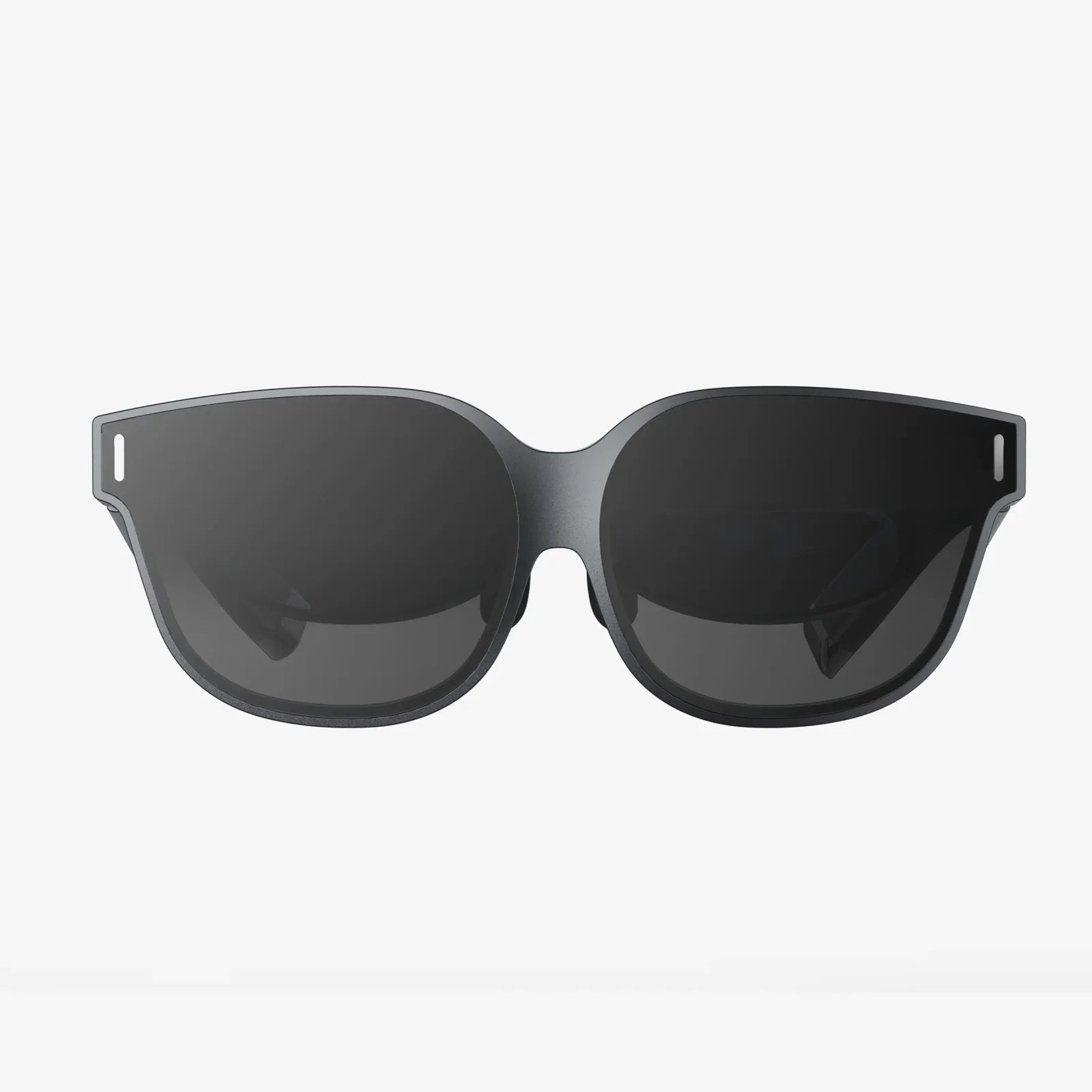
The technology is rapidly evolving. We are moving towards a future where AR glasses might replace phones, offering a hands-free, always-available augmented experience. For now, our smartphones are the gateway. With advancements in 5G connectivity for faster data processing and improved depth-sensing cameras, the line between the digital and physical will continue to blur, creating experiences we can only begin to imagine.
Your Android phone is not just a communication device; it's a windowpane to a layered universe, waiting for you to look through it. The steps to enable AR are simple, but the possibilities they unlock are boundless. From practical tools that change how you shop and navigate to whimsical games that transform your neighborhood into a playground, the power is literally in your hands. So update that software, clear some space in your living room, and start exploring—the future is waiting, and it’s overlaying your reality in the most spectacular ways.
Share:
AI Smart Glasses 2025 Release: The Dawn of a Seamless Augmented Reality Future
3D AR iPhone: The Future of Reality in Your Pocket