


- by wangfred
How to Make Your Phone Split Screen for VR: The Ultimate Setup Guide
- by wangfred
Imagine slipping on a headset and being instantly transported to a new dimension—a front-row seat at a concert, the cockpit of a fighter jet, or the surface of a distant planet. This is the magic of virtual reality, and the gateway to this experience might already be in your pocket. Your smartphone, a powerhouse of modern technology, is capable of delivering breathtaking VR content. But to bridge the gap between a flat video and a fully immersive world, it needs to perform a clever visual trick: rendering a split-screen image. This isn't just a simple duplication; it's a sophisticated process that tricks your brain into perceiving depth and space. If you've ever been curious about how this works or struggled to get it running smoothly, you're in the right place. This guide will walk you through everything you need to know, from the basic principles to advanced calibration, ensuring your journey into virtual reality is nothing short of spectacular.
Before we dive into the "how," it's crucial to understand the "why." Human vision is stereoscopic. We have two eyes, spaced approximately two-and-a-half inches apart, each seeing the world from a slightly different angle. Our brain seamlessly merges these two slightly offset images into a single picture with depth, perspective, and dimension. This is called stereopsis, and it's the fundamental principle that makes VR feel real.
Standard video and images are presented from a single, fixed viewpoint. A VR headset, however, must present a unique image to each eye to replicate natural vision. This is where split-screen comes in. The smartphone's display is divided vertically into two identical-sized panels. The left half shows the scene rendered from the perspective of your left eye, and the right half shows the scene from the perspective of your right eye. The lenses in the VR headset then focus and reshape these two flat images, directing the left image solely to your left eye and the right image to your right eye. Your brain takes over from there, doing what it does best: fusing them into a cohesive, immersive, and three-dimensional environment.
Without this split-screen mode, you would simply see a large, flat image magnified in front of you, which would break the illusion of immersion entirely. It is the foundational technology that enables all mobile VR experiences.
Embarking on your VR adventure requires a few key components. Ensuring you have the right gear is the first step toward a seamless experience.
Not all phones are created equal for VR. The demands of rendering two high-resolution streams simultaneously are significant. Here’s what to look for:
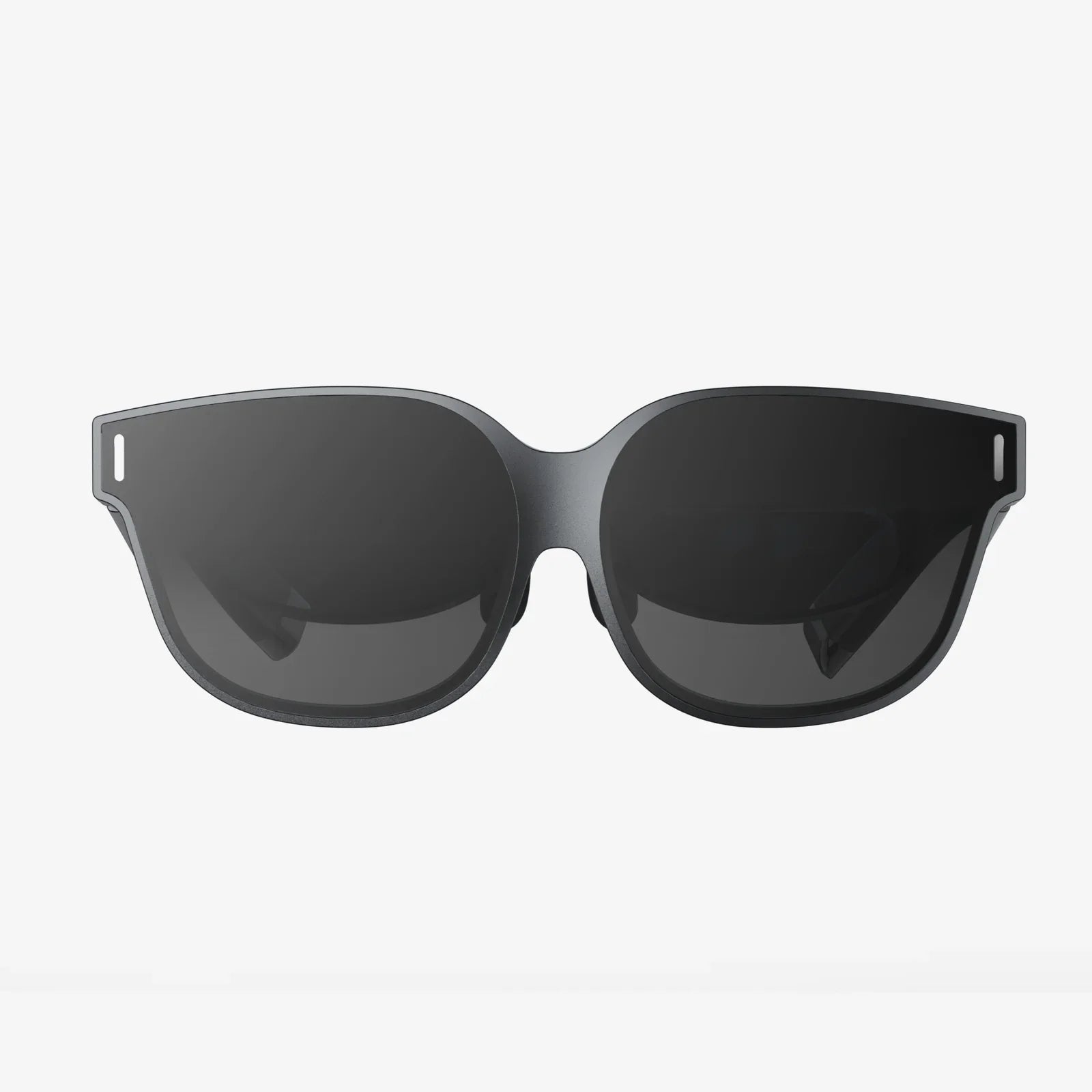
This is the hardware that houses your phone. Headsets range from simple cardboard viewers to advanced plastic models with adjustable straps, focus dials, and even wireless controllers for interaction. The headset's primary job is to hold the phone securely at the correct distance from the lenses, block out ambient light, and provide a comfortable fit for your head.
Your phone needs applications designed specifically for VR. These apps are built to output a split-screen signal automatically. They can be found in your device's official app store—simply search for "VR," "virtual reality," or look for dedicated VR platforms. These apps include everything from 360-degree video players and games to interactive experiences and virtual tours.
The process of activating split-screen is typically handled automatically by VR-enabled applications. Your job is to correctly position the phone within the headset. Here is the universal workflow.
Open the VR app or game you want to use. At this stage, the video or interface will likely still be displayed in a single, standard screen mode.
Within the app, look for a button or icon that signifies the start of the VR mode. This is often represented by a stereotypical "VR" logo or a pair of goggles. Tapping this icon is the key command that tells the application to switch its rendering output from a single image to the dedicated stereoscopic split-screen view.
This is the most critical step for a clear image. Once the screen is split, carefully open the compartment on your VR headset and insert your phone.
Before placing the headset on your head, make a few final adjustments for the best experience:
Even with the right steps, things can sometimes go awry. Here’s how to solve common problems.
This is the most frequent issue. First, ensure the protective plastic film has been removed from the headset's lenses. Then, use the focus dials (if available) to adjust for your vision. If the headset lacks dials, try moving it slightly up or down on your face. Finally, ensure the phone's screen is clean, as smudges will be magnified.
If the app is still displaying a single image, double-check that you tapped the VR activation icon. Not all content within an app may be in VR; sometimes you need to select a specific 360-degree video or game mode. Also, ensure the app has the necessary permissions, especially for motion sensors.
VR-induced nausea is a real phenomenon, often caused by a mismatch between what your eyes see and what your inner ear feels. Start with short sessions of 5-10 minutes. Choose experiences with minimal artificial movement (flying, driving) initially, opting instead for static 360-degree videos where you control the viewing direction. Ensure your frame rate is smooth; closing background apps on your phone can help maintain performance.
If the two images won't fuse properly, it likely means the phone is not centered in the headset. Open the compartment and re-center it carefully. Also, check the IPD adjustment on the headset itself.
Once you've mastered the setup, you can take your experience to the next level.
The split-screen method is the cornerstone of today's mobile VR, but the technology is constantly evolving. We are already seeing advancements like eye-tracking, which can be used for foveated rendering—a technique that maximizes processing power by rendering only the area you are directly looking at in full detail. Furthermore, the lines are blurring between standalone VR headsets with their own displays and processors and phone-based systems. While standalone VR offers a more powerful and integrated experience, the accessibility and convenience of smartphone-based VR ensure it will remain a popular and vital entry point into virtual worlds for years to come. The simple act of splitting a screen is your ticket to this ongoing revolution.
Your smartphone is a portal waiting to be opened, and the key is understanding its split-screen potential. The journey from a standard display to a captivating stereoscopic world is simpler than it seems, hiding in plain sight within the apps you download and the headset you choose. By mastering the setup, troubleshooting common issues, and seeking out premium content, you transform everyday hardware into an engine for exploration and wonder. That immersive concert, thrilling spacewalk, or serene virtual landscape isn't a distant dream—it's a few taps and a careful placement away. The next world you explore is literally in your hands; all you have to do is look twice.