


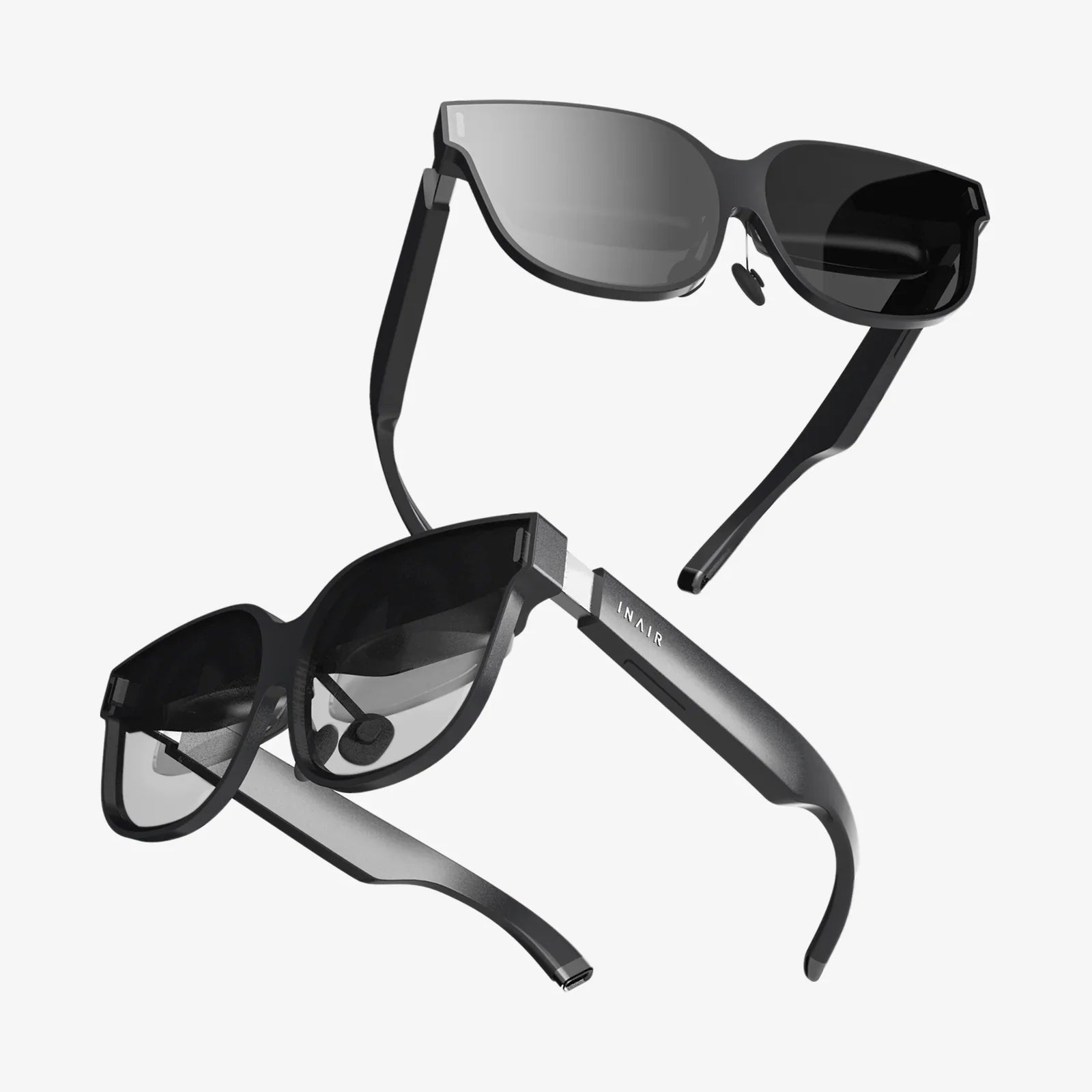
You've just unboxed the future—a sleek, sophisticated VR headset promising digital worlds beyond your wildest imagination. But before you can step into those realms, there's the crucial bridge between the physical and the virtual: the setup process. For many, this is the most daunting part of the journey, a tangle of cables, software, and settings that can feel overwhelming. Fear not. This guide is designed to transform that anxiety into excitement, walking you through every single step to ensure your PC VR setup is not just functional, but flawlessly optimized for an breathtaking first experience.
Laying the Groundwork: Pre-Setup Essentials
Resist the urge to immediately plug everything in. A successful VR setup begins long before you connect a single cable. Rushing this preparatory stage is the most common cause of frustration and technical issues down the line. Dedicate time to this process; think of it as building a strong foundation for your virtual home.
Understanding Your Hardware
First, identify the type of headset you have. PC VR headsets generally fall into two categories: tethered and untethered (or standalone with PC-link capabilities). Tethered headsets connect directly to your computer via a thick cable, offering the highest fidelity graphics and most responsive experience. Untethered models can operate on their own but can also connect to a PC to access more powerful content.
Familiarize yourself with all the components in the box. You should typically find:
- The Head-Mounted Display (HMD) itself
- One or two Motion Controllers
- External Sensors or Base Stations (for some models)
- A plethora of cables (power, USB, display connection)
- Any necessary adapters (e.g., DisplayPort to Mini-DisplayPort)
The Non-Negotiable: System Requirements
This is the most critical step. VR is incredibly demanding on computer hardware. Attempting to run a modern headset on an underpowered PC will result in a poor, often nauseating experience.
Check the minimum and recommended specifications for your specific headset model on the manufacturer's website. Do not rely on generic "VR Ready" labels on pre-built computers; always verify. The key components are:
- GPU (Graphics Processing Unit): The heart of your VR system. This is the single most important component. You will need a powerful, modern dedicated graphics card.
- CPU (Central Processing Unit): A recent mid-to-high-range processor is necessary to handle the complex physics and AI in VR environments.
- RAM: 16GB is the current sweet spot for a smooth experience.
- Ports: Check you have the required number of USB ports (often specific versions like USB 3.0) and the correct video output (DisplayPort is most common, though some support HDMI).
- Operating System: Ensure you are running a up-to-date, supported version of Windows.
Use a trusted, free benchmarking tool to scan your computer. These tools will analyze your hardware and give you a clear pass/fail grade against the requirements of popular headsets.
Preparing Your Play Space
VR is a physical medium. You need a dedicated area to use it safely and effectively.
- Room-Scale vs. Seated/Standing: Determine your play style. Seated/Standing experiences are great for simulators (racing, flying) and some games. Room-Scale requires a larger clear area (recommended at least 6.5ft x 5ft / 2m x 1.5m) allowing you to walk around physically within the virtual world.
- Clear the Area: This cannot be overstated. Remove any tripping hazards, pets, young children, and fragile objects from your intended play space. Low-hanging light fixtures and ceiling fans are a common hazard for taller users.
- Lighting and Reflections: For headsets that use inside-out tracking (using cameras on the headset itself), avoid direct sunlight on the play area, as it can damage the lenses and confuse the sensors. Also, be wary of large mirrors or reflective surfaces, which can disrupt the tracking of your controllers.
- Surface and Cable Management: A rug or mat with a different texture from your floor can be a fantastic tactile way to help you stay centered in your play space. For tethered setups, plan a cable management solution. Simple ceiling pulleys are an inexpensive and transformative upgrade for room-scale play, preventing tangling and tripping.
The Installation Process: A Step-by-Step Walkthrough
Now, with your PC verified and your space prepared, you can begin the physical and software installation.
Step 1: Software First
It's often best to install the necessary software before connecting your hardware. This allows the software to properly detect the headset when it's plugged in.
- Download and install the VR platform software required for your headset. This is the central hub for your VR experiences.
- Create an account or log in if required.
- Run the software. It will likely prompt you to connect your headset, but it may also allow you to download necessary drivers and updates first.
Step 2: Connecting the Hardware
With the software installed, carefully connect all components.
- Connect Sensors/Base Stations (if applicable): If your system uses external tracking devices, place them in the opposite corners of your play space, angled down towards the center. They need to be mounted securely high up (above head height) on walls, tripods, or included stands. Plug them into power outlets.
- Connect the Headset: Connect the headset's video cable to your PC's GPU, not the motherboard's video output. This is a common mistake. Connect the headset's USB cable to an appropriate port on your PC. Some headsets also have a power adapter that needs to be plugged in. Avoid using extension cables initially, as they can cause power or data issues.
Step 3: The Software Setup Wizard
Your VR platform software will now guide you through the rest of the process. This is typically an intuitive, step-by-step wizard.
- Firmware Updates: The software will detect your headset and controllers and likely prompt you to install any available firmware updates. This is crucial for performance and bug fixes.
- Pairing Controllers: You will be instructed to pair your motion controllers. This usually involves putting them into pairing mode (often by holding a specific button) and then selecting them in the software. Ensure they are charged.
-
Setting Up Guardians (Boundaries): This is the most important step for safety. Also known as Chaperone or Guardian systems, this feature creates a virtual wall that appears when you get too close to the edge of your play space.
- You will be asked to define your play area. For room-scale, you will typically "trace" the boundaries of your safe space by pointing your controller at the floor and clicking around the perimeter.
- Take your time with this. Be precise and leave a small buffer between your virtual wall and any physical walls or furniture.
- Headset and Controller Calibration: The software may ask you to place your headset on a flat surface and your controllers next to it to calibrate. Follow any on-screen instructions for waving controllers in specific patterns to ensure tracking is perfect.
Step 4: Fitting the Headset
A proper fit is essential for comfort and visual clarity.
- Loosen All Straps: Before putting it on, loosen the side and top straps.
- Position the HMD: Place the headset on your face first, then pull the rear strap over the back of your head. The crown of the headset should cradle the base of your skull.
- Tighten for Comfort: Tighten the side straps until the headset is snug but not painful. Finally, adjust the top strap to take the majority of the weight off your cheeks and onto your forehead. The headset should feel secure and balanced.
- Find the Sweet Spot: Adjust the interpupillary distance (IPD) if your headset has a physical slider or software setting. This moves the lenses closer together or further apart to match the distance between your eyes. The world should look sharp and clear, not blurry or strained. Many headsets also have a dial for moving the lens assembly closer or further from your eyes (eye relief).
Diving Into the Virtual World
With setup complete, you'll likely be dropped into a default "home" environment. This is your virtual lounge. Spend some time here. Look at your virtual hands and move them around. Pick up objects, push buttons, and get a feel for the interaction.
Before jumping into an intense game, we highly recommend starting with the built-in tutorial or first steps experience. These are specifically designed to acclimate you to VR controls and mechanics in a safe, fun, and low-pressure environment. They are invaluable for new users.
Troubleshooting Common Hiccups
Even with perfect preparation, issues can arise. Here’s how to solve the most common ones.
-
Black Screen/No Display in Headset:
- Double-check all cable connections, especially at the GPU.
- Ensure your monitor is connected to your GPU and is displaying.
- Try a different USB port on your PC (preferably a USB 3.0 port directly on the motherboard, not a hub).
- Restart the VR software and your PC.
-
Poor Performance/Stuttering:
- This is almost always a hardware limitation. Close all unnecessary background applications on your PC.
- Ensure your GPU drivers are completely up to date.
- Check the graphics settings within the VR game or application and lower them (e.g., reduce resolution scaling).
-
Controller Tracking Issues:
- For inside-out headsets, ensure your play space is well-lit (but not with direct sunlight) and free of reflective surfaces.
- For external sensor systems, ensure the sensors have a clear, unobstructed view of your play space. Re-run the sensor setup.
- Check for sources of infrared interference, such as halogen lights or Christmas lights.
-
Audio Not Coming Through Headset:
- On your PC, right-click the sound icon in the taskbar, open "Sound settings," and ensure the VR headset is selected as the default output device.
Optimizing and Enhancing Your Experience
Your setup is working, but you can make it great.
- Super sampling: If your GPU is powerful enough, you can increase the rendering resolution in the VR software settings beyond the native resolution of the headset. This can dramatically improve image clarity and reduce the "screen door effect," but it is very performance intensive.
- Explore Accessibility Settings: Many experiences offer comfort options like vignetting (darkening the periphery during movement) and teleportation locomotion to help prevent motion sickness.
- Keep it Clean: Use a microfiber cloth to gently clean the headset lenses. Never use window cleaner or alcohol wipes, as they can damage the special coatings.
- Community Resources: Join online forums and communities for your specific headset. They are treasure troves of user-created tips, tricks, and custom settings for specific games.
The moment the real world dissolves and you find yourself standing on the edge of a fantastical canyon, deftly deflecting laser bolts with a lightsaber, or simply painting in three-dimensional space, every minute spent on this meticulous setup will feel worth it. You've not just installed a piece of hardware; you've unlocked a new dimension of play, creativity, and connection. The virtual frontier is vast, breathtaking, and now, finally, yours to explore without limits. What you do there is up to you.
Share:
Best Portable VR Headset - Your Ultimate Guide to Untethered Immersion
Best VR Headset Right Now: The Ultimate 2024 Buyer's Guide