


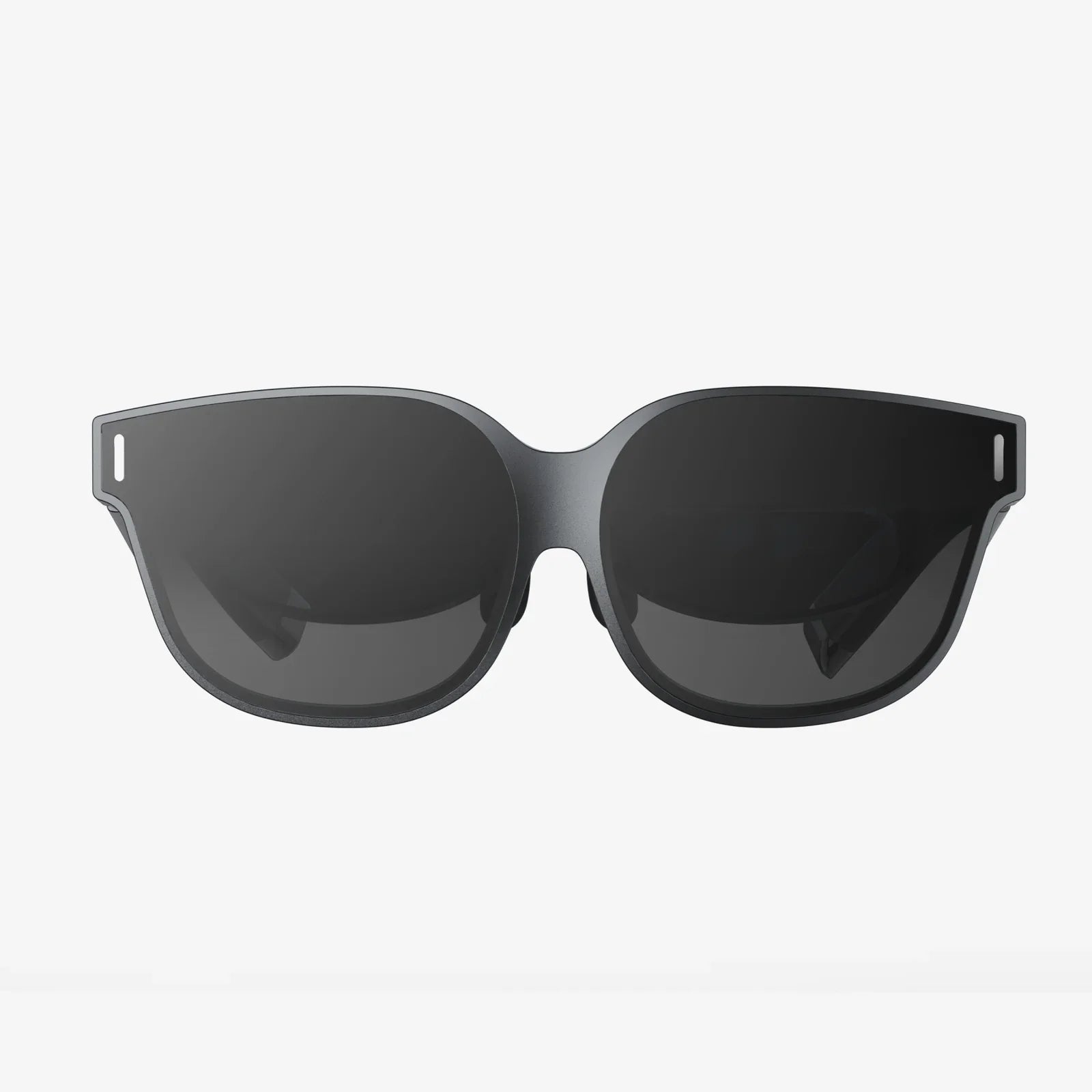
Imagine pointing your device at your living room and watching a new piece of furniture materialize in perfect scale, or seeing a historical figure step out of a museum exhibit to tell their story, or battling digital creatures that scamper across your kitchen table. This isn't science fiction; it's the everyday magic of augmented reality (AR) on a powerful device, and it's waiting for you to unlock it. The advanced sensor array and computational photography prowess of this particular model make it one of the most compelling portals into this blended world, offering an experience that feels both incredibly futuristic and instantly intuitive.
Unlocking the Hardware: Your Portal to Another Layer of Reality
Before you can command digital elements, it's crucial to understand the powerful tools at your disposal. This isn't just a screen and a camera; it's a sophisticated array of sensors designed to map and understand your environment in three dimensions.
The most significant leap forward is the LiDAR Scanner. This invisible laser array fires out pulses of light to measure the distance to objects and surfaces. By calculating how long it takes for the light to return, it creates a detailed depth map of your surroundings in real-time. This is the secret sauce that enables:
- Instant Surface Detection: No more waving your device around to detect a floor or wall. AR apps place objects almost instantly.
- Incredible Occlusion: Virtual objects can realistically pass behind real-world objects. A digital character can hide behind your real sofa, creating a seamless blend.
- Improved Low-Light Performance: The LiDAR scanner works effectively in a variety of lighting conditions, making AR more reliable day or night.
This is complemented by the advanced camera system, including Ultra Wide, Wide, and Telephoto lenses, which work in concert to capture high-resolution imagery and video for AR experiences. The A14 Bionic chip acts as the brain, processing all this spatial data with immense speed and power, ensuring animations are smooth and interactions are responsive without draining your battery excessively.
First Steps: Preparing Your Device for AR
Thankfully, diving into AR requires very little setup. The technology is baked directly into the operating system.
- Ensure iOS is Updated: Always make sure your device is running the latest version of iOS. Apple continuously improves its AR framework (ARKit) with each update, adding new features and refining performance. You can check this in Settings > General > Software Update.
- Grant Camera Permissions: AR experiences are fundamentally visual and require access to your camera. When you first open an AR app, it will prompt you for camera access. Granting this permission is essential for the app to function.
- Clear Your Space: For the best experience, especially when trying AR for the first time, choose a well-lit space with distinct textures on the floors and walls (e.g., a rug, wood flooring, a painted wall). Avoid blank, shiny, or dark surfaces initially, as they can be harder for the sensors to track.
The App Ecosystem: Where to Find Amazing AR Experiences
The power of AR is unlocked through applications. The App Store is the primary destination, housing a vast and growing collection of AR-enabled apps. You can easily find them by searching for "AR" or browsing the dedicated "Augmented Reality" section on the App Store. These apps generally fall into a few categories:
- Games and Entertainment: From immersive puzzle games that unfold on your desk to interactive storybooks where characters leap off the page.
- Shopping and Home Design: Visualize how a new chair, lamp, or even a car would look in your home or driveway before you buy.
- Education and Exploration: Explore the solar system in your backyard, dissect a frog in biology class, or view historical artifacts in 3D.
- Utility and Productivity: Measure objects instantly with a tap, learn how to repair something with interactive instructions overlaid on the machinery, or navigate a new city with arrows painted onto the streets.
Core Interactions: How to Control and Manipulate AR
Interacting with AR objects is designed to be intuitive, leveraging touch and motion.
- Moving Your Device (The Portal): The primary way to explore an AR scene is by physically moving your device around. Pan left, right, up, down, and even walk around virtual objects placed in your space to view them from all angles.
-
Touch Gestures: Once an object is placed, you can often interact with it using familiar touch gestures.
- Tap: Select an object, activate an animation, or interact with a button within the AR experience.
- Pinch and Rotate: Use two fingers to resize (make larger or smaller) or rotate a virtual object.
- Drag: Tap, hold, and drag to move an object to a new location in your environment.
- On-Screen Controls: Most apps will provide digital buttons, sliders, or menus on the screen for more complex actions, like changing the color of furniture or selecting a different model.
Mastering Measurement: The Ultimate Built-In AR Tool
One of the most practical and impressive uses of AR is the built-in Measure app. It turns your device into a digital tape measure.
- Open the Measure app (it comes pre-installed).
- Follow the on-screen prompt to move your device around, allowing it to understand the space.
- To measure a simple distance:
- Position the dot over your starting point and tap the + button.
- Slowly move your device until the dot is over your end point and tap + again.
- The measurement will appear on the screen.
- For Rectangle Detection: Point your camera at a rectangular object, like a picture frame or TV screen. Tap the + button, and the app will automatically outline the object and show its dimensions.
- Use the Level tool (swipe to the second screen in the Measure app) to check if a surface is perfectly horizontal or vertical. Place your device on the surface, and the screen will show 0 degrees when level.
Capturing Your Creations: Taking Photos and Videos in AR
What's the point of having a T-Rex in your garden if you can't show anyone? You can capture photos and videos of your AR experiences directly through the app you're using, which often provides a dedicated button. For more control, you can use the Camera app:
- Open your chosen AR app and place your object or scene.
- While the AR experience is active, swipe down from the top-right corner (or up from the bottom, depending on your iOS version) to open Control Center, but don't close the AR app.
- Open the Camera app from here. The AR scene will remain active and visible through the camera viewfinder.
- Use the Photo or Video button to capture your content. For video, you can even record in immersive formats like 4K and 60fps, making the AR elements look stunningly real.
This is perfect for creating fun social media content, documenting a home design idea, or saving a measurement for later reference.
Pushing the Boundaries: Advanced Tips and Tricks
Once you're comfortable with the basics, you can explore more advanced capabilities.
- People Occlusion: Many newer AR apps support people occlusion, where the AR content correctly passes behind anyone who walks through the scene. This is a hallmark of a high-end, realistic experience. Look for apps that advertise this feature.
- Object Capture (Photogrammetry): With the right third-party apps, you can use the LiDAR scanner and cameras to scan real-world objects and turn them into detailed 3D models that you can then place back into AR. This is incredible for archiving artifacts, creating digital doubles of products, or even for game development.
- Multiplayer AR Experiences: Some games allow multiple people to join the same AR session on their own devices. You can see the same digital world and interact with it together, enabling collaborative games or design reviews.
- Location-Based AR: Apps can use GPS to anchor AR content to specific real-world locations. Imagine pointing your device at a monument and seeing a historical reenactment play out, or finding virtual art installations scattered around a city.
Troubleshooting Common AR Issues
Even with advanced hardware, you might occasionally run into hiccups.
- "Move iPhone Around" Loop: If the device can't track surfaces, ensure you're in a well-lit area with plenty of visual texture. Avoid dark, blank, or reflective surfaces like a pure white table or a glossy floor.
- Jittery or Unstable Objects: This is often a tracking issue. Slow down your movements and make sure the lighting is adequate. Closing background apps can also free up processing power for smoother tracking.
- App Crashes: Ensure both your iOS and the AR app itself are updated to their latest versions. If problems persist, try restarting your device.
- Overheating: Intensive AR sessions can generate heat. If your device gets too warm, it may dim the screen or reduce performance. Take a break to let it cool down.
The world around you is now a canvas, limited only by the apps you install and your imagination. Your pocket holds a key to a layer of reality invisible to the naked eye, one filled with practical tools, breathtaking games, and creative possibilities. This is just the beginning. As developers continue to harness the unique power of these sensors, the line between what's real and what's digital will blur even further. So point your camera, tap that download button, and start exploring—the future is waiting to overlay itself onto your world, and you're holding the command center right in your hand.
Share:
VR Headset Ideas: The Next Frontier in Immersive Technology and Human Connection
VR Headset Ideas: The Next Frontier in Immersive Technology and Human Connection