


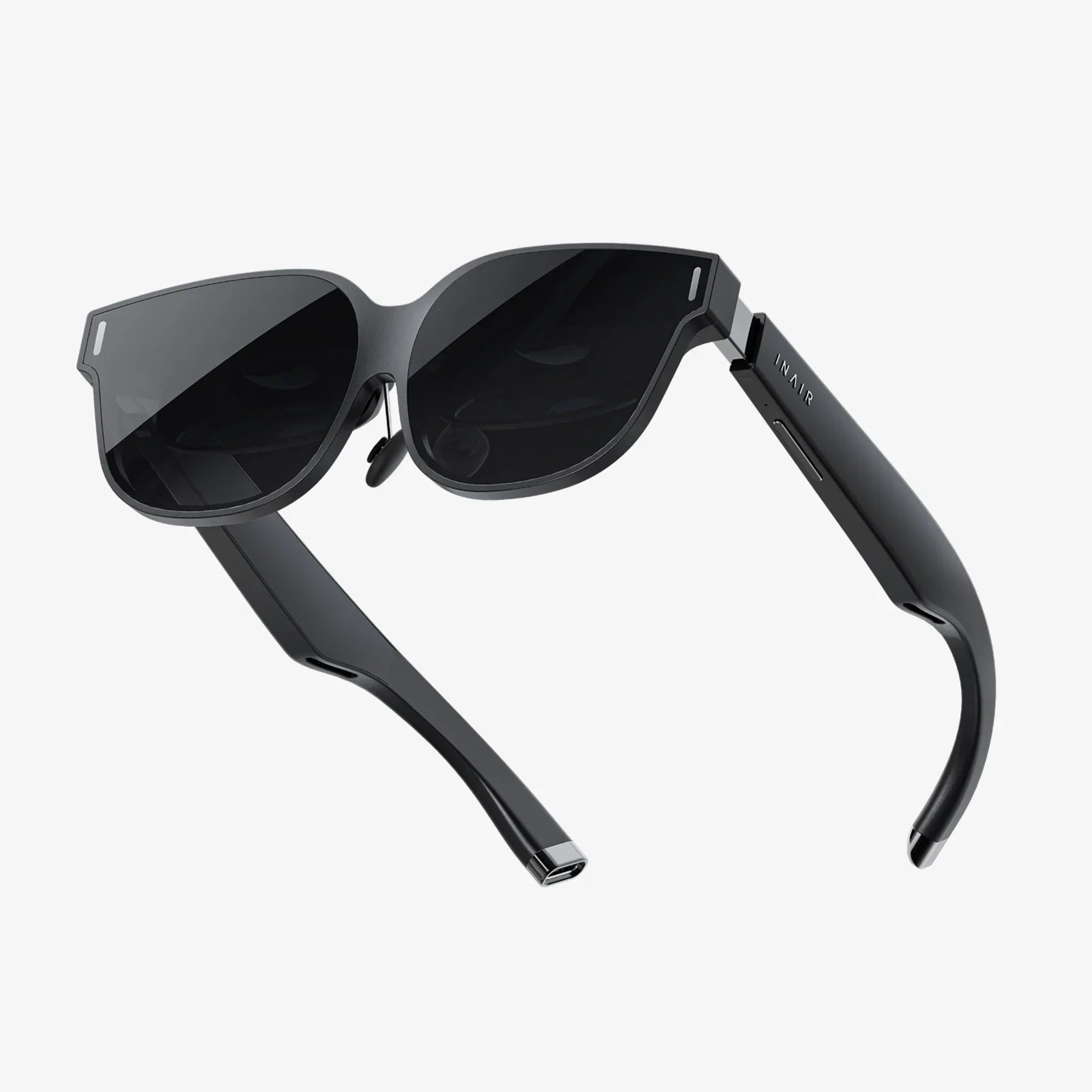
Imagine stepping into a new world, exploring distant planets, sitting courtside at a championship game, or walking through ancient ruins—all from the comfort of your living room. The promise of virtual reality is an enticing one, and getting started is easier than you might think. If you're holding a new box containing an accessible gateway to these experiences, you're in the right place. This guide is designed to transform that box of potential into endless hours of immersive entertainment, walking you through every single step from initial unboxing to advanced usage tips that will make you a VR pro.
Unboxing and Understanding Your Hardware
Before you dive into virtual worlds, it's crucial to familiarize yourself with the physical components. Carefully open the packaging and lay out all the contents. You should find the headset itself, which is the primary viewing device that will be strapped to your head. You will also find a primary controller, often accompanied by a secondary controller for a more interactive experience. Don't forget to look for any necessary cables, most notably a USB cable for charging the controllers and potentially the headset. Finally, there should be an important set of documentation, including a quick-start guide and safety manual. Take a moment to read the safety information; it contains vital advice on avoiding motion sickness, ensuring a clear play area, and proper usage to protect your eyesight.
Identify the adjustable straps on the headset. These are key to a comfortable fit. You'll typically find a top strap that goes over your head and a side strap that wraps around the back of your skull. Locate the focus wheel, usually situated on the top or side of the device, which allows you to adjust the lens sharpness to match your vision. Find the volume buttons and power button, which are generally located on the underside or side of the headset for easy access while you're wearing it. Familiarizing yourself with these components now will make the setup process much smoother.
Preparing Your Smartphone for VR
This type of headset relies on a smartphone to act as its brain and screen. Not all phones are created equal for VR, so your first task is to ensure compatibility. Check the manufacturer's specifications for the minimum requirements, but generally, you will need a phone with a gyroscope and accelerometer to track your head movements accurately. Most modern mid-range and flagship smartphones from the last several years include these sensors.
The next critical step is to ensure your phone's screen is pristine. Any smudges, dust, or fingerprints on your screen will be magnified once it's placed inside the headset, significantly degrading the visual experience. Use a high-quality microfiber cloth to give your screen a thorough cleaning. Now, you need to download the necessary software. Open your phone's app store (Google Play Store for Android devices or the App Store for iOS devices) and search for the official companion app recommended by the headset's manufacturer. This app is essential as it will house the VR experiences, games, and videos, and it often includes crucial calibration tools.
The Step-by-Step Setup Process
With your phone prepared, it's time to put it all together. Follow these steps in order:
- Charge the Controllers: Insert the provided batteries into your controllers or charge them via the included USB cable. Starting with a full charge prevents interruptions.
- Adjust the Headset Straps: Loosen all the straps on the headset completely. Place the headset on your face and slowly tighten the side strap until it feels snug and secure. Then, adjust the top strap to take the majority of the weight off your cheeks. The headset should feel comfortable and stable, not tight and constricting.
- Insert Your Smartphone: Open the phone compartment on the headset. Carefully slot your phone into the holder, ensuring it is centered. The phone's screen must be aligned correctly according to the icons or markers inside the holder. Close the compartment latch securely.
- Adjust the Lenses: Put the headset on. Use the focus wheel to slide the lenses left or right until the image is sharp and clear for each eye. If you wear glasses, you may need to adjust the focus differently or use the included spacer to create more room for your frames.
- Pair the Controllers: Turn on your controllers. Open your phone's Bluetooth settings and make sure Bluetooth is enabled. Your phone should discover the controllers; select them to pair. The companion app will often guide you through this process.
Navigating the Virtual Interface and Using the Controllers
Once you power on the system, you'll be greeted by a virtual home screen or launcher. This is your hub for accessing all content. You will interact with this environment using your gaze and the controllers. The primary controller often acts as a laser pointer. By pointing it at menus and buttons, you can select items by pressing a button. Take some time to explore this interface. Practice selecting different apps and navigating back to the home menu.
The controller is your hand in the virtual world. Beyond pointing, it will have buttons for confirming selections, going back, and controlling volume. Some experiences may require a second controller to represent both of your hands, allowing for more complex interactions like grabbing, throwing, and pushing objects. Spend time in a beginner-friendly app or the tutorial section of your companion app to get a true feel for how your movements translate into the virtual space. This practice is invaluable for avoiding frustration when you jump into more advanced games.
Finding and Enjoying Content
The real magic of VR is the content. Your companion app is the primary source for curated experiences. Within it, you'll find a store or library section categorized into areas like Games, Videos, and Experiences. There is a wealth of free content available to get you started. Look for immersive 360-degree videos that let you explore nature, travel, or music events. Many games offer free demos so you can try them before you buy.
For a truly vast library, you can also explore other VR platforms on your smartphone. Several popular video platforms have dedicated apps with thousands of free 360-degree and VR videos. Simply search for "VR" or "360" within these apps to find dedicated channels and playlists. Remember to always check the ratings and reviews for any paid content to ensure it's worth your investment and is compatible with your headset model.
Advanced Tips for an Optimal Experience
To elevate your VR sessions from good to great, consider these pro tips. First, manage your play space. VR is most enjoyable when you have enough room to turn around and move your arms without hitting anything. A clear, open area is best. Always be aware of your real-world surroundings to avoid tripping or bumping into furniture.
Second, be mindful of hygiene. If multiple people are using the headset, consider using disposable hygienic covers for the foam padding. You can also gently clean the foam with a slightly damp cloth after it has cooled down from use, but never saturate it with liquid or use harsh chemicals.
Third, avoid VR fatigue. It's common for new users to experience eye strain or motion sickness. Start with short sessions of 10-15 minutes and gradually increase your time as you get your "VR legs." If you start to feel uncomfortable, take a break immediately. Looking away from the action and focusing on a stationary object in the virtual world can also help settle your stomach.
Finally, optimize your phone's performance. Before inserting your phone into the headset, close all background applications and enable Do Not Disturb mode. This prevents notifications from popping up and breaking your immersion, and it ensures your phone dedicates all its processing power to delivering a smooth VR experience.
Troubleshooting Common Issues
Even with perfect setup, you might encounter hiccups. Here are solutions to common problems:
- Blurry Image: Readjust the headset on your face and use the focus wheel again. Ensure your phone's screen is clean and that the phone is perfectly centered in the tray.
- Controllers Not Connecting: Turn the controllers off and back on. Go into your phone's Bluetooth settings, "Forget" the devices, and then pair them again from scratch.
- App Crashes: Ensure your phone's operating system and the VR app are updated to the latest versions. Restart your phone to clear its memory.
- Overheating: VR is resource-intensive and can cause your phone to get warm. Remove it from the headset during long breaks to let it cool down. Avoid using the headset in direct sunlight.
Your journey into virtual reality is just beginning. You've now mastered the setup, navigated the interface, and discovered where to find incredible experiences. The boundaries of your entertainment have just expanded exponentially, offering everything from heart-pounding gaming adventures to awe-inspiring cinematic journeys. Remember that the VR landscape is always evolving, with new apps and content arriving constantly, so there will always be something new to discover right from your headset. Now, power it on, strap in, and see what worlds you can explore today.
Share:
Virtual Reality Implications: Navigating the Uncharted Future of Our Digital Existence
Virtual Reality Optimization: The Unseen Engine Powering Immersive Digital Worlds