


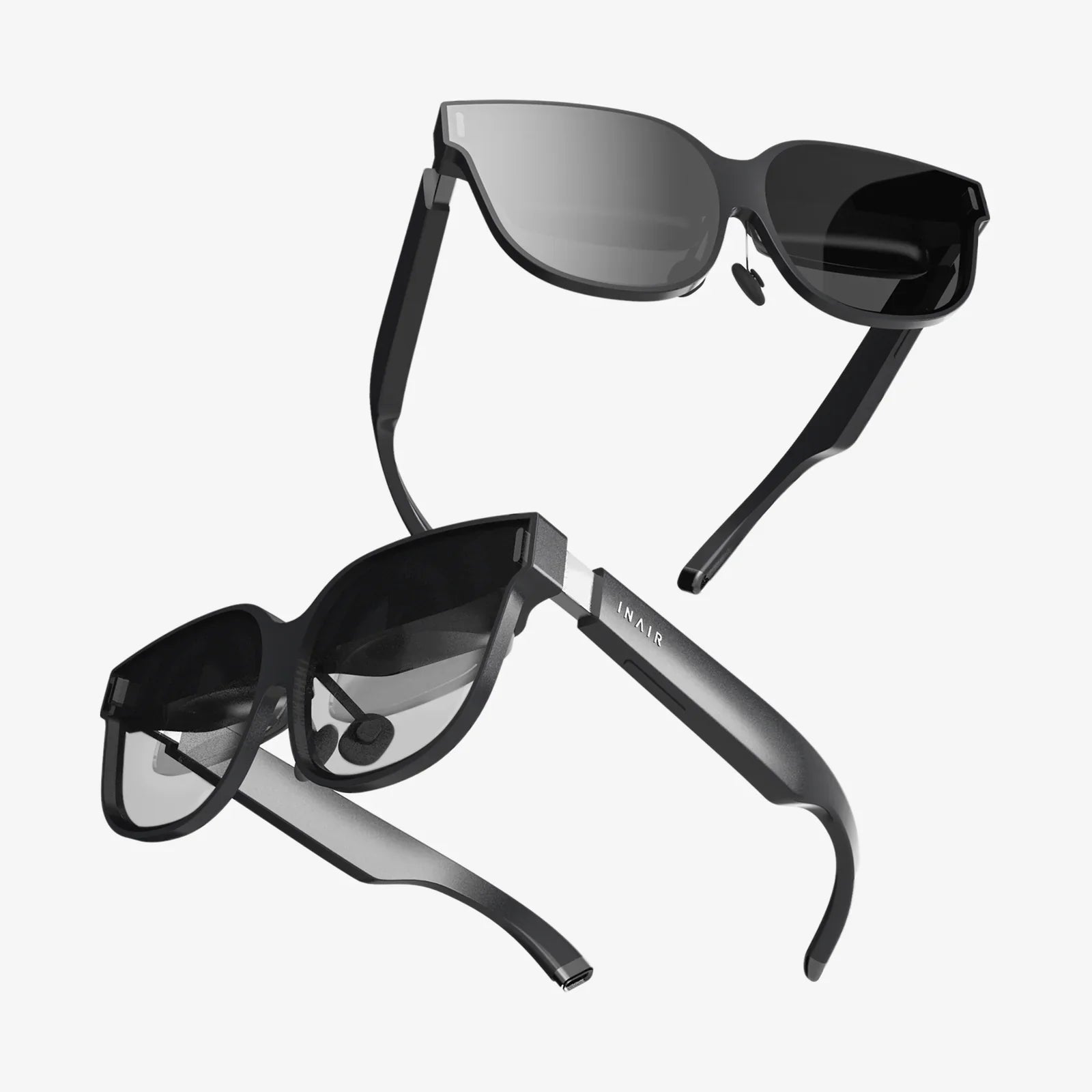
Imagine holding a portal to another dimension in your pocket. Your smartphone, a device you use for everything from communication to navigation, is also the key to unlocking breathtaking virtual reality experiences. The world of VR is no longer a distant, expensive future; it's accessible, affordable, and waiting for you to dive in. This guide is your definitive manual on how to use a VR headset with your smartphone, transforming your everyday device into a gateway to immersive games, 360-degree videos, and interactive educational content. Get ready to see your phone in a whole new light.
Understanding the Basics: What is Smartphone-Based VR?
Before we dive into the setup, it's crucial to understand the core concept. Unlike high-end, standalone VR systems that have their own built-in screens and processing power, smartphone-based VR relies on your phone's hardware. The headset itself is essentially a sophisticated holder with lenses. It uses your phone's high-resolution screen as the display and its internal sensors (gyroscope, accelerometer) to track your head movements. This elegant solution makes immersive technology remarkably accessible.
Choosing the Right Headset for Your Smartphone
Not all headsets are created equal, and the first step is finding the perfect match for your device.
Compatibility is Key
The most important factor is ensuring the headset is designed to fit your specific phone model. Check the manufacturer's specifications for supported screen sizes. A headset that's too large will let your phone slide around, breaking immersion, while one that's too small simply won't fit. Also, verify that your phone's operating system (iOS or Android) is supported by the VR apps you intend to use.
Types of Smartphone VR Headsets
You'll generally encounter two types:
- Basic Cardboard Viewers: Made from, you guessed it, cardboard or plastic, these are the most affordable entry point. They often lack adjustable straps or lenses, but are a fantastic way to dip your toes into the VR waters.
- Advanced Plastic Headsets: These models feature more comfortable, adjustable head straps, padded faceplates, and superior lenses. Many also include a crucial feature: a separate controller for interacting with the virtual world, which vastly improves the experience over using a touchscreen on the side of the headset.
Step-by-Step Guide: Setting Up Your VR Experience
Once you have your headset, it's time to get everything working in harmony. Follow these steps for a flawless setup.
Step 1: Prepare Your Smartphone
A smooth VR experience starts with a well-prepared phone.
- Free Up Storage: VR apps and 360-degree videos can be large. Ensure you have several gigabytes of free space.
- Close Background Apps: To maximize performance and prevent lag, close any apps running in the background before launching your VR content.
- Enable Bluetooth: If your headset comes with a separate controller, you'll need to pair it via Bluetooth.
- Fully Charge Your Device: VR is power-intensive. A full battery ensures you won't be pulled out of your adventure prematurely. For longer sessions, consider keeping your phone plugged in, but be cautious of heat buildup.
Step 2: Install Essential VR Applications
Your phone's standard app store is your gateway to VR content. Search for and install a few key apps to get started:
- Platform Apps: These are hubs for discovering and downloading a wide variety of VR games, experiences, and videos.
- YouTube: The YouTube app has a massive library of 360-degree videos. From walking through ancient ruins to experiencing a roller coaster ride, it's an incredible resource for free content.
- Specific Experience Apps: Look for apps from museums, travel agencies, and educational institutions that offer unique VR tours and demos.
Step 3: Physically Assemble the Headset
If your headset requires any assembly (like attaching straps or inserting the phone tray), carefully follow the manufacturer's instructions. Ensure all straps are adjusted for a snug but comfortable fit. The goal is to have the headset feel secure without applying uncomfortable pressure to your face or nose.
Step 4: Inserting Your Smartphone Correctly
This is a critical step that is often done incorrectly, leading to a blurry experience.
- Thoroughly clean your phone's screen. Any smudges will be magnified by the lenses.
- Open the phone compartment or tray on the headset.
- Carefully slide your phone into the holder, ensuring it is centered perfectly. Most holders have a left/right indicator.
- Gently close the latch or door, making sure it's secure.
Step 5: Adjusting the Lenses and Headset
Now, place the headset on your head. Don't be discouraged if the image is blurry at first—this is normal.
- Interpupillary Distance (IPD): Many advanced headsets have a dial or slider that moves the lenses closer together or further apart. Adjust this slowly while keeping your eyes open until the image becomes sharp and a single, clear picture emerges.
- Focus Dials: Some headsets also have individual focus dials for each eye, which is especially useful for those who wear glasses or have different vision in each eye. Adjust each one until the virtual world comes into crystal-clear focus.
Navigating the Virtual World: Controls and Interaction
Interaction is what separates watching a video from being in an experience.
Using a Dedicated VR Controller
If your headset came with a controller, pair it via Bluetooth in your phone's settings. This controller will typically function as a laser pointer in VR, allowing you to select menu items, interact with objects, and navigate games. It's far more intuitive than fumbling for a touchpad on the side of the headset.
On-Headset Touchpads and Buttons
Basic headsets may have a magnetic or capacitive touch button on the side. This button interacts with a specific spot on your phone's screen when pressed. While functional, it's a less precise method of control.
Head Tracking and Gaze-Based Selection
Many simpler experiences use "gaze-based" controls. You simply look at an object or menu option for a few seconds to select it. This is a hands-free method that works surprisingly well for navigation and is a testament to the power of your phone's ability to track the precise orientation of your head.
Optimizing Your Experience: Pro Tips and Tricks
Go from a novice to a VR pro with these expert recommendations.
Managing Heat and Battery Life
Rendering two high-resolution images simultaneously is demanding work and will cause your phone to heat up and consume battery rapidly.
- Remove your phone from its protective case before inserting it into the headset. This allows for better heat dissipation.
- Take regular breaks every 15-20 minutes. This is good for your eyes, your mind, and your phone's health.
- For extended use, play in a cooler room and avoid direct sunlight on the headset.
Creating the Perfect Environment
Your physical space plays a big role in immersion.
- Clear a Safe Space: Ensure you have a clear area around you to avoid bumping into furniture. A swivel chair is ideal for seated experiences.
- Control Lighting: Avoid bright lights or sunlight directly shining into the headset's front, as it can interfere with the sensors. A dimly lit room is perfect.
- Use Headphones: For true immersion, plug in a pair of headphones. Spatial 3D audio adds a incredible layer of depth, making sounds come from all around you.
Finding the Best Content
The quality of VR content varies widely. Look for apps and videos specifically labeled as "VR" or "360." Read reviews and ratings within the app stores. Start with curated experiences from established platforms to ensure a high-quality introduction to the medium.
Troubleshooting Common Issues
Even with the best setup, you might encounter a hiccup. Here's how to solve common problems.
Blurry Image
This is almost always due to incorrect lens adjustment. Re-center your phone in the tray and carefully adjust the IPD and focus dials. Also, remember to clean your phone's screen thoroughly.
Jittery or Laggy Head Tracking
If the virtual world doesn't smoothly follow your head movements, it's usually a performance issue. Close all other background apps. Restart your phone to clear its memory. If the problem persists, the content might be too demanding for your phone's processor.
Overheating Warnings
If your phone displays an overheating warning, immediately exit the VR app and remove the phone from the headset. Let it cool down completely before your next session. Follow the heat management tips outlined above to prevent it from happening again.
Exploring the Possibilities: What Can You Do in VR?
Your smartphone-powered headset is a ticket to a vast array of experiences.
- Gaming: Pilot a spaceship, solve intricate puzzles in a mysterious room, or experience thrilling horror adventures.
- Travel and Exploration: Take virtual tours of world-famous museums, walk the streets of distant cities, or stand on the surface of Mars.
- Education: Dive inside the human body, explore historical battlefields, or understand complex molecular structures in 3D.
- Media Consumption: Watch movies on a giant virtual screen or be placed in the center of a live concert through 360-degree videos.
The journey from a piece of glass in your pocket to a window into another reality is simpler than you think. You now possess all the knowledge needed to assemble, configure, and master your smartphone VR headset. This isn't just about following steps; it's about unlocking a new layer of potential from a device you use every day. A universe of immersive stories, breathtaking landscapes, and pulse-pounding games is waiting. Your headset is ready, your phone is charged—all that's left to do is take the plunge and see what wonders await on the other side.
Share:
How Do Smart Goggles Work: A Deep Dive Into Wearable Visual Computing
How Do Smart Goggles Work: A Deep Dive Into Wearable Visual Computing