


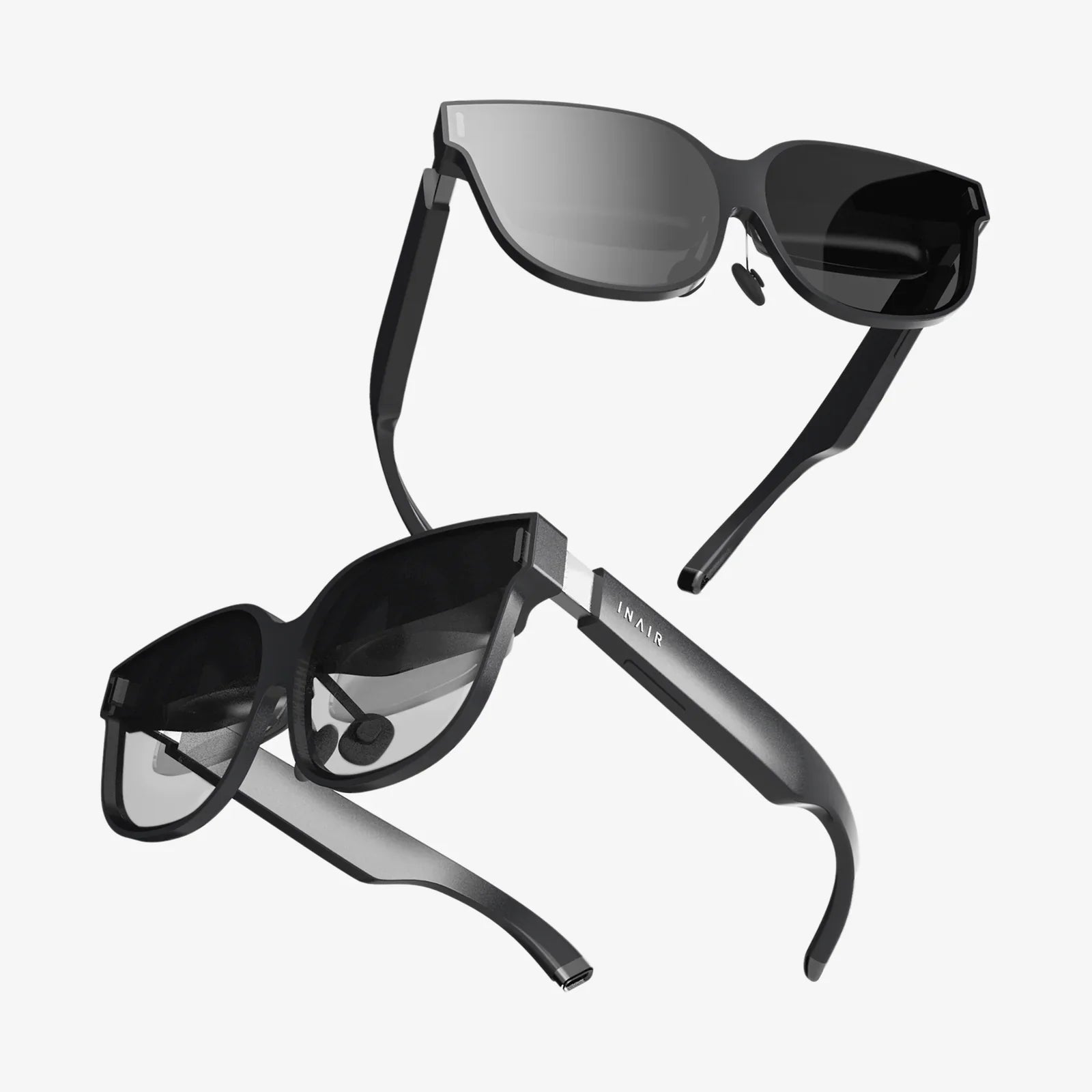
Imagine diving into the depths of the ocean, feeling the sheer scale of a prehistoric beast, or being transported into the heart of a cinematic universe, all from the comfort of your desk. The world of 3D video offers a captivating escape from the flat screen, transforming your PC into a portal for immersive entertainment. While the hype around 3D in the living room may have quieted, the technology is very much alive and thriving for enthusiasts and curious viewers alike. The path to experiencing this depth, however, can seem shrouded in mystery. This definitive guide will demystify the entire process, providing you with the knowledge and confidence to unlock a stunning new dimension of video on your personal computer. Get ready to see your favorite content in a way you never have before.
The Essential Toolkit: What You'll Need
Before you can embark on your three-dimensional journey, you must assemble the right tools. The requirements can be broken down into three core components: hardware, software, and content. Skipping any one of these will leave you unable to complete the experience.
1. The Display: Your Window into the Third Dimension
The most critical component of your setup is the display. How you perceive the 3D effect is entirely dependent on the technology your monitor or projector uses. There are several types to consider:
- Active Shutter 3D Monitors/Projectors: These were once the gold standard for home 3D. They require battery-powered glasses that synchronize with the display via an infrared or Bluetooth signal. The display rapidly alternates between the image for the left eye and the right eye, and the glasses shutter each lens in sync, creating the illusion of depth. These displays often offer excellent full-HD 3D resolution per eye but require specific, and sometimes expensive, compatible glasses.
- Passive Polarized 3D Monitors/TVs: More common in cinema theaters (RealD), this technology uses a filter on the display that polarizes the light for the left and right eyes in different directions (often circularly). The simple, lightweight, and cheap glasses then filter the light so each eye only sees its intended image. The downside is that this often halves the vertical resolution for each eye on a standard monitor.
- Autostereoscopic Displays (No Glasses): The holy grail of 3D viewing, these displays use techniques like lenticular lenses or parallax barriers to direct different images to each eye without the need for glasses. While consumer models have existed, they have historically suffered from limited viewing angles, lower resolution, and high cost. However, they represent the future of the technology as it continues to develop.
- VR Headsets (Virtual Reality): This is arguably the most immersive and accessible way to experience 3D video on a PC today. A VR headset contains two small screens, one for each eye, and uses lenses to create a wide field of view. It completely blocks out the real world, placing you inside the video. Modern headsets connect easily to a PC and can play 3D video files through dedicated media players, simulating a giant virtual cinema screen.
2. The Software: The Brain of the Operation
Your standard media player is not equipped to handle stereoscopic video formats. You will need a specialized media player that can decode the video and properly present the left and right images to your display system. The good news is that there are several powerful, and often free, options available. These players can handle various 3D formats (which we will discuss next), allow you to adjust the depth perception, and ensure the signal is correctly sent to your 3D display or VR headset.
3. The Content: Finding the 3D Video Itself
You can't watch what you don't have. Sourcing 3D content is different from finding standard 2D movies. Physical media was once the primary source, but digital files are now the standard for PC viewing. You may find 3D Blu-ray discs, though these require a specific Blu-ray drive and software to play on a PC. More commonly, you will find digital downloads or files in various formats. It is crucial to understand these formats, as your software player needs to know how to interpret the file to display it correctly.
Decoding the Formats: Understanding 3D Video Files
A 3D video file is essentially a container that holds two simultaneous video streams: one for the left eye and one for the right eye. How these two streams are packaged together defines the format. Choosing the right format in your media player is the key to a successful viewing experience.
- Side-by-Side (SBS): This is one of the most common formats, especially for online videos. The left and right eye images are squashed horizontally and placed next to each other in a single 1920x1080 frame (making it 3840x1080 if full width, or half-resolution if squashed into a standard frame). The player then stretches them back out and displays them simultaneously.
- Top-and-Bottom (Over/Under or TAB): Similar to SBS, but the images are stacked vertically. The left eye image is on top, and the right eye is on the bottom, either in a full-resolution or half-resolution configuration.
- Frame Packing: This is a high-quality format often used for 3D Blu-rays. The left and right eye frames are packed together into a single video frame with a full resolution for each eye (e.g., 1920x2205 for 1080p), with a small black border between them. This requires more bandwidth but offers the best quality.
- Frame Sequential: The video file simply alternates between a full-resolution frame for the left eye and a full-resolution frame for the right eye. This format is typically used with active shutter systems that are designed to display each frame in sequence.
- MVC (Multiview Video Coding): An advanced codec used on 3D Blu-rays. It efficiently encodes the video by storing one eye's view as a base layer and the second eye's view as a dependent layer, only encoding the differences between the two. This saves space while maintaining high quality but requires software that can decode it.
A Step-by-Step Guide to Getting Started
Now that you understand the components, let's walk through the practical steps to go from zero to three-dimensional hero.
Step 1: Assess and Setup Your Hardware
First, determine what 3D display technology you have or plan to acquire. If you have an Active Shutter monitor, ensure the emitter is connected and the glasses are charged. If you are using a VR headset, install the necessary runtime software and drivers for it on your PC, and ensure it's properly connected and calibrated. For all setups, ensure your graphics card drivers are up-to-date, as they contain crucial support for various 3D output methods.
Step 2: Install a 3D-Capable Media Player
Do not rely on default players. Download and install a dedicated media player known for its robust 3D support. These players often include extensive codec packs, so you won't have to hunt for additional software. Once installed, delve into the settings menu. Look for a section labeled "Video," "Renderer," or specifically "Stereoscopic 3D." Here, you will be able to configure how the player outputs the video signal. You can often set it to "Auto-detect" the 3D format, or you can manually force a specific output mode like side-by-side or top-and-bottom to match your display's requirements.
Step 3: Source Your 3D Content
Find a 3D video file. Remember the formats discussed earlier. When you acquire a file, take note of its filename; it will often include an indicator like ".SBS.", ".HSBS" (Half Side-by-Side), ".TAB", or ".HTAB" (Half Top-and-Bottom), which is a huge clue for the next step.
Step 4: Play and Configure
Open your 3D video file in your chosen media player. The player may automatically detect the format and switch to 3D mode. If it doesn't, or if the 3D effect looks wrong, you need to manually tell the player which format to use. This is usually done by pressing a key on your keyboard while the video is playing. Common keys are `Ctrl+T` or `Tab` to cycle through different 3D modes. Consult your media player's documentation for the exact controls. Keep cycling until the image snaps into perfect, comfortable 3D. If the depth feels too extreme or not enough, most players also offer settings to adjust the convergence or depth strength to suit your preference.
Troubleshooting Common Issues
Your first foray into 3D might not be perfectly smooth. Here are solutions to common problems:
- The image is double/double-vision: This means the 3D mode is incorrectly configured. The left and right images are not being combined correctly. Use the player's shortcut keys to cycle to the correct mode (e.g., if it's a Side-by-Side video, make sure the player is set to Side-by-Side mode and not Top-and-Bottom).
- The 3D effect causes eye strain or headaches: This is not uncommon, especially during long viewing sessions. Ensure you are sitting at an appropriate distance from the screen. Take regular breaks. Crucially, adjust the depth/convergence setting in your media player. If the "pop-out" effect is too aggressive, toning it down can significantly improve comfort.
- Player won't switch to 3D mode: Check the player's video output settings. You may need to change the video renderer to one that supports 3D output (like MadVR or the player's internal renderer). Also, ensure your graphics card drivers are fully updated.
- VR headset shows a flat screen inside the virtual environment: You are playing the video, but the media player within the VR environment hasn't been told it's a 3D video. VR media players have their own 3D format settings. Look for a button or menu within the VR interface to change the format to SBS, TAB, etc.
The Future of 3D on PC
The landscape of 3D is evolving. While the mass-market push for 3D televisions has receded, the technology is finding new and powerful niches. Virtual Reality is the most significant driver, creating an unparalleled demand for 180° and 360° stereoscopic video that places the viewer inside the scene. Furthermore, advancements in autostereoscopic displays continue, with companies developing screens that offer a glasses-free 3D experience without compromising on resolution or viewing angles. For the PC enthusiast, the community around 3D video remains passionate. The tools are more refined than ever, and the experience of watching a well-made 3D film on a high-quality setup is genuinely breathtaking. It offers a unique and engaging way to experience content that flat video simply cannot match.
The third dimension on your PC is not a forgotten gimmick; it's a specialized and deeply rewarding hobby waiting to be rediscovered. With the right guide, a little patience, and this comprehensive knowledge, the barrier to entry is lower than you think. The stunning depth, the thrilling sense of presence, and the sheer wonder of seeing your screen come to life are just a few clicks away. Stop imagining what it would be like to have a dinosaur burst through your monitor and start making it a reality. Your journey into a deeper world of video starts now.
Share:
2D Design to 3D: The Complete Guide to Transforming Your Vision
2D Design to 3D: The Complete Guide to Transforming Your Vision