


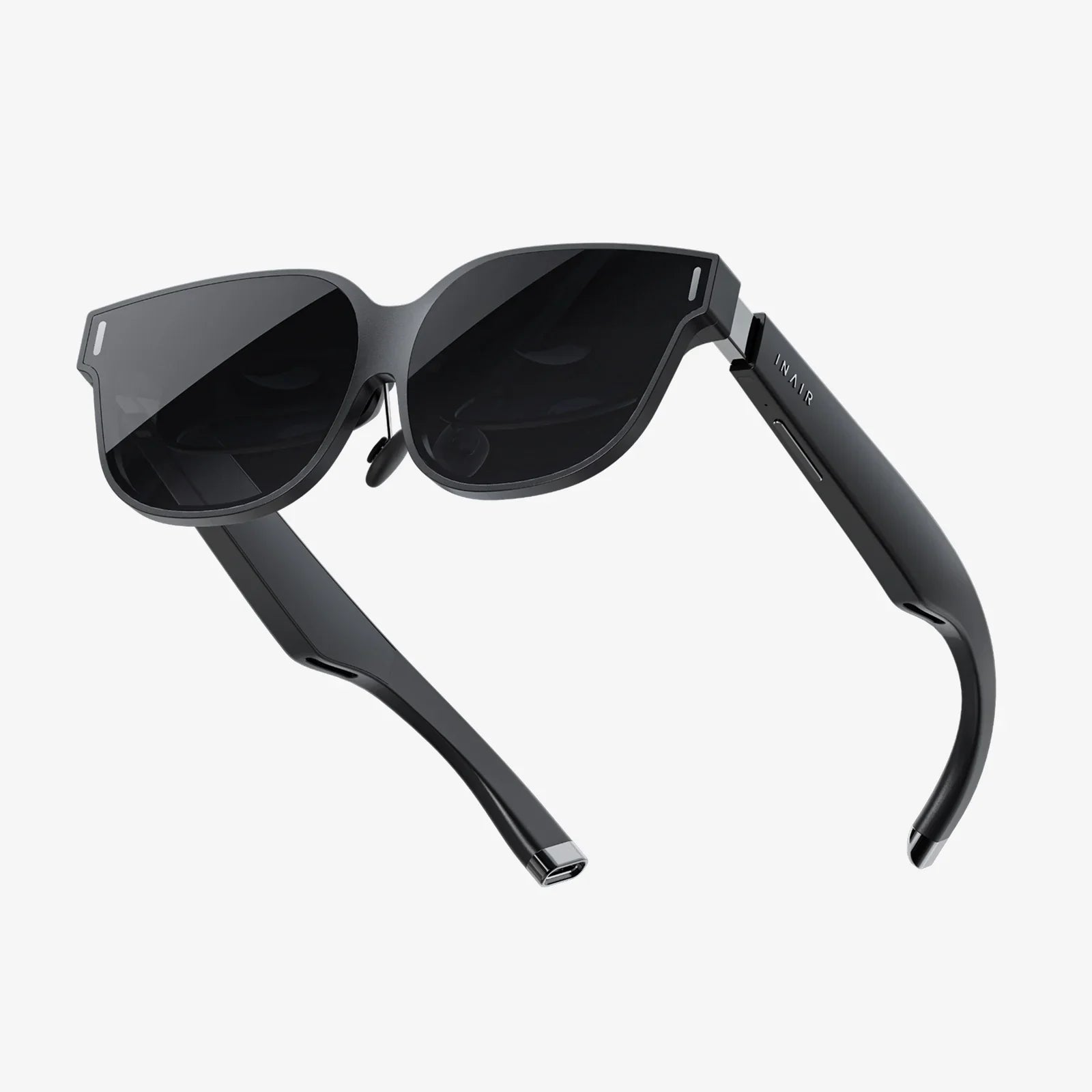
If you have ever wished your screen could melt away and pull you directly into your games, designs, or data, immersive 3D for Windows is the closest thing you can use today without stepping into science fiction. What used to be an experimental niche has quietly turned into a powerful toolkit for gamers, creators, engineers, and everyday users who want more than flat windows on a flat monitor. The biggest surprise is that you might already own most of what you need to get started.
Immersive 3D for Windows blends advanced graphics, spatial audio, and interactive input into experiences that feel like you are inside the content rather than just looking at it. Whether you are exploring massive virtual worlds, reviewing architectural models at life-size scale, or visualizing complex data in three dimensions, Windows provides a flexible platform to make all of this possible. Understanding what is available and how to configure it properly can turn your existing PC into a gateway to fully immersive digital spaces.
What Immersive 3D for Windows Actually Means
The phrase immersive 3D for Windows covers a spectrum of technologies and use cases rather than a single feature. It includes:
- Virtual reality experiences that completely surround you with 3D visuals and sound.
- Mixed and augmented reality experiences that blend virtual objects with your physical environment.
- 3D desktop and application content such as 3D modeling tools, simulations, and visualizations.
- Spatial input and interaction using controllers, hand tracking, eye tracking, and motion sensors.
On Windows, immersive 3D is built on a stack of components that work together:
- The Windows operating system, which provides graphics APIs, device drivers, and system-level support.
- Graphics APIs like DirectX and Vulkan, which render high-performance 3D scenes.
- Runtime environments for VR and mixed reality, which handle tracking, distortion correction, and input mapping.
- Applications and games that present immersive content and define how you interact with it.
Understanding these layers helps you troubleshoot performance issues, choose the right hardware, and evaluate which apps will work best for your needs.
Core Components of an Immersive 3D Setup on Windows
Before diving into specific use cases, it helps to understand the main components that make immersive 3D for Windows possible. Think of them as the building blocks for any experience you want to create or consume.
1. The Windows Operating System
Modern versions of Windows include built-in support for advanced 3D graphics and immersive environments. Key capabilities include:
- DirectX 11 and DirectX 12 for high-performance 3D rendering.
- System-level support for virtual and mixed reality devices through specific runtimes and drivers.
- Power management and scheduling tuned for real-time graphics workloads.
If your system is reasonably up to date, you already have most of the software foundation needed to run immersive 3D applications.
2. Graphics Hardware (GPU)
The graphics processing unit is the engine that makes immersive 3D for Windows feel smooth and convincing. For comfortable experiences, especially in VR, the GPU must sustain high frame rates with low latency. General guidelines include:
- Entry-level: Suitable for simple 3D scenes, basic VR demos, and low-detail content.
- Mid-range: Good for most modern immersive games and productivity applications at balanced settings.
- High-end: Essential for demanding simulations, ultra-detailed scenes, and high-resolution headsets.
Regardless of tier, keeping your graphics drivers updated is crucial, as driver improvements often deliver noticeable gains in stability and performance for immersive 3D content.
3. Immersive Display Devices
To experience immersive 3D for Windows, you can use different kinds of displays:
- Head-mounted displays for VR and mixed reality, which fully or partially cover your field of view.
- 3D-enabled monitors or projectors that support stereoscopic viewing with glasses.
- Standard monitors displaying 3D content in a non-stereoscopic way for design, modeling, and visualization.
Head-mounted displays provide the deepest sense of immersion because they track your head movement and adjust the view in real time, making it feel as if you are actually inside the virtual environment.
4. Input Devices and Tracking
Immersive 3D interaction relies on more than keyboard and mouse. Common input methods include:
- Motion controllers that track your hands in 3D space.
- Hand tracking via cameras or sensors, allowing you to use your actual hands as input.
- Eye tracking in some devices, used for foveated rendering and gaze-based interaction.
- Voice commands for hands-free control and system navigation.
These inputs are mapped by Windows and the underlying runtime into events that applications can interpret to perform actions, manipulate objects, and navigate scenes.
Configuring Immersive 3D for Windows: Step-by-Step
Setting up immersive 3D for Windows is easier than it might appear, but doing it properly makes a big difference in comfort and performance. The exact steps vary by device, yet the general process is similar.
Step 1: Verify System Requirements
Before connecting any immersive device, confirm that your PC meets minimum requirements:
- Operating system: A modern, fully updated version of Windows.
- Graphics: A discrete GPU that supports modern graphics APIs and multiple displays.
- CPU and memory: Multi-core processor and at least 8 GB of RAM, preferably more.
- Ports: Sufficient USB and display outputs for your headset or 3D display.
If you are unsure, many immersive platforms include a compatibility tool that runs a quick test on your system hardware.
Step 2: Update Windows and Drivers
Immersive 3D for Windows depends on up-to-date system software. At minimum, you should:
- Install the latest Windows updates.
- Update your graphics driver from the GPU vendor.
- Install any device-specific drivers or runtimes for your headset or display.
Skipping this step is one of the most common causes of stuttering, crashes, and tracking issues.
Step 3: Connect and Calibrate Your Device
Once your system is ready:
- Connect the immersive display device to the appropriate USB and video ports.
- Follow the on-screen instructions or setup wizard provided by the device runtime.
- Perform room setup or boundary configuration if required, defining your play area.
- Run any calibration steps for interpupillary distance, controller alignment, or eye tracking.
Calibration improves visual comfort and tracking accuracy, which directly impacts how natural and immersive the experience feels.
Step 4: Configure Windows Display and Audio Settings
Immersive devices often appear as additional displays and audio endpoints in Windows. To avoid confusion:
- Open display settings and verify that the device is recognized.
- Set your primary monitor as needed and confirm resolution and scaling.
- Open sound settings and select the correct audio output for immersive sessions.
Some immersive 3D for Windows experiences route spatial audio through the headset automatically, while others require manual selection of the output device.
Step 5: Install and Launch Immersive Applications
With hardware and system configuration complete, you can install applications that support immersive 3D for Windows. These may include:
- Games that provide full VR modes.
- 3D modeling and CAD tools with immersive viewing options.
- Education and training software built for virtual or mixed reality.
- Productivity tools that create virtual workspaces and multiple virtual monitors.
When you launch an immersive application, it typically opens a special environment that takes over the headset display while leaving your desktop accessible on your regular monitor.
Immersive 3D for Windows in Gaming
Gaming is often the first reason people explore immersive 3D for Windows. The difference between playing on a monitor and being inside the game world is dramatic, especially in genres like simulation, racing, and exploration.
Key Advantages for Gamers
Immersive 3D gaming on Windows offers several notable benefits:
- Presence: The sensation of actually being in the game world, not just controlling a character.
- Natural aiming and interaction: Looking around with your head and using hand controllers can feel more intuitive than mouse aiming.
- Scale awareness: Large objects, environments, and characters feel truly large, changing how you perceive game spaces.
- Spatial audio: Directional sound helps you locate enemies, events, and environmental cues more realistically.
Performance Tuning for Smooth Gameplay
To keep immersive 3D for Windows comfortable during long gaming sessions, focus on performance tuning:
- Frame rate: Aim for consistent, high frame rates to minimize motion sickness.
- Graphics settings: Reduce heavy options like shadows, reflections, and supersampling if performance dips.
- Motion smoothing: Use runtime features that interpolate frames when the GPU cannot keep up, if available.
- Background apps: Close unnecessary applications that consume CPU, GPU, or memory resources.
Many games designed for immersive 3D on Windows include presets optimized specifically for VR or mixed reality; starting with those and adjusting gradually is often the easiest approach.
Immersive 3D for Windows in Design, Engineering, and Architecture
Beyond entertainment, immersive 3D for Windows has become a powerful tool for professionals who work with complex 3D models and spatial data. Designers, engineers, and architects can step into their creations and inspect them at full scale.
Benefits for Professional Workflows
For design-focused users, immersive 3D on Windows unlocks capabilities such as:
- Life-size review of buildings, vehicles, and products before physical prototypes exist.
- Collaborative sessions where multiple participants explore the same virtual environment.
- Enhanced spatial understanding of clearances, ergonomics, and sightlines.
- Faster iteration by spotting issues that are hard to see on a flat screen.
Many 3D modeling and CAD tools now integrate with immersive runtimes on Windows, allowing one-click export or live linking into a virtual scene. This makes it practical to add immersive review sessions into existing workflows without disrupting established tools.
Practical Setup Tips for Professional Use
To make immersive 3D for Windows work smoothly in professional contexts:
- Use a dedicated workspace with enough room for safe movement.
- Keep project files organized so you can quickly load different design variants into immersive sessions.
- Document standard procedures for calibration and launching specific applications, especially in team environments.
- Consider sanitizing and comfort practices if multiple people share headsets.
When combined with high-quality models and accurate measurements, immersive 3D for Windows can dramatically reduce miscommunication between stakeholders, because everyone can see and experience the same virtual prototype.
Immersive 3D for Windows in Education and Training
Immersive 3D for Windows has opened new possibilities in education and training, where the ability to practice skills or explore environments safely and repeatedly is invaluable.
Educational Applications
On the educational side, immersive 3D experiences can:
- Bring historical sites and events to life in explorable virtual spaces.
- Enable virtual laboratories where students experiment without risk or resource constraints.
- Visualize abstract concepts such as molecular structures, astrophysics, or complex mathematics.
- Support remote learning with shared virtual classrooms and collaborative environments.
Because Windows is widely deployed in schools and universities, adding immersive 3D for Windows often involves upgrading existing machines rather than replacing them entirely.
Professional Training and Simulation
In training scenarios, immersive 3D for Windows can simulate:
- Safety-critical procedures in industries like manufacturing, energy, and healthcare.
- Emergency response drills and crisis management exercises.
- Complex equipment operation and maintenance workflows.
These simulations allow trainees to make mistakes and learn from them without real-world consequences, while organizations can track performance metrics and refine training programs based on data collected from immersive sessions.
Using Immersive 3D for Windows for Productivity
One of the more surprising uses of immersive 3D for Windows is productivity. Instead of treating immersive devices solely as entertainment hardware, you can transform them into virtual workspaces.
Virtual Monitors and Workspaces
Some applications create large virtual monitors or entire virtual offices within immersive environments. Benefits include:
- Expanded screen real estate without needing physical monitors.
- Customizable environments that reduce distractions and improve focus.
- Portable setups where your virtual workspace travels with your headset.
Immersive 3D for Windows in this context is less about 3D objects and more about spatial arrangement of 2D windows in a 3D environment, but the underlying technologies are the same.
Ergonomics and Comfort Considerations
When using immersive 3D for Windows for productivity tasks, comfort becomes especially important:
- Adjust headset fit and weight distribution to reduce strain.
- Take regular breaks to rest your eyes and neck.
- Use blue light and brightness controls to avoid eye fatigue.
- Ensure your physical workspace remains safe and free of obstacles.
With thoughtful setup, immersive workspaces can complement or even replace multi-monitor desks for some users, especially those who travel frequently or work in constrained physical environments.
Performance Optimization for Immersive 3D on Windows
Immersive 3D for Windows is demanding, but careful optimization can make even mid-range systems feel responsive and smooth. Performance tuning typically focuses on three areas: system configuration, application settings, and runtime features.
System-Level Optimization
At the system level, you can improve performance by:
- Switching Windows to a high performance power plan.
- Disabling unnecessary startup programs and background services.
- Ensuring adequate cooling and ventilation to avoid thermal throttling.
- Using wired connections for networking when low latency matters.
Monitoring tools can help you identify bottlenecks in CPU, GPU, or memory usage, guiding further optimization.
Application-Level Tuning
Within individual applications and games, focus on settings that have the biggest impact on immersive 3D performance:
- Resolution and supersampling: Higher values improve clarity but heavily tax the GPU.
- Shadows and lighting: Advanced lighting models can be expensive; consider balanced presets.
- Post-processing effects: Features like motion blur and depth of field may not add much in immersive contexts and can be reduced or disabled.
- Object and texture detail: Adjust based on your GPU capacity and the complexity of the scene.
Testing changes one at a time while watching frame rate and perceived smoothness is the most reliable way to find the right balance.
Runtime Features and Advanced Techniques
Many immersive runtimes on Windows offer advanced features that can significantly improve performance:
- Foveated rendering: Renders high detail only where you are looking when combined with eye tracking.
- Asynchronous reprojection or motion smoothing: Helps maintain perceived smoothness when frame rates fluctuate.
- Fixed foveated rendering: Applies a similar concept without eye tracking, focusing detail in the center of view.
These techniques take advantage of how human vision works to reduce GPU workload without dramatically affecting perceived quality.
Designing and Developing Immersive 3D Experiences on Windows
If you are a developer or creator, immersive 3D for Windows is a rich platform for building new kinds of applications. While development details are extensive, some core principles apply across tools and frameworks.
Choosing Development Tools and Frameworks
Most immersive 3D development on Windows uses one or more of the following:
- Game engines that support VR and mixed reality.
- Native DirectX-based applications for maximum control and performance.
- Web-based frameworks that leverage WebXR and modern browsers.
Each approach has trade-offs in terms of performance, flexibility, and ease of development, but all can tap into immersive 3D for Windows through standardized runtimes and APIs.
User Experience Principles for Immersive 3D
Designing comfortable and intuitive experiences is as important as technical implementation. Consider:
- Comfortable locomotion: Offer multiple movement options such as teleportation and smooth locomotion.
- Reduced motion sickness: Avoid sudden camera movements and unnatural acceleration.
- Clear interaction models: Use consistent gestures and controller mappings across your application.
- Accessibility: Provide seated and standing modes, adjustable text sizes, and configurable controls.
Immersive 3D for Windows gives you more degrees of freedom than traditional apps, but it also requires more thoughtful design to keep users comfortable and engaged.
Common Issues and How to Fix Them
Even well-configured systems can encounter issues when running immersive 3D for Windows. Knowing the typical problems and their solutions can save a lot of frustration.
Tracking Problems
Symptoms include drifting views, jittery controllers, or lost tracking. Possible fixes:
- Ensure adequate lighting if your device relies on cameras for tracking.
- Remove reflective surfaces that can confuse sensors.
- Update firmware and drivers for your device.
- Re-run room setup to recalibrate boundaries and reference points.
Performance Stutters and Lag
Stutters or lag can break immersion and cause discomfort. Address them by:
- Lowering graphics settings in the application.
- Closing background applications that compete for resources.
- Checking for thermal throttling and improving cooling if necessary.
- Ensuring your system is not running heavy background tasks such as virus scans during immersive sessions.
Visual Discomfort
Eye strain, headaches, or nausea can result from:
- Incorrect interpupillary distance settings.
- Misaligned lenses or poor headset fit.
- Excessive brightness or contrast.
- Low or inconsistent frame rates.
Adjusting headset fit, recalibrating visual settings, and improving performance usually alleviate these issues.
The Future of Immersive 3D for Windows
Immersive 3D for Windows is evolving quickly. Hardware is becoming lighter and more comfortable, while software is gaining better tools for collaboration, remote presence, and spatial computing. Several trends are shaping where things are heading:
- Higher-resolution displays that reduce the screen door effect and improve text readability.
- Improved tracking and input for more natural hand, body, and eye interactions.
- Cloud-backed rendering that streams complex scenes from powerful servers to lightweight devices.
- Deeper integration between immersive environments and traditional desktop workflows.
Because Windows remains a central platform for gaming, productivity, and professional software, it is likely to continue serving as a primary hub where immersive 3D experiences connect with the rest of your digital life. That means the investment you make today in learning how to configure and use immersive 3D for Windows will stay relevant as the technology matures.
If you are ready to move beyond flat screens and experience your digital content as spaces you can walk through, objects you can reach out and manipulate, and data you can literally surround yourself with, immersive 3D for Windows is an accessible and powerful way to do it. With the right hardware, a bit of tuning, and a curiosity to explore, your current PC can become the foundation of a deeply engaging immersive setup that transforms how you play, learn, design, and work.
Share:
Best 2K AR Glasses Buying Guide for Immersive Mixed Reality in 2026
What's The Difference Between 3D And Virtual Reality Explained Clearly