


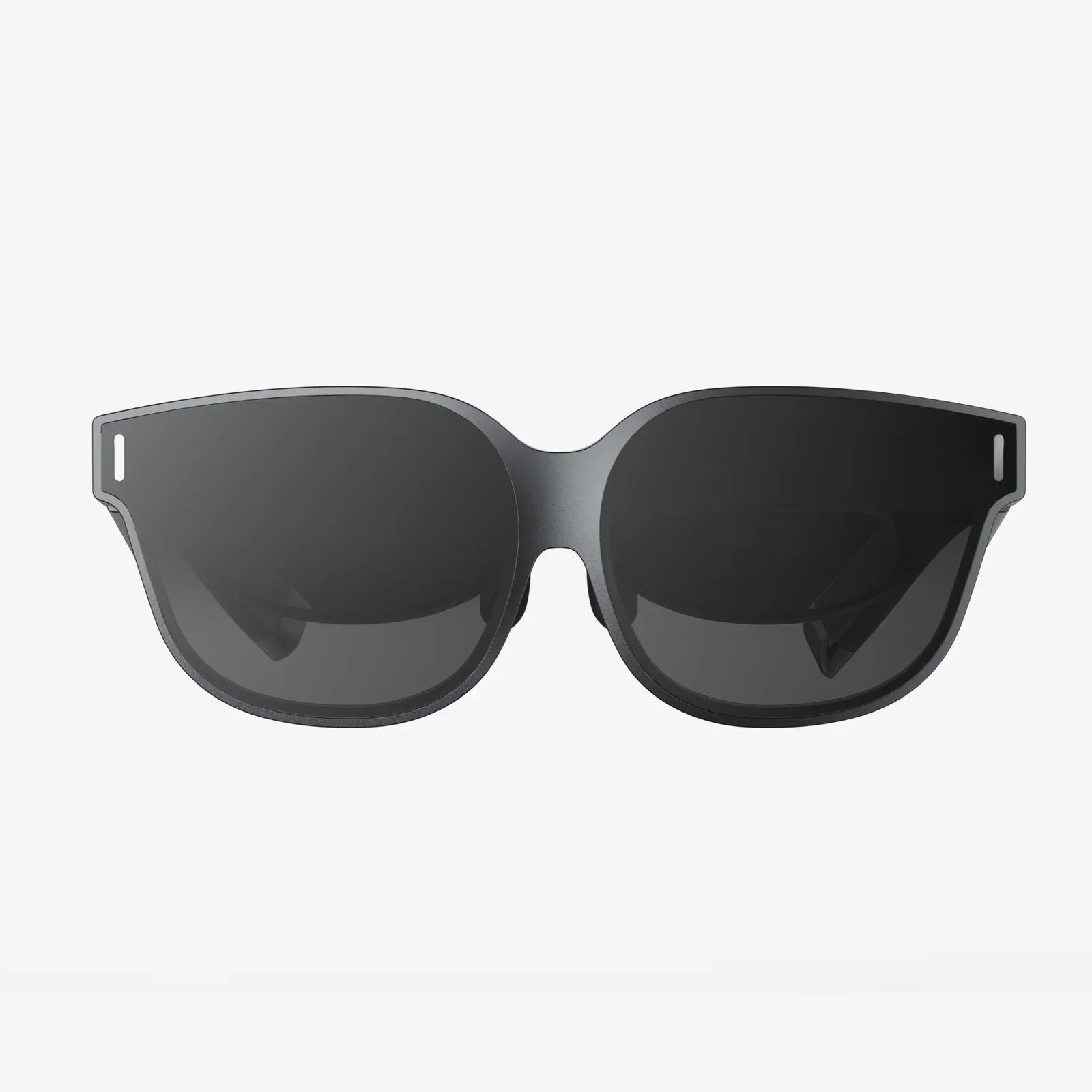
If you have ever leaned toward your monitor, squinted at tiny text, or felt your eyes burning after a long day at the desk, a large magnifying glass for computer screen use might be the tool you did not realize you needed. Whether you are working, gaming, reading, or supporting someone with low vision, the right magnification setup can make your screen feel clearer, more comfortable, and far less exhausting to use.
Many people think of magnifying glasses as old-fashioned tools reserved for reading small print in books, but modern screen magnifiers are designed specifically for digital life. They can help you see every pixel, reduce eye strain, and make your computer more accessible for all ages and abilities. Before you invest in a new monitor or give up on certain tasks because they are “too small to see,” it is worth understanding how a large magnifying glass for computer screen viewing can change your experience.
Why People Need a Large Magnifying Glass for Computer Screen Use
Computer screens are not always designed with comfort in mind. Fonts are small by default, icons shrink as resolution increases, and many websites cram information into tight spaces. A large magnifying glass for computer screen use solves several common problems:
1. Age-related vision changes
As people get older, close-up vision naturally declines. This condition, often noticed after the age of 40, makes it harder to read small text on screens. A large magnifier can:
- Enlarge text without constantly changing zoom settings
- Make subtle interface elements more visible
- Allow longer computer sessions without discomfort
2. Existing visual impairments
Users with low vision, reduced contrast sensitivity, or other eye conditions may struggle to use a computer comfortably. A large magnifying glass for computer screen use can:
- Provide consistent magnification over the whole display
- Improve visibility of images, diagrams, and charts
- Support reading, writing, and browsing with less effort
3. Professional tasks demanding detail
Some jobs require intense focus on small details: editing spreadsheets, reviewing code, examining design mockups, or analyzing medical images. A screen magnifier can:
- Reveal fine details that are otherwise hard to catch
- Reduce mistakes caused by misreading small characters
- Make long sessions less tiring for the eyes
4. Reducing eye strain and fatigue
Even people with perfect vision can experience headaches, dryness, and fatigue from staring at a screen all day. A large magnifying glass for computer screen use can contribute to comfort by:
- Allowing you to sit back farther from the screen
- Reducing the need to squint or lean forward
- Promoting a more relaxed posture and viewing angle
Types of Large Magnifying Glass for Computer Screen Use
Not all magnifiers are the same. Understanding the main types will help you choose the best option for your needs, budget, and workspace.
1. Full-panel screen magnifiers
These are large, flat panels that sit in front of your monitor. They are designed to cover most or all of the screen, providing uniform magnification.
Key characteristics:
- Large size to match common monitor dimensions
- Often made from lightweight plastic lenses
- Simple to use: just place in front of the screen
Advantages:
- Consistent magnification across the entire display
- No software installation or configuration required
- Works with any operating system and any program
Potential drawbacks:
- May slightly reduce brightness or introduce reflections
- Limited to a fixed magnification level or range
- Requires physical space in front of the monitor
2. Freestanding desktop magnifiers
These magnifiers are mounted on stands, arms, or frames that sit on your desk. They may not cover the entire screen but can be positioned over specific areas.
Key characteristics:
- Adjustable height and angle
- Can be moved between screen and printed materials
- Sometimes include built-in lighting
Advantages:
- Flexible positioning for different tasks
- Useful for both computer and paperwork
- May offer higher magnification for detailed work
Potential drawbacks:
- Might not cover the whole monitor at once
- Requires manual repositioning as you work
- Can take up more desk space
3. Clip-on or frame-mounted magnifiers
Some large magnifying glass for computer screen solutions attach directly to the monitor frame or sit on a small bracket.
Key characteristics:
- Secure attachment to the monitor
- Designed for specific screen sizes or thicknesses
- Often slim and unobtrusive
Advantages:
- Stable and less likely to be knocked over
- Neater appearance on the desk
- Can remain attached permanently
Potential drawbacks:
- Less flexible if you change monitors frequently
- Compatibility issues with unusual screen shapes
- Limited adjustability once installed
4. Software-based magnification and digital tools
While not a physical glass, it is important to mention software magnifiers because they often complement or replace a large magnifying glass for computer screen use.
Common features:
- Zooming specific regions of the screen
- Magnifying the mouse pointer or text cursor
- Adjusting contrast, colors, and text size
Advantages:
- No extra hardware needed
- Highly customizable magnification levels
- Can follow the mouse or keyboard focus
Potential drawbacks:
- May distort layout or hide parts of the screen
- Can be confusing for some users
- Requires configuration and learning time
Key Features to Look for in a Large Magnifying Glass for Computer Screen Use
When you are choosing a magnifier, several technical details matter. Understanding these will help you avoid frustration and get a tool that truly improves your experience.
1. Magnification level
Magnification is usually described as a multiple, such as 1.5x, 2x, or higher.
- Low magnification (around 1.3x to 1.5x): Good for general use, reading, and browsing without distorting the screen too much.
- Medium magnification (around 2x): Helpful for moderate vision challenges and detailed work.
- High magnification (above 2x): Typically used for specific tasks or more significant visual impairments, but can reduce the visible area of the screen.
Choosing the right level involves balancing clarity with how much of the screen you can see at once.
2. Lens quality and material
The material and design of the lens have a big impact on comfort.
- Optical clarity: Look for minimal distortion, especially near the edges.
- Anti-glare properties: A matte or coated surface can reduce reflections from lights and windows.
- Scratch resistance: Important if the magnifier will be moved frequently or cleaned often.
3. Size and coverage
A large magnifying glass for computer screen use should match or exceed your monitor size as closely as possible.
- Measure your screen diagonally to compare with magnifier dimensions.
- Consider whether you need full-screen coverage or just a portion.
- Check the aspect ratio (widescreen versus more square displays).
4. Weight and stability
Even a large magnifier needs to be practical.
- For panel types: Lightweight materials reduce strain on stands or clips.
- For freestanding models: A stable base prevents tipping or sliding.
- For frame-mounted versions: Ensure your monitor can support the added weight safely.
5. Adjustability and ergonomics
Comfort is more than just magnification. The way you position your magnifier matters.
- Height adjustment to align with your eye level
- Tilt and angle control to reduce reflections
- Distance from the screen to fine-tune magnification strength
A well-designed large magnifying glass for computer screen use will support a neutral neck and back posture, helping you avoid long-term strain.
6. Compatibility with your workspace
Before choosing, look at your desk layout, monitor size, and how you sit.
- Is there enough depth on your desk for a panel in front of the monitor?
- Do you frequently move your monitor or adjust its angle?
- Do you share the computer with others who might not want magnification?
How to Set Up a Large Magnifying Glass for Computer Screen Comfort
Once you have chosen a magnifier, proper setup will determine how effective and comfortable it feels. A few simple steps can make a big difference.
1. Position your monitor correctly first
Before adding the magnifier, make sure your monitor is placed well:
- Top of the screen roughly at or slightly below eye level
- About an arm’s length away from your eyes, or slightly more if magnified
- Screen angled slightly back to avoid reflections
2. Place the magnifier at the right distance
The space between the screen and the magnifying glass affects the strength and clarity of the image.
- Start with the distance recommended by the manufacturer.
- Adjust gradually until text appears sharp and comfortable to read.
- Check the edges of the screen to ensure clarity across the whole area.
3. Adjust your sitting position
A large magnifying glass for computer screen use may change your usual posture.
- Sit so that your eyes are centered with the middle of the magnifier.
- Avoid leaning forward; use the magnification to bring the screen “closer” visually instead.
- Keep your feet flat on the floor and your back supported.
4. Tweak brightness and contrast
Magnifiers can slightly change how bright or contrasty your screen appears.
- Increase brightness if the image looks dim through the lens.
- Adjust contrast for clearer text and sharper edges.
- Consider a warmer color temperature to reduce eye strain.
5. Combine with software settings when useful
You can enhance a large magnifying glass for computer screen use by adjusting built-in software options.
- Increase default text size in your operating system.
- Use browser zoom for specific websites.
- Enable accessibility features such as high-contrast modes or larger cursors.
Who Benefits Most from a Large Magnifying Glass for Computer Screen Use?
Although anyone can enjoy the comfort of a larger, clearer view, some groups benefit especially strongly.
1. Older adults and retirees
Many older adults want to stay connected through email, social media, and video calls, but small text and icons can be discouraging.
- A large magnifier makes reading messages and news easier.
- It reduces frustration with tiny buttons and menus.
- It can help maintain independence in daily computer tasks.
2. People with low vision or eye conditions
Users living with reduced vision may rely on a combination of tools.
- A physical magnifier provides constant, predictable enlargement.
- It can be used alongside screen readers and other assistive technologies.
- It supports reading, writing, and browsing at more comfortable sizes.
3. Students and researchers
Long study sessions with digital textbooks, research papers, and notes can be demanding.
- Magnification helps when reading dense text or detailed diagrams.
- It can reduce fatigue during late-night study periods.
- It supports focus by making the main content more prominent.
4. Professionals in detail-heavy work
Accountants, designers, analysts, editors, and many others spend hours reviewing small characters and complex layouts.
- Magnification helps catch errors and subtle differences.
- It makes working with large spreadsheets or code more manageable.
- It can improve productivity by reducing the need to zoom in and out constantly.
Common Mistakes When Using a Large Magnifying Glass for Computer Screen Viewing
Even a good magnifier can feel disappointing if used incorrectly. Avoid these frequent issues:
1. Choosing excessive magnification
More is not always better. Very high magnification can:
- Limit how much of the screen you can see at once
- Make navigation harder and more confusing
- Increase motion sickness for some users
It is often smarter to choose moderate magnification and combine it with larger text settings.
2. Ignoring reflections and lighting
A large magnifying glass for computer screen use can reflect overhead lights, windows, or lamps.
- Reposition the monitor to avoid direct light sources.
- Use curtains or blinds to control sunlight.
- Consider a lens with anti-glare properties.
3. Poor cleaning habits
Dust and fingerprints on the magnifier can make the screen look blurry.
- Clean the lens regularly with a soft, lint-free cloth.
- Avoid harsh chemicals that might damage coatings.
- Handle the magnifier by its edges or frame when possible.
4. Neglecting posture and ergonomics
Magnification should reduce strain, not encourage bad habits.
- Do not hunch forward just because the image appears closer.
- Take breaks to rest your eyes and stretch your body.
- Adjust chair height and armrests for a neutral position.
Combining a Large Magnifying Glass for Computer Screen Use with Healthy Habits
Magnification is one part of a broader strategy for comfortable, long-term computer use. To protect your eyes and maintain productivity, consider these additional practices.
1. Follow the 20-20-20 rule
Every 20 minutes, look at something 20 feet away for at least 20 seconds. This simple habit:
- Relaxes the focusing muscles in your eyes
- Reduces dryness from staring at a fixed distance
- Helps prevent headaches and fatigue
2. Adjust text and interface sizes
Even with a large magnifying glass for computer screen use, it helps to:
- Increase default font sizes in your system settings.
- Use larger icons and buttons when available.
- Choose high-contrast themes that make text stand out.
3. Maintain proper lighting
Good lighting reduces strain and makes magnification more effective.
- Use soft, indirect lighting rather than harsh overhead glare.
- Ensure the room is not much brighter than your screen.
- Position lamps so they do not reflect directly in the magnifier.
4. Consider professional eye care
A large magnifying glass for computer screen use is helpful, but it does not replace eye examinations.
- Schedule regular checkups with an eye care professional.
- Discuss any persistent headaches, blurriness, or discomfort.
- Ask about specialized lenses or prescriptions for computer use.
How to Choose the Right Large Magnifying Glass for Computer Screen Use for Your Situation
With many options available, it helps to follow a simple decision process.
Step 1: Clarify your main goal
- Do you mainly want larger text and icons for everyday use?
- Do you need strong magnification for low vision?
- Do you perform detailed tasks that require high precision?
Step 2: Measure your monitor and workspace
- Note the diagonal size of your screen and its approximate width and height.
- Check how much space you have between you and the monitor.
- Consider whether you can accommodate a freestanding unit or prefer a panel.
Step 3: Decide on magnifier type
- Choose a full-panel magnifier if you want simple, whole-screen enlargement.
- Choose a freestanding magnifier if you also read printed documents or need flexibility.
- Choose a clip-on or frame-mounted model if you prefer a permanent, tidy setup.
Step 4: Check adjustability and comfort features
- Look for tilt, height, and distance adjustments.
- Consider anti-glare coatings and lens quality.
- Ensure the design allows you to maintain a natural posture.
Step 5: Plan to test and fine-tune
- Be prepared to adjust your monitor settings once the magnifier is in place.
- Try different sitting distances until you find the most comfortable view.
- Give yourself time to adapt to the new visual experience.
The Future of Large Magnifying Glass for Computer Screen Technology
As screens become sharper and more advanced, tools for magnification are evolving too. While a simple physical lens remains a reliable choice, new trends are emerging:
- Hybrid solutions: Combining physical magnifiers with smart software for dynamic zooming and enhanced contrast.
- Improved lens materials: Lighter, clearer plastics with better scratch resistance and anti-reflective properties.
- More ergonomic designs: Adjustable arms, flexible mounts, and compact frames that fit modern desks.
These developments mean that a large magnifying glass for computer screen use is likely to become even more comfortable, effective, and accessible over time.
If you are tired of straining to see what is on your monitor, or you are helping someone who avoids the computer because everything looks too small, a large magnifying glass for computer screen viewing can be a surprisingly powerful upgrade. With the right type, thoughtful setup, and a few healthy habits, you can turn your screen from a source of frustration into a space where reading, working, and exploring the digital world feels clear, comfortable, and inviting again.
Share:
apple belkin glass screen protector complete guide to protection and clarity
Advantages of Tempered Glass Screen Protector for Modern Smartphones and Tablets