


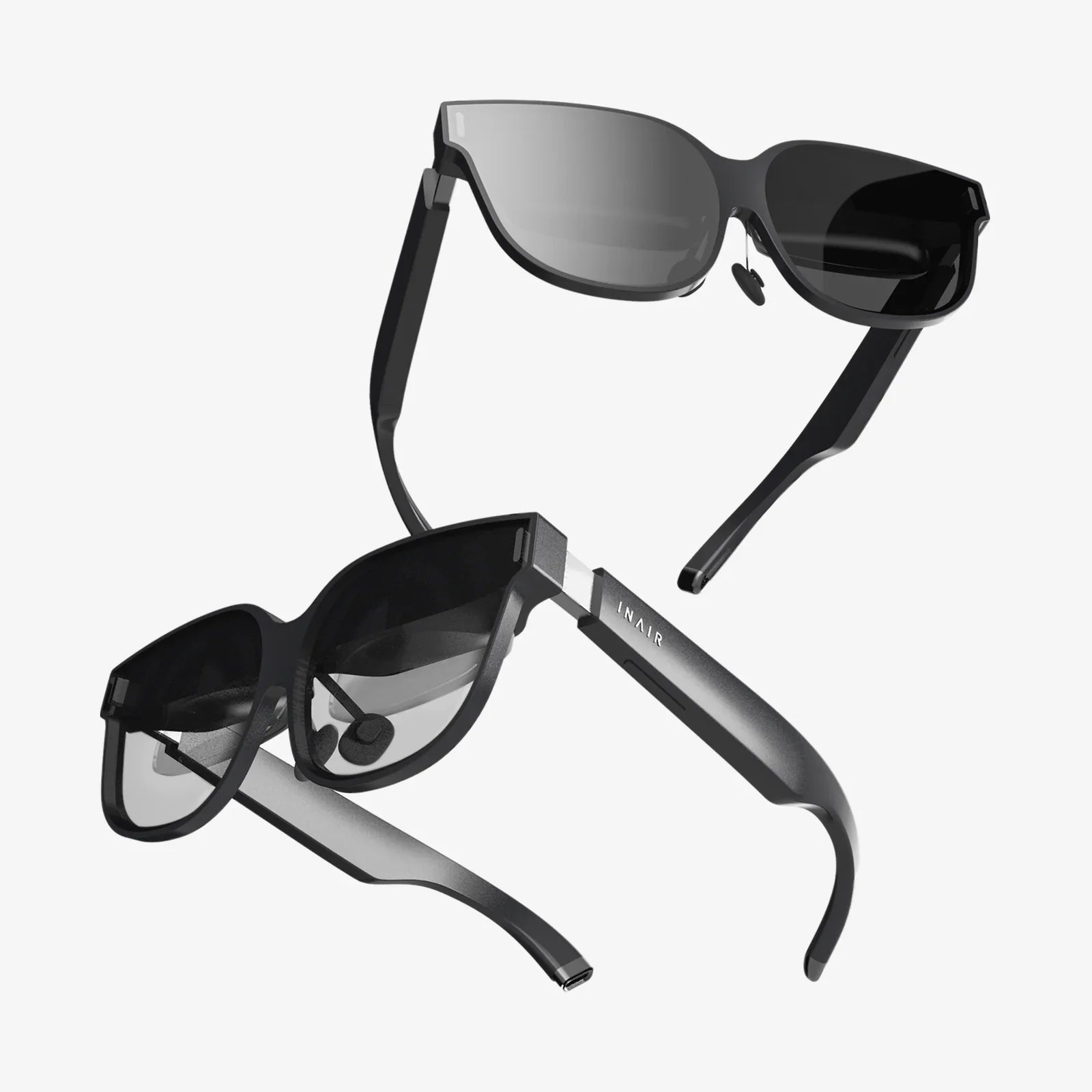
If you have ever wished you could run meetings, control media, and manage your digital workspace from a single, sleek panel, a logitech touch controller might be exactly what you have been missing. These compact touch interfaces can sit on your desk or meeting table and quietly replace a messy collection of remotes, keyboards, and random shortcuts with one clean, customizable surface. The best part: once you understand how to configure and personalize one, it can dramatically streamline how you work, present, and collaborate.
Yet many people never go beyond the default settings. They plug it in, use the basic functions, and miss out on the deeper productivity benefits. This guide walks through how a logitech touch controller typically works, how to set it up in different environments, what layouts and gestures are most efficient, and which advanced tips can turn it from a simple remote into the nerve center of your digital life.
What Is a logitech touch controller and Why It Matters
A logitech touch controller is a dedicated touch-screen device designed to give you quick, visual control over software, hardware, and connected systems. Instead of juggling multiple tools, you tap on a single interface to:
- Join and manage video meetings
- Control cameras, microphones, and speakers
- Launch applications and switch workspaces
- Trigger macros and automation workflows
- Adjust lighting or other smart devices in a room
From a user perspective, the goal is simplicity: fewer clicks, less confusion, and minimal time wasted on technical friction. From an IT or admin perspective, the benefit is standardization: you can configure identical layouts across rooms or teams, making support and training easier.
Common Use Cases for a logitech touch controller
Before diving into setup, it helps to understand where a logitech touch controller shines. The most common scenarios include:
1. Conference and Meeting Rooms
In a meeting room, a logitech touch controller serves as the main hub for collaboration. Typical functions include:
- Starting scheduled meetings with a single tap
- Inviting additional participants
- Muting and unmuting microphones
- Adjusting speaker volume
- Sharing content from a laptop or wireless source
- Switching between camera views or presets
Instead of hunting for remote controls or navigating complex on-screen menus, people see a small, intuitive interface on the table with clear labels like “Join”, “Share”, and “End Meeting”. This reduces delays and awkward technical moments at the beginning of meetings.
2. Home Office and Personal Desktops
On a personal desk, a logitech touch controller can become a productivity dashboard. With a bit of customization, you might use it to:
- Launch frequently used apps and workspaces
- Trigger keyboard shortcuts for creative software
- Control music or video playback without switching windows
- Monitor upcoming meetings and join them instantly
- Toggle “do not disturb” modes or status indicators
Instead of cluttering your main monitor with toolbars and widgets, you offload many controls to the touch surface, keeping your primary screen focused on content.
3. Streaming, Content Creation, and Live Production
For streamers, podcasters, and presenters, a logitech touch controller can act as a control surface for live production. You can map buttons to:
- Switch scenes in streaming software
- Toggle overlays or lower thirds
- Start and stop recording
- Mute or adjust audio channels
- Trigger sound effects or stingers
This allows you to keep your main keyboard and mouse focused on content creation while the touch controller handles the “show” side of things.
4. Smart Offices and Hybrid Workspaces
In modern hybrid offices, a logitech touch controller can help manage not just meetings but the environment itself. Depending on your setup, you might connect it to:
- Room scheduling systems
- Lighting and blinds
- Display inputs and layouts
- Occupancy or booking information
That means one device on the table can show whether a room is booked, let you start a call, adjust the lights, and end the meeting without touching anything else.
Core Components of a logitech touch controller Setup
Although models and ecosystems differ, most logitech touch controller setups share a few core components:
- The touch panel: The main device with a touch-sensitive screen.
- Connection to a host system: Usually a small computer, conferencing appliance, or workstation.
- Network connectivity: Wired Ethernet or Wi-Fi for online services and management.
- Power: Direct power adapter or power over Ethernet (PoE) depending on model and environment.
- Software platform: The application or interface that appears on the touch screen, often tied to conferencing or control software.
Understanding this stack helps when troubleshooting or planning deployment. The touch controller is only as powerful as the software and systems it connects to.
Planning Your logitech touch controller Deployment
Whether you are setting up a single device at home or dozens across an office, planning is crucial. Consider the following factors.
Define the Primary Purpose
Ask yourself: what is the main job of the logitech touch controller in this space?
- Meetings first: Focus on calendar integration, call controls, and content sharing.
- Production first: Prioritize scene switching, audio control, and macro buttons.
- Productivity first: Emphasize app launchers, shortcuts, and workspace controls.
Trying to do everything on one small screen can lead to clutter and confusion. Start with one primary role, then add secondary functions carefully.
Map User Journeys
Think through the typical steps users will take. For example, in a meeting room:
- Enter the room and look at the table.
- See upcoming meetings on the touch controller.
- Tap the right meeting to join.
- Adjust volume or camera if needed.
- End the meeting and free the room.
Each step should be obvious and easy. If you need to explain the interface every time, the layout is too complex.
Consider Physical Placement
Where you place the logitech touch controller matters:
- Reachability: Users should be able to tap it without stretching or moving around.
- Glare and viewing angle: Avoid direct sunlight or harsh reflections that make the screen hard to read.
- Cable management: Route power and network cables cleanly to avoid clutter and accidental disconnections.
In a shared environment, the controller should feel like a natural part of the table, not an afterthought.
Basic Setup Steps for a logitech touch controller
Exact steps vary by model and platform, but the typical setup flow looks like this.
1. Connect Power and Network
Start by connecting the logitech touch controller to power. If it supports power over Ethernet, a single Ethernet cable may handle both power and data, simplifying installation. Otherwise, connect:
- A power adapter to a nearby outlet
- An Ethernet cable or configure Wi-Fi during initial setup
Ensure your network allows the necessary traffic for conferencing, cloud services, and management tools.
2. Pair with the Host System
Most controllers need to be paired with a dedicated meeting room computer, conferencing appliance, or workstation. This might involve:
- Entering a pairing code displayed on the host system
- Selecting the correct device from a list on the controller
- Signing into a meeting platform account
Once paired, the controller acts as a remote interface for that system, sending commands and receiving status updates.
3. Configure Time Zone and Language
Set the correct time zone, date, and language so that calendar events and notifications are accurate. In multi-region deployments, standardizing these settings is essential for predictable behavior.
4. Integrate Calendars and Scheduling
If you are using the logitech touch controller for meetings, connect it to your calendar system. Typical options include:
- Room resource calendars for physical meeting spaces
- Personal calendars for home offices or dedicated desks
This integration allows the device to display upcoming meetings and offer one-tap join buttons.
5. Update Firmware and Software
Before rolling out to everyday use, check for firmware and software updates. New versions often include:
- Security patches
- Bug fixes
- New features or layout options
Keeping the logitech touch controller up to date reduces support issues and ensures compatibility with conferencing platforms and other services.
Designing an Effective Interface Layout
The real power of a logitech touch controller comes from how you arrange its buttons, menus, and pages. A thoughtful layout can cut seconds from every action, which adds up over dozens of interactions each day.
Prioritize the Most Frequent Actions
On the main screen, place the actions users perform constantly. For a meeting room, that might be:
- Join scheduled meeting
- Start ad-hoc meeting
- Share content
- Mute/unmute
Less common features, such as advanced camera settings or layout tweaks, can live on secondary screens or under clearly labeled menus.
Use Clear, Short Labels
Labels should be instantly understandable even for first-time users. Prefer:
- “Join” instead of “Initiate conference session”
- “Share Screen” instead of “Content distribution”
- “End Meeting” instead of “Terminate call session”
Consistency across rooms and devices is vital. If one room says “Share” and another says “Present”, people will hesitate and make mistakes.
Group Related Controls
Group controls by function so users can predict where to find them:
- Audio: Volume, mute, input selection
- Video: Camera selection, presets, layout
- Meeting: Join, invite, end, recording
Visual grouping with spacing, dividers, or color accents can make a busy screen feel organized rather than overwhelming.
Limit the Number of Taps
Every extra tap is friction. If users must navigate through three menus just to mute the microphone, they will get frustrated. Aim for:
- Core actions available in one tap
- Secondary actions in two taps
- Rare configuration options in three or more taps
Think of the logitech touch controller as a tool for real-time interaction, not a place for deep configuration.
Using Gestures and Multi-Touch Effectively
Many logitech touch controller models support multi-touch and gestures. While single taps will always be the primary interaction, gestures can speed up certain tasks.
Common Gesture Ideas
- Swipe left or right: Switch between pages of controls or different modes.
- Swipe down: Reveal quick settings like brightness or volume.
- Long press: Open advanced options for a button, such as editing a preset.
Gestures should be used sparingly and consistently. If a swipe means “next page” on one screen, it should not mean “hang up” on another.
Advanced Tips: Macros and Automation
Once you have the basics working, you can use a logitech touch controller to automate multi-step processes. This is where it becomes a serious time saver.
Creating Macros for Meetings
A macro is a sequence of actions triggered by a single tap. For example, a “Start Presentation” macro might:
- Join the scheduled meeting
- Mute your microphone
- Turn on your camera
- Share a specific screen or window
- Set the room lighting to a predefined level
Instead of manually repeating these steps in every meeting, you tap one button and focus on your audience.
Automating Room Reset
In shared spaces, a “Reset Room” macro can restore order between sessions. It might:
- End any ongoing calls
- Lower volume to a standard level
- Return cameras to a neutral position
- Turn off displays or set them to a default screen
- Clear temporary content or log out of personal accounts
With one tap at the end of a meeting, the room becomes ready for the next group.
Workflow Automation for Creators
For creators and streamers, macros on a logitech touch controller can handle complex show flows. A single button might:
- Switch to a “Starting Soon” scene
- Play background music
- Send a notification to followers
- Start recording locally
Later, another button can transition to the main scene, mute music, and bring your microphone live. These automations reduce the chance of mistakes during live sessions.
Best Practices for Reliability and Security
A logitech touch controller often sits at the center of important meetings and workflows, so reliability and security are non-negotiable.
Network and Access Control
Place the device on a secure network segment with appropriate firewall rules. Limit access to only the services it needs, such as:
- Conferencing platforms
- Calendar and directory services
- Management and monitoring tools
Use strong authentication for administrative access, and avoid leaving configuration interfaces open on public networks.
Regular Updates and Monitoring
Schedule regular checks for firmware and software updates. In larger deployments, use centralized management tools to:
- Monitor device health and uptime
- Push configuration changes
- Apply security patches
Proactive monitoring can catch issues before they disrupt important meetings or events.
Physical Security
In shared spaces, consider:
- Securing the logitech touch controller to the table or using anti-theft mounts
- Locking down access to USB ports or physical reset buttons if applicable
- Using PIN codes or limited user modes to prevent unauthorized configuration changes
This protects both the device and the sensitive systems it connects to.
Troubleshooting Common logitech touch controller Issues
Even a well-configured logitech touch controller can run into problems. Knowing the usual suspects helps you fix issues quickly.
1. The Screen Is Unresponsive
If the touch surface stops responding:
- Check power connections and indicator lights.
- Try a soft reboot from the settings menu if accessible.
- Disconnect and reconnect power to perform a hard reset.
- Verify that the device is not overheating or exposed to extreme temperatures.
If the issue persists, check for firmware updates or contact support, as it may be a hardware fault.
2. The Device Cannot Join Meetings
When joining fails or meetings do not appear:
- Confirm network connectivity and DNS resolution.
- Verify calendar integration and account credentials.
- Check that the host system is online and paired correctly.
- Ensure the time and date on the controller are accurate.
Often, authentication or calendar configuration is the root cause.
3. Audio or Video Controls Do Not Work
If the logitech touch controller seems to send commands but nothing changes:
- Verify that the host system recognizes the connected audio and video devices.
- Check that the controller is paired with the correct room system.
- Test the audio and video directly from the host system.
- Review any recent changes to drivers or conferencing software.
Sometimes, a software update on the host system can break compatibility until the controller software catches up.
4. Layouts Are Inconsistent Across Rooms
If different rooms show different buttons or labels, users will be confused. To fix this:
- Create a standard layout template for all spaces.
- Document naming conventions and button placement rules.
- Apply templates systematically and audit rooms periodically.
Consistency is as important as functionality in multi-room deployments.
Training Users to Get the Most from a logitech touch controller
Even the best hardware and layout will underperform if users do not understand how to use them. A small investment in training pays off quickly.
Quick Start Guides and On-Screen Hints
Create a one-page quick start guide that explains:
- How to join a meeting
- How to share content
- How to adjust volume and mute
- How to end a meeting and reset the room
Place it near the device or make it available digitally. On-screen hints or tooltips can also help first-time users feel more confident.
Short Live Demos
For teams and departments, a five-minute live demo can remove a lot of anxiety. Show people:
- How the logitech touch controller replaces multiple remotes and menus
- Which buttons they will use most often
- How to recover if something goes wrong (for example, “Reset Room”)
Encourage questions and collect feedback to refine layouts and macros.
Encouraging Power Users
Identify a few tech-savvy “champions” who are excited about the logitech touch controller. Train them in advanced features and let them help others. They can:
- Suggest new macros or layout improvements
- Provide quick help during busy days
- Act as a bridge between everyday users and IT staff
This distributed support model keeps small issues from turning into big frustrations.
Future-Proofing Your logitech touch controller Strategy
Technology platforms evolve, and the way we work continues to change. A logitech touch controller can adapt with you if you plan ahead.
Design for Flexibility
Leave room in your layouts and workflows for new features. Avoid hard-coding everything around a single conferencing platform or a single way of working. Instead:
- Use generic labels where possible, such as “Call” instead of a platform-specific name.
- Reserve a page or section for experimental features and future integrations.
- Document how layouts are created so they can be updated easily.
This makes it easier to pivot if your organization changes tools or processes.
Monitor Usage Patterns
Pay attention to how people actually use the logitech touch controller:
- Which buttons do they use constantly?
- Which features are ignored or cause confusion?
- When do support tickets spike?
Use this data to refine the interface over time. A layout that worked well during early adoption might not be ideal once people become more comfortable and demand more advanced features.
Integrate with Broader Workplace Strategy
Think of the logitech touch controller as one piece of a larger puzzle that includes hybrid work, digital collaboration, and smart spaces. Coordinate with:
- IT and network teams for reliability and security
- Facilities teams for room design and hardware placement
- Human resources and training teams for onboarding and support
When everyone is aligned, the controller becomes a natural part of how work gets done rather than an isolated gadget.
Why a logitech touch controller Can Transform Everyday Work
What makes a logitech touch controller so powerful is not just the hardware; it is the way it reshapes everyday interactions with technology. Instead of wrestling with menus, remote controls, and scattered shortcuts, you gain a single, purpose-built surface that reflects exactly how you want to work. Meetings start faster, presentations feel smoother, and creative workflows become more fluid.
Whether you are equipping a single home office or an entire network of conference rooms, investing time in thoughtful setup, smart layouts, and a few well-designed macros can unlock far more value than the device’s size suggests. The next time you reach for a keyboard shortcut or struggle to find the right button on a crowded screen, imagine that same action as a single, confident tap on a clean, responsive panel. That is the real promise of a logitech touch controller: turning complex digital tasks into simple, reliable motions you hardly have to think about.
Share:
one touch ultra 2 control solution instructions for safer glucose testing
How To Test One Touch Verio Control Solution Safely And Accurately At Home