


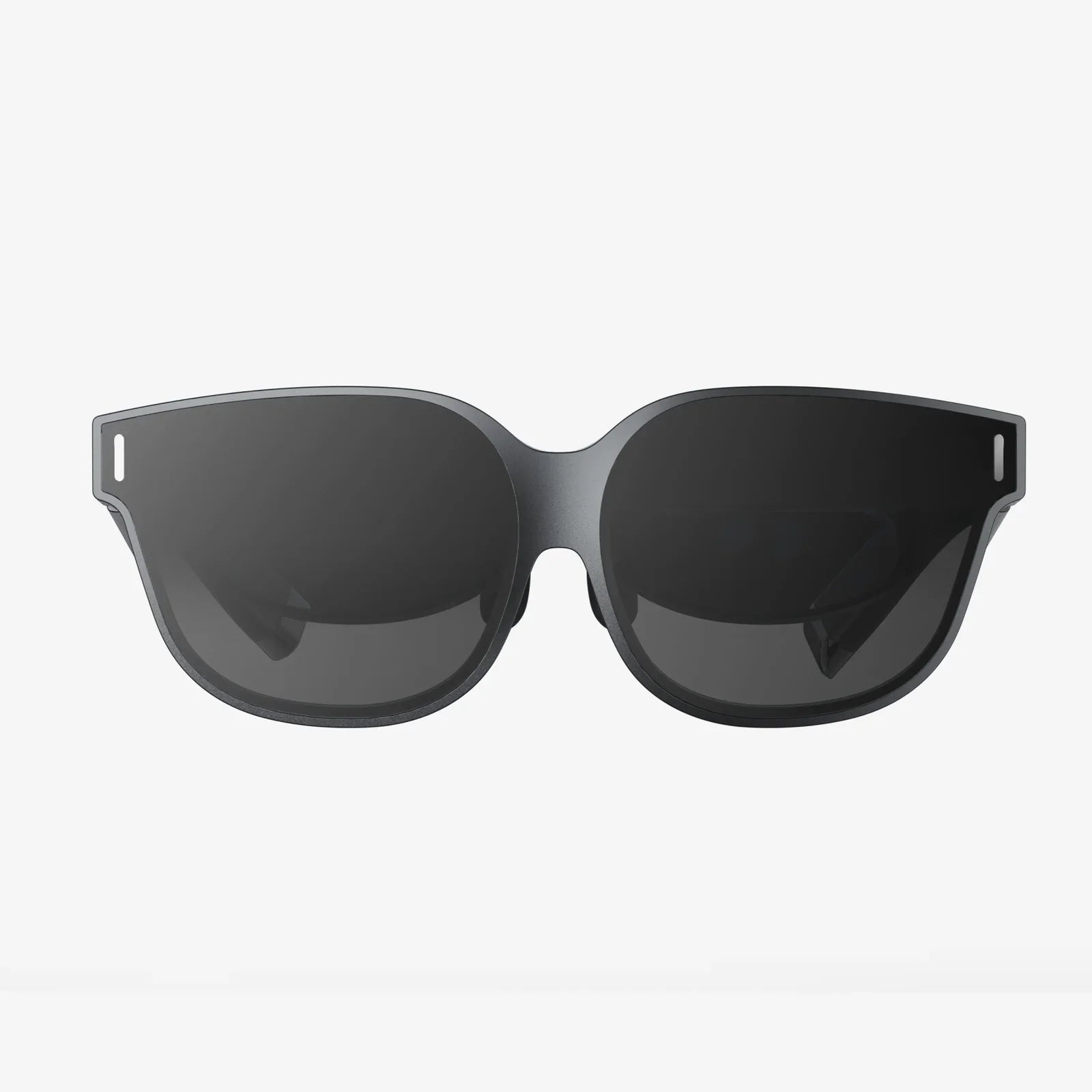
You've just unboxed a sleek new pair of smart glasses, the gateway to a world of augmented information and hands-free convenience. The future feels tantalizingly close, but first, you have to navigate the crucial first step: the setup. A flawless smart glasses setup is the difference between a device that feels like a natural extension of yourself and one that gathers dust in a drawer. This definitive guide is designed to transform that initial apprehension into confident mastery, ensuring your journey into augmented reality begins without a single hitch.
The Foundation: Pre-Setup Preparation
Before you even think about powering on your new device, a little preparation can prevent a multitude of headaches. Think of this as laying the groundwork for a stable digital structure.
Unboxing and Inventory
Carefully open the packaging and lay out all the contents. Typically, you should find:
- The smart glasses unit itself.
- A charging case and/or a dedicated charging cable (often magnetic or proprietary).
- A soft, microfiber cleaning cloth and sometimes a protective pouch.
- Essential documentation, including a quick-start guide and safety information.
Familiarize yourself with the physical components. Locate the power button, any touch-sensitive surfaces, microphones, speakers, and the charging port. This physical inspection is your first connection with the technology.
Charging is Paramount
This is the most critical pre-setup step. Fully charge your smart glasses and their charging case before the first use. Manufacturers often ship devices with a partial charge to preserve battery health, but a full charge ensures the setup process won't be interrupted by a sudden shutdown, which can sometimes cause software issues. Plug everything in and wait until you see a solid indicator light signaling a full battery.
Software Readiness: Your Smartphone
Virtually all smart glasses require a companion application on your smartphone to manage the setup and ongoing functionality. Here’s how to prepare:
- Check Compatibility: Visit the manufacturer’s website on your phone to confirm your smartphone’s operating system (iOS or Android) and version are supported. Nothing derails setup faster than an incompatible device.
- Update Your Phone: Ensure your smartphone’s operating system is updated to the latest version. This minimizes potential conflicts.
- Download the App: Find the official companion app in your phone’s app store. Download and install it. Do not open it yet. Also, enable Bluetooth and Wi-Fi on your phone, as these will be essential for pairing and updates.
- Clear the Decks: Ensure you have a stable Wi-Fi connection. A poor connection can stall firmware updates. It’s also wise to close any unnecessary apps running in the background on your phone to free up resources.
The Core Process: A Step-by-Step Walkthrough
With your device charged and your phone prepared, you're ready to begin. The exact steps may vary slightly by model, but the general flow remains consistent.
Step 1: Powering On and Initial Pairing
Hold down the power button on your smart glasses until you see an indicator light or a display illumination. Now, open the companion app on your smartphone. The app will almost always guide you through an introductory tutorial before prompting you to pair your device.
You’ll typically see a message like “Pair New Device” or “Get Started.” The app will instruct you to ensure Bluetooth is enabled and then begin searching. Your glasses should appear in a list of available devices. Select them. You will likely be presented with a pairing code on both your phone and the glasses' display. Confirm that they match and approve the pairing request. This establishes the primary link between your glasses and your digital world.
Step 2: The Crucial Firmware Update
Immediately after pairing, the companion app will almost certainly check for firmware updates. It is highly recommended to install any available updates immediately. Firmware updates contain vital performance improvements, new features, and critical security patches. This process can take several minutes. Ensure your glasses remain powered on and in close proximity to your phone throughout the update. Do not attempt to use them during this time. The device may restart automatically once the update is complete.
Step 3: Account Creation and Logging In
To access the full suite of features, especially cloud-based services like voice assistants, note-taking, or media playback, you will need to log into an account. This is often the manufacturer’s ecosystem account. If you already have one, log in. If not, the app will guide you through creating a new one. This account is key to personalization and syncing your data across devices.
Step 4: Configuring Basic Settings
Now the fun begins: making the device your own. The app will walk you through a series of initial configuration screens. Pay close attention to these:
- Permissions: The app will request access to various features on your phone, such as location services, microphone, notifications, and contacts. Carefully review these. Granting notification access, for instance, is what allows alerts from your phone to appear in your glasses.
- Voice Assistant: You will likely be prompted to set up the default voice assistant (e.g., Siri, Google Assistant). This involves logging into your respective account and training the voice model for better accuracy.
- Privacy Settings: This is a crucial step. Decide on your comfort level regarding data collection for diagnostics and improving services. You can often opt out of sharing usage data while still enjoying the core functionality.
Step 5: Personalization and Fit
A comfortable fit is a functional fit. If your glasses are uncomfortable, you won't wear them. Adjust the nose pads and temple arms for a secure but not tight fit. The display should be clear without you having to strain your eyes or neck.
Within the app, delve into the personalization menus. This is where you can often:
- Set your preferred language and voice for feedback.
- Customize the gesture controls (e.g., single tap to play/pause, swipe forward to skip track).
- Choose which smartphone apps can send notifications to your glasses.
- Adjust display brightness and audio volume defaults.
Advanced Configuration and Calibration
For a truly seamless experience, some models offer advanced calibration. This isn't always mandatory but is highly recommended for optimal performance.
Display Calibration
Some higher-end models may include a display calibration tool. This might involve looking at a series of test patterns to ensure the augmented reality graphics are sharp, correctly aligned, and comfortable for your eyes. This step fine-tunes the projection to work best with your unique vision.
Audio Calibration
If your glasses use bone conduction or directional speakers, there might be an audio calibration. This tests the audio clarity and volume, sometimes using your surroundings to tailor the sound output to minimize sound leakage and maximize what you hear.
Troubleshooting Common Setup Hurdles
Even with the best preparation, technology can be fickle. Here’s how to overcome common setup obstacles.
Pairing Failures
If your phone can't find the glasses:
- Ensure Bluetooth is enabled and the glasses are in pairing mode (often indicated by a blinking light).
- Restart both your smartphone and the smart glasses.
- Delete the glasses from your phone's Bluetooth list and try the pairing process again from the beginning within the companion app.
- Check for any physical obstructions or significant interference from other wireless devices.
Firmware Update Stalls
If an update seems stuck or fails:
- First, ensure both devices are connected to a strong, stable Wi-Fi network.
- Ensure the glasses have a charge above 50%.
- Restart the update process from within the app. If it persists, a full reset of the glasses (see below) may be necessary, though this should be a last resort.
App Crashes or Glitches
If the companion app is behaving erratically:
- Force close the app and reopen it.
- Check the app store for an update to the companion app itself.
- As a last resort, uninstall and then reinstall the companion app. You will likely have to start the pairing process over.
The Nuclear Option: Factory Reset
If you encounter persistent, unresolvable issues, a factory reset will wipe the glasses clean and return them to their out-of-box state. The method for this is always detailed in the official documentation, usually involving holding down the power button for an extended period (e.g., 15 seconds) until a specific light pattern appears. Use this only when necessary.
Optimizing Your Post-Setup Experience
The setup is complete, but your journey is just beginning. To truly integrate this technology into your life, consider these next steps.
- Explore the App Ecosystem: Many smart glasses platforms support third-party apps. Browse the dedicated section within your companion app to discover new utilities for navigation, productivity, language translation, and more.
- Practice Gestures: Spend some time in a quiet place practicing the touch and gesture controls. Muscle memory is key to making interactions feel effortless.
- Establish a Charging Routine: Unlike traditional glasses, these are an electronic device. Integrate charging into your daily routine, perhaps placing the case on your nightstand to charge overnight.
- Join the Community: Look for online forums or social media groups dedicated to your device. These are invaluable resources for discovering tips, tricks, and solutions from other users.
Your smart glasses are no longer a piece of daunting, futuristic tech; they are a ready-to-use portal to a more connected and efficient way of living. By meticulously following these setup steps, you haven't just installed a gadget—you've calibrated a personal assistant, a media hub, and an information lens, all tailored precisely to you. The world is now your interface, waiting for you to take a closer look.
Share:
Wearable Update: The Silent Revolution Reshaping Our Digital Lives
VR AR Glasses News Today: The Dawn of a Seamless Digital Reality