


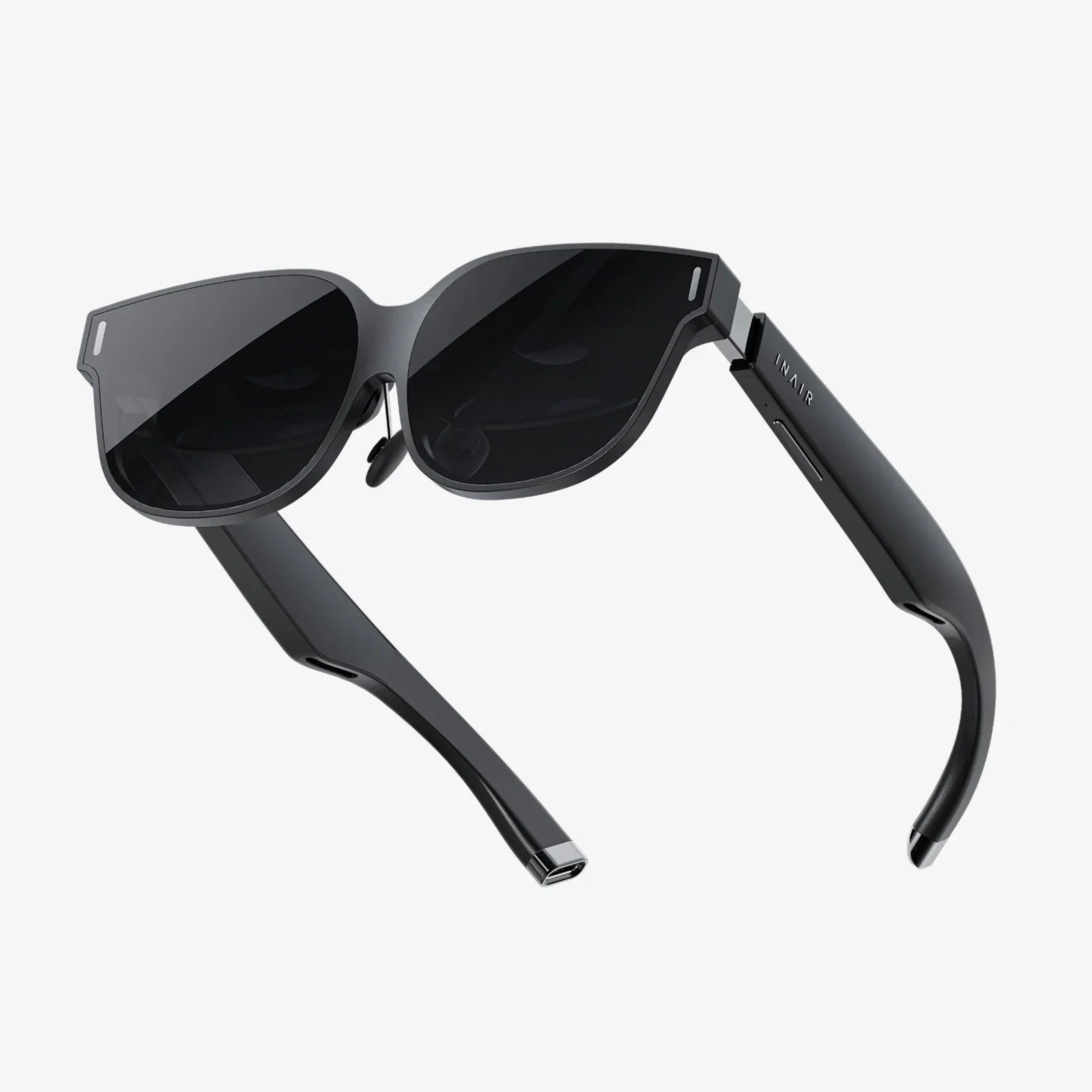
Imagine a workspace that defies the physical limits of your monitor, a boundless digital canvas where your productivity is constrained not by hardware, but only by your imagination. This is the promise of the virtual desktop, a technological marvel that has redefined how we interact with our computers. Yet, at the heart of this expansive digital realm lies a surprisingly pivotal and often overlooked setting: the virtual desktop screen size. This single configuration holds the key to unlocking seamless workflows, preventing debilitating eye strain, and creating a truly fluid computing experience. Choosing the right dimensions for your virtual environment isn't just a technicality; it's the foundational decision that shapes your entire digital day.
The Foundational Concepts: Resolution, Scaling, and Real Estate
Before diving into optimization, it's crucial to understand the core concepts at play. Virtual desktop screen size is intrinsically linked to, but distinct from, your physical monitor's resolution.
Resolution refers to the number of distinct pixels in each dimension that can be displayed on your physical screen (e.g., 1920x1080, 3840x2160). It is a fixed property of your display hardware.
Virtual Desktop Screen Size, however, defines the dimensions of the digital workspace you are creating. Think of it as specifying the size of a vast digital mural you're about to paint. You might view this mural through a small window (your physical monitor), but you can pan and zoom across its entire expanse. This virtual space is defined by its own resolution setting, which can be equal to, smaller than, or, most commonly, much larger than your physical screen's native resolution.
Scaling (or DPI scaling) is the magic that bridges these two worlds. When your virtual resolution is higher than your physical one, operating systems and virtualization software use scaling to enlarge user interface elements—text, icons, toolbar buttons—so they remain legible and usable. A 150% scale on a 4K virtual desktop makes items the same physical size on your screen as they would be at 100% scale on a lower-resolution virtual desktop. The interplay between these three elements—physical resolution, virtual resolution, and scaling—is what you must master.
Why Your Virtual Screen Size is a Productivity Powerhouse
Dismissing this setting as a minor preference is a grave mistake for any serious user. The correct configuration delivers tangible, daily benefits.
1. The Multitasking Multiplier
A larger virtual canvas is the ultimate antidote to cluttered, overlapping windows. With ample space, you can comfortably tile multiple application windows side-by-side without any of them becoming unusably small. Developers can view their code editor, a local testing server, and documentation simultaneously. Financial analysts can have spreadsheets, data analytics platforms, and real-time news feeds all in view. This eliminates the constant, productivity-sapping act of alt-tabbing or swiping between full-screen applications, keeping your focus on your work rather than on managing your workspace.
2. Eradicating Eye Strain and Fatigue
An improperly configured virtual desktop is a primary culprit behind digital eye strain. If the virtual resolution is set too low, forcing you to use minimal scaling, text and UI elements become tiny and difficult to read, forcing you to squint, lean forward, and strain your eyes. Conversely, if the resolution is too high and scaling is set excessively, you lose precious screen real estate, defeating the purpose of a virtual desktop. The golden mean—a resolution and scaling percentage that renders everything crisp, clear, and at a comfortable viewing size—allows for longer, more comfortable working sessions.
3. Application Compatibility and Legacy Support
Some older or specialized enterprise applications are hard-coded to expect a specific, often lower, screen resolution. They may render incorrectly or become entirely unusable on a modern high-resolution physical monitor. By creating a virtual desktop with a screen size that matches the application's expectations (e.g., 1280x1024), you can ensure perfect compatibility without having to change the resolution of your entire physical display, which would disrupt every other task.
4. The Performance Balancing Act
The size of your virtual desktop has a direct and significant impact on system performance. A larger virtual resolution means the graphics card must render more pixels, consume more video memory (VRAM), and process more data for every frame. For users accessing a virtual desktop infrastructure (VDI) remotely, a gigantic virtual screen size translates to higher bandwidth consumption as the changes across the vast canvas are compressed and transmitted over the network. Finding a size that offers sufficient space without bogging down your local machine or saturating your network connection is a critical performance consideration.
Navigating the Configuration Maze: A Practical Guide
So, how do you find this elusive "perfect" setting? There is no one-size-fits-all answer, but a methodical approach will lead you to your ideal configuration.
Step 1: Align with Your Physical Hardware (The Baseline)
Your starting point should always be your primary physical monitor's native resolution. For a single-monitor setup, a common and effective strategy is to set the virtual desktop screen size to a multiple of your physical resolution. For example, if your monitor is 1920x1080 (Full HD), configuring your virtual desktop to 3840x2160 (4K) at 200% scaling will give you a canvas that is exactly four times larger, while everything will appear the same physical size but much sharper. This provides vast extra space for window tiling while maintaining perfect visual clarity.
Step 2: Define Your Primary Use Case
Your work dictates your needs.
- The Developer: Requires horizontal space for code. An ultra-wide virtual aspect ratio, like 3840x1600 or even 5120x1440, can be ideal for viewing long lines of code and multiple files side-by-side.
- The Creative Professional: Needs accurate, high-fidelity visuals. A standard 4K (3840x2160) or 5K resolution with appropriate scaling (150-200%) provides the pixel density needed for detailed photo and video editing.
- The Data Analyst: Lives in spreadsheets. Vertical resolution is king. A resolution like 2560x1600 or 2880x1800 provides more visible rows of data, reducing scrolling.
- The Generalist/Multitasker: Benefits from a balanced resolution that is a clear step above their physical monitor, such as moving from 1080p to 1440p or 4K, facilitating easy window management.
Step 3: The Golden Rule: Match Native Aspect Ratios
This is perhaps the most important technical tip. Always choose a virtual desktop screen size that shares the same aspect ratio as your physical monitor. If your monitor is 16:9 (e.g., 1920x1080, 2560x1440, 3840x2160), your virtual desktop should also be 16:9. If you have an ultra-wide 21:9 monitor, use a 21:9 virtual resolution.
Why? Mismatched aspect ratios cause awkward and inefficient scrolling behavior. When you pan across your virtual space, the movement will feel uneven and jarring. A matching ratio ensures smooth, predictable, and linear panning in all directions, which is essential for developing muscle memory and a fluid workflow.
Step 4: Iterate and Test
Don't be afraid to experiment. Set a new virtual resolution and use it for an hour. Ask yourself:
- Is text comfortable to read without leaning in?
- Can I tile my two most-used apps effectively?
- Do I notice any lag or graphical stutter?
- Does panning around the desktop feel natural?
Adjust and repeat until the technology disappears and you're left with only pure, unimpeded productivity.
Advanced Considerations: Multi-Monitor and Remote Access
The plot thickens when you introduce more complexity into your setup.
The Multi-Monitor Power User
For users with two or more physical monitors, you have a strategic choice to make:
- One Large Virtual Desktop Spanning All Screens: This treats your entire multi-monitor array as a single, gigantic viewport into one massive virtual canvas. This is excellent for workflows that involve moving large assets or windows seamlessly across monitor boundaries.
- Multiple Individual Virtual Desktops: This approach assigns a separate virtual desktop to each physical monitor. This is superior for organization, allowing you to dedicate each screen to a separate task or project (e.g., coding on one screen, documentation and communication on the other). You can then switch the desktops on each monitor independently.
The best method is entirely subjective and depends on whether you prioritize unified space or task isolation.
Virtual Desktop Infrastructure (VDI) and Remote Desktops
When your virtual desktop is hosted on a remote server and streamed to your local device, configuration becomes even more critical. Here, the virtual desktop screen size is often negotiated between the client software on your device and the host server. Most modern VDI clients will automatically suggest an optimal resolution based on your local screen's size and resolution, frequently defaulting to a full-screen experience that matches your physical monitor. However, you often have the freedom to manually set a custom size. The same principles apply: match aspect ratios, prioritize readability, and be mindful that a larger remote virtual resolution will require more bandwidth and server-side GPU resources.
Pitfalls and Common Mistakes to Avoid
On the path to optimization, many users stumble into predictable traps.
- The "Bigger is Always Better" Fallacy: Cramming the highest possible resolution without considering scaling leads to a microscopic, unusable interface. Performance will also suffer.
- Ignoring the Aspect Ratio: As discussed, a mismatched ratio creates a disorienting and inefficient navigation experience.
- Forgetting About GPU Limitations: Pushing a huge virtual resolution on a machine with an underpowered integrated GPU will result in laggy window movement and screen tearing.
- Neglecting Remote Bandwidth: In remote access scenarios, a high resolution can introduce latency and a choppy experience if your network connection isn't robust enough to handle the data stream.
The Future of Virtual Screen Real Estate
The evolution of this technology is moving towards even greater flexibility and immersion. We are already seeing the rise of virtual desktops that are no longer confined to flat, rectangular planes. With the advent of VR and AR headsets, the concept of a "screen" is dissolving entirely, replaced by boundless, 3D workspaces that can wrap around the user. In these environments, the concept of "virtual desktop screen size" may transform into "virtual environment scale," measured in degrees of field of view rather than pixels. Furthermore, AI-driven contextual scaling could dynamically adjust the size and layout of application windows based on what you're doing, automatically optimizing your canvas without any manual input.
The humble setting of virtual desktop screen size is far more than a line item in a display menu. It is the fundamental parameter that defines the boundaries of your digital potential. It sits at the intersection of hardware capability, software intelligence, and human ergonomics. Taking twenty minutes to consciously configure it, to move beyond the default and tailor it to your mind, your eyes, and your work, is one of the highest-return investments you can make in your digital life. The difference between feeling cramped and frustrated versus feeling empowered and in flow often boils down to this single, powerful number. Master your space, and you master your productivity.
Share:
The Device Brings Virtual Reality: A New Dawn for Human Experience and Connection
Adjustable Tint Windows The Future of Smart Building Design and Comfort