


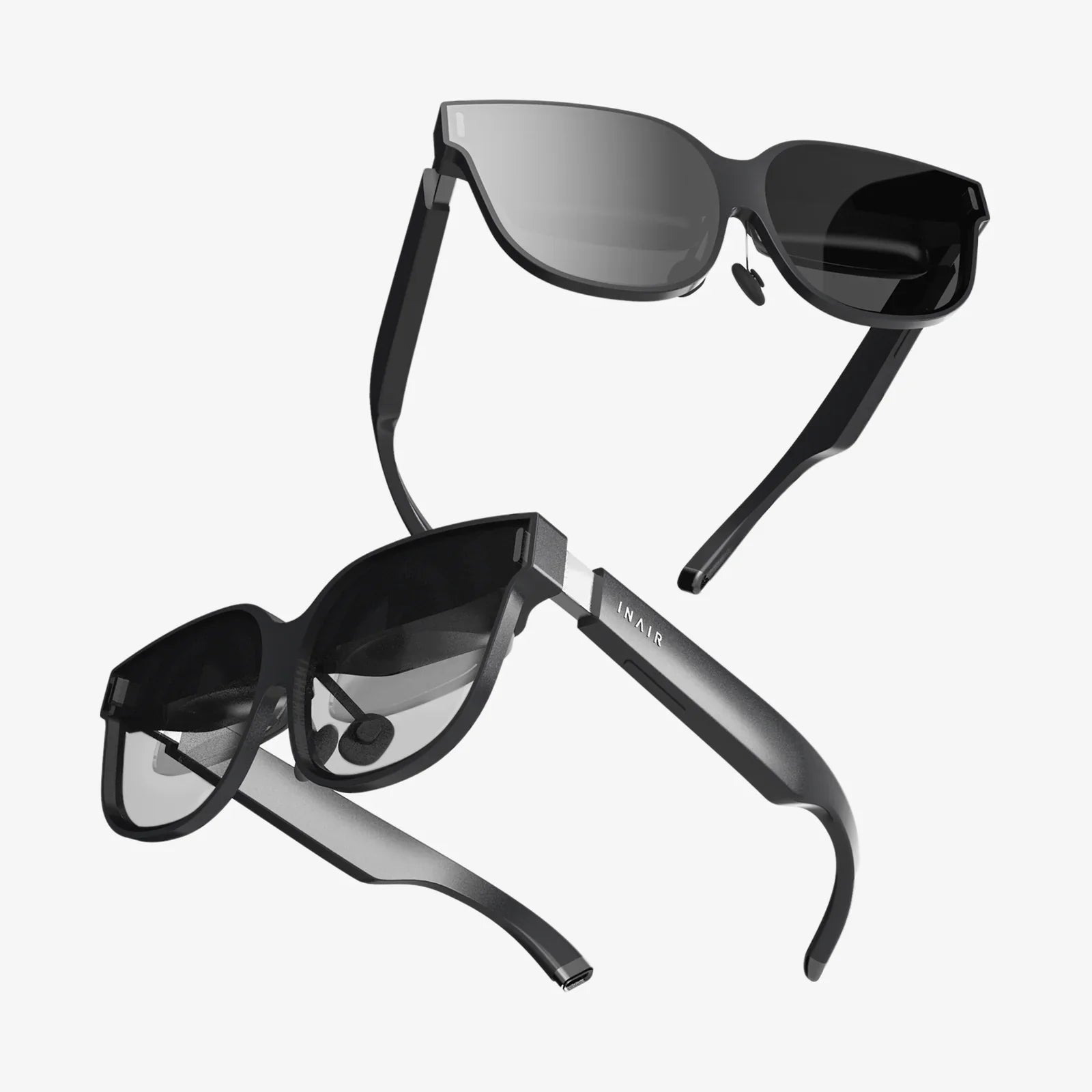
Imagine slipping on a lightweight pair of glasses and suddenly sitting in front of a massive, crisp, floating monitor that follows you wherever you go. That is the promise of virtual display glasses for pc, and it is the reason so many professionals, gamers, and frequent travelers are asking whether this technology can finally replace traditional screens. If you are wondering whether these futuristic glasses are ready for everyday work and play, this guide will walk you through everything you need to know before you buy.
Virtual display glasses for pc are head-worn devices that connect to a computer and act as an external monitor, projecting a large virtual screen in front of your eyes. Instead of looking at a physical panel on your desk, you see a digital display that appears to float in space. This idea is not just about novelty; it is about reclaiming desk space, improving portability, and potentially changing how we interact with computers in the long term.
What Are Virtual Display Glasses for PC?
At their core, virtual display glasses for pc are wearable displays that take the place of a traditional monitor. They often resemble slightly bulky sunglasses or slim VR headsets and connect to your computer via cable or wireless link. Once connected, your operating system typically recognizes them as an external display, letting you mirror or extend your desktop onto a virtual screen that appears directly in front of you.
Unlike full virtual reality headsets, which immerse you in a fully digital environment, many virtual display glasses focus on providing a clear, monitor-like image while staying relatively lightweight and portable. Some models are closer to augmented reality, letting you see the real world with a virtual screen overlaid, while others block out your surroundings for a more immersive, cinema-like experience.
How Virtual Display Glasses for PC Work
Although designs vary, most virtual display glasses for pc rely on a few core technologies:
- Micro-displays: Tiny OLED or LCD panels inside the glasses generate the image for each eye.
- Optics: Lenses or waveguides magnify and project the image so it appears as a large screen at a comfortable virtual distance.
- Input connection: Typically USB-C, HDMI, DisplayPort, or a proprietary connector that carries video from your PC.
- Head tracking (optional): Some devices track head movement to stabilize the virtual screen or allow it to move with your gaze.
Your PC sends a video signal to the glasses just as it would to a monitor. The glasses then render that signal on their internal displays. The optics make that small image appear like a much larger screen, often equivalent to a 100-inch or bigger display viewed from several feet away. To your operating system, it is simply another monitor; to your eyes, it is a personal theater or expansive workspace.
Key Benefits of Virtual Display Glasses for PC
People are drawn to virtual display glasses for pc for a mix of practical and experiential reasons. The main benefits include:
1. Massive Screen Size Without the Bulk
One of the biggest selling points is the perceived screen size. Many glasses simulate a screen that feels like sitting in front of a 100-inch or larger display. For movie watching, gaming, or detailed creative work, this can feel far more immersive than a typical 24 or 27-inch monitor.
2. Extreme Portability
Traditional multi-monitor setups are stationary and heavy. With virtual display glasses for pc, you can carry a "giant monitor" in a small case or even a jacket pocket. This is especially powerful for:
- Business travelers who need a large workspace on the go
- Remote workers who move between co-working spaces, cafes, or client offices
- Students who want a big screen in small dorm rooms or libraries
3. Private Viewing and Enhanced Focus
Because the image is visible only to you, virtual display glasses for pc provide a level of privacy that is hard to match with regular monitors. This is useful for:
- Working on sensitive documents in public spaces
- Watching movies or playing games without disturbing others
- Reducing visual distractions in busy environments
4. Space Saving for Minimalist Setups
If you live in a small apartment or keep a minimalist desk, virtual display glasses for pc let you enjoy a huge screen without occupying physical space. No monitor stands, no cables sprawled across the desk, and no need for multiple screens.
5. Potential Productivity Boost
When configured as an extended display, virtual display glasses for pc can give you a large workspace with multiple windows open side by side. For tasks like coding, data analysis, or creative editing, this can mirror the benefits of a dual or triple monitor setup without the hardware clutter.
Limitations and Challenges to Consider
Despite the appeal, virtual display glasses for pc are not perfect. Understanding their limitations will help you decide whether they are right for you.
1. Comfort and Fit
Wearing a device on your face for hours is very different from glancing at a monitor. Potential issues include:
- Nose and ear pressure from the frame
- Heat buildup around the eyes
- Neck fatigue if the device is heavy or poorly balanced
Long work sessions may require breaks, adjustments, or additional accessories like strap supports or nose pads for comfort.
2. Eye Strain and Visual Fatigue
Virtual display glasses for pc place screens very close to your eyes, even though the optics make the image appear distant. Some users experience:
- Eye strain after long sessions
- Dry eyes from reduced blinking
- Discomfort if the device is not properly focused or aligned
Taking regular breaks, adjusting brightness, and ensuring correct fit can mitigate many of these issues, but they may still be more demanding on the eyes than a well-positioned monitor.
3. Resolution and Image Quality
While many devices boast high resolution, the perceived clarity depends on pixel density, optics quality, and how the image is projected to your eyes. Potential drawbacks include:
- Visible pixel structure at lower resolutions
- Edge blurriness or distortion
- Limited color accuracy compared to high-end desktop monitors
For casual use, this may not be an issue, but professionals in design, photography, or video editing should pay close attention to display specs.
4. Motion Sickness and Disorientation
Some users are sensitive to virtual displays, especially if there is any lag between head movement and image stabilization. While virtual display glasses for pc are generally less intense than full VR systems, a small subset of people may still feel:
- Motion sickness
- Dizziness
- Headaches
Testing a device before committing, if possible, is wise for those prone to motion-related discomfort.
5. Compatibility and Software Quirks
Although most virtual display glasses for pc present themselves as standard monitors, some combinations of hardware and operating systems can introduce quirks, such as:
- Scaling issues on high-resolution displays
- Limited refresh rates depending on your graphics output
- The need for drivers or companion software to access advanced features
Checking compatibility with your specific laptop or desktop, especially graphics ports and operating system version, is essential.
Core Specifications That Matter
When evaluating virtual display glasses for pc, you will encounter a variety of technical specifications. Here are the ones that matter most and what they mean for real-world use.
1. Resolution Per Eye
Resolution determines how sharp text and images appear. Common resolutions include:
- Lower resolutions: May be adequate for videos but can make text look fuzzy.
- Full HD (1920 x 1080) per eye: A solid baseline for general use.
- Higher resolutions: Better for reading, detailed work, and crisp visuals.
The higher the resolution, the more comfortable it is to read small fonts and work with detailed content for long periods.
2. Field of View (FOV)
Field of view describes how large the virtual screen appears relative to your vision. A wider FOV feels more immersive, like sitting close to a huge cinema screen, while a narrower FOV feels more like a distant monitor. For productivity, you want a balance: large enough to see multiple windows comfortably, but not so large that you must constantly move your eyes or head.
3. Refresh Rate
Refresh rate affects smoothness. Common values include:
- 60 Hz: Standard and acceptable for most tasks.
- Higher refresh rates: Better for fast-paced gaming and smoother motion.
If you plan to use virtual display glasses for pc primarily for gaming, higher refresh rates are a significant advantage.
4. Brightness and Contrast
Brightness and contrast determine how well the display works in different lighting conditions. A brighter display helps in well-lit rooms, while good contrast ensures deep blacks and vivid colors. For long work sessions, you want enough brightness to be clear but not so much that it causes eye strain.
5. Weight and Ergonomics
Weight plays a huge role in comfort. Even a small difference can matter when the device rests on your nose and ears for hours. Look for:
- Balanced weight distribution
- Adjustable nose pads and arms
- Optional head straps for longer sessions
6. Connectivity Options
Virtual display glasses for pc typically use one of several connection types:
- USB-C with video output: Common on modern laptops and convenient with a single cable.
- HDMI or DisplayPort: Often used with desktops or via adapters.
- Wireless solutions: Less common and can introduce latency but offer more freedom of movement.
Ensure your PC has the necessary ports and sufficient graphics capability to drive the resolution of the glasses.
7. Audio Integration
Some virtual display glasses for pc include built-in speakers or support for external headphones. Integrated audio can be convenient for travel or quick use, but for high-quality sound or privacy, you may still prefer your own headphones.
Use Cases: Who Benefits Most from Virtual Display Glasses for PC?
Virtual display glasses are not just tech toys; they can be powerful tools when matched with the right use cases.
1. Remote Workers and Digital Nomads
If you work from different locations, carrying a large monitor is unrealistic. Virtual display glasses for pc let you recreate a multi-monitor feel from a coffee shop, hotel room, or co-working space. You can:
- Open multiple documents side by side
- Attend video calls while referencing notes on a separate part of the virtual screen
- Maintain privacy for sensitive work in public settings
2. Frequent Business Travelers
For professionals who spend a lot of time on planes, trains, or in hotels, virtual display glasses for pc provide a consistent, comfortable workspace. Instead of hunching over a small laptop screen, you can enjoy a large virtual monitor and maintain productivity on the road.
3. Gamers Seeking Immersive Play
Gamers can use virtual display glasses for pc to simulate playing on a massive screen without needing a dedicated gaming room. The benefits include:
- A cinematic feel for story-driven games
- Portability for gaming away from home
- Potentially reduced input lag compared to some wireless streaming setups, depending on the device
However, gamers should pay attention to refresh rate, resolution, and latency to ensure a satisfying experience.
4. Movie and Media Enthusiasts
For watching movies, shows, and videos, virtual display glasses for pc can feel like having a personal cinema. You can:
- Watch content privately without disturbing others
- Enjoy a large screen experience in bed, on a couch, or while traveling
- Use them with streaming services via your PC for a theater-like environment
5. Developers, Analysts, and Power Users
Some power users rely on large or multiple monitors to manage complex workflows. Virtual display glasses for pc can approximate that experience with:
- Large virtual desktops for code, logs, and documentation
- Multiple windows visible at once for multitasking
- A portable alternative to bulky multi-monitor setups
6. Students and Educators
Students can use virtual display glasses for pc to study in shared spaces without distractions, while educators might use them to review large documents or presentations on the go. For those living in tight quarters, a virtual screen can be more practical than a large physical monitor.
Comparing Virtual Display Glasses for PC with Other Display Options
To decide whether virtual display glasses for pc are right for you, it helps to compare them with other common display technologies.
Versus Traditional Monitors
Advantages of virtual display glasses:
- Extreme portability
- Privacy and focus
- No desk space required
Advantages of traditional monitors:
- Generally better long-term comfort
- More natural eye focus and posture
- Often better color accuracy and uniformity for professional work
Versus Laptops Alone
Virtual display glasses for pc transform a small laptop into a large-screen workstation. Compared to using only a laptop screen, you gain:
- Larger effective screen size
- More room for multiple windows
- Better ergonomics if you position the laptop keyboard and external input devices correctly
Versus VR Headsets
While some VR devices can function as PC displays, virtual display glasses for pc are often:
- Lighter and more comfortable for extended wear
- Less immersive but more practical for productivity tasks
- Simpler to set up as they typically behave like standard monitors
VR headsets, on the other hand, excel at immersive gaming and fully virtual environments but can be overkill for those who primarily want a big, clear screen.
Practical Buying Tips for Virtual Display Glasses for PC
When you are ready to consider a purchase, use these practical tips to choose wisely:
1. Define Your Primary Use Case
Before looking at specs, decide what you will use the glasses for most:
- Productivity and work
- Gaming
- Movies and media
- Travel and portability
Your main use will determine whether you prioritize resolution, refresh rate, comfort, or battery and portability features.
2. Check Compatibility with Your PC
Confirm that your computer can drive the glasses:
- Verify the required video port (USB-C, HDMI, DisplayPort, etc.).
- Ensure your graphics card supports the target resolution and refresh rate.
- Check for any driver or software requirements on your operating system.
3. Prioritize Comfort and Adjustability
Comfort may matter more than raw display specs. Look for:
- Lightweight construction
- Adjustable nose pads and arms
- Optional head strap or support accessories
If possible, try a device in person or buy from a retailer with a strong return policy in case the fit is not right for you.
4. Look at Real-World Reviews
Technical specifications only tell part of the story. Read or watch in-depth reviews that address:
- Text clarity for everyday work
- Comfort over multi-hour sessions
- Any common software or compatibility issues
5. Consider Your Environment
Think about where you will use virtual display glasses for pc most often:
- Bright rooms may require higher brightness and better contrast.
- Public spaces may make privacy and secure fit more important.
- Shared living spaces may benefit from quieter or private audio solutions.
6. Plan for Accessories
You may want additional accessories, such as:
- Carrying cases for travel
- Clip-on prescription lens inserts if you wear glasses
- External headphones for better audio
Setting Up Virtual Display Glasses for PC
Once you have chosen a device, setting it up is usually straightforward, but a few steps will help you get the best experience.
1. Physical Setup
- Connect the glasses to your PC using the recommended cable or adapter.
- Ensure the cable is routed so it does not pull on the glasses or tangle with your arms.
- Adjust the fit on your head, tweaking nose pads and arms for comfort and stability.
2. Display Configuration
- Open your operating system's display settings.
- Set the virtual display to mirror or extend your main screen, depending on your preference.
- Adjust scaling to make text and icons comfortable to read.
- Set the resolution to the device's recommended native resolution.
3. Comfort and Visual Adjustments
- Adjust brightness to a comfortable level for your environment.
- If the device supports it, fine-tune focus or interpupillary distance for a clear image.
- Experiment with the virtual screen distance and size, if adjustable, to find a natural viewing position.
4. Workflow Optimization
To get the most from virtual display glasses for pc in daily use:
- Arrange windows so frequently used apps are in the center of your field of view.
- Use keyboard shortcuts and window management tools to quickly arrange your workspace.
- Consider using an external keyboard and mouse for better ergonomics.
Health, Safety, and Ergonomic Considerations
Because virtual display glasses for pc sit so close to your eyes and alter your posture, it is important to use them safely.
1. Follow the 20-20-20 Rule
Take regular breaks to reduce eye strain. A common guideline is:
- Every 20 minutes, look at something 20 feet away for at least 20 seconds.
This encourages your eyes to relax and reduces fatigue.
2. Maintain Good Posture
Even though your screen is virtual, your body is still real. Pay attention to:
- Neutral spine alignment while sitting
- Arm and wrist support when typing
- Chair height and desk setup
3. Be Mindful of Your Surroundings
If your glasses block your view of the real world, be careful moving around while wearing them. Even transparent or semi-transparent designs can reduce situational awareness. Use them while seated and stationary where possible.
4. Listen to Your Body
If you experience persistent headaches, dizziness, or severe eye strain, reduce usage, adjust settings, or consult a professional. Not every user will respond the same way to extended use of virtual display glasses for pc.
The Future of Virtual Display Glasses for PC
Virtual display glasses for pc are still evolving, and the next few years are likely to bring major improvements. Trends to watch include:
- Higher resolution displays that rival or exceed desktop monitors
- Lighter, more stylish designs closer to everyday eyewear
- Better integration with operating systems for seamless multi-display workflows
- Improved eye tracking and head tracking for more natural interactions
- Hybrid devices that combine virtual displays with augmented reality features
As these technologies mature, virtual display glasses for pc may become a standard accessory, much like external monitors are today. For now, they sit at an exciting intersection of practicality and cutting-edge innovation.
If you are intrigued by the idea of carrying a giant, private, and portable screen wherever you go, virtual display glasses for pc are worth serious consideration. They will not replace every monitor overnight, and they come with trade-offs in comfort and image quality, but for the right person and the right workflow, they can feel like unlocking a new level of freedom. Take the time to match the device to your needs, pay attention to fit and ergonomics, and you may discover that your next big screen is not on your desk at all, but resting lightly on the bridge of your nose.
Share:
What Is a Good Virtual Reality App and How Do You Spot One Fast
What Is a Good Virtual Reality App and How Do You Spot One Fast