


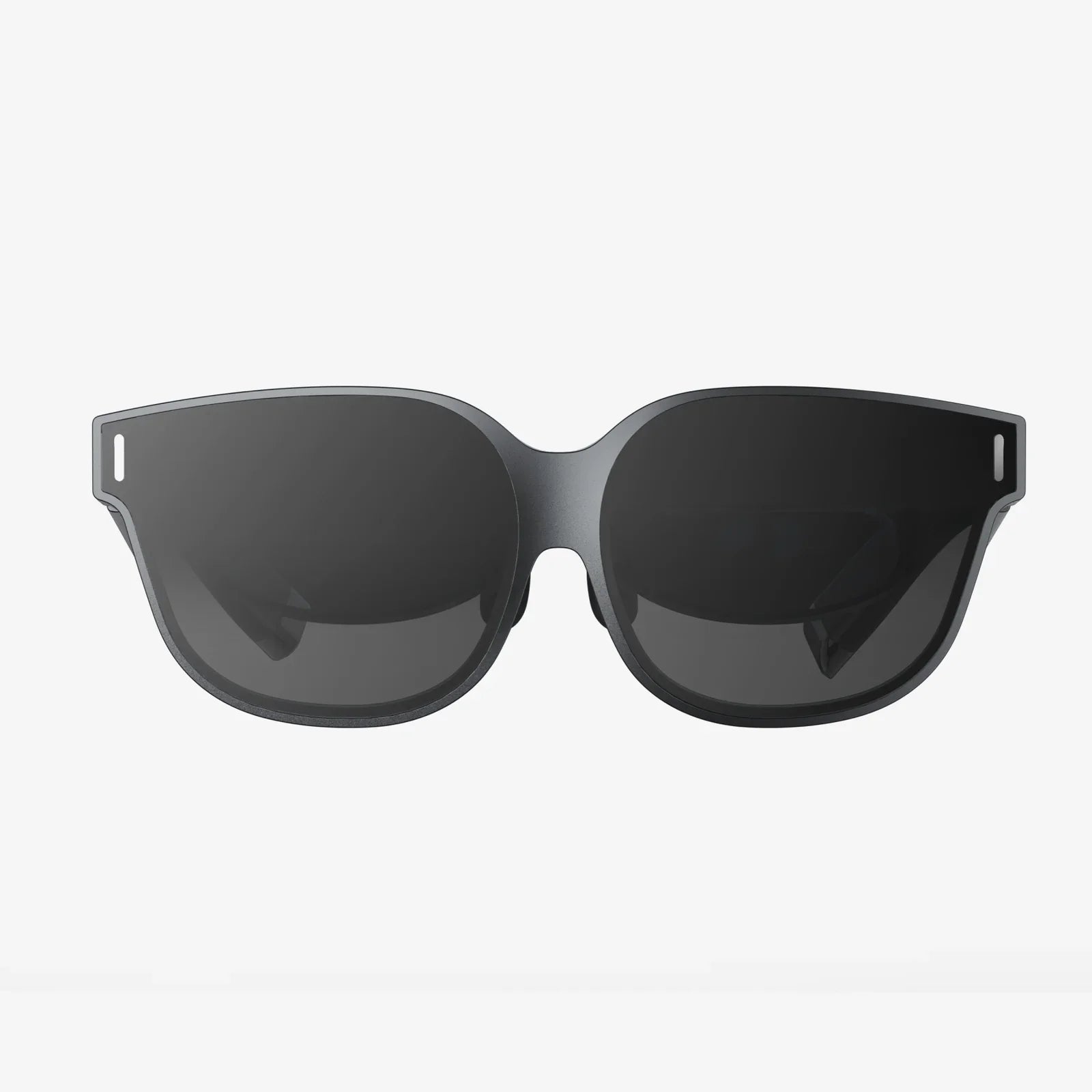
There you are, on the precipice of a virtual adventure, ready to scale a digital mountain or engage in an intergalactic dogfight, when suddenly—nothing. Your hand, or rather, the controller that acts as its digital proxy, lies dormant, unresponsive, and disconnected from the experience. Few technical frustrations are as uniquely disappointing as a VR headset controller not working. It’s a hard barrier between you and a world of possibility, a problem that demands an immediate solution. But before you resign yourself to a controller-shaped paperweight, know that most issues are solvable from the comfort of your play space. This guide is your first and last stop for diagnosing and fixing a non-responsive VR controller, walking you through a logical, step-by-step process to restore your digital reach.
Establishing a Baseline: The Immediate First Steps
Before diving into complex software settings or hardware diagnostics, always start with the simplest and most common solutions. These steps resolve a significant majority of controller issues and require minimal time or technical knowledge.
Step 1: The Classic Reboot
It might sound cliché, but turning it off and on again remains the most effective first line of defense in technology. A full power cycle can clear out temporary software glitches and re-establish clean communication pathways.
- Power Down: Fully shut down your VR headset, not just put it to sleep.
- Controller Reset: Power off the problematic controller(s).
- The Waiting Game: Wait for at least 30 seconds.
- Power Up Sequence: Turn your headset back on first. Wait for it to fully boot up and reach its home environment. Then, power on your controllers.
This sequence allows the headset to be ready to accept connections, often resolving pairing issues instantly.
Step 2: The Obvious but Crucial: Battery Check
It seems too simple to mention, yet it's one of the most frequent causes of controller failure. A battery can show enough charge to power on the controller's LED but not enough to sustain the power-hungry Bluetooth and haptic feedback systems.
- Replace the batteries with a fresh set, even if the current ones show a partial charge.
- If using rechargeable batteries, be aware their voltage curve differs from alkaline batteries. They might report a full charge but drop off rapidly under load. Try a known, fully charged set or standard alkaline batteries to test.
- Ensure the batteries are inserted with the correct polarity (+/-) as indicated in the battery compartment.
Step 3: Re-pair the Connection
Bluetooth is a fantastic technology, but it's not infallible. The pairing between your controller and headset can become corrupted.
- Navigate to your headset's settings menu, specifically to the Controllers or Bluetooth devices section.
- Find the list of paired controllers and choose the option to "Forget" or "Unpair" the problematic one.
- Place the controller into its pairing mode. This is usually done by holding down a specific button combination (like the Power and Menu buttons) or a dedicated pairing button, often located near the battery compartment. Refer to your headset's documentation for the exact method.
- Once the controller appears in your headset's list of available devices, select it to re-pair.
Delving Deeper: Software and Environmental Diagnostics
If the basic steps didn't work, it's time to look at the digital and physical environment surrounding your VR system. Software conflicts and environmental interference are silent killers of controller functionality.
Step 4: Update Everything
Outdated firmware is a common culprit for bugs, including controller connectivity problems. Both your headset and its controllers receive periodic updates to improve stability and performance.
- Connect your headset to its companion application on your phone or computer.
- Check for any available updates for the headset's system software.
- Check specifically for any firmware updates for the controllers. This process is often automatic once the headset is updated and the controllers are connected and powered on.
- Ensure the companion app itself is up to date through your device's app store.
Step 5: Environmental Interference: The Invisible Enemy
VR systems rely on clear wireless signals and precise tracking. Your room might be working against you without you even knowing it.
- Bluetooth and Wi-Fi Congestion: The 2.4GHz wireless spectrum is a crowded highway. Wi-Fi routers, cordless phones, microwave ovens, and even wireless speakers can cause interference. Try moving your router to a different channel, or if possible, connect your headset to a 5GHz Wi-Fi network to reduce 2.4GHz traffic. Power down other unnecessary wireless devices temporarily as a test.
- USB Issues (For PCVR Headsets): If you use a PC-connected headset, problematic USB ports can cause a myriad of issues. Try connecting your headset to different USB ports, preferably USB 3.0 or higher. Avoid using unpowered USB hubs, as they may not provide adequate power for the headset's sensors, which are critical for tracking the controllers.
- Reflective Surfaces: Mirrors, glossy television screens, and large glass windows can confuse inside-out tracking systems. The cameras on your headset see the reflection of your controller and mistake it for the real one, leading to jittery or completely lost tracking. Cover these surfaces temporarily to see if it resolves the issue.
- Lighting Conditions: Ensure your play space is well-lit, but avoid direct sunlight or strobe effects. Too much light can wash out the tracking cameras, while too little can make it impossible for them to see the controller's LEDs or the room's features.
Advanced Troubleshooting: When the Problem Persists
You've checked the basics, the software, and the environment, and the controller is still not working. It's time to move on to more advanced diagnostic procedures.
Step 6: Hardware Isolation and Testing
The goal here is to determine if the problem is with one specific controller, both controllers, or the headset itself.
- Test the Other Controller: If you have two controllers and only one is failing, try the working one in the hand where the broken one was used. Does the problem persist? This can rule out a specific tracking zone issue.
- Swap Components: If both controllers use batteries, swap the batteries between them. If the problem moves to the other controller, you've identified a bad battery.
- Check for Physical Damage: Inspect the controller meticulously. Look for cracks, dents, or damaged buttons. Pay special attention to the tracking ring, ensuring it hasn't been cracked or compromised. Listen for any loose components rattling inside when you gently shake it.
Step 7: Factory Reset (The Nuclear Option)
Warning: This will erase all saved data, settings, and installed applications on your headset, returning it to its out-of-the-box state. Only consider this if all other steps have failed.
- Back up any important save data if your platform allows it.
- Perform a factory reset through the headset's settings menu.
- Set up the headset again as if it were new, and before installing any other apps, test the controller functionality. This will determine if a software corruption on the headset was the root cause.
Step 8: Community Wisdom and Official Support
If you've reached this point, your issue is likely uncommon or hardware-related. You are not alone.
- Online Forums and Subreddits: Search the official support forums and subreddits dedicated to your specific headset model. Use precise search terms like "right controller not tracking" or "controller button unresponsive". It's highly likely someone else has experienced your exact issue and found a solution.
- Contact Official Support: Reach out to the manufacturer's customer support. They have access to deeper diagnostic tools and known issue databases. Be ready to provide them with the steps you've already taken; this will expedite the process. If the controller is under warranty, this is the definitive step to get a replacement.
Understanding the Technology: Why This Happens
Knowing a bit about how your controllers work can make you a better troubleshooter. Most modern VR controllers use a combination of technologies:
- Inertial Measurement Units (IMUs): These internal sensors (gyroscopes and accelerometers) track the controller's rotation and movement. They are very fast but prone to drift over time.
- Outside-in Tracking: External sensors or base stations placed around the room emit lasers or light that are detected by sensors on the controller, providing a precise absolute position in space.
- Inside-out Tracking: Cameras on the headset itself look for either infrared LEDs on the controllers or the unique pattern of the controller itself to determine its position relative to the headset. This is why reflective surfaces are so problematic.
- Bluetooth: This wireless protocol handles the constant stream of button presses, joystick movements, and haptic feedback commands between the controller and the headset or computer.
A failure at any point in this complex chain—a drifting IMU, a blocked camera, a Bluetooth signal drop, or a dead LED—can manifest as a "controller not working" issue. Your systematic troubleshooting is essentially testing each link in this chain to find the weak one.
The silence of a disconnected controller is a void where your agency should be, a frustrating hiccup in the promise of virtual reality. But as this guide proves, that void is rarely permanent. From a simple battery swap to a deep dive into environmental interference, you possess the tools to reclaim your interactive experience. Remember, the path to resolution is almost always logical, sequential, and well-trodden by the vast community of VR enthusiasts. So take a breath, methodically work through the steps, and prepare to reach out and touch the virtual world once more. Your next great adventure is waiting, and now you have the knowledge to ensure nothing holds you back.
Share:
VR Headset Explained: A Comprehensive Guide to Virtual Reality Hardware
Best Wireless VR Headset: A Comprehensive Guide to Cutting the Cord