


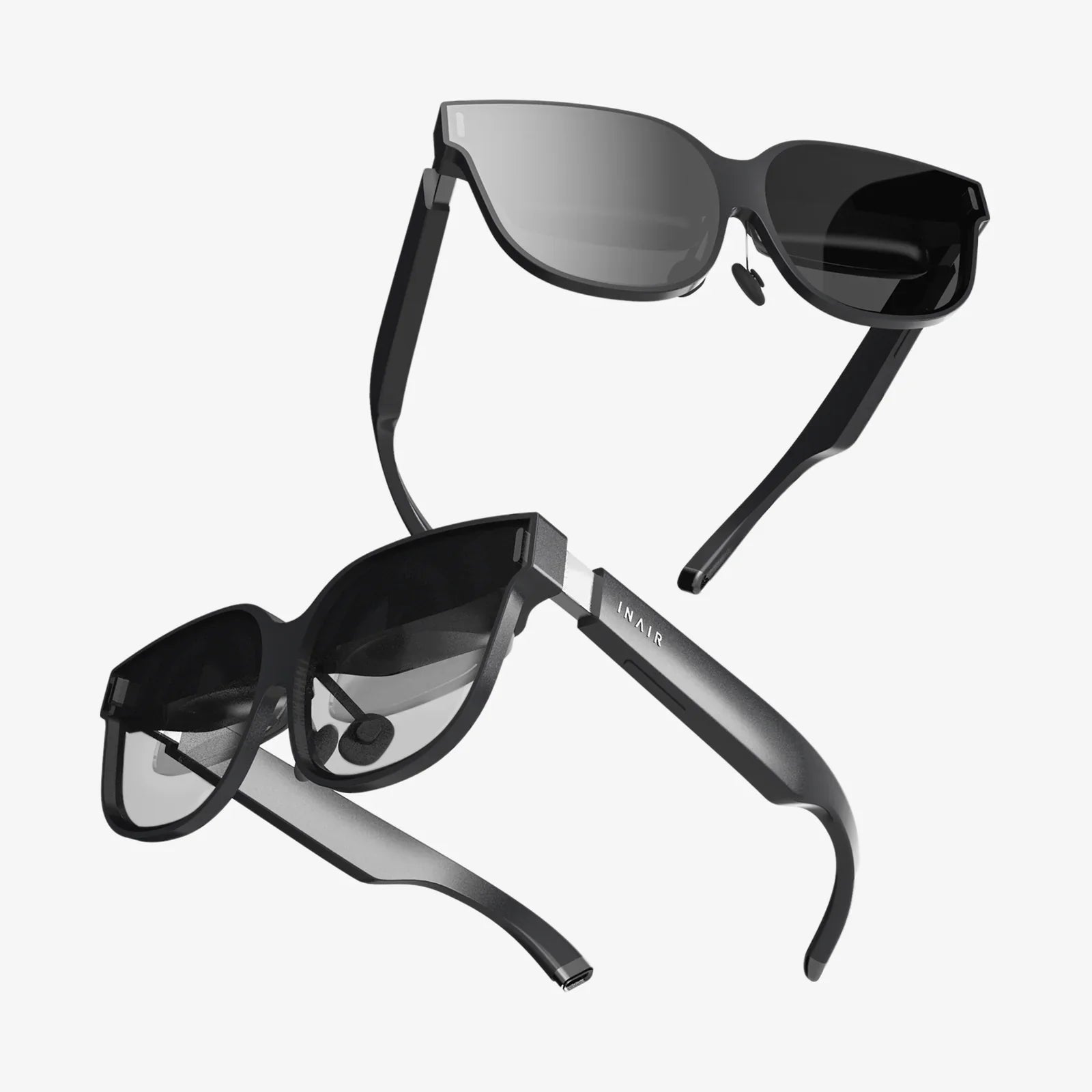
You've just unboxed the future—a sleek, new VR headset promising boundless digital worlds and unparalleled immersion. But before you can step through that portal, there's the seemingly daunting task of setup. Fear not. This definitive guide is your trusted companion, transforming complex technical steps into a simple, rewarding journey. We'll walk you through every cable, every setting, and every calibration to ensure your first foray into virtual reality is nothing short of spectacular. Let's bridge the gap between the box and the breathtaking.
Pre-Flight Checklist: Laying the Groundwork
Before you even touch the headset, a little preparation goes an incredibly long way. Rushing this stage is the primary cause of most setup frustrations. Start by carefully unpacking everything. Lay out all the components on a clean, soft surface to take inventory. You should typically find the headset itself, a set of controllers, base stations or sensors (for certain systems), and a tangle of cables and power adapters. Your first and most crucial step is to identify each component by consulting the included quick-start guide. This prevents accidentally plugging a sensor cable into a power port later on.
Next, turn your attention to your environment. VR requires space, both physical and digital. Clear a play area free of obstacles, low-hanging light fixtures, and fragile items. A rug or mat can be a fantastic tactile indicator of your center space, helping you stay oriented. Ensure your room has adequate lighting, but avoid direct sunlight, which can damage the external sensors on the headset. Finally, prepare your computer or gaming console. Check the system requirements against your machine's specs. For a PC-based system, ensure your graphics drivers are up to date. This preemptive strike can resolve countless potential performance issues before they arise.
The Heart of the Operation: PC and Console Setup
The setup process diverges significantly depending on your platform. For a PC-powered experience, the process is more involved but offers the highest potential fidelity. Locate the appropriate graphics ports on your computer—typically DisplayPort or HDMI. Modern graphics cards often have multiple ports; use the one directly on the card itself, not the one on the motherboard. Connect the headset's interface cable firmly. Many systems also require a dedicated USB connection, preferably to a USB 3.0 port (often denoted by blue plastic inside the port) for sufficient data bandwidth. Plug the power adapter into a wall outlet.
For a standalone headset, the process is wonderfully streamlined. The primary task is ensuring the device is fully charged before first use. While it powers up, download the companion application on your smartphone. This app is your central hub for managing the device, pairing controllers, and browsing your library of experiences. Console-based VR setups sit somewhere in the middle, acting as a plug-and-play bridge between the simplicity of standalone and the power of PC. The key is connecting the processing unit to the console and ensuring all camera or sensor peripherals are correctly positioned.
The Magic of Room-Scale and Guardian Systems
This is where the real magic happens—transforming your living room into a safe portal to other dimensions. Both standalone and PC-based systems use sophisticated camera systems or external sensors to map your environment. When prompted by the software, you will define your play area. There are two primary types: stationary and room-scale.
- Stationary: Ideal for smaller spaces or seated/standing experiences. You simply define a small circle where you will remain.
- Room-Scale: This is the gold standard for immersion. You use your controller to trace the boundaries of your available space on the floor, creating a virtual fence, often called a Guardian or Chaperone system.
Take your time with this step. Be precise. This virtual wall is your best friend, appearing as a faint grid whenever you get too close to the real-world boundary, preventing collisions with walls, desks, and televisions. Ensure the floor height is calibrated correctly; an inaccurate setting can make the virtual world feel disorienting or cause you to crouch in real life to pick up a virtual object.
Fine-Tuning for Comfort and Clarity
A poorly fitted headset is the fastest way to break immersion and cause discomfort. Getting the fit right is non-negotiable. Most headsets use a three-point strap system: two straps on the sides and one over the top. Loosen all straps, place the headset on your face, and then tighten the top strap first until the weight is supported by your brow, not your cheeks. Then, tighten the side straps. The goal is a snug fit that doesn't apply excessive pressure. The headset should not shift when you move your head quickly.
Next, dial in the visual clarity using the Interpupillary Distance (IPD) adjustment. This is the physical distance between your eyes, measured in millimeters. Many headsets have a slider or dial that physically moves the lenses closer or further apart. Look at a static screen with text and adjust the slider until the image is sharp across the entire view and there is no blurring or eye strain. If your headset has a software-based IPD adjustment, follow the on-screen instructions to input your measurement for the best results.
Controller Pairing and Final Calibration
Your hands are your gateway to interacting with the virtual world. Modern motion controllers are typically paired automatically upon setup, but if they don't connect, you'll need to pair them manually via the device's Bluetooth settings. Ensure the batteries are fresh or fully charged. Once paired, the software will often guide you through a quick calibration, asking you to point, click, and swing the controllers to ensure they are tracked accurately. Wave them around in your play space to confirm there are no dead zones where tracking is lost.
Troubleshooting Common Hurdles
Even with perfect preparation, you might hit a snag. Here’s how to tackle common issues:
- Blurry Image: Re-adjust your headset positioning and IPD. Ensure the lenses are clean with a microfiber cloth.
- Tracking Problems: Check for reflective surfaces (mirrors, windows) or bright light sources that can interfere with the headset's sensors. Cover them if necessary.
- Audio Issues: Verify the audio output in your device's settings is correctly routed to the headset's headphones.
- Performance Stutters: On PC, close background applications to free up resources. Ensure your computer is not overheating.
Remember, a quick reboot of the headset and the accompanying software can solve a surprising number of glitches.
Your First Steps in a New Reality
The setup is complete. The software is installed. The boundaries are set. Now, it's time for the moment of truth. Don't jump straight into a fast-paced, intense experience. Start with the built-in tutorials or a calm, introductory environment. Spend a few minutes simply looking around, reaching out with your virtual hands, and acclimating to the feeling of presence. Get used to moving with the control scheme. Your brain is experiencing something profoundly new; give it time to adjust. This careful onboarding is the final, and most enjoyable, step of the setup process.
The cables are managed, the play area is clear, and the headset rests comfortably on your face, humming with potential. That initial apprehension has been replaced by a thrilling anticipation. You've not just followed instructions; you've built a gateway. The meticulous calibration of your space and your device is the invisible foundation upon which every incredible virtual adventure will be built. Now, pick up your controllers, take a deep breath, and select that first experience. Your new reality, perfectly configured and waiting, is one click away.
Share:
Best VR Headset to Connect to PC: Your Ultimate Guide to High-Fidelity Immersion
How to Know if Your VR Headset is Charging: A Complete Troubleshooting Guide