


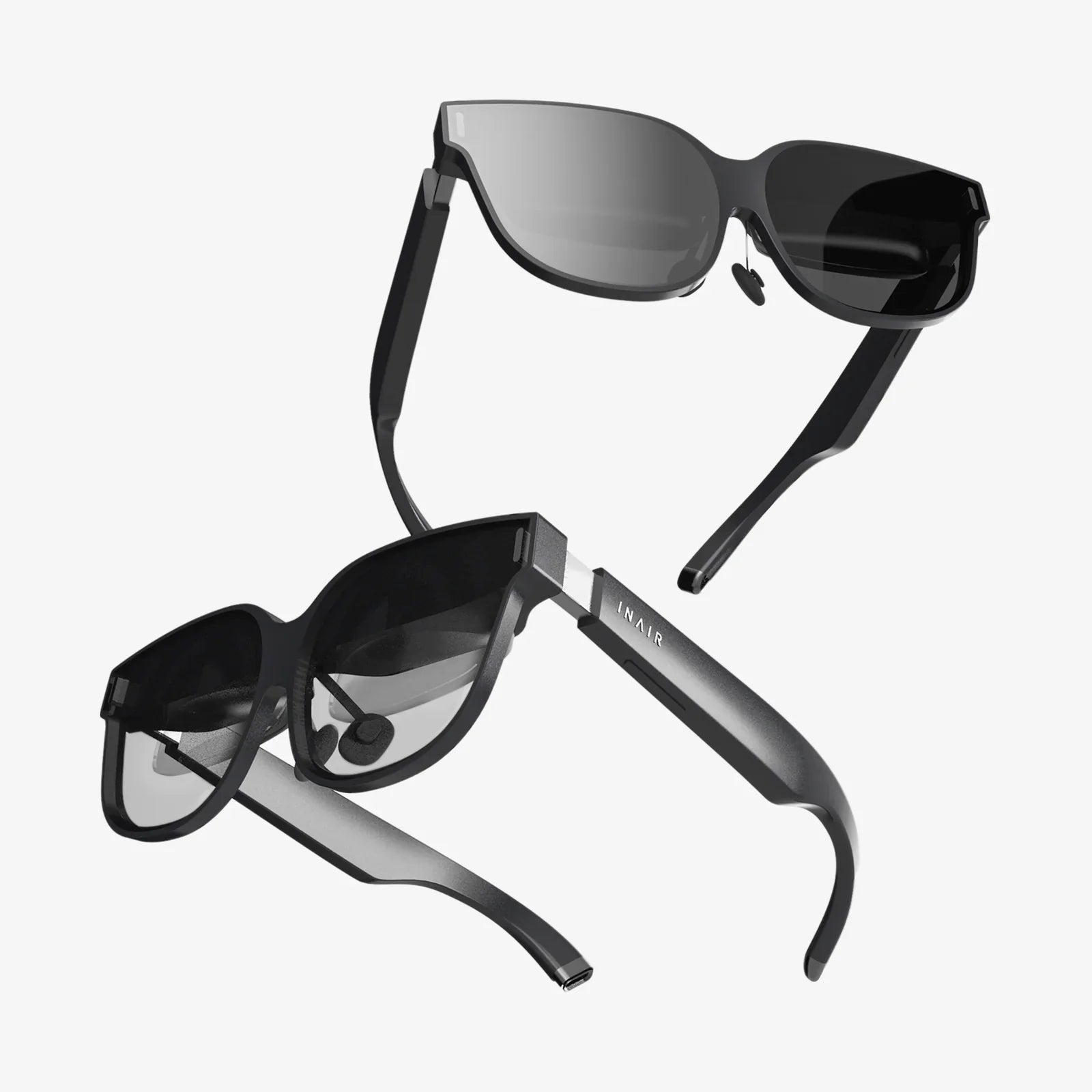
You’re ready to escape into another dimension, to explore fantastical worlds or conquer virtual opponents, but as you reach for your headset, a cold dread washes over you. The battery indicator is dead, and no matter how you jiggle the cable, nothing happens. A VR headset that won't charge is a modern-day heartbreak, a sleek piece of technology transformed into an expensive paperweight. Before you resign yourself to frustration or an expensive repair bill, know that this problem is often solvable. The path from panic to power-up begins with understanding the why and mastering the how of troubleshooting.
Unraveling the Mystery: Why Did My Headset Stop Charging?
The failure to charge is a symptom, not the disease itself. The root cause can be surprisingly simple or occasionally complex, residing in one of several key areas within the charging ecosystem. Pinpointing the exact issue is a process of elimination, a technological detective story where you are the lead investigator.
The most frequent offenders are the most accessible: the power adapter, the cable, and the wall outlet. These external components are subject to the most wear and tear. A cable can be crimped, frayed, or suffer from internal wire breakage from repeated bending, especially near the connectors. A power adapter can be knocked from a table, suffer a power surge, or simply fail due to age or poor manufacturing. The humble wall outlet itself can be the culprit; a faulty socket or a tripped GFCI circuit can easily be mistaken for a device failure.
The First Line of Defense: External Component Check
Your investigation should always start with the simplest and most accessible components. This is the least invasive and most cost-effective step.
Step 1: The Power Source
Before blaming the headset, confirm your power source is active. Try plugging the power adapter into a different wall outlet. Test that outlet with another device, like a phone charger or a lamp, to ensure it's delivering power. Avoid using USB ports on computers, gaming consoles, or cheap power strips for this test, as they often provide insufficient amperage for a VR headset to charge effectively, if at all.
Step 2: The Power Adapter
Examine the power adapter (the "wall wart" or "power brick") closely. Are there any signs of physical damage, bulging, or a burning smell? Check its specifications: the output voltage (V) and amperage (A) must exactly match the requirements of your VR headset. Using an underpowered adapter will result in slow or non-existent charging, while an overpowered one can cause severe damage. If possible, try a known-working, compatible power adapter.
Step 3: The Cable
The cable is the weakest link. Inspect its entire length for any kinks, fraying, or damage to the outer insulation. Check both connectors for bent pins, debris, or signs of corrosion. The connection should be snug, not loose or wobbly. The most reliable test is to try a different, high-quality cable that you know works with another device and is confirmed to support both data and power transfer (not all USB cables do).
When the Problem is the Port: Examining the Connection
If your external components check out, the next likely suspect is the headset's charging port. This is a common point of failure due to mechanical stress.
Visual Inspection
With a bright light, carefully inspect the USB-C or Micro-USB port on the headset. Look for any obvious debris, lint, or pocket fluff that may have become compacted over time, preventing the cable from seating properly. Use a can of compressed air to gently dislodge any loose particles. For more stubborn debris, carefully use a plastic toothpick or a anti-static brush, avoiding any metal tools that could damage the delicate pins inside the port.
Signs of Physical Damage
Look closely at the port itself. Is it visibly bent or misaligned within its housing? Are the tiny contact pins inside bent, broken, or missing? A loose port that wiggles when the cable is connected is a clear sign of internal solder joint failure, which will require professional repair.
Beyond the Physical: Software and Battery Issues
Not all charging problems are hardware-related. Sometimes, the issue is with the device's software or the battery's management system.
The Soft Reset
Just like a computer, a VR headset can suffer from software glitches that may affect its ability to recognize a charging state. A soft reset can clear these glitches without deleting your data. The method varies by device but typically involves holding down the power and volume buttons for a specific time. Consult your device's manual for the exact procedure.
Battery Deep Discharge
If a headset is left completely discharged for a very long period, the battery's voltage can drop below a critical threshold, making the built-in protection circuitry refuse to accept a charge from a standard charger. The solution is often to leave the device plugged into a power source for an extended period (several hours to a full day), even with no charging indicator. This "trickle" of power can sometimes slowly bring the battery back to a voltage where normal charging can commence.
Battery Health and Failure
All lithium-ion batteries degrade over time. Their capacity diminishes with each charge cycle. After two to three years of heavy use, a battery may simply be at the end of its life, holding little to no charge. In some cases, a battery can fail catastrophically due to a manufacturing defect or physical damage, leading to swelling. If you notice your headset's casing is bulging or the battery is overheating significantly, unplug it immediately and seek professional help, as this can be a fire hazard.
Advanced Troubleshooting: When to Seek Professional Help
If you've methodically worked through all the previous steps without success, the issue is likely internal and requires a more technical approach.
Internal Damage
The headset may have suffered internal damage from a previous drop or impact that has dislodged a cable, cracked a solder joint on the charging port, or damaged the internal power management board. Diagnosing and repairing this requires opening the device, which is often complex and voids any remaining warranty.
Water Damage
Even minimal exposure to moisture or high humidity can cause corrosion on internal components, including the battery terminals and charging circuitry. This corrosion can interrupt the charging process. Signs include a visible liquid contact indicator (LCI) turning red or a history of the device being used in a humid environment or exposed to sweat.
The Warranty Question
Before attempting any repair that involves opening the device, check your warranty status. If the headset is still under manufacturer's warranty, contact support. Opening the device will almost certainly void this warranty. Even if the warranty has expired, authorized repair centers have the proper tools, expertise, and access to genuine parts to perform the repair correctly and safely.
Prevention is Better Than Cure: Maintaining Your Headset
Adopting good habits can significantly extend the life of your VR headset and its battery, helping you avoid the "won't charge" nightmare altogether.
- Use Official or Certified Accessories: Stick to the power adapter and cable provided by the manufacturer or high-quality, certified third-party replacements that meet the exact power specifications.
- Handle with Care: Be gentle when plugging and unplugging the cable. Pull from the connector itself, not the cable, to avoid stressing the port.
- Store Properly: Keep the headset in a cool, dry place away from direct sunlight. Avoid storing it with the battery completely drained; a charge level between 40% and 80% is ideal for long-term storage.
- Keep it Clean: Regularly inspect and gently clean the charging port to prevent debris buildup. Use a soft, dry cloth to clean the headset's exterior.
- Avoid Extreme Temperatures: Never charge or use the headset in extremely hot or cold environments, as this accelerates battery degradation.
That moment of silence when your headset fails to light up is a special kind of disappointment. But as you've discovered, this silence isn't always a final verdict. More often than not, the problem is a faulty cable, a dusty port, or a stubborn software bug—issues you can often conquer yourself with a bit of patience and systematic troubleshooting. By understanding the journey electricity takes from your wall to the headset's battery, you've armed yourself with the knowledge to diagnose the break in the chain. So take a deep breath, grab a known-good cable, and begin your investigation. Your virtual world, once seemingly lost, is likely just a simple fix away from being restored.
Share:
Best XR Headset: Your Ultimate Guide to Navigating the Blended Reality Frontier
What Is The Most Expensive VR Headset - A Deep Dive Into Ultra-Premium Immersion